Getting Started
Your dashboard at a glance
A quick tour of the dashboard Home page: stat cards, alerts, quick actions, recent orders, store health, and the Getting Started checklist for new sellers.
The Home page of your dashboard is the first thing you see after signing in. It pulls together everything that needs your attention in one place: how many orders are waiting, how many products you have published, whether your stores are syncing, and how much is in your wallet.
This guide walks through each section from top to bottom so you know what everything means and where each card takes you when you click it.
- 1
Dashboard > Home
Open your dashboard Home
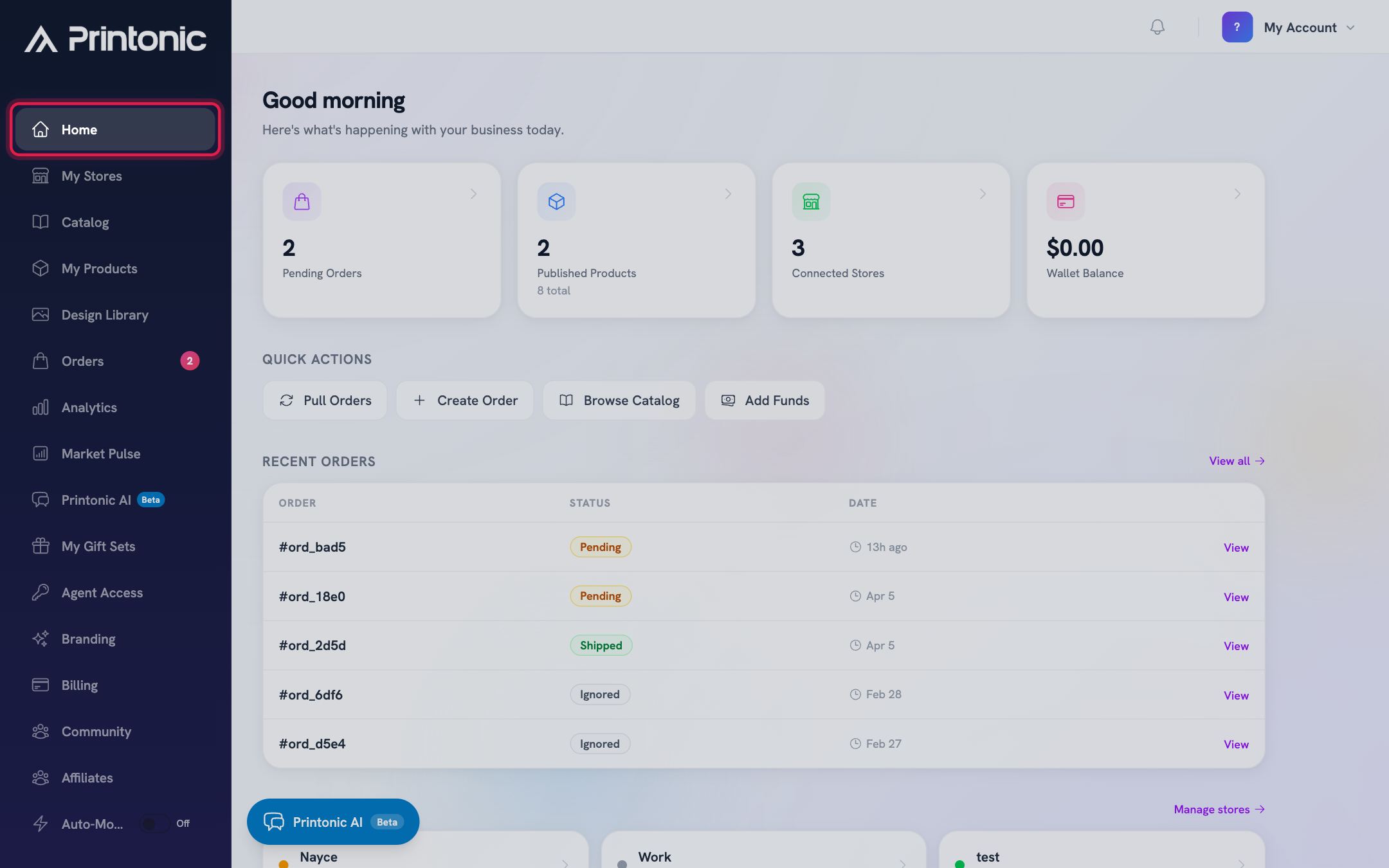
Sign in and you land on the Home page automatically. You can always get back to it by clicking Home at the top of the left sidebar. The page greets you by name and shows the line "Here's what's happening with your business today" above your stats.
- 2
Dashboard > Home
Work through the Getting Started checklist
If you are new, a Getting Started card sits at the top of the page with four steps: Connect a store, Add a product, Publish a listing, and Submit an order. Each step is clickable and takes you straight to the right page. A progress bar shows how many of the four steps you have completed. You can also click Take a tour for a guided walkthrough of the dashboard.
The checklist disappears once all four steps are complete, or if you dismiss it with the X button. Steps light up in order, so the next thing to do is always highlighted.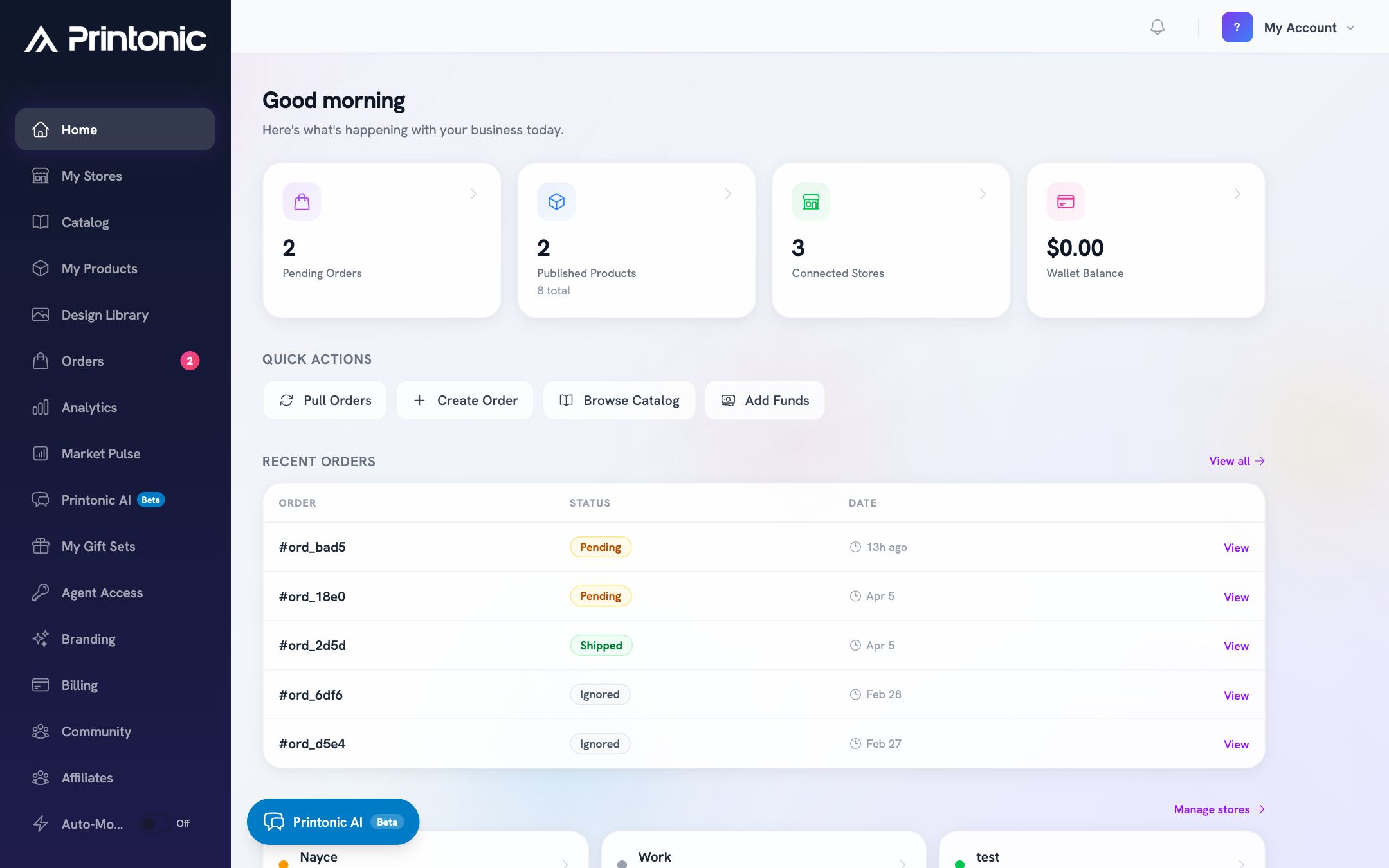
- 3
Dashboard > Home
Check your alerts
When something needs attention, colored alert banners appear near the top of the page. You may see a warning that a store is disconnected ("Reconnect to keep syncing orders"), a red alert that orders were rejected ("Review and resubmit or contact support"), or a warning that wallet credits are expiring soon. Click any alert to jump directly to the page where you can fix it.
No alerts means nothing is wrong. This section only appears when there is something to act on.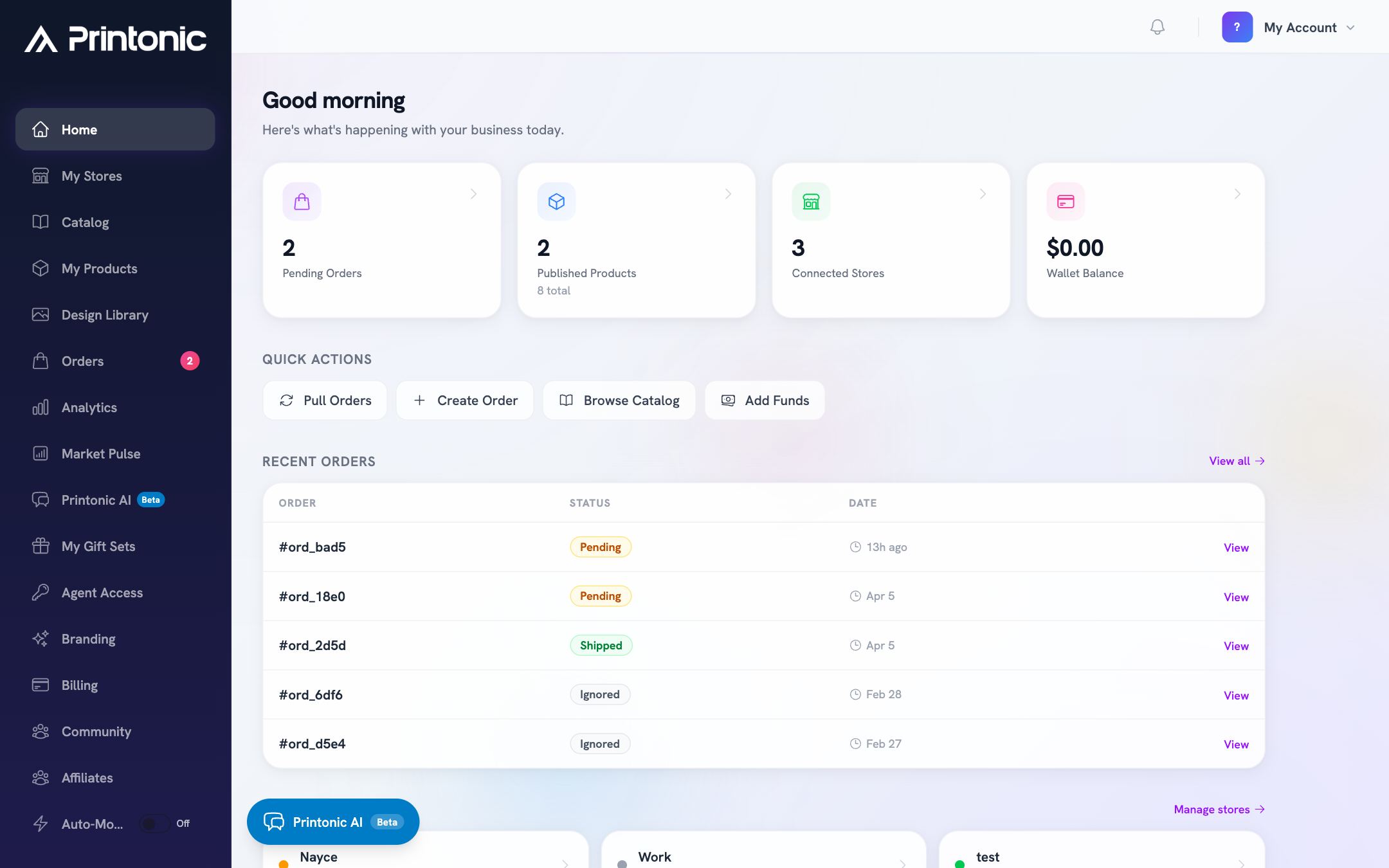
- 4
Dashboard > header inbox icon, or Dashboard > Needs attention
Open your Needs attention inbox
The inbox icon in the top-right corner (next to your account menu) gathers everything that is waiting on you: a store that needs reconnecting, a listing that failed to publish or was removed on the marketplace, mockups ready to review, personalized orders missing an answer, decisions on your issue requests, orders waiting to be sent to production, storefront orders that need matching, orders taking longer than usual, and a low wallet balance. Each row shows what to do next and a How to fix link to the matching guide. Items disappear on their own once the underlying problem is resolved; informational rows have an x to dismiss them. The Activity tab holds the running notification feed.
Once a day, while something needs your action, the same list arrives by email. Turn that off with the Daily email checkbox at the bottom of the inbox (or from the unsubscribe link in the email); everything still shows in the dashboard.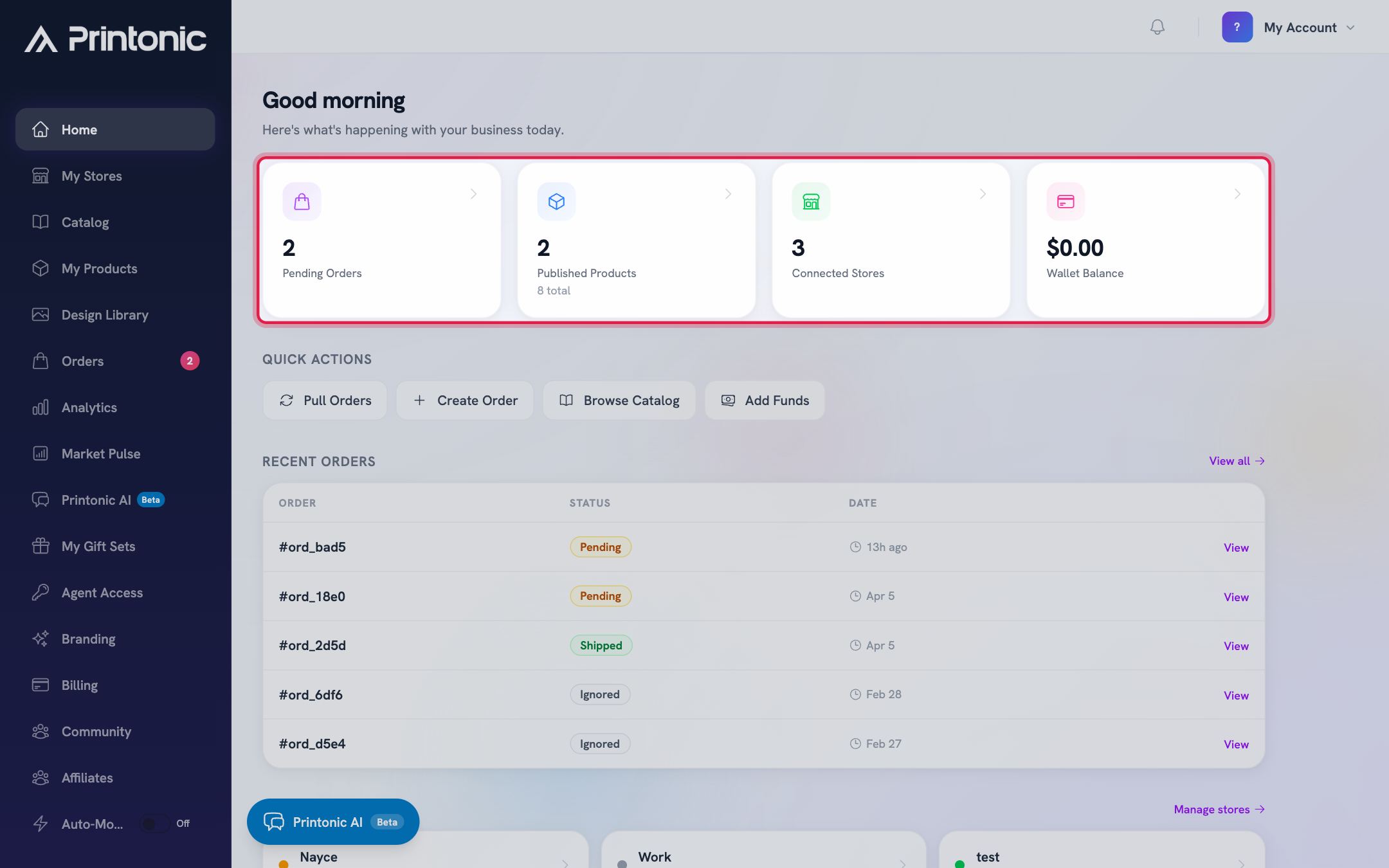
- 5
Dashboard > Home
Read the four stat cards
Below the alerts are four cards: Pending Orders (orders waiting on you, with a count of orders already in fulfillment), Published Products (with your total product count), Connected Stores (with a note if any are disconnected), and Wallet Balance (the funds available to pay for fulfillment). Every card is clickable: Pending Orders opens Orders, Published Products opens My Products, Connected Stores opens My Stores, and Wallet Balance opens Billing.
- 6
Dashboard > Home
Use the Quick Actions
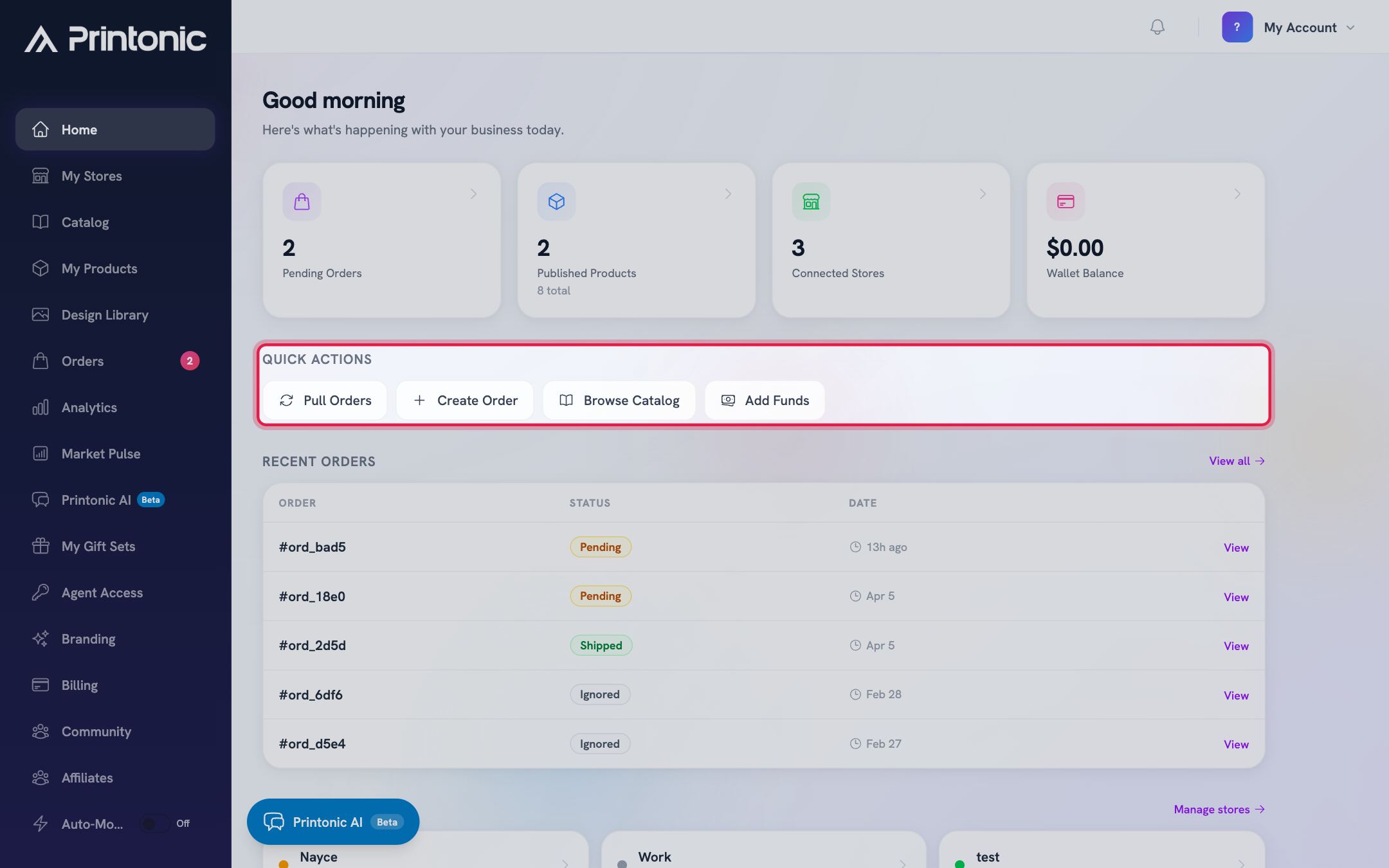
The Quick Actions row gives you one-click shortcuts for the most common tasks: Pull Orders (opens your Orders page to sync the latest orders from your stores), Create Order (place a manual order yourself), Browse Catalog (find products to sell), and Add Funds (top up your wallet).
- 7
Dashboard > Home
Review your Recent Orders
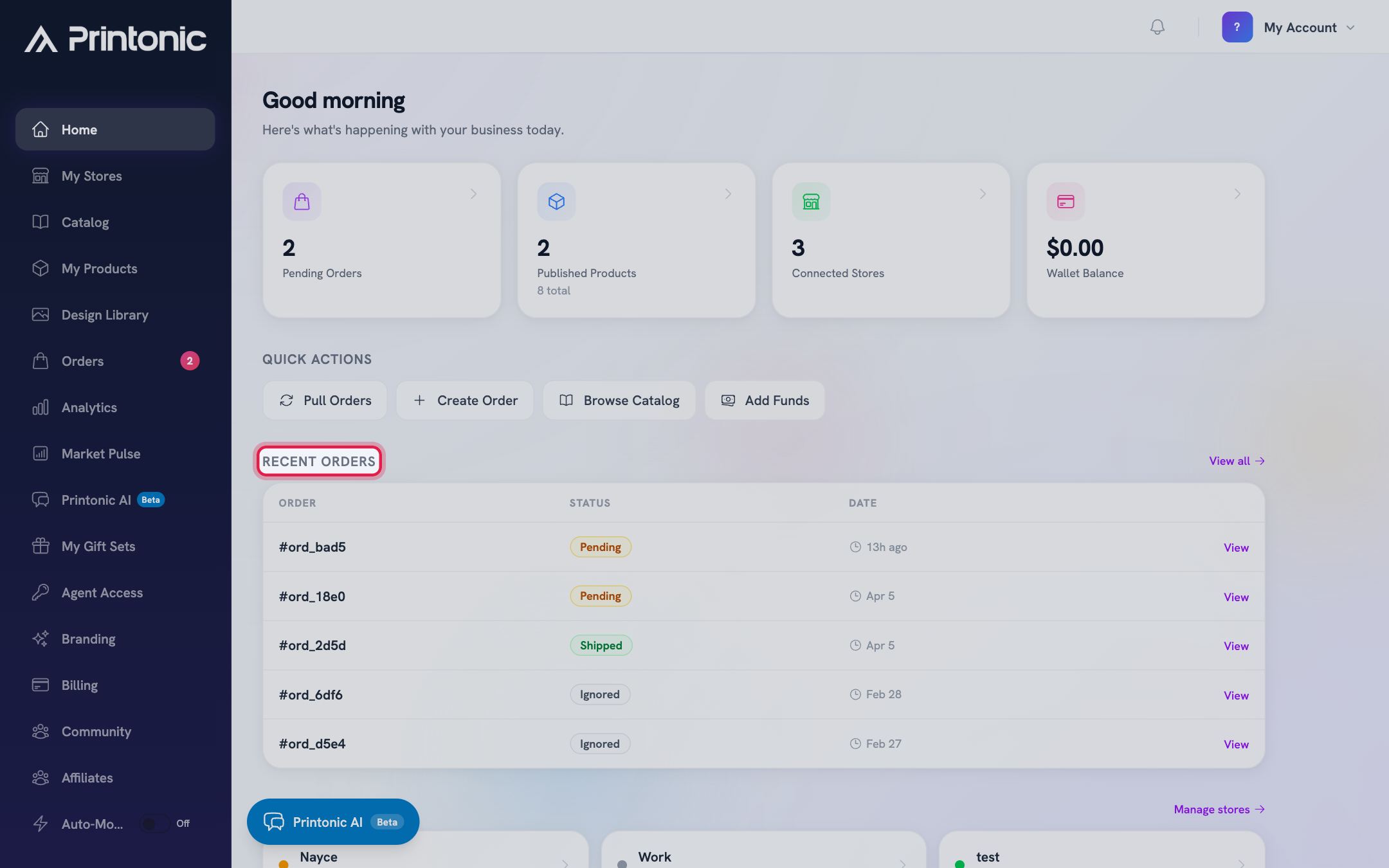
The Recent Orders table shows your latest orders with their order number, status, and how long ago they were placed. Statuses include Pending, Submitted, Shipped, Rejected, Ignored, and Canceled. Click View on any row to open that order, or View all to open the full Orders page.
If you have not received any orders yet, this section shows "No orders yet". Orders from your connected stores appear here automatically once they come in.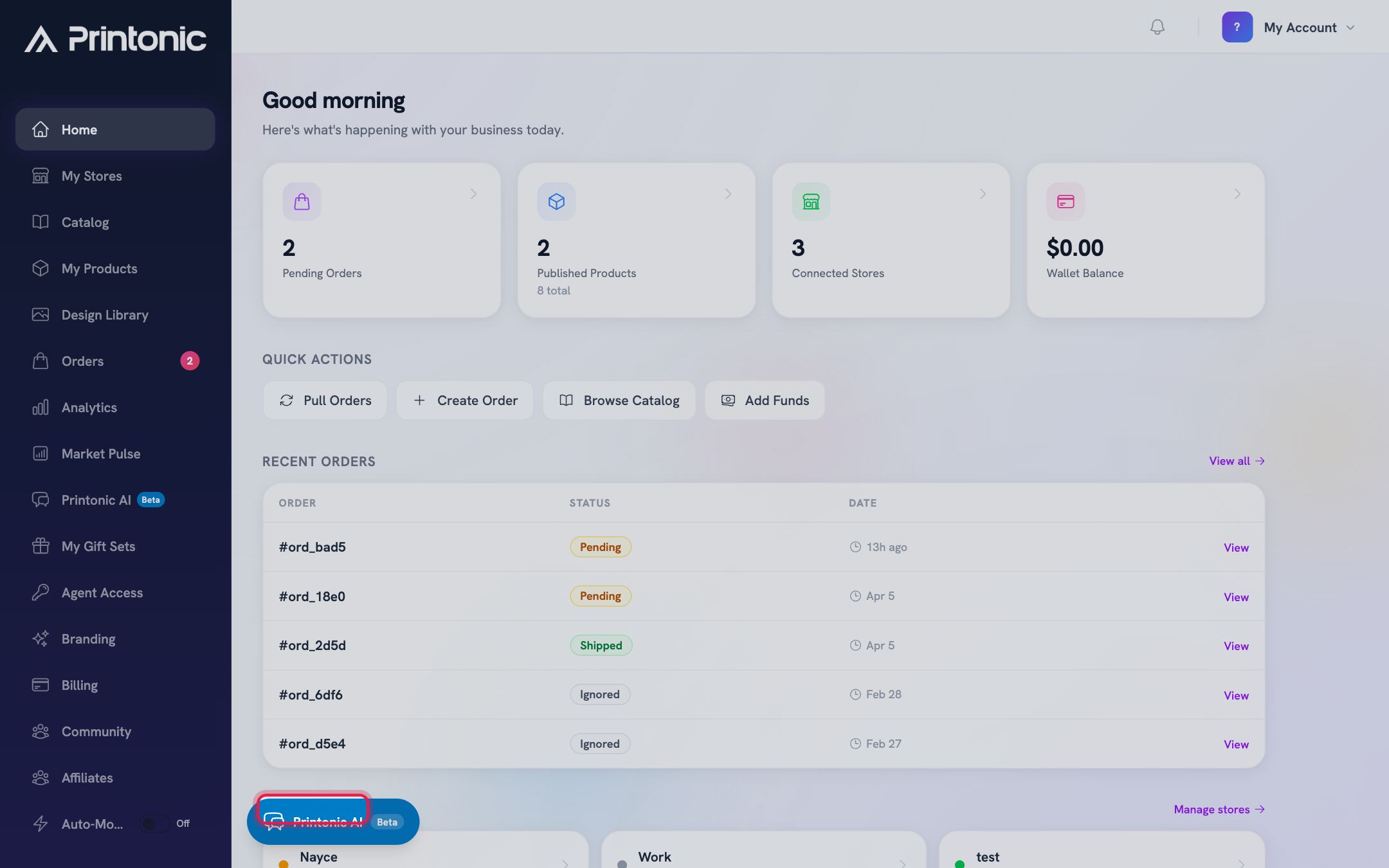
- 8
Dashboard > Home
Glance at Store Health
If you have connected stores, a Store Health section appears at the bottom. Each store gets a colored status dot: Healthy (green), Stale (amber, no sync in over 24 hours), Sync Issue (amber, with the error shown), Disconnected (red), or No sync data (gray, for brand new connections). Click any store card, or Manage stores, to open My Stores.
A Stale status usually clears on the next sync. Disconnected means orders are not flowing in, so reconnect as soon as you can.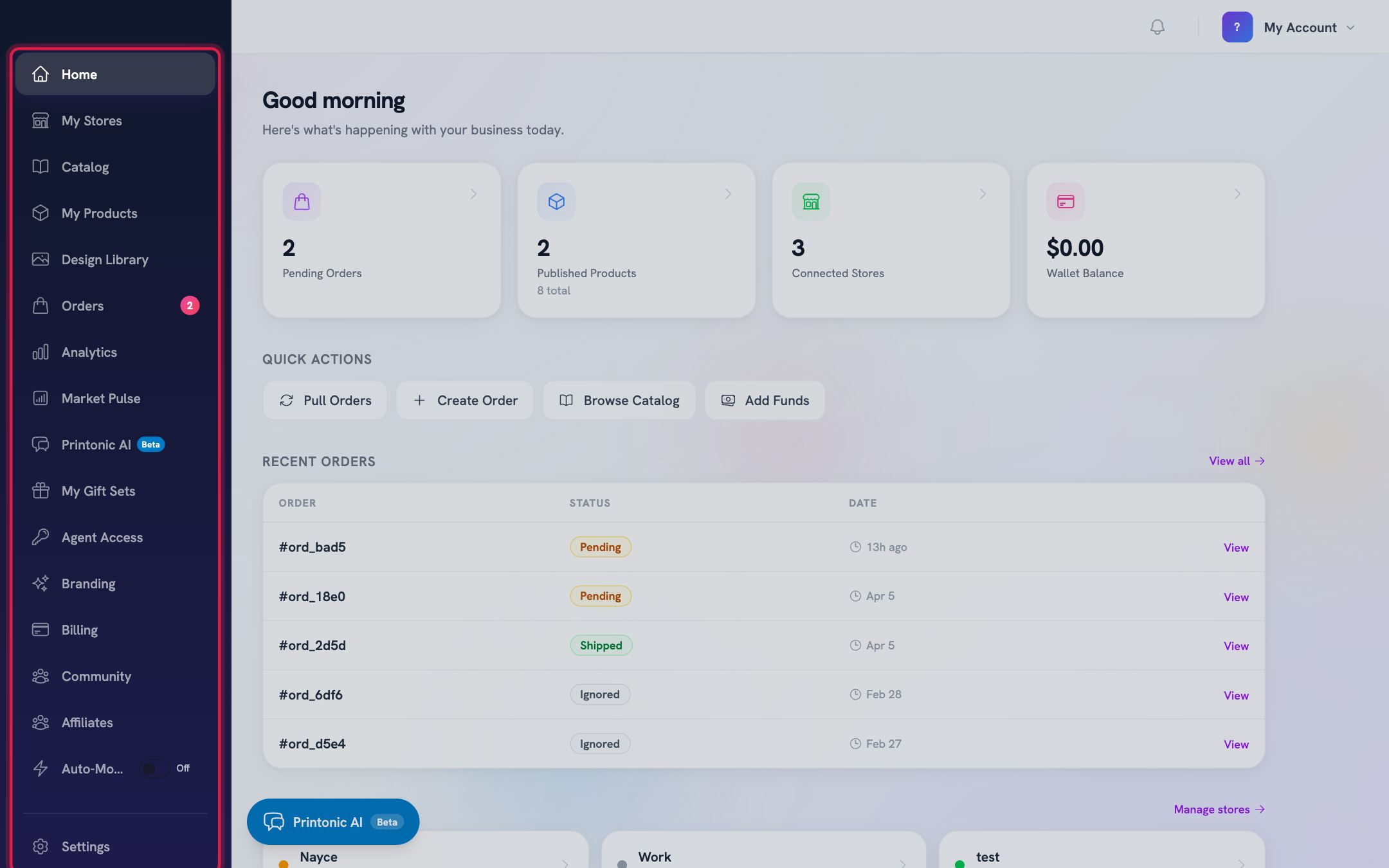
- 9
Dashboard sidebar
Explore the rest of the sidebar
The left sidebar is how you move around: Home, My Stores, Catalog, My Products, Design Library, Orders, Analytics, Market Pulse, Printonic AI, My Gift Sets, Agent Access, Branding, Billing, Community, Auto-Mode, and Settings at the bottom. The Orders item shows a badge with the number of orders that need attention.
Items with a small lock icon (Printonic AI and My Gift Sets) are part of the Pro plan. Community opens the Printonic community site in a new tab.
Good to know
- The Orders badge in the sidebar updates in real time, so you can see new orders arrive without refreshing the page.
- While the Getting Started checklist is visible, you can rerun the guided walkthrough anytime with the Replay tour button.
- The bell icon in the top right is your notification center. Check it for updates you may have missed between visits.
- Every number on the Home page is a link. If a stat looks off, click the card to go straight to the details.
Common questions
What counts as a Pending Order?
A pending order has come in from your store but has not been submitted for fulfillment yet. Once you submit it, it moves to Submitted and shows up in the "in fulfillment" count on the same card.
Why do I not see the Getting Started checklist?
The checklist only shows while you are getting set up. Once you complete all four steps, or dismiss it with the X button, it stays hidden and the Home page goes straight to your stats.
What is the Wallet Balance used for?
Your wallet pays for order fulfillment. If it runs low, use the Add Funds quick action or go to Billing to top it up. Keep an eye on alerts about expiring credits so you use them before they lapse.
A store shows Stale or Sync Issue. Should I worry?
Stale just means the store has not synced in over 24 hours and usually resolves on its own. Sync Issue shows the specific error on the card. If either sticks around, open My Stores and check the connection, or reconnect the store.