Getting Started
Connect your store
Link your Etsy, Shopify, TikTok Shop, or WooCommerce store to Printonic so your orders sync automatically. Covers connecting, renaming, testing, disconnecting, and reconnecting.
Printonic pulls in orders from every store you connect, so you can fulfill everything from one dashboard. Connecting takes about a minute per store, and you can link as many stores as you like.
- 1
Dashboard > My Stores
Open My Stores and click New Store
Go to My Stores in your dashboard. If this is your first store, click the Connect Your First Store button in the middle of the page. Otherwise, click the New Store button below your store list. Either way, the Connect a Store window opens.
If you opened Printonic inside the Shopify admin, adding and reconnecting stores is disabled there. Open Printonic in a full browser tab instead.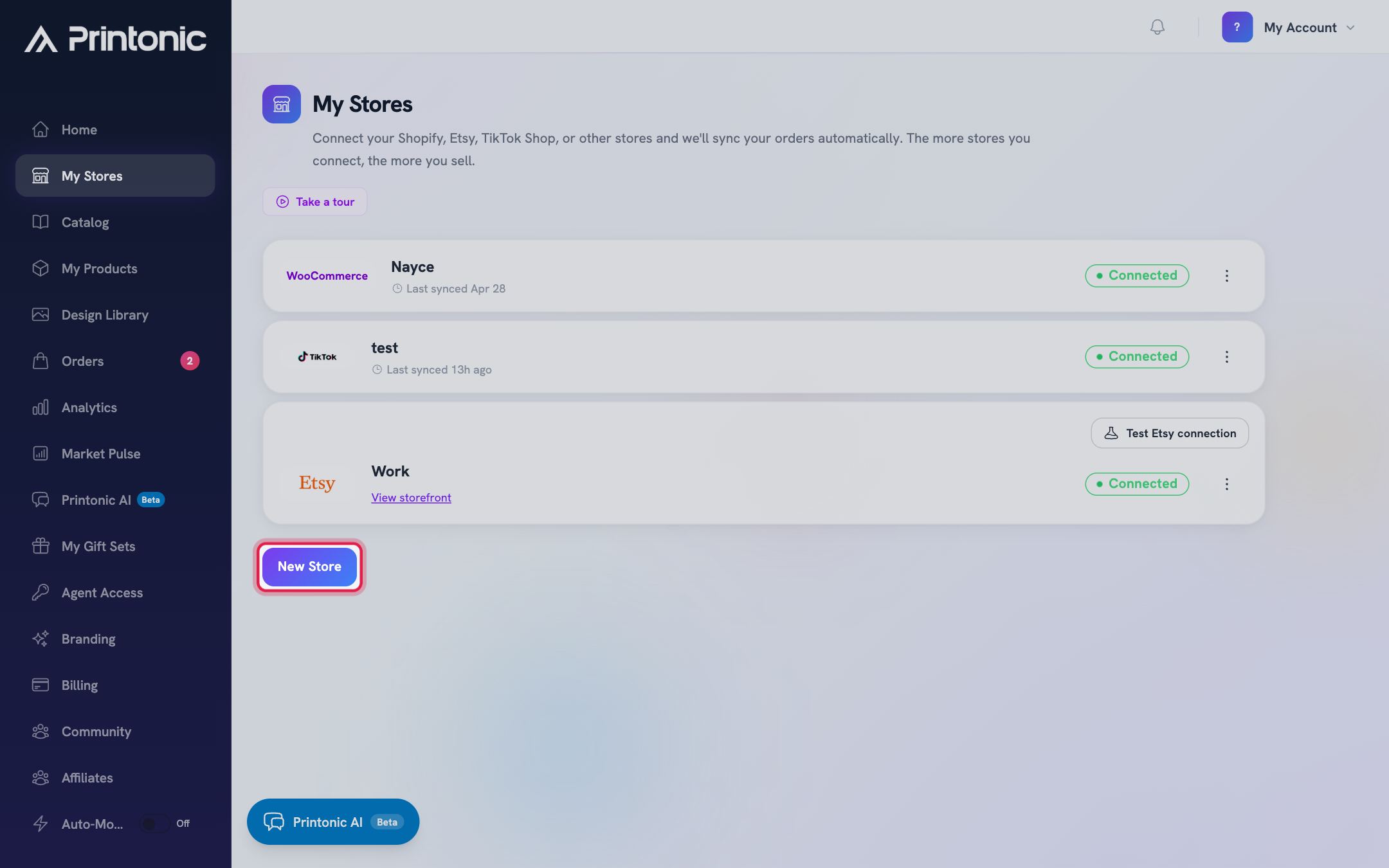
- 2
Connect a Store window
Pick your store type
Under Store Type, click the tile for your platform: Etsy, Shopify, TikTok, or WooCommerce. The selected tile gets a highlighted border.
TikTok Shop is supported for US shops only. If the TikTok tile shows a Soon badge, it is not available on your account yet.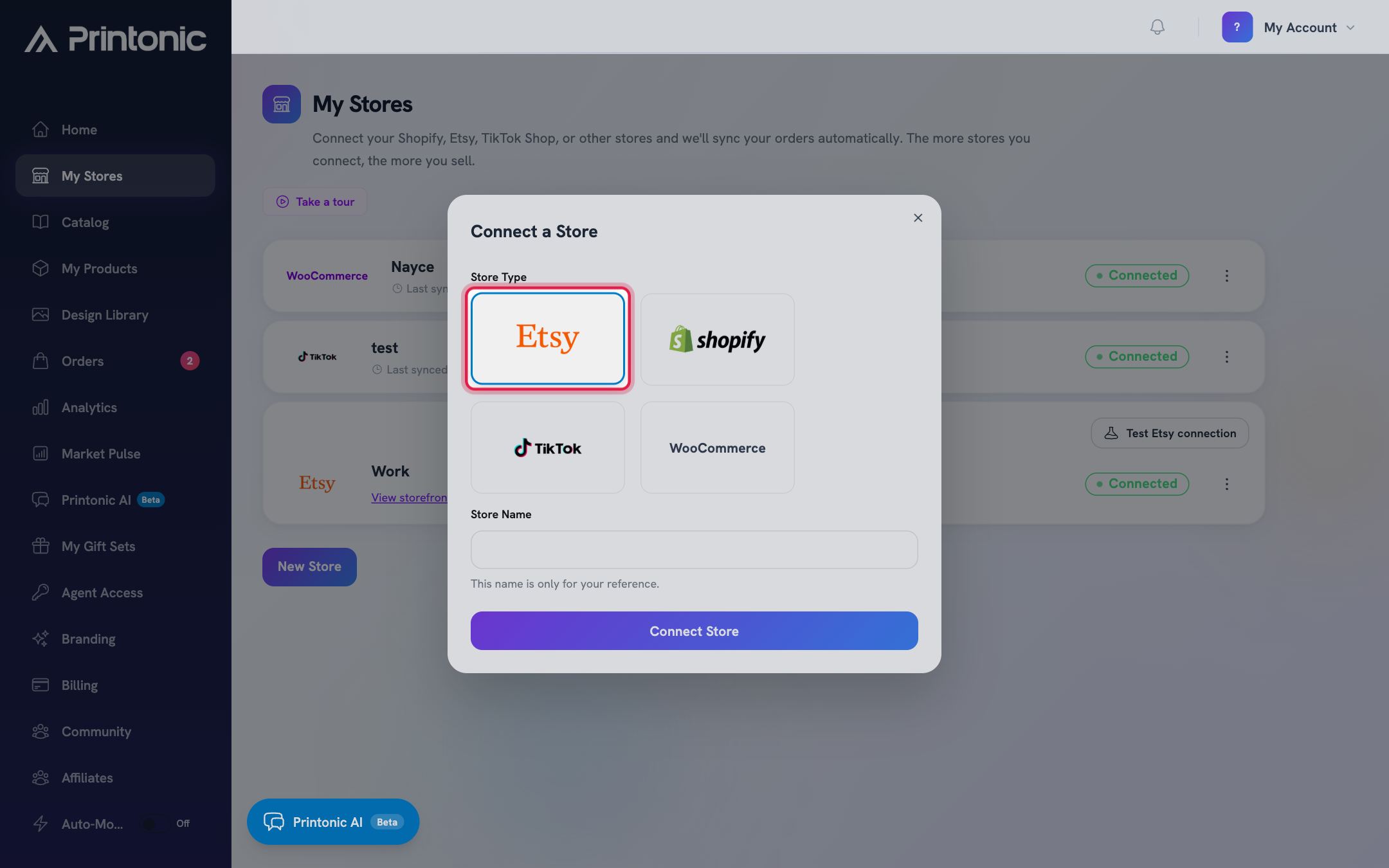
- 3
Connect a Store window
Fill in the details for your platform
Etsy and TikTok need nothing extra here. Shopify asks for your Shopify Domain: type just the part before .myshopify.com (for example, type mystore if your address is mystore.myshopify.com). WooCommerce asks for your Store URL (including https://), plus a Consumer Key (starts with ck_) and Consumer Secret (starts with cs_).
To get WooCommerce keys, go to WooCommerce > Settings > Advanced > REST API in your WordPress admin and create a key with Read/Write permissions.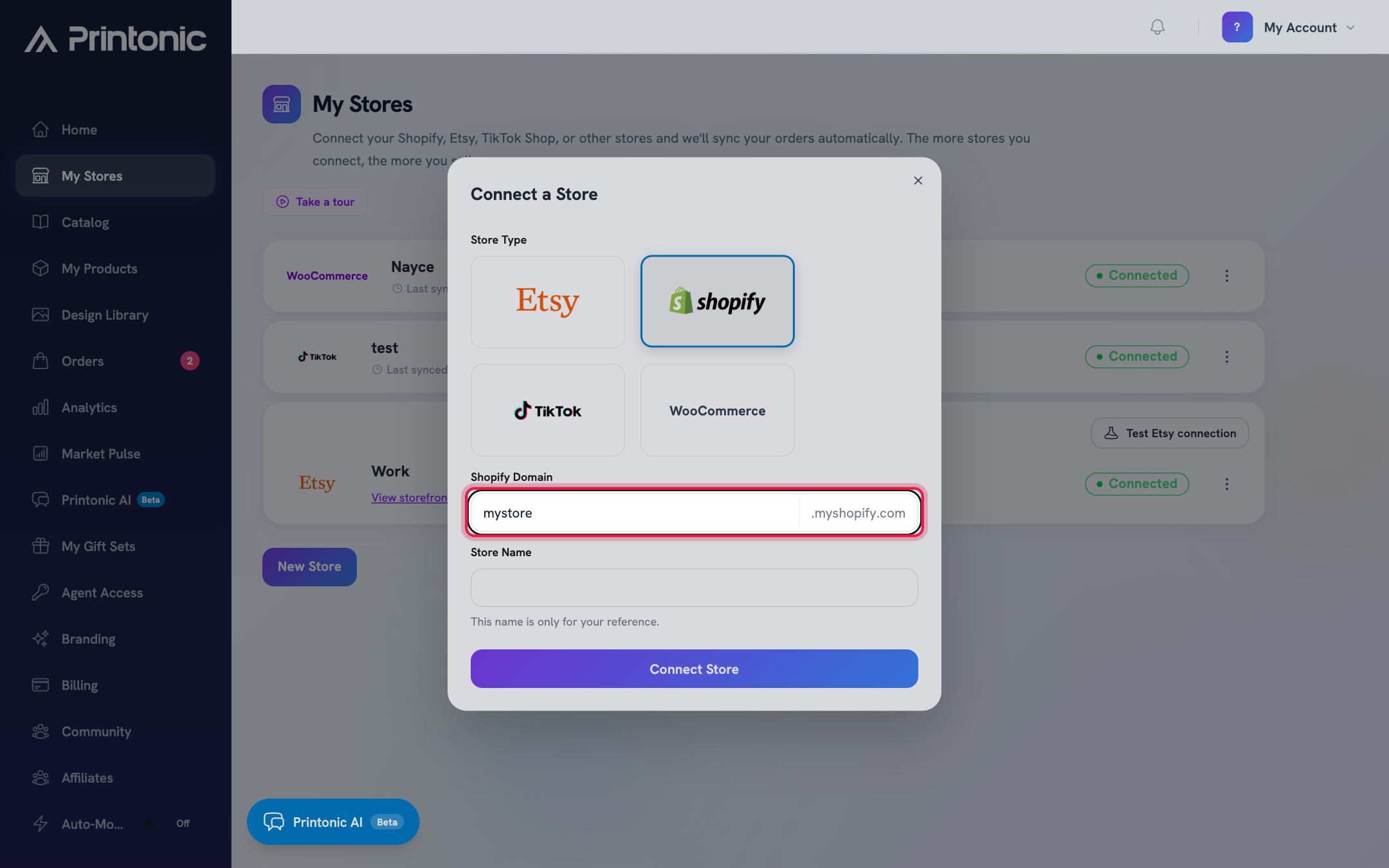
- 4
Connect a Store window
Name your store and click Connect Store
Enter a Store Name (this name is only for your reference, it is not shown to buyers) and click Connect Store. Etsy, Shopify, and TikTok send you to that platform to sign in and approve access. WooCommerce connects right away using the keys you entered, and the page reloads with your new store.
If you see the message 'This store is already connected by another account', that shop is linked to a different Printonic login. 'You have already linked this store' means it is already on your account.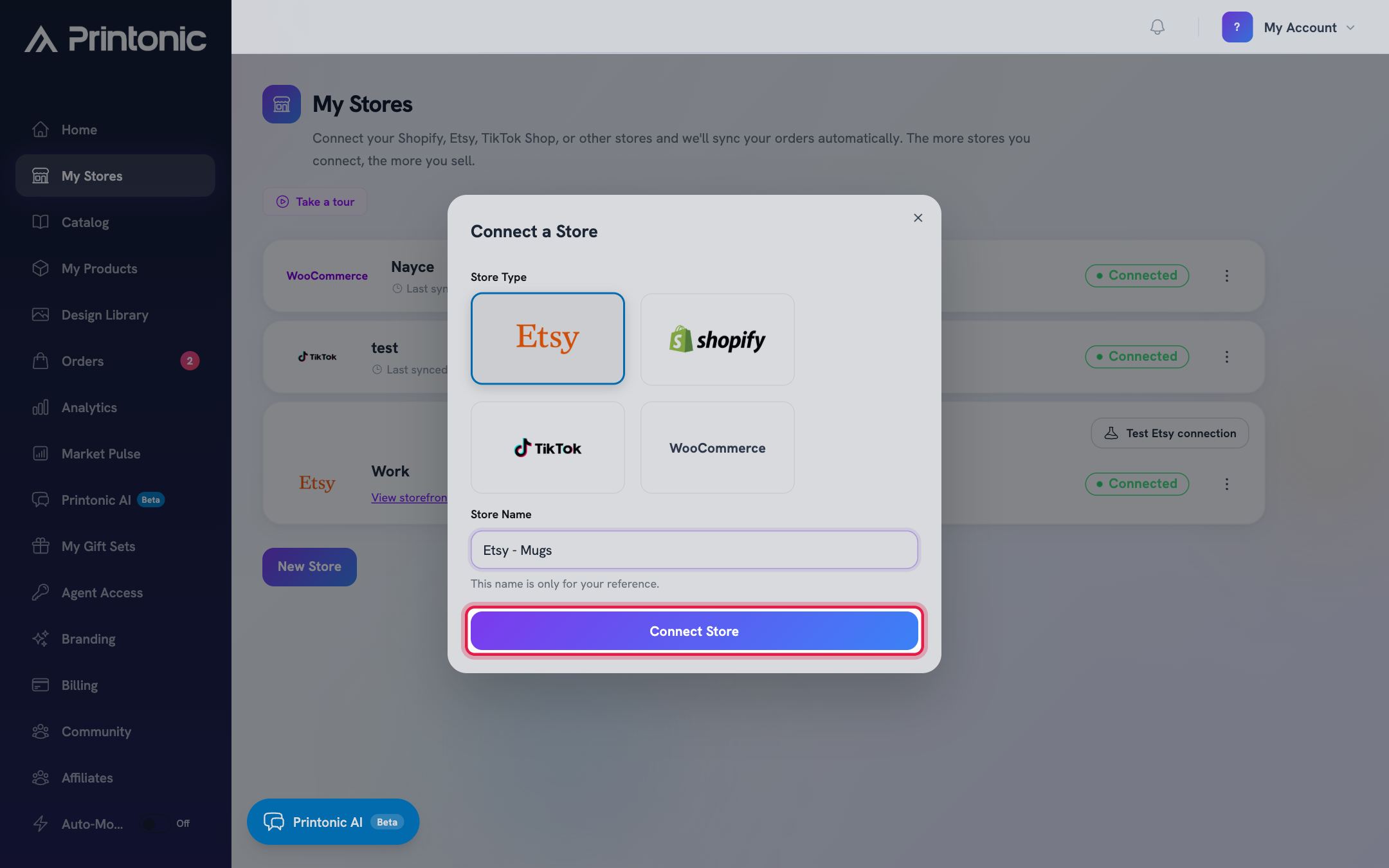
- 5
Etsy, Shopify, or TikTok approval page
Approve access on the platform
Sign in to your store platform if asked, review the permissions, and approve. You are sent back to My Stores, where your store appears as a card with a green Connected badge.
For TikTok, if your shop's region is not the US you will see 'TikTok Shop fulfillment is currently supported for US shops only' and the connection will not complete. - 6
Dashboard > My Stores
Check your store's health
Each store card shows its status. A green Connected badge means everything is working, and a 'Last synced' time appears under the store name once orders start syncing. If a sync problem occurs, a short error note shows next to the last synced time. For Etsy stores, you can also click Test Etsy connection on the card; it confirms Printonic can reach Etsy and shows Connected or Failed to connect.
If a card shows a Reconnect or Reconnect required button instead of the Connected badge, click it to sign in and approve access again.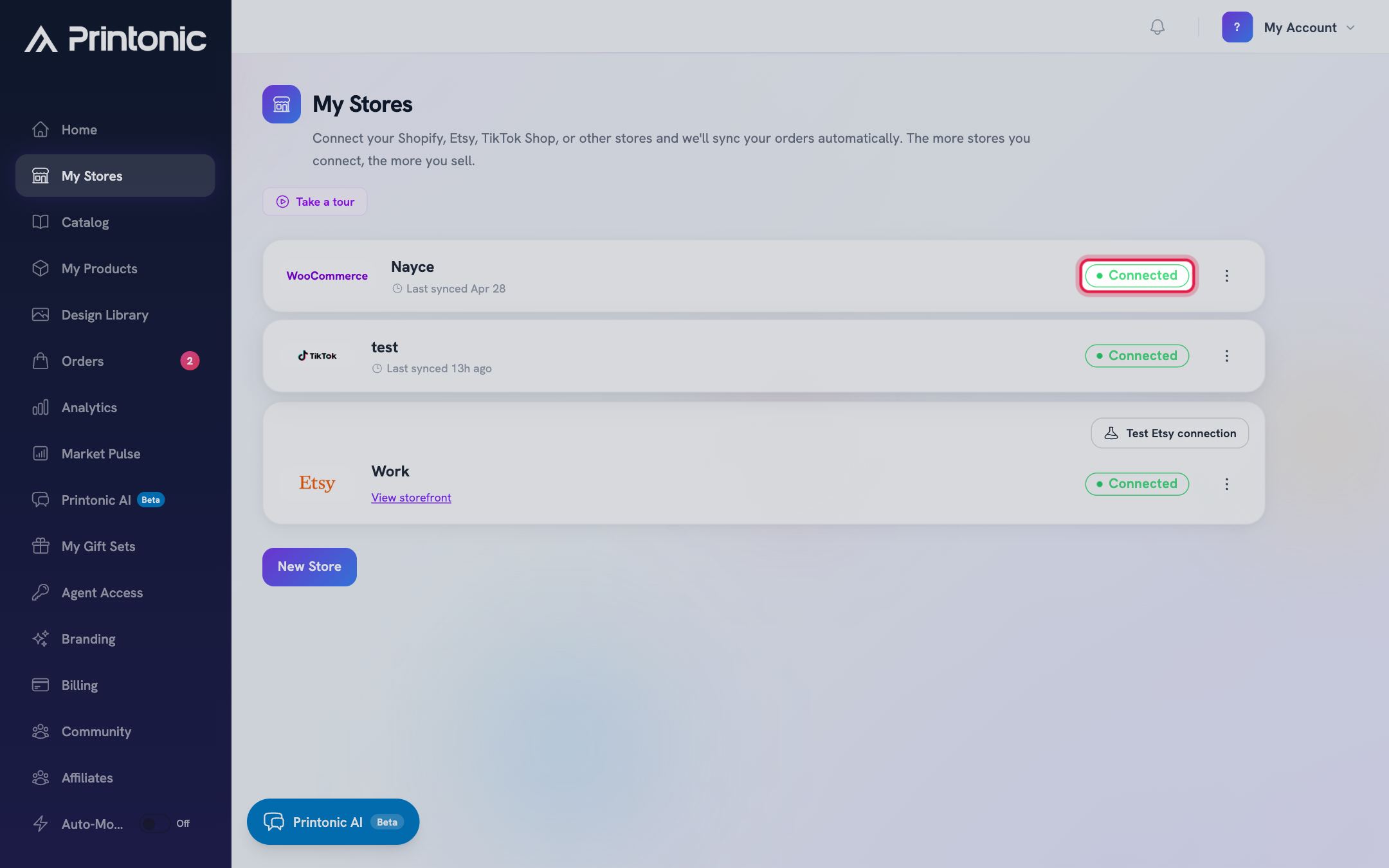
- 7
My Stores > Actions menu (three dots)
Rename a store (optional)
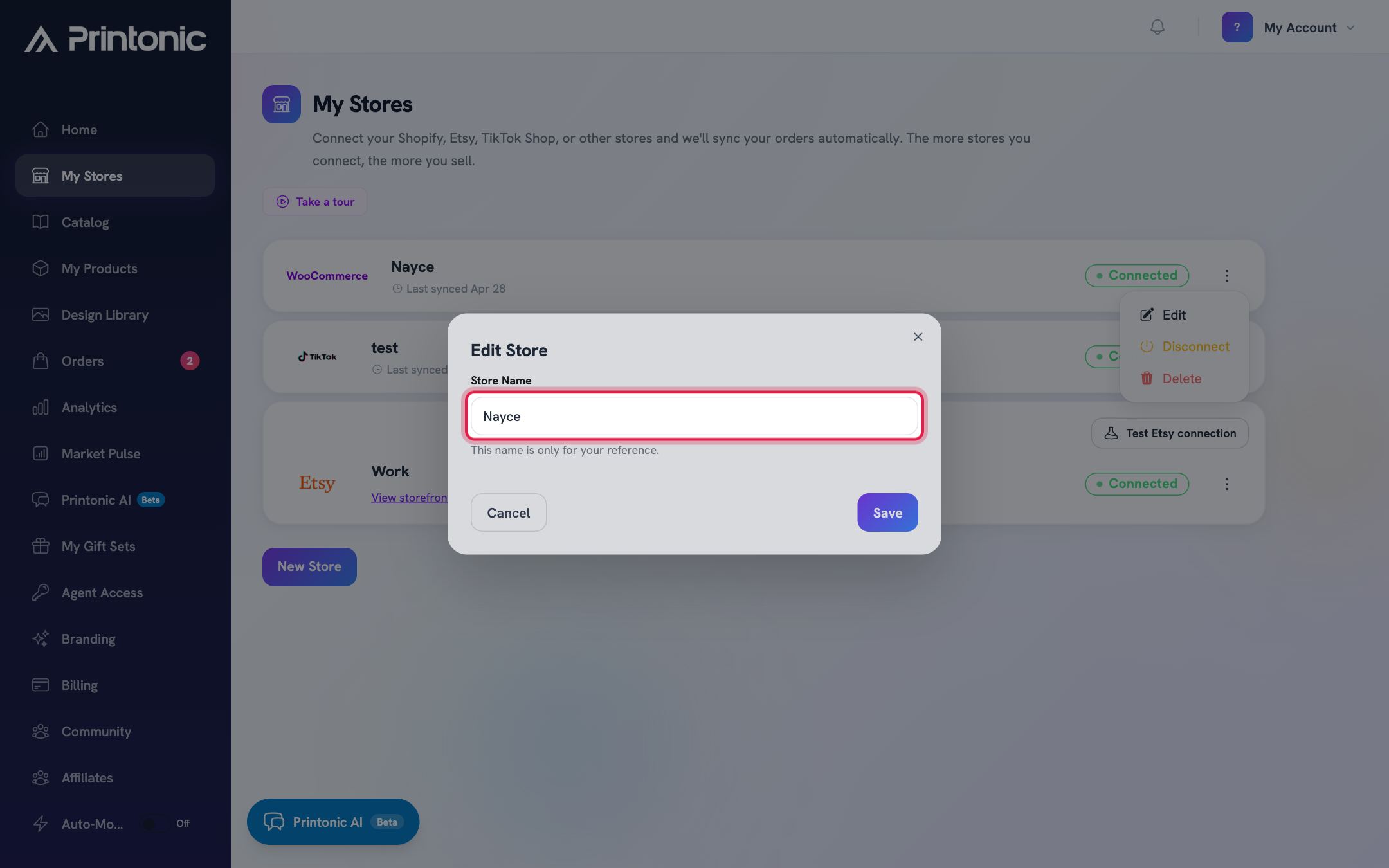
Click the three dots on the store card, choose Edit, type a new Store Name in the Edit Store window, and click Save. The name is only for your reference.
- 8
My Stores > Actions menu (three dots)
Disconnect or delete a store
Disconnect pauses the link: Printonic removes its access and stops syncing, and a Reconnect button appears so you can link it again later. Delete is permanent: a confirmation window warns that all published products and orders associated with the store will be deleted and cannot be restored. Click Delete only if you are sure.
If you might come back to the store later, choose Disconnect instead of Delete. Also note that a disconnected WooCommerce store cannot be reconnected with old keys; delete it and add it again with fresh API keys.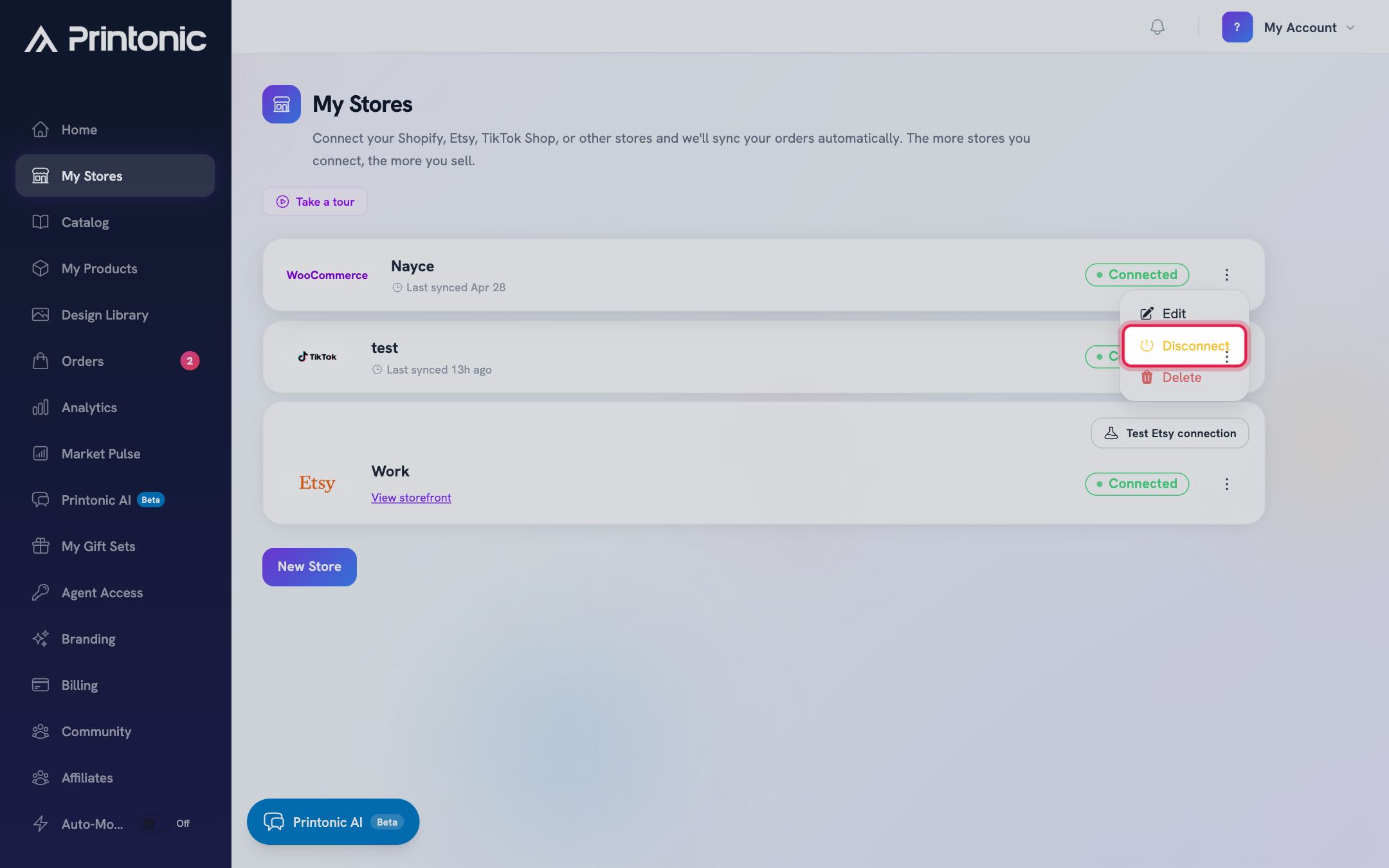
Good to know
- Connect all of your stores. Orders from every connected store flow into the same Orders view, so nothing gets missed.
- The Store Name is just a nickname inside Printonic. Use names like 'Etsy - Mugs' or 'Shopify - Main' to tell similar stores apart.
- If Etsy orders stop syncing, run Test Etsy connection first. It tells you in seconds whether the link itself is the problem.
- See a 'Pending redaction' badge with a day countdown? That store is scheduled for data deletion (this happens after uninstalling the app on the platform side). Open the Actions menu and click Cancel Redaction to keep it.
Common questions
What is the difference between Disconnect and Delete?
Disconnect revokes Printonic's access but keeps your store, products, and order history in place, and you can reconnect any time. Delete permanently removes the store along with its published products and orders, and it cannot be undone.
Why does my store say Reconnect required?
The store's authorization expired (this is normal on some platforms, and Etsy connections in particular expire from time to time). Click Reconnect required, sign in, and approve access again. Your products and settings are untouched.
Can I connect a TikTok Shop from outside the US?
Not yet. TikTok Shop fulfillment is currently supported for US shops only. If your shop's region is not the US, the connection is declined with a message explaining why.
Does renaming my store change anything in my shop?
No. The Store Name in Printonic is only for your reference inside the dashboard. Your storefront name, listings, and buyers are not affected.
Related guides
Your dashboard at a glance
A quick tour of the dashboard Home page: stat cards, alerts, quick actions, recent orders, store health, and the Getting Started checklist for new sellers.
Add a product
Turn a catalog item into your own product: pick variations, upload your art, set prices, and publish it to your store with the step-by-step setup wizard.
Manage your orders
Every order from every connected store lands in one Orders tab. Learn what each status means, how to sync, and how to send, ignore, restore, or resubmit orders in bulk.