Getting Started
Give an AI assistant access with Agent Access
Create a scoped API key so Claude, Cursor, ChatGPT, or another AI assistant can search the catalog, see your stores and products, draft listings, and propose publishes and orders that wait for your approval, all limited to your own account.
Agent Access lets you hand an AI assistant a key to your Printonic account so it can do real work for you in natural language: search the Printonic catalog, look at your connected stores and products, create listing drafts, and, on Pro, propose publishes and orders. Each key is limited to your account and to the exact permissions you choose.
Every Printonic account can create a free key. Reads are unlimited. Drafts and mockup jobs have monthly quotas on the free plan. Publishing and order scopes are included with Printonic Pro. Whatever the key can do, you stay in control: every call shows up in the Activity tab, and publishing, orders and archiving wait in the Review tab until you approve them.
- 1
Dashboard > Agent Access
Open Agent Access
In your dashboard sidebar, click Agent Access (look for the key icon). The page has four tabs: Keys (create and manage keys), Activity (everything an agent did), Review (actions waiting for your approval, with a count badge), and Settings (what needs your approval).
Keys created here only operate on your own seller account. Drafts stay unpublished until you review them, and consequential actions are held for approval by default.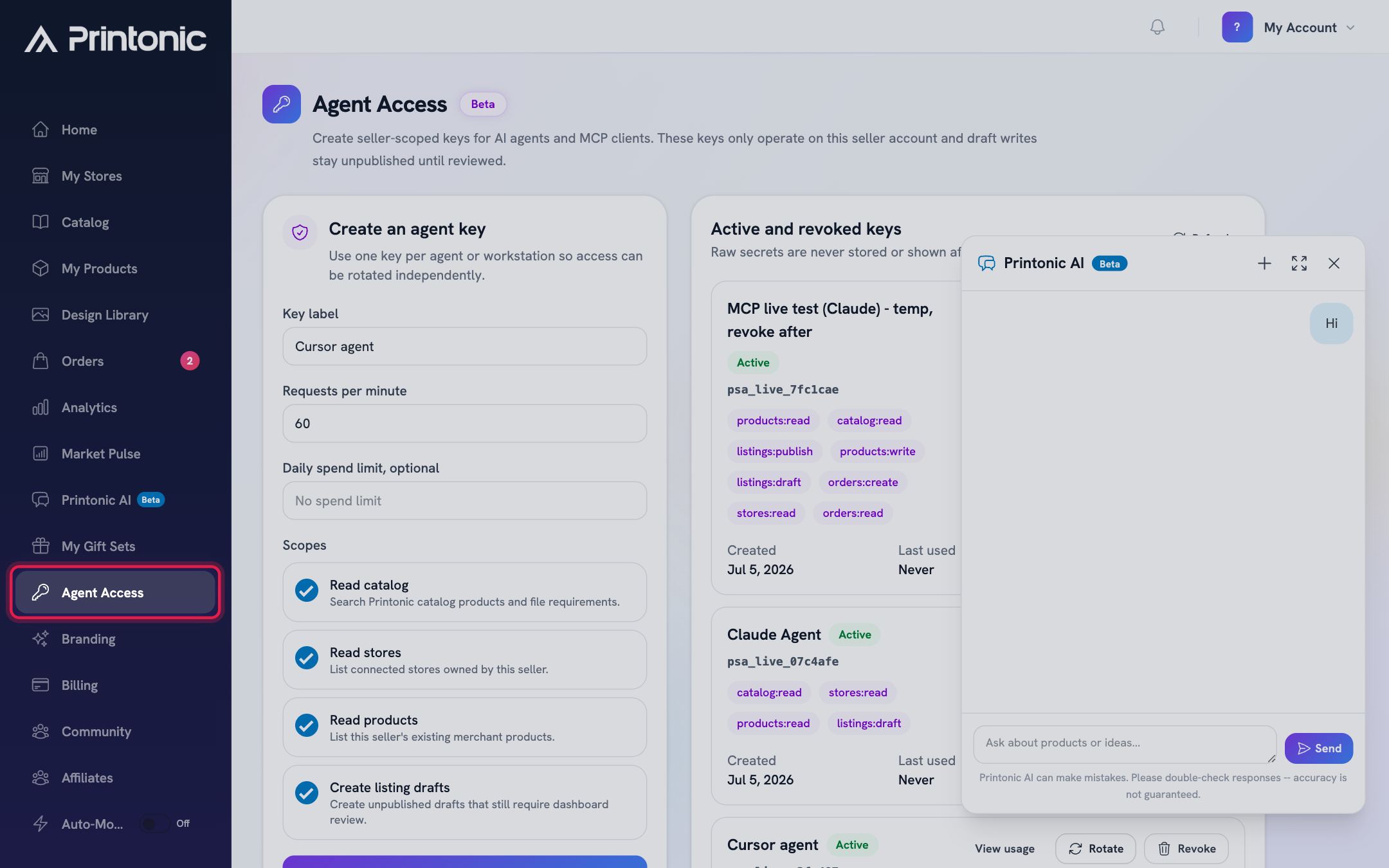
- 2
Dashboard > Agent Access > Keys > Create an agent key
Name your key
In the Key label field, enter a name that tells you which assistant or computer will use this key, for example Cursor agent or Claude on my laptop. The label also shows up next to each entry in the Activity tab when the assistant does not identify itself.
Use one key per agent or workstation. That way, if one machine is retired or compromised, you can shut off just that key without disturbing the others.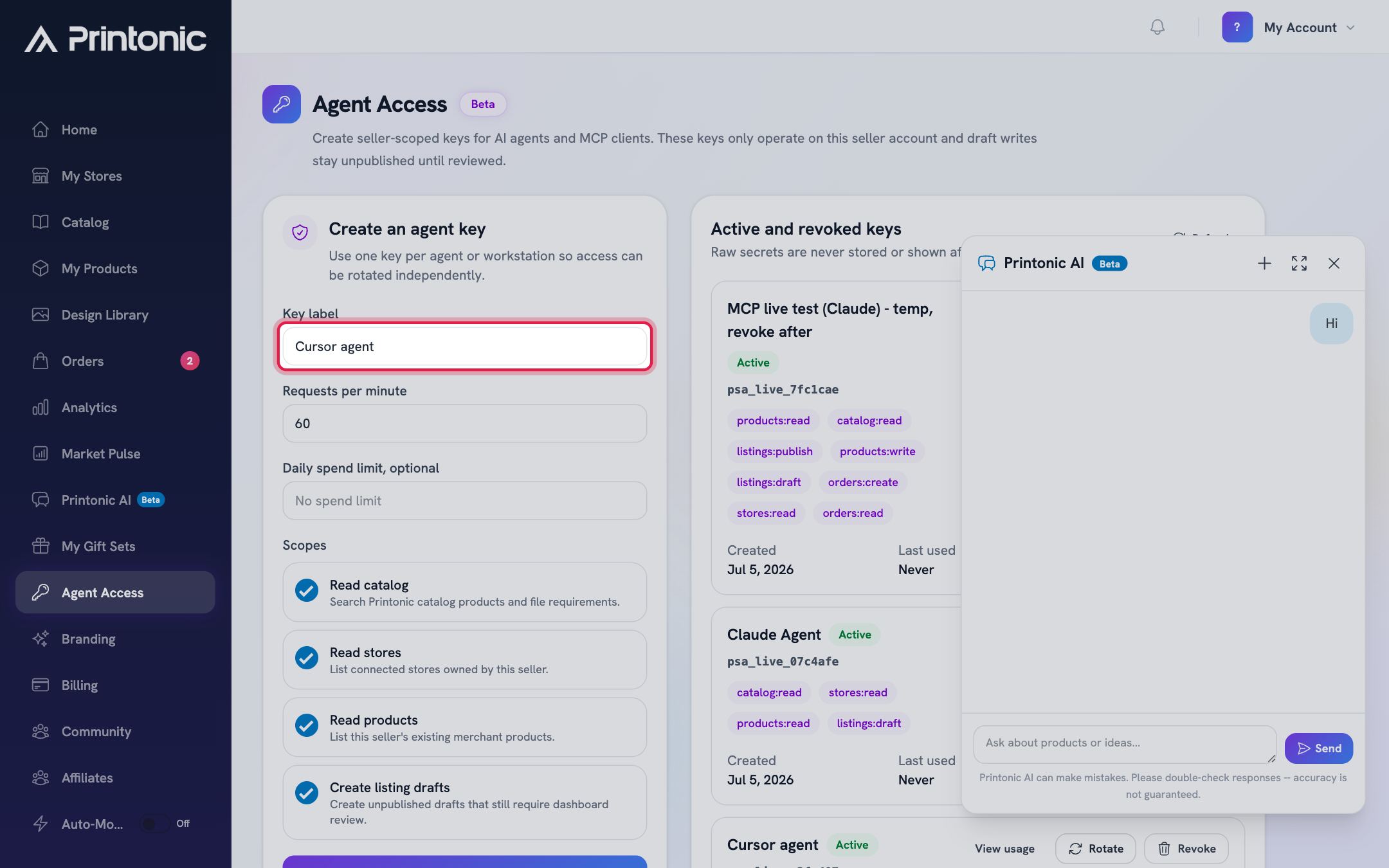
- 3
Dashboard > Agent Access > Keys > Create an agent key
Set the spend limit
Daily spend limit, optional lets you set a dollar cap per day for the key; leave it blank for no spend limit. A spend cap is required if you grant Create pending orders (Pro). The Requests per minute box next to it is read-only: Printonic sets the per-minute limit for every key (30 on Free, 120 on Pro), so there is nothing to choose.
The per-minute limit is a safety net if an assistant gets stuck in a loop. When a key hits it, the call returns a 429 with a Retry-After header and the assistant should back off.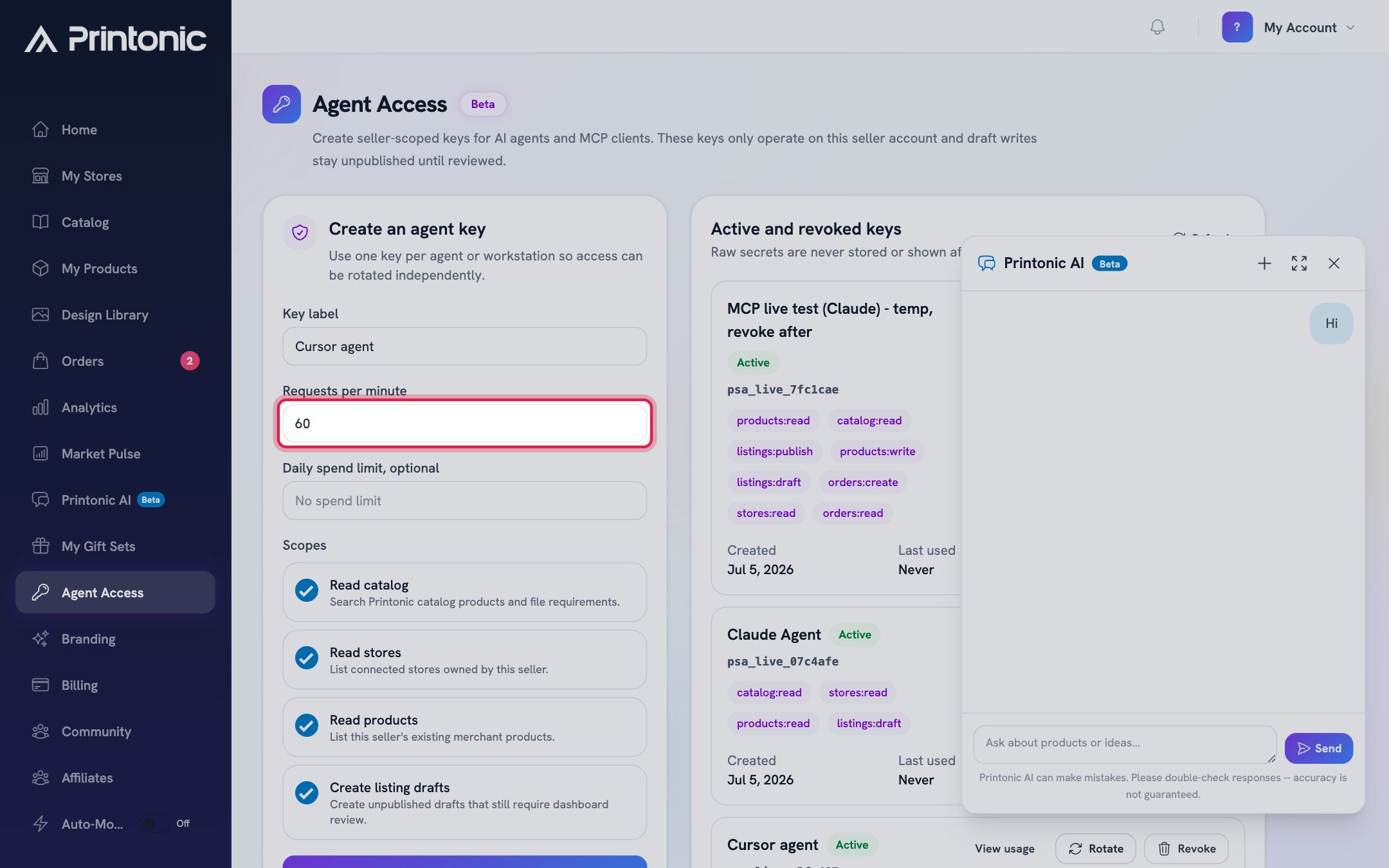
- 4
Dashboard > Agent Access > Keys > Create an agent key
Choose what the key is allowed to do
Under Scopes, check the permissions the key should have. Read catalog lets it search Printonic catalog products and file requirements. Read stores lets it list your connected stores. Read products lets it list your existing products. Create listing drafts lets it create unpublished drafts that still require dashboard review. All four are checked by default; uncheck anything you do not need. Pro accounts can also grant Update products, Publish listings, Read orders and Create pending orders.
At least one scope must stay checked, or the Create agent key button remains disabled. Granting a scope does not mean the action runs unattended: publishing, orders and archiving still go through the Review tab unless you change that in Settings.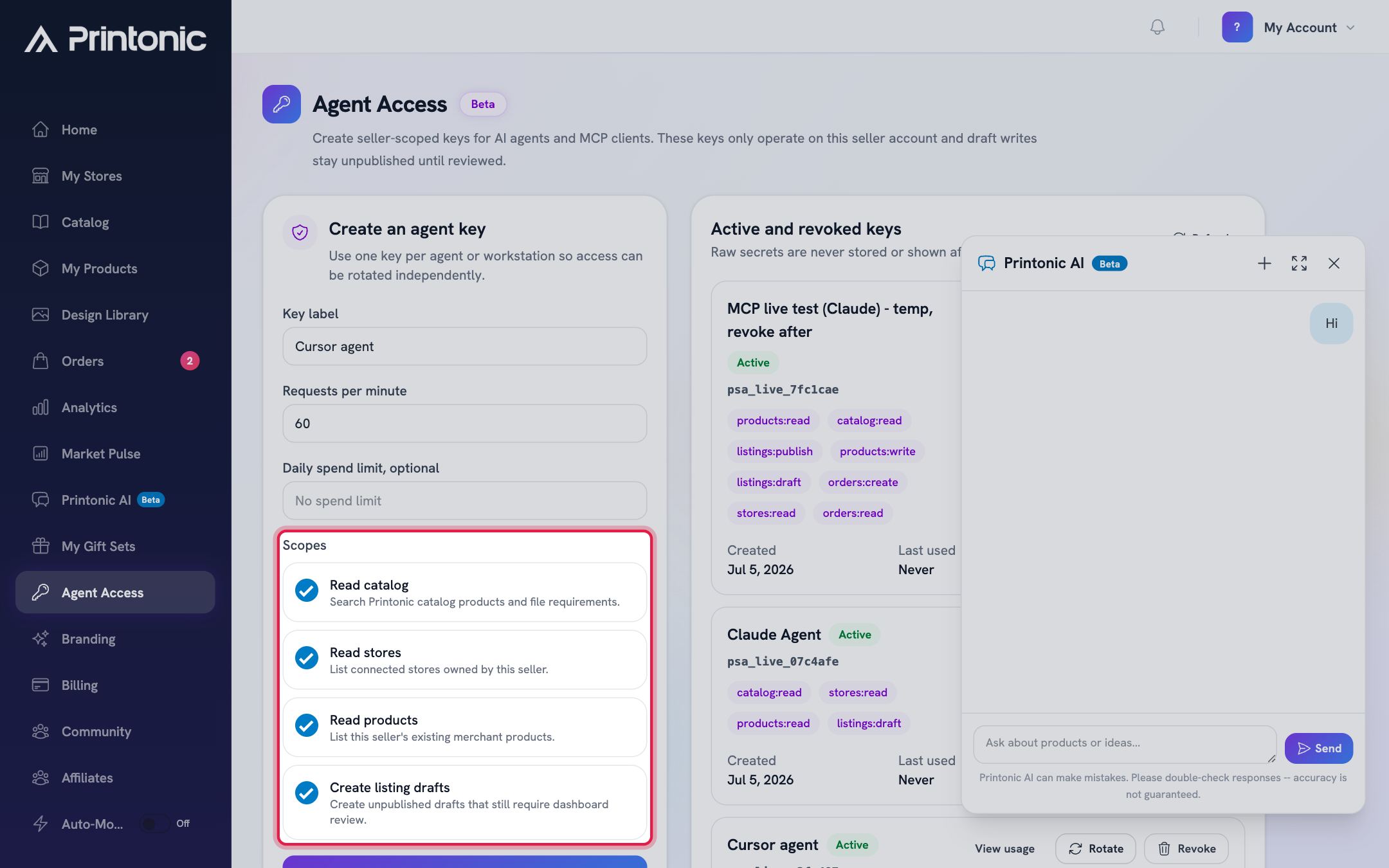
- 5
Dashboard > Agent Access > Keys > Create an agent key
Create the key and copy it immediately
Click Create agent key. A highlighted box appears with your new key and the message Copy this key now. It will not be shown again. Click Copy, save the key somewhere safe (or paste it straight into your assistant's configuration), then click Dismiss.
This is the only time the full key is visible. Printonic never stores or shows the raw secret again, so if you lose it you will need to rotate the key to get a new one.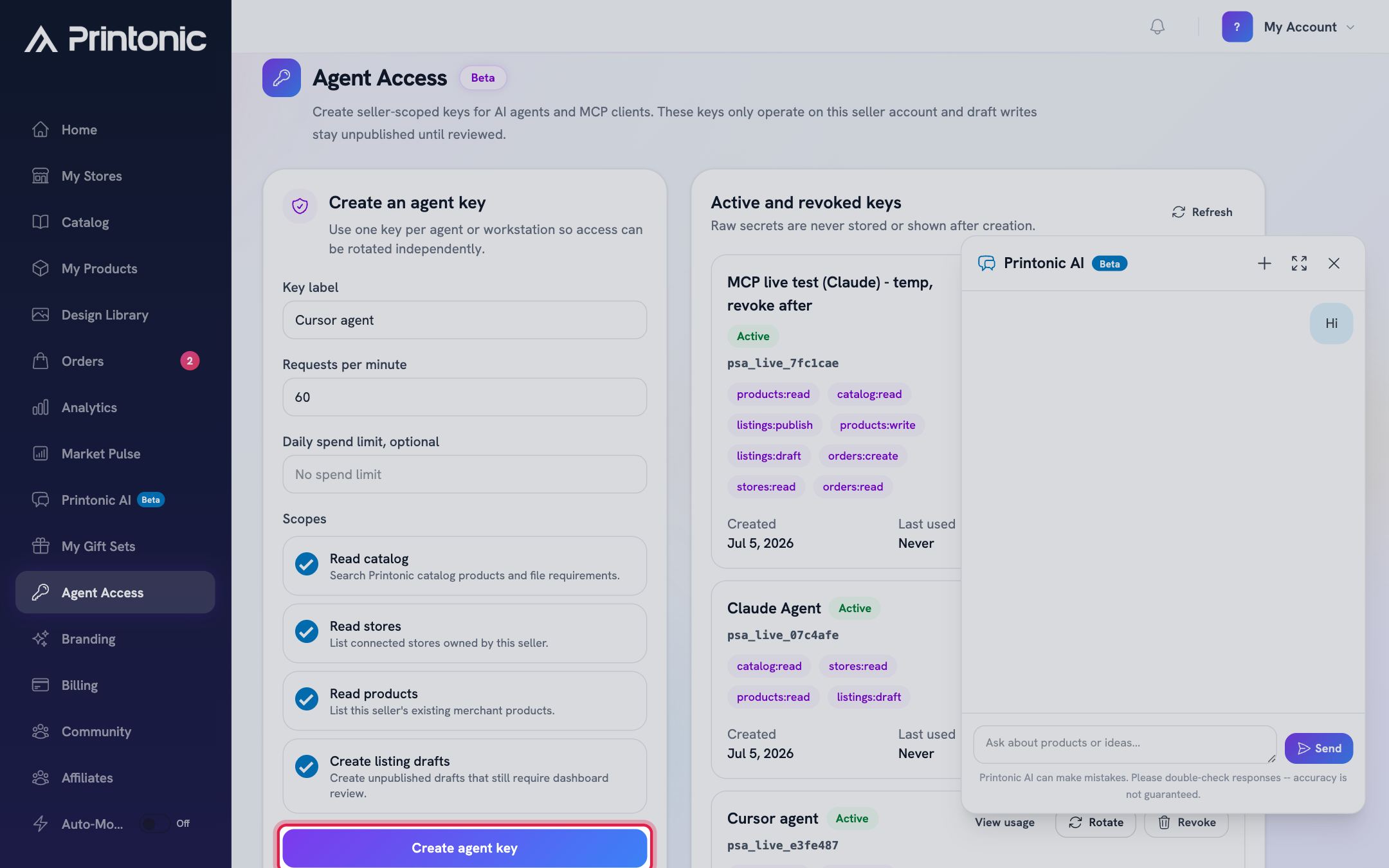
- 6
platform.printonic.com
Point your AI assistant at Printonic
The Connect an AI assistant panel at the top of the Keys tab has the server address and tells you which of the two ways to connect applies to your app. Apps you configure with a file or a command, such as Cursor, Claude Code and the OpenAI API, use a key: create one below and copy the ready-made snippet shown with it. The Claude and ChatGPT apps connect differently: you add the server address as a custom connector, click Connect, and sign in with your normal Printonic email and password, so no key is involved at all. The panel labels that option Coming soon on accounts where it is not switched on yet; when it says that, do not paste a key into those apps, because they will not accept one. Clients that only support local servers can use the mcp-remote bridge command from the docs.
Your key starts with psa_live_. Wherever the examples show psa_live_your_key_here, replace it with the real key you copied. Signing in through the Claude or ChatGPT apps creates no key, so there is nothing to store or rotate for those.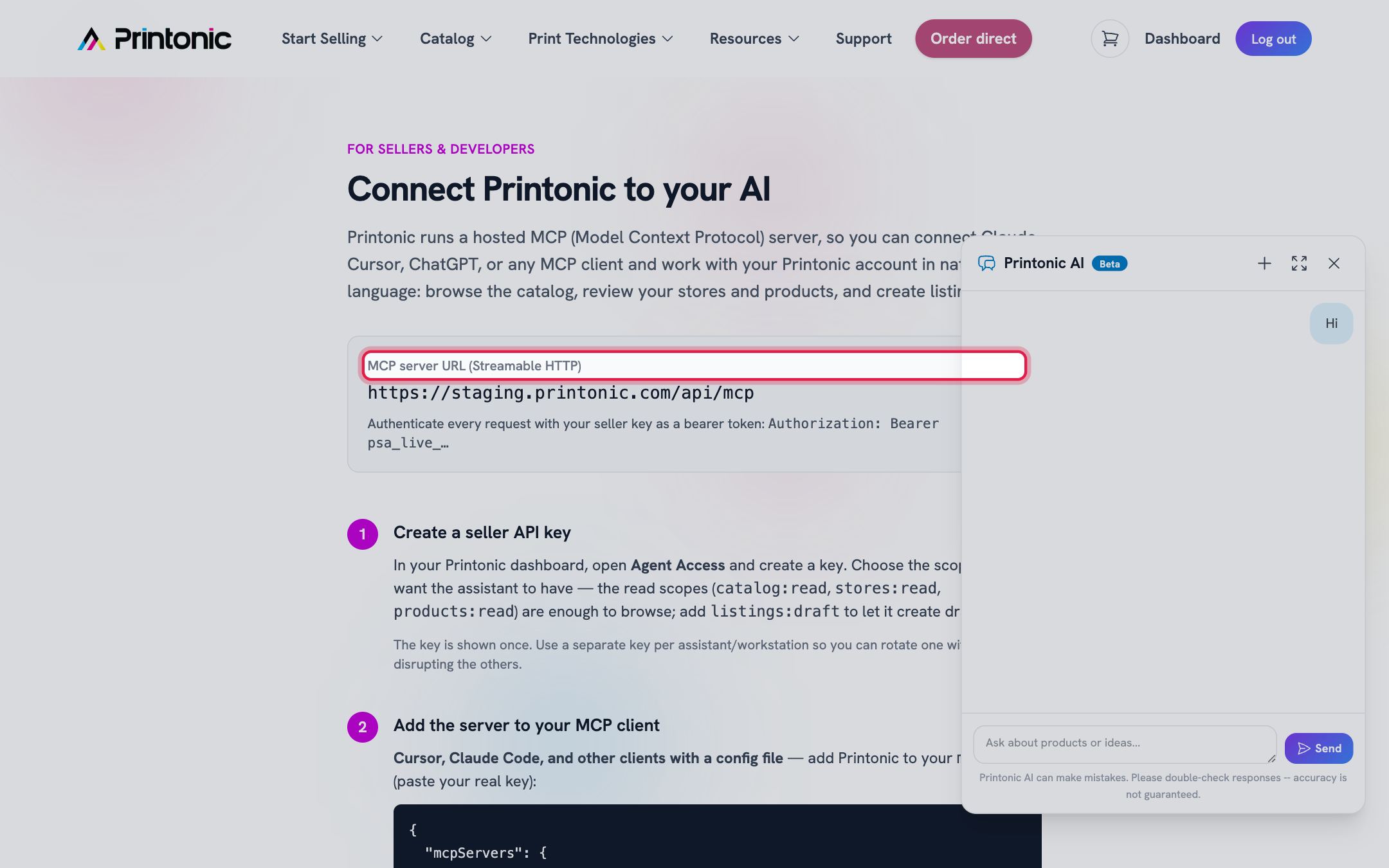
- 7
Dashboard > Agent Access > Activity
Watch what the assistant is doing
The Activity tab lists everything an agent did on your account, newest first: what it did in plain words, when, which assistant, the tool it used, its class (read, write, publish, money, destructive) and the outcome. Reads are grouped by the hour so the list stays readable; every write, publish, order and archive is its own entry. Filter by class, outcome, tool, key or date, and click an entry to see exactly what the assistant sent (secrets and signed links are removed) plus links to the product or order it touched. Entries are kept for 180 days.
Each key card under Keys still has View usage for the raw call log with status codes; Activity is the readable version.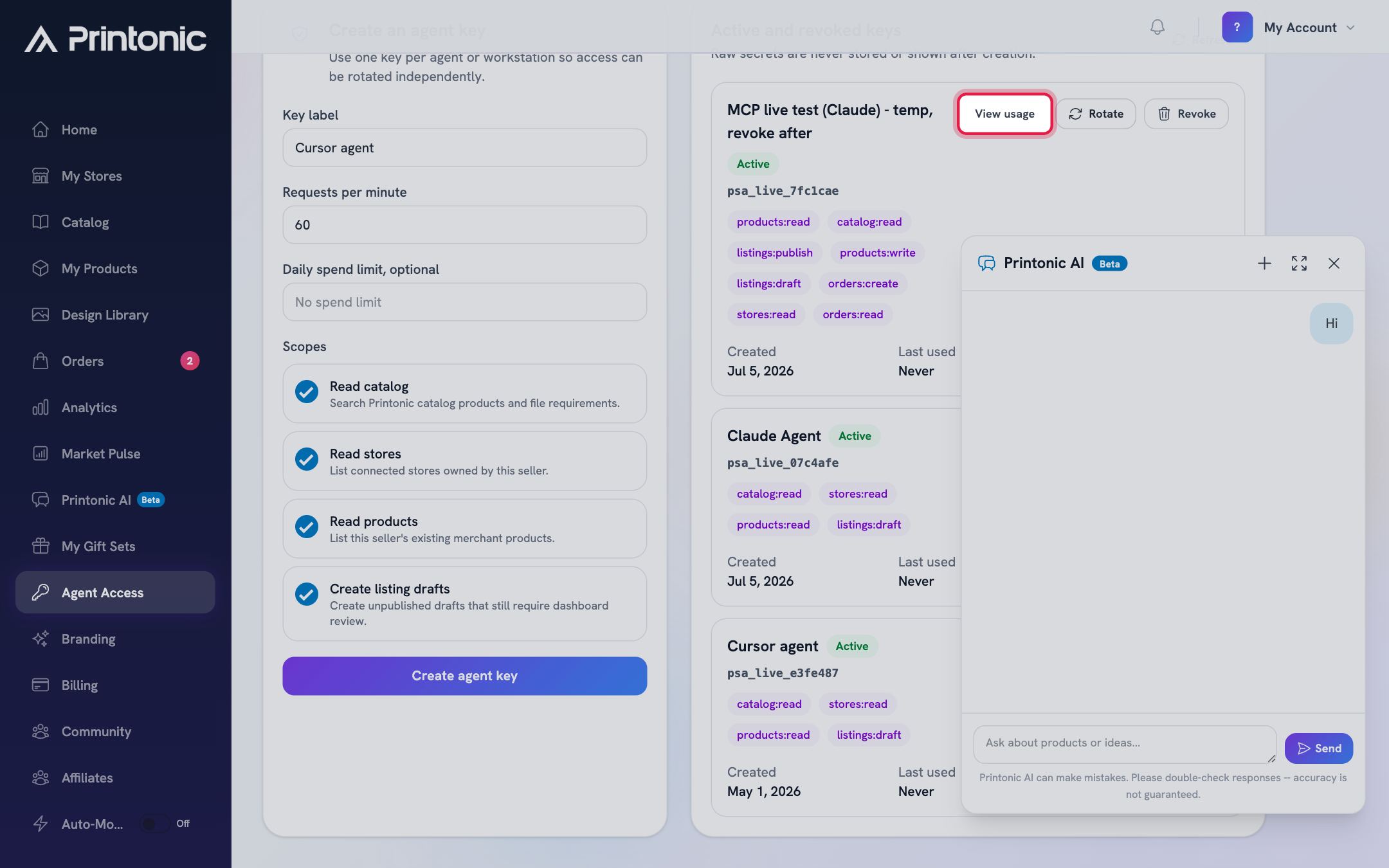
- 8
Dashboard > Agent Access > Review
Approve or decline consequential actions
When an assistant tries to publish a listing, create an order or archive a product, nothing happens yet: the request lands in the Review tab (and in your Needs attention inbox, the bell, and an email). Each request shows a preview of what would change, for example the order total priced by Printonic, or whether the listing is ready to publish. Click Approve and run to execute it once, right then, under your account, or Decline. Requests expire after 7 days if you do nothing. The assistant sees the status when it polls and is told not to resubmit.
Approval re-checks everything with current data. If something changed since the request was made (for example the order total went up), the request fails with a readable reason instead of running.
- 9
Dashboard > Agent Access > Settings
Decide what needs your approval
Under Settings, choose per class whether an action waits for you (Ask me first, the default) or runs on its own (Auto-approve): Publishing, Orders and money, and Archiving and deleting. For orders you can set a per-order dollar limit under which they auto-approve; anything above it, or that cannot be priced, still asks you. Auto-approving archiving needs an extra confirmation. You can also choose how much detail the Activity tab keeps for reads.
Reads, drafts, art, mockups and copy edits always run right away; the settings only cover the classes that publish, spend or remove things. - 10
Dashboard > Agent Access > Keys > Active and revoked keys
Rotate or revoke a key when needed
Click Rotate to swap a key for a fresh one in a single step: the old key stops working immediately, and a replacement with the same scopes and spend limit (at your plan's current rate limit) appears once in the copy box, labeled with (rotated) added to the name. Update your assistant's configuration with the new key right away. Click Revoke to shut a key off with no replacement; its status flips to Revoked and it stays in the list for your records.
Both actions take effect immediately, so an assistant still using the old key will start getting errors until you give it a new one.
Good to know
- Start with only the read scopes (Read catalog, Read stores, Read products) while you get a feel for what your assistant does, then add Create listing drafts once you trust the workflow.
- Leave the Review settings on Ask me first until you have watched a few requests come through; you can always loosen them later.
- Treat agent keys like passwords. Never paste one into a shared document or group chat, and rotate right away if you think a key has leaked.
- The key prefix on each card matches the start of the full key, so you can match a key in the list to the key configured in an assistant even though the full secret is never shown again.
- Rotating on a regular schedule (for example, when you retire a laptop or finish a project) keeps old copies of your key from lingering in forgotten config files.
Common questions
What can an AI assistant actually do with a key?
Only what its scopes allow: search the Printonic catalog, list your connected stores, list your products, and create listing drafts, plus, on Pro, update products, publish, read orders and create pending orders. Drafts are always unpublished. Publishing, orders and archiving are held in the Review tab until you approve them unless you turn on auto-approval in Settings.
Do I need a Printonic key to use the Claude or ChatGPT apps?
No. Those apps connect by sending you to Printonic to sign in with the email and password you already use, then asking you to approve the permissions. Nothing is pasted and no key is created. Keys are only for apps you configure yourself, such as Cursor, Claude Code and the OpenAI API. If the Connect panel shows Coming soon for the Claude and ChatGPT apps, that sign-in is not switched on for your account yet.
Do I have to create a separate account to connect?
No. You sign in with your existing Printonic account. The sign-in screen you pass through belongs to the service that issues the connection, but it hands you straight to Printonic, and the connection is tied to the Printonic account you signed in with.
I lost my key. Can I see it again?
No. The full key is shown exactly once, right after you create or rotate it. If you lose it, click Rotate on that key's card to invalidate the old one and copy a fresh replacement.
What is the difference between Rotate and Revoke?
Revoke turns a key off permanently with no replacement. Rotate also turns the old key off, but immediately issues a new key with the same scopes and limits, so it is the right choice when the assistant should keep working.
Can a key reach other accounts or publish to my store without asking?
No. Every key is limited to your own seller account and to the scopes you checked. Publishing to your store, creating orders and archiving products are proposed, not executed: they wait in the Review tab until you approve them, and expire after 7 days. You can auto-approve a class in Settings if you want that.
What happens after I approve a request?
The original action runs once, right away, under your account and with the exact details the assistant sent, after re-checking them against current data. The result appears in the Review tab and in Activity, and the assistant can read it when it polls. If the check fails (for example the price changed), the request is marked failed with the reason and nothing runs.
Related guides
Work with Printonic AI
Chat with the Printonic AI agent to research catalog products, plan listings, prepare your artwork, and create ready-to-review listing drafts. Pro feature, currently in Beta.
Publish a listing to your store
Finish your product's Listing step (store, title, description, pricing), publish it to your connected store, and find your SKU codes afterward.