Pro & Power Tools
Work with Printonic AI
Chat with the Printonic AI agent to research catalog products, plan listings, prepare your artwork, and create ready-to-review listing drafts. Pro feature, currently in Beta.
Printonic AI is a chat workspace for Pro subscribers (currently in Beta). You describe what you want to sell, and the agent can search the product catalog, plan listing workflows, draft titles and descriptions, inspect and prepare artwork you attach, and create unpublished listing drafts for you to review.
Everything the agent makes is a draft. Publishing, paid orders, and anything else with real consequences always stays in your hands.
- 1
Dashboard > Printonic AI
Open Printonic AI
Click Printonic AI in the left menu of your dashboard (it carries a small Beta badge). The workspace opens with the chat on the left and an Artifacts panel on the right. The header reads Printonic AI Agent with the tagline 'Create seller-safe drafts, source art, and review-ready workflows.'
Printonic AI is a Pro feature. Without a Pro subscription the tab shows a lock and an upgrade screen instead of the workspace, and you can start Pro (or a free trial when you are eligible) right from there.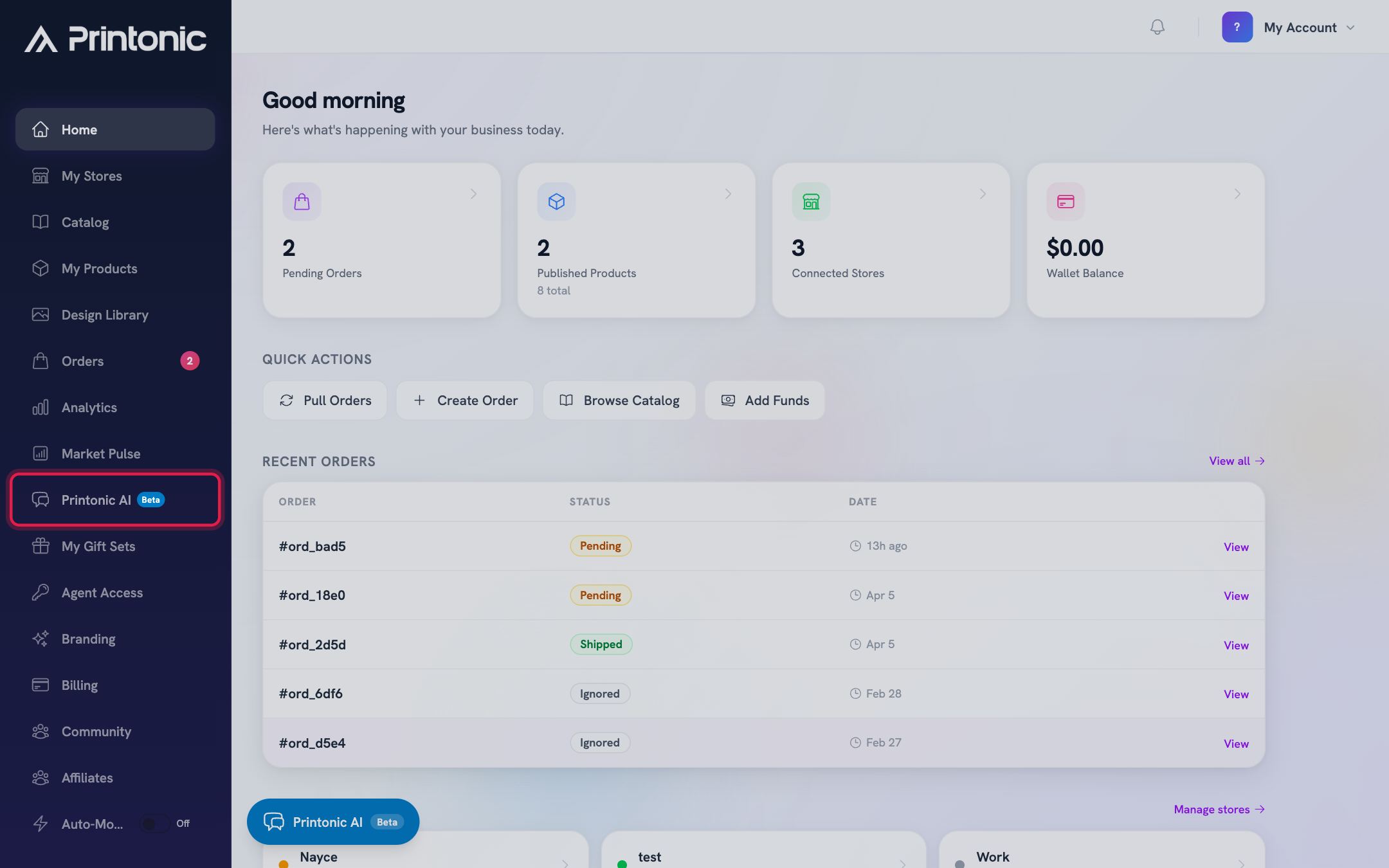
- 2
Printonic AI > mode buttons above the chat
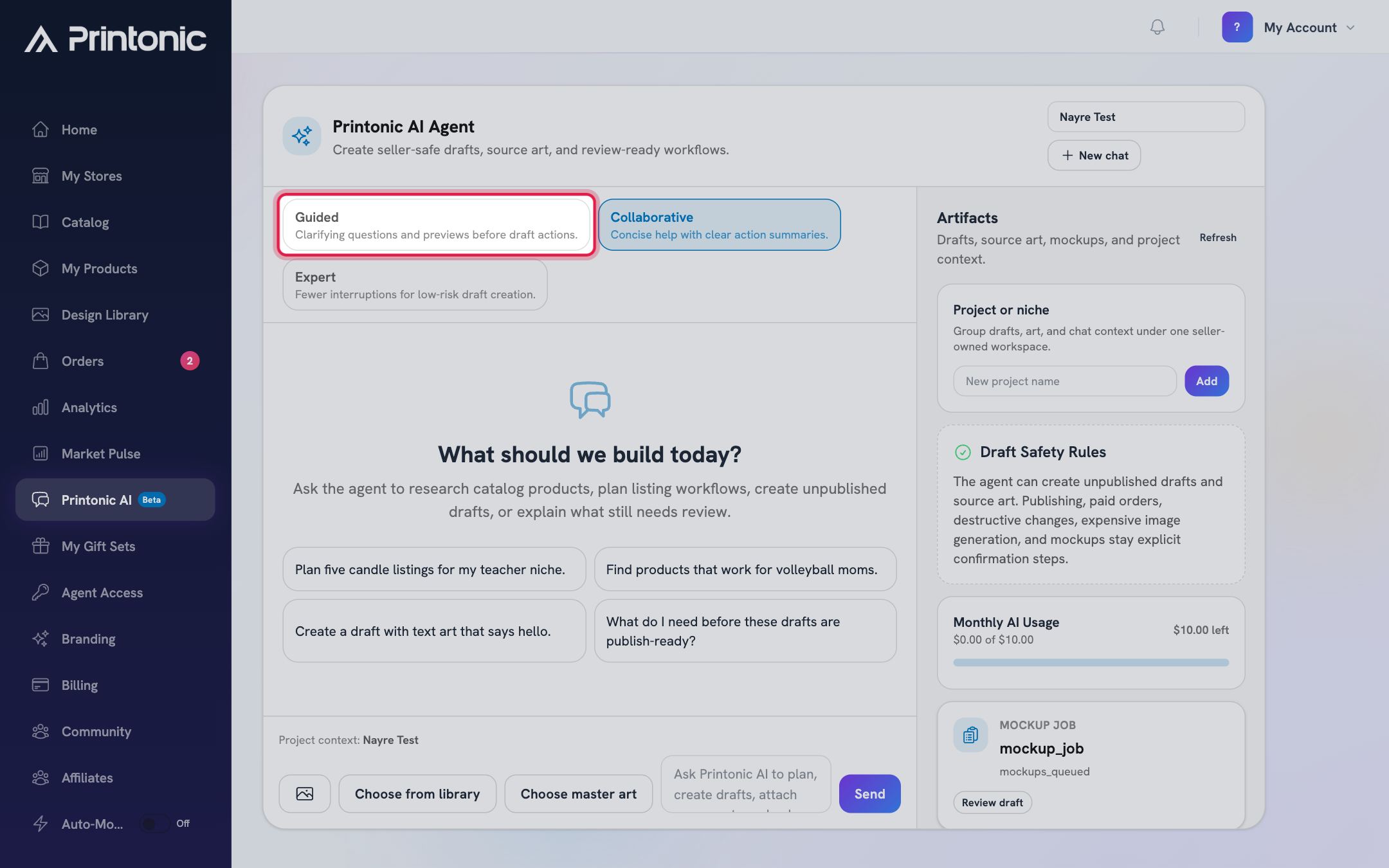
Choose how hands-on the agent should be
Three modes sit at the top of the conversation. Guided asks clarifying questions and shows previews before draft actions. Collaborative (the default) gives concise help with clear action summaries. Expert interrupts less for low-risk draft creation. Click a mode to switch, even mid conversation.
- 3
Printonic AI > message box
Start the conversation
A fresh chat greets you with 'What should we build today?' and four example prompts, such as 'Plan five candle listings for my teacher niche.' and 'Find products that work for volleyball moms.' Click one to send it, or type your own request and press Enter (Shift+Enter adds a line break). While the agent responds you will see 'Agent is working...' above the message box.
The more specific your niche, audience, and product type, the better the results. 'Find products that work for volleyball moms' gives the agent far more to work with than 'find me products'.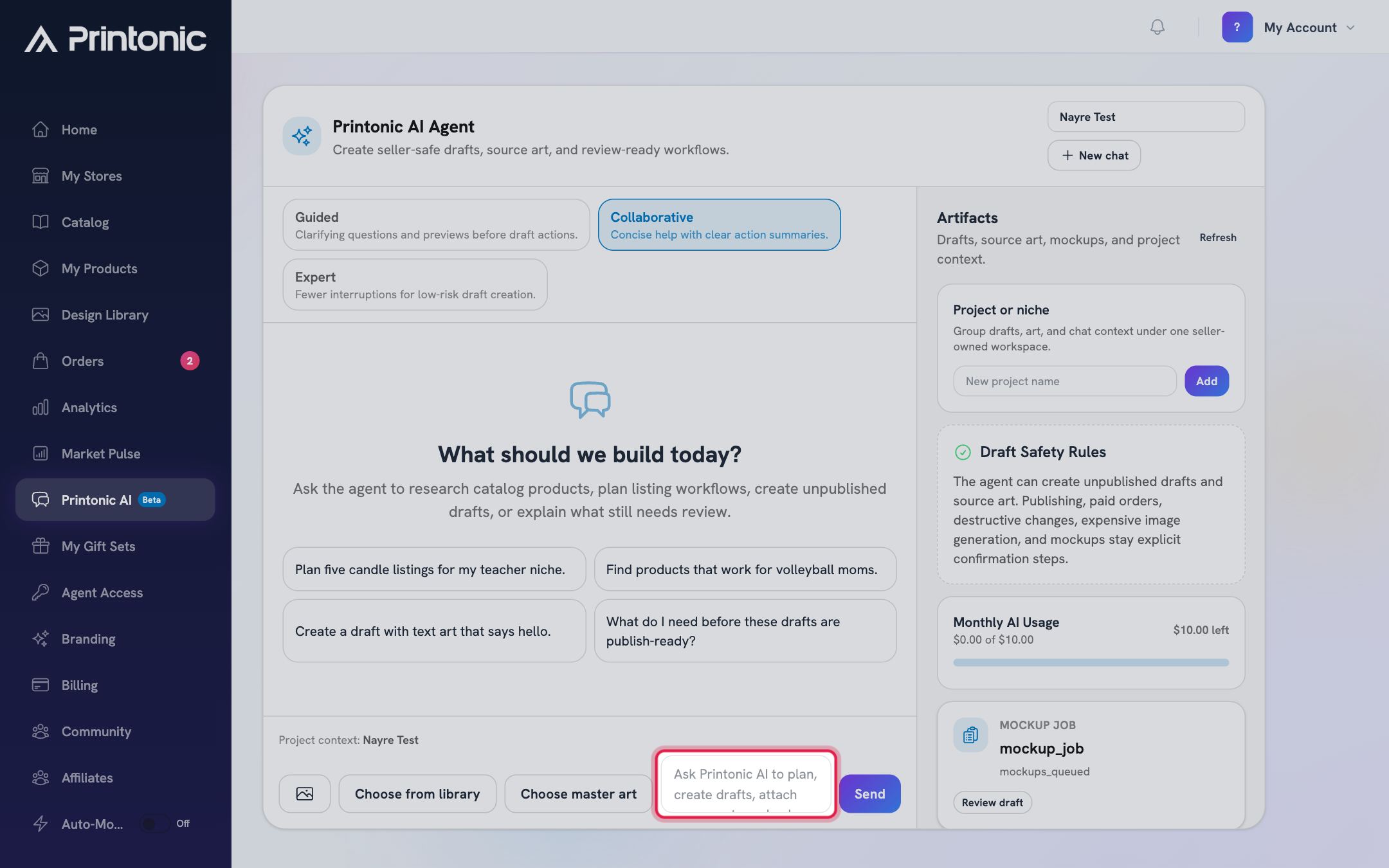
- 4
Printonic AI > buttons next to the message box
Attach artwork for the agent to use (optional)
Use the photo button to upload image files from your computer, click Choose from library to pick files already in your media library, or click Choose master art to pick master artwork from your Design Library. Each file appears as a small chip above the message box and is sent along with your next message.
Only image files are accepted (PNG, JPG, GIF, WEBP, SVG, AVIF, or HEIC). While files upload, the Send button shows 'Uploading...'. As the agent works with a file, its chip status updates, for example to inspected, matched, needs resize, resized, or attached. Click the remove (x) button on a chip to drop a file before sending.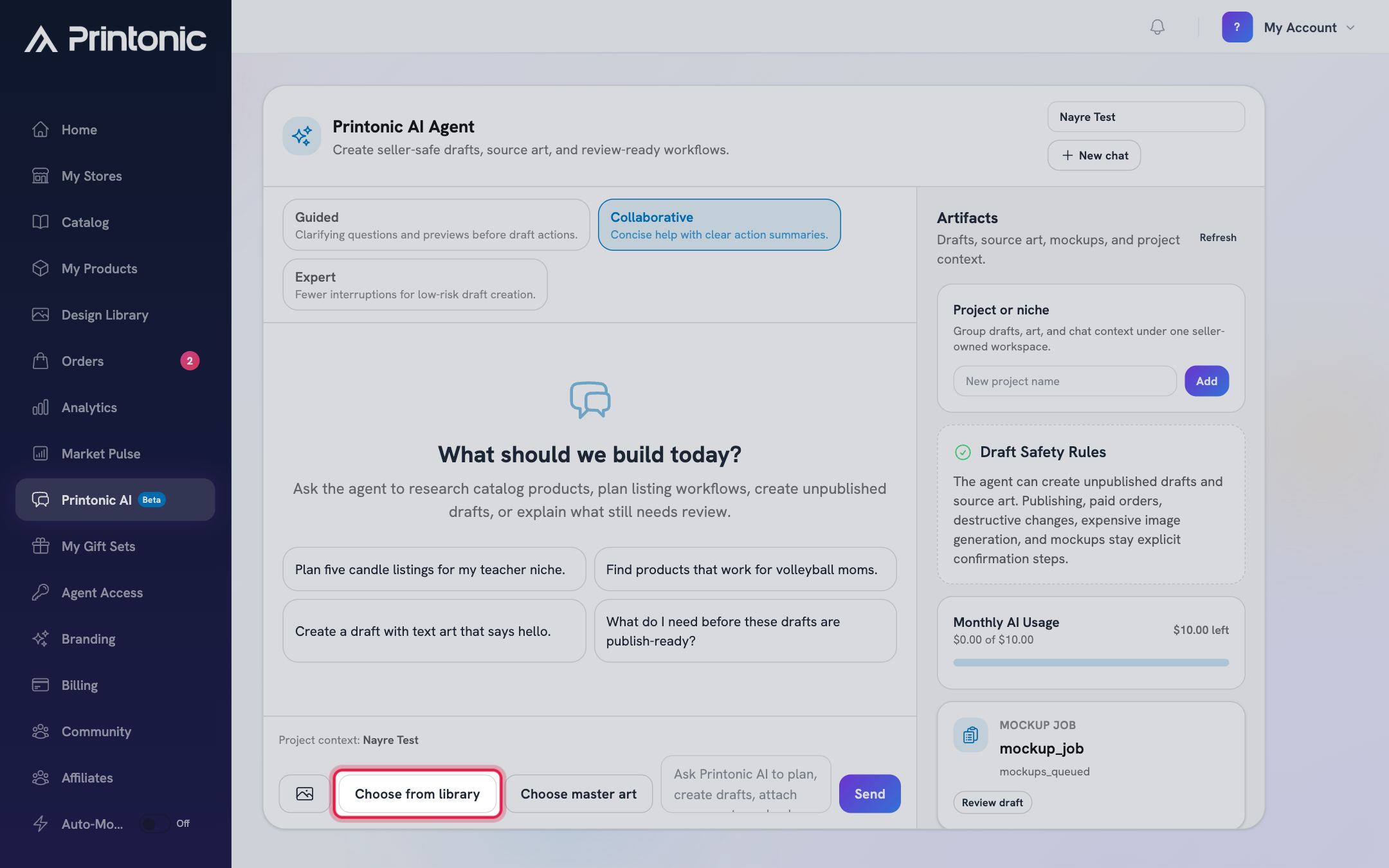
- 5
Printonic AI > chat replies
Review product suggestions and select the ones you want
When the agent searches the catalog, its reply includes product cards with a photo, the product name, the base price, and how many art requirements the product has. Click a card to select it (it highlights and shows Selected). Selected products appear as chips above the message box and ride along with your next message, so you can say 'create drafts for these' and the agent knows exactly which products you mean.
Small activity chips such as 'Searched catalog' and 'Found 24 products' show what the agent just did. Selected product chips clear automatically after you send. Expand Technical details under a reply if you want to see the raw results.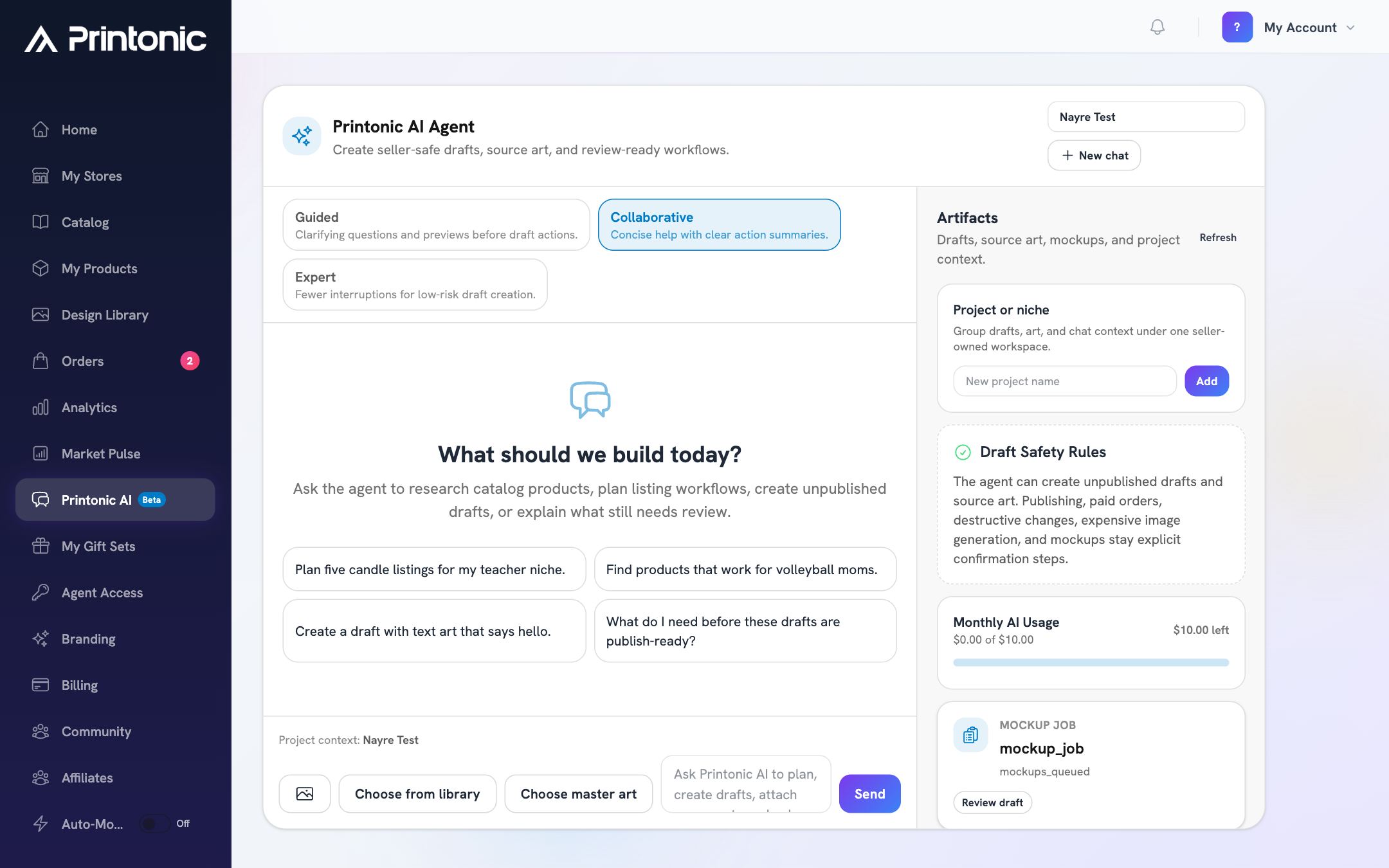
- 6
Printonic AI > Artifacts panel
Ask for listing drafts and review them
Ask the agent to create listings, for example 'Create drafts for these products with my candle art.' A 'Created draft' chip appears in the reply, and each draft shows up in the Artifacts panel on the right with its title and status. Click Review draft on an artifact to open the draft product page in a new tab, where you can edit and publish it like any other product.
The agent only creates unpublished drafts and source art. As the Draft Safety Rules card in the sidebar explains, publishing, paid orders, destructive changes, expensive image generation, and mockups stay explicit confirmation steps. Nothing goes live in your store until you publish it yourself.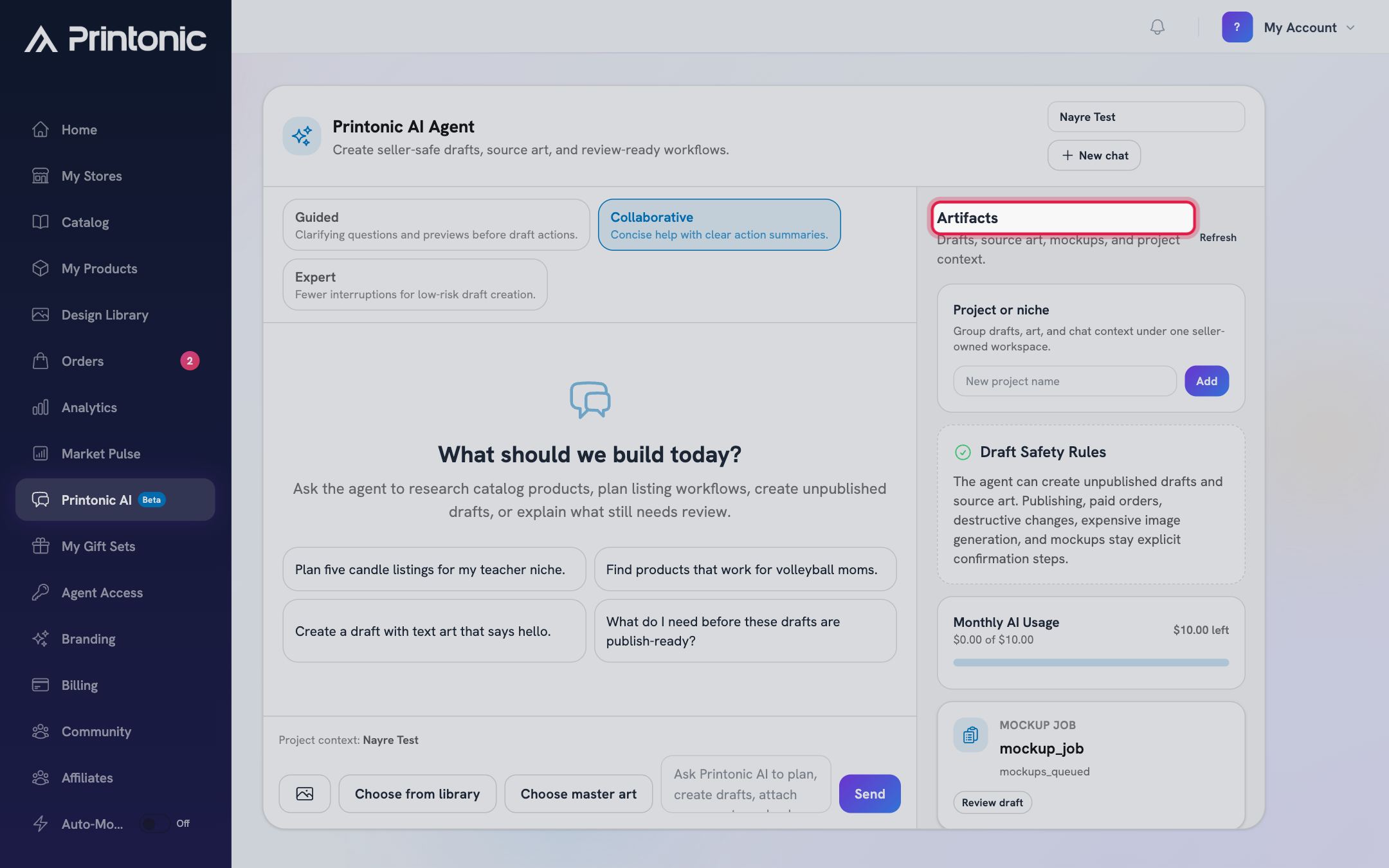
- 7
Printonic AI > Artifacts panel > Project or niche
Group your work into projects (optional)
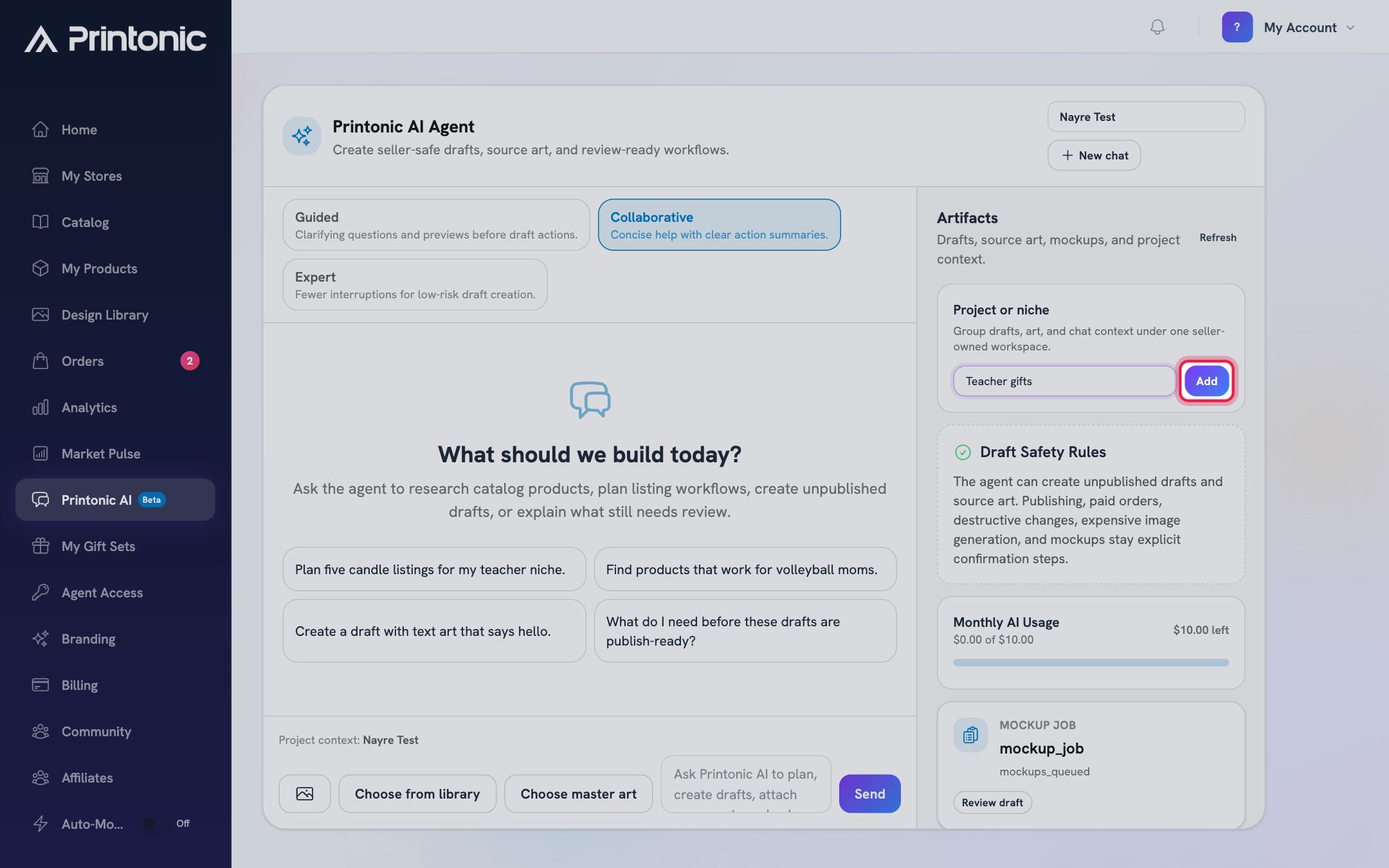
Type a name into the New project name field and click Add, for example 'Teacher gifts' or 'Volleyball moms'. The project becomes active and the message box shows 'Project context:' with its name. Use the dropdown at the top of the workspace to switch projects or return to No project. Projects group drafts, art, and chat context under one workspace so the agent stays focused on that niche.
- 8
Printonic AI > Artifacts panel > Monthly AI Usage
Watch your usage and start fresh when you need to
The Monthly AI Usage card shows how much of this month's included AI allowance you have used, how much is left, and any extra AI credit you have bought. Under Buy extra AI credit, click a $5, $10, or $25 pack to pay for it from your wallet balance; the credit never expires and is only used once the month's included allowance is gone. When you want a clean slate, click New chat at the top of the workspace. That clears the conversation along with any attached art, selected products, and master art selections.
New chat does not delete anything the agent already created. Drafts and source art stay in the Artifacts panel and in your dashboard. The chat thread itself is not restored after you refresh or leave the page, so treat the Artifacts panel, not the conversation, as your record of what was made. If you see 'Monthly Printonic AI budget reached', this month's allowance is used up: buy extra AI credit from the Monthly AI Usage card, or wait for the allowance to renew. If your wallet balance is too low for a pack, the card shows an Add funds link to Billing.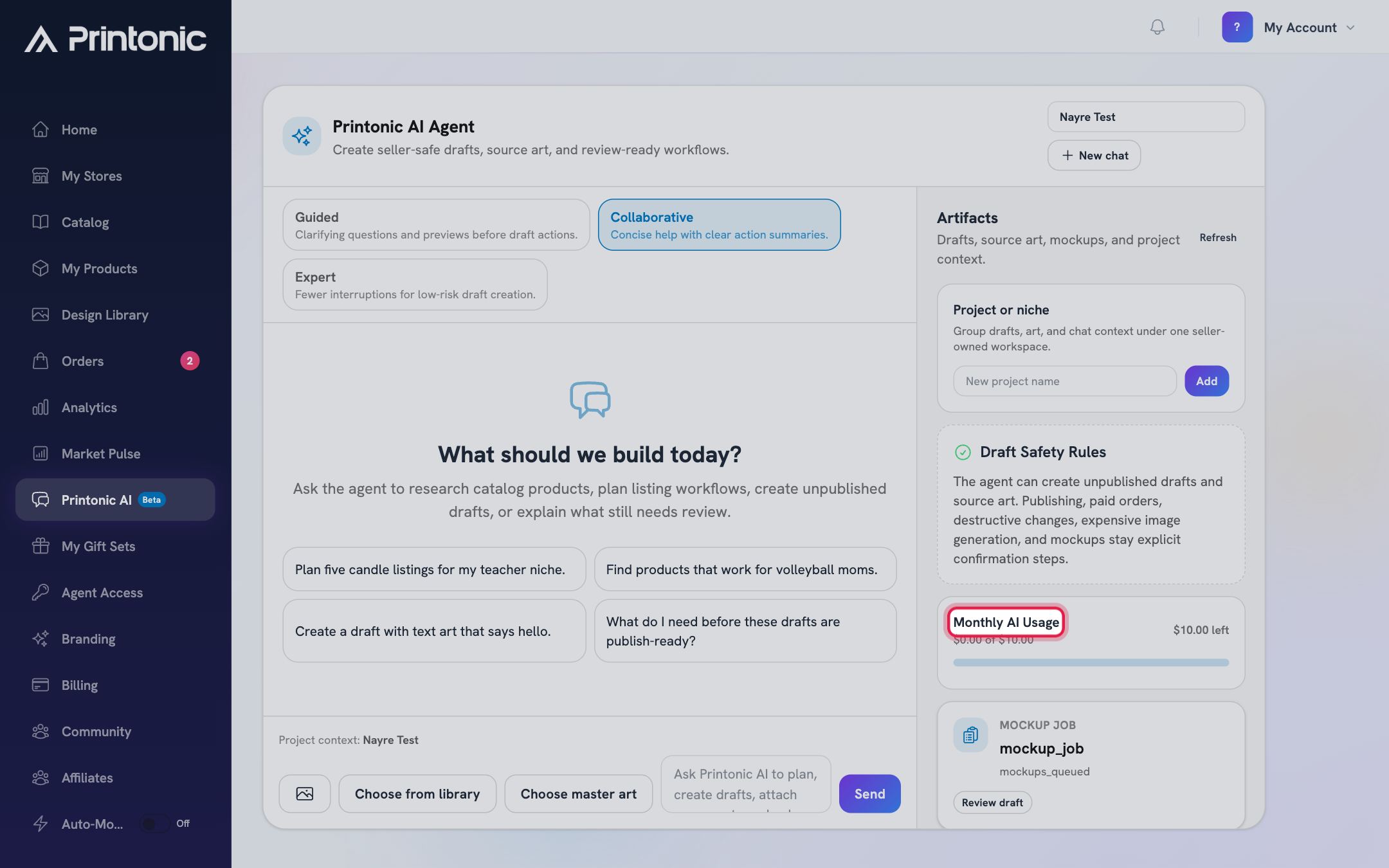
Good to know
- Start from one of the example prompts, then refine. They are shaped the way the agent works best: a goal, a niche, and a product type.
- Use Guided mode your first few sessions so the agent previews what it is about to do. Switch to Expert once you trust the flow and want fewer check-ins.
- You can hit Send with an empty message box if you have art or products attached. The agent treats the attachments themselves as the request and uses them for listings.
- If you already saved product-ready versions in your Design Library, attach the master art here. The agent can find which catalog products are fully supported by your saved versions.
Common questions
Can Printonic AI publish listings to my store?
No. It creates unpublished drafts only. You review each draft (click Review draft in the Artifacts panel), then publish it yourself from the product page. Publishing, paid orders, and other consequential actions always require your explicit confirmation.
Why do I see an upgrade screen instead of the chat?
Printonic AI requires a Pro subscription. The tab is visible to everyone but stays locked until you upgrade. If you are eligible, the upgrade screen also offers a free trial.
Where did my conversation go?
Clicking New chat, refreshing the page, or navigating away starts you back at an empty thread. Nothing the agent created is lost: drafts and uploaded art remain in the Artifacts panel and in your dashboard.
What does 'Monthly Printonic AI budget reached' mean?
Pro includes a set amount of AI usage each month, shown on the Monthly AI Usage card in the sidebar. Once it is fully used, the agent pauses until your allowance renews, unless you buy extra AI credit: pick a pack on the card and it is paid from your wallet balance and used only after the included allowance. Extra credit never expires. Your drafts and artifacts are unaffected.
Related guides
Use the Design Library
Upload your artwork once, save print-ready versions of it for different products, and reuse those versions when you build listings.
Browse the catalog
Find products to sell: search the catalog, narrow results with category, tag, and TikTok filters, then open a product page to review pricing, variations, mockups, and shipping before you add it.
Publish a listing to your store
Finish your product's Listing step (store, title, description, pricing), publish it to your connected store, and find your SKU codes afterward.
Give an AI assistant access with Agent Access
Create a scoped API key so Claude, Cursor, ChatGPT, or another AI assistant can search the catalog, see your stores and products, draft listings, and propose publishes and orders that wait for your approval, all limited to your own account.