Orders & Fulfillment
Report an issue on an order
Something wrong with an order? Request a refund, reprint, cancellation, or order change straight from the order page, attach photos, and track the request until it is resolved.
When an order arrives damaged, prints wrong, or needs a change before it goes to production, you do not need to hunt for an email address. Every order has a Report Issue button that opens a short form. Our team reviews each request and you can follow its status right on the order page.
The form adapts to where the order is in its life. Before fulfillment you can request changes or a cancellation. After it ships you can request a refund, a reprint, or report a problem.
- 1
Dashboard > Orders
Open the order
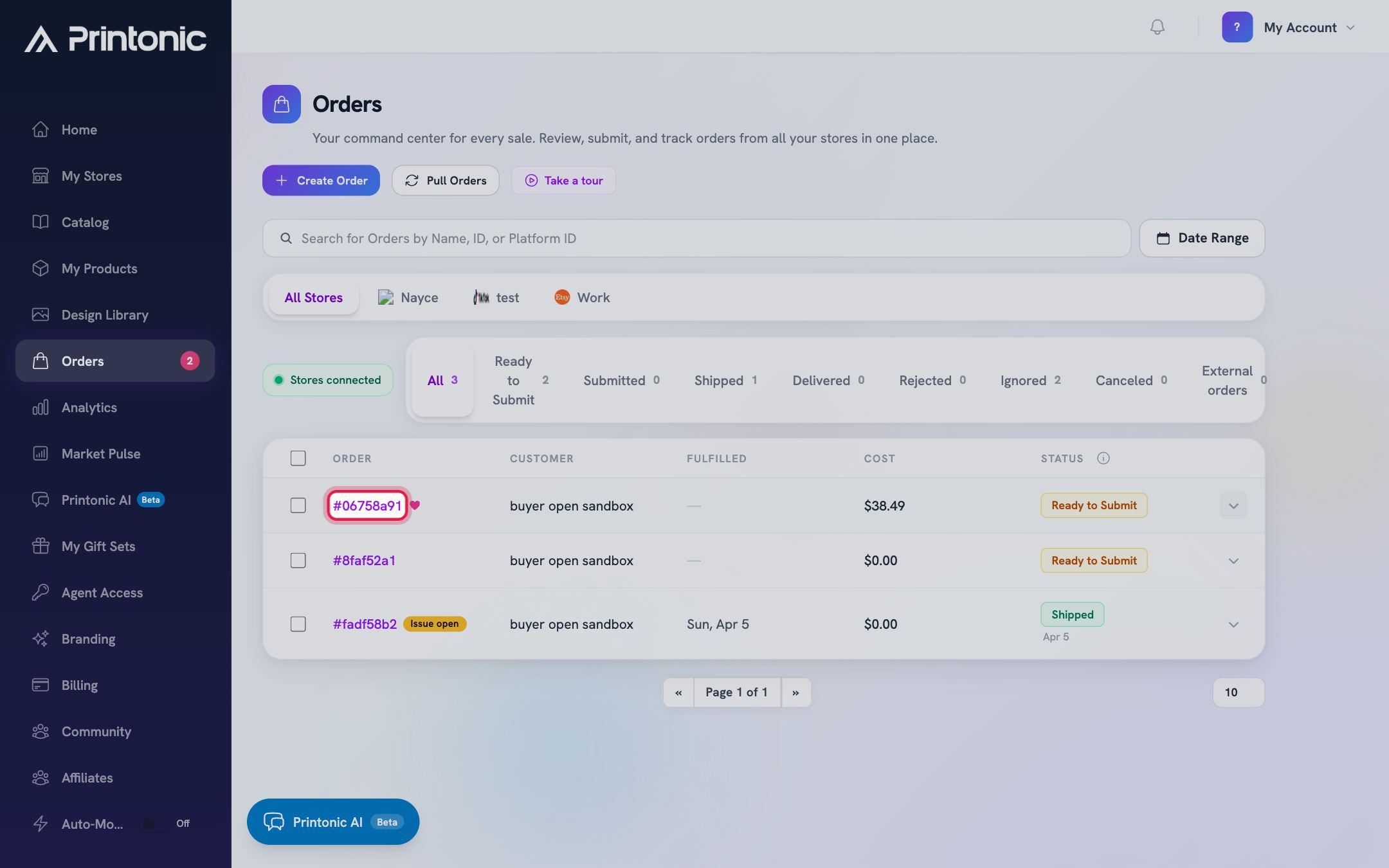
Go to the Orders tab and click the order number (for example #12345678) to open the full order page. You can also expand a row with the arrow at the end to see order details first.
- 2
Order page > top right
Click Report Issue
On the order page, click the yellow Report Issue button in the top right, next to the actions menu. The expanded row in the Orders list has a Report Issue button too.
The button appears on Ready to Submit, Submitted, Shipped, Delivered, and Rejected orders. Ignored and Canceled orders show a Cannot Report Issue screen instead, since there is nothing left to act on.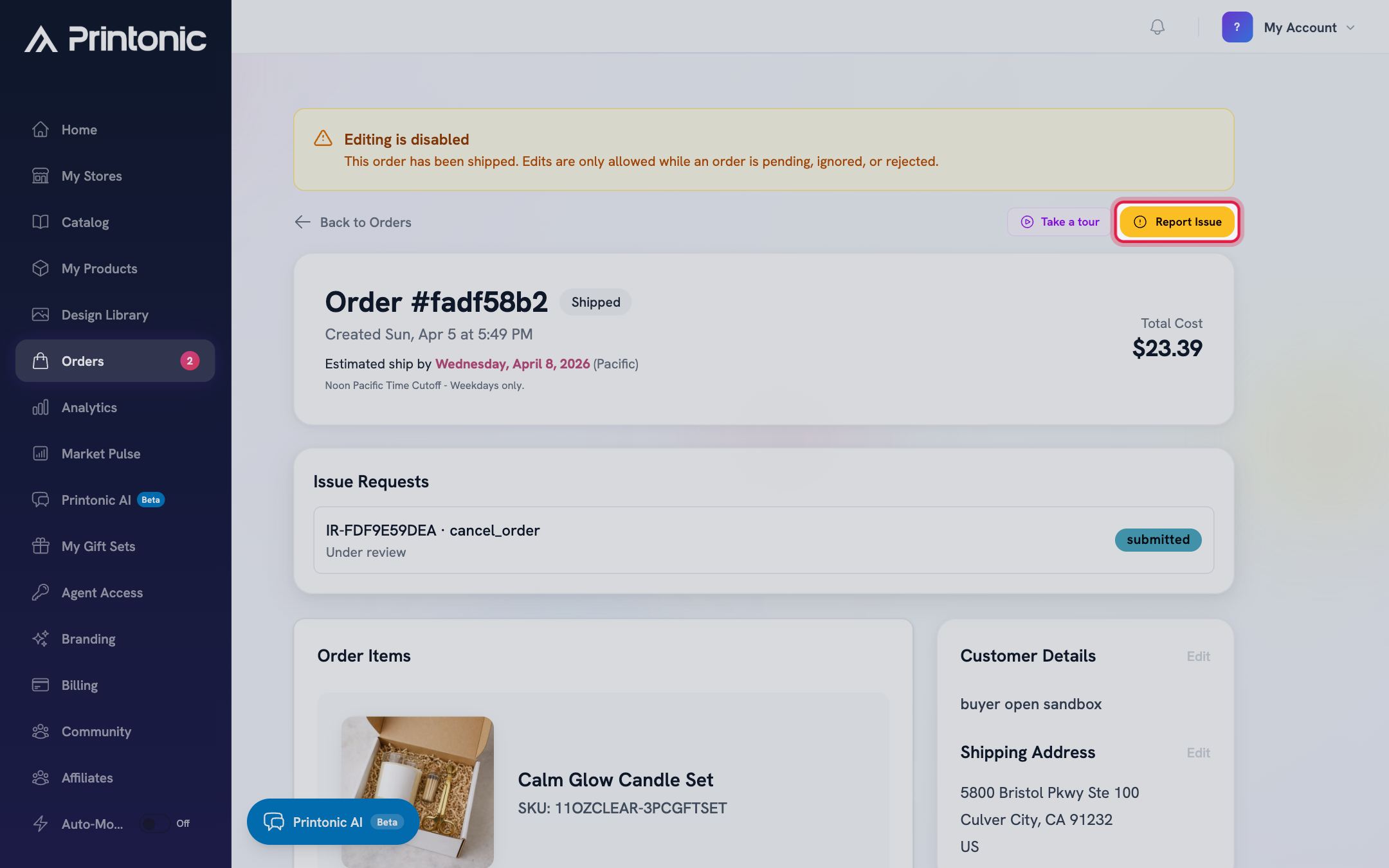
- 3
Report Issue page > Issue Type
Choose the issue type
Pick the card that matches your situation. The options depend on the order's status. For an order that is still Ready to Submit, the page is titled Send a Custom Request and offers a single Custom Request card for anything you cannot change yourself. For a Submitted order, the page is titled Request an Order Change and offers Order Late, Cancel Order, Change Art, Change Address, and Other Change. For Shipped, Delivered, or Rejected orders, the page is titled Report an Issue and offers Request Refund, Request Reprint, Report Problem, and Other Issue.
A Ready to Submit order is still fully editable, so change the address, art, or gift options yourself on the order page instead of filing a request. That is instant. Cancel Order, Change Art, and Change Address requests only make sense once the order has been submitted.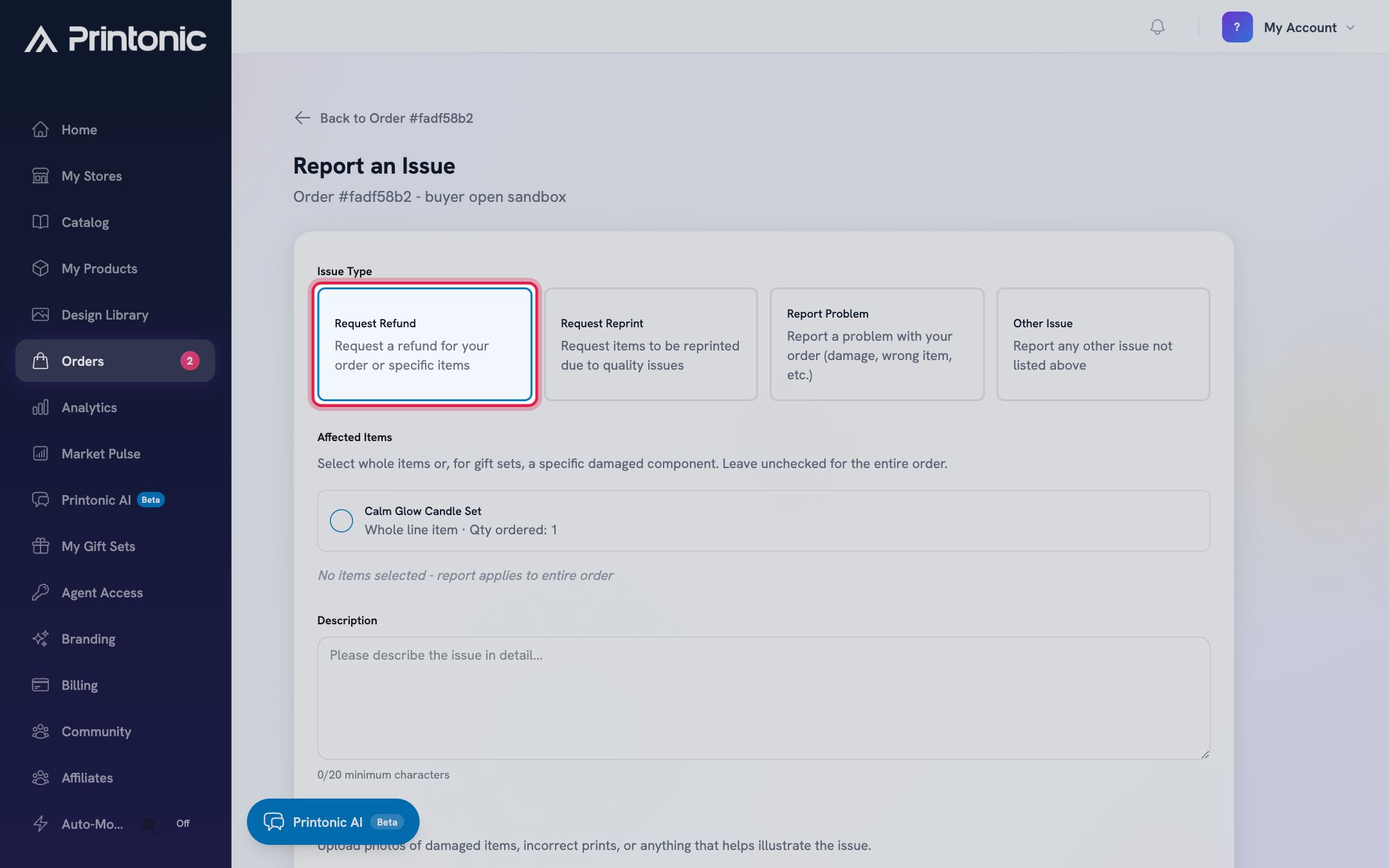
- 4
Report Issue page > Affected Items
Select the affected items
For Shipped, Delivered, or Rejected orders, check the items your report is about. When you check an item, a quantity box appears so you can say how many units are affected (up to the quantity ordered). If the item is a gift set, a Gift set components list appears underneath so you can pick just the damaged piece instead of the whole set. Leave everything unchecked if the issue affects the entire order. The form will say 'No items selected - report applies to entire order'.
On Submitted orders this section only appears when you pick Change Art, so you can point to the item that needs updated art before production continues. Custom Requests on Ready to Submit orders skip item selection entirely.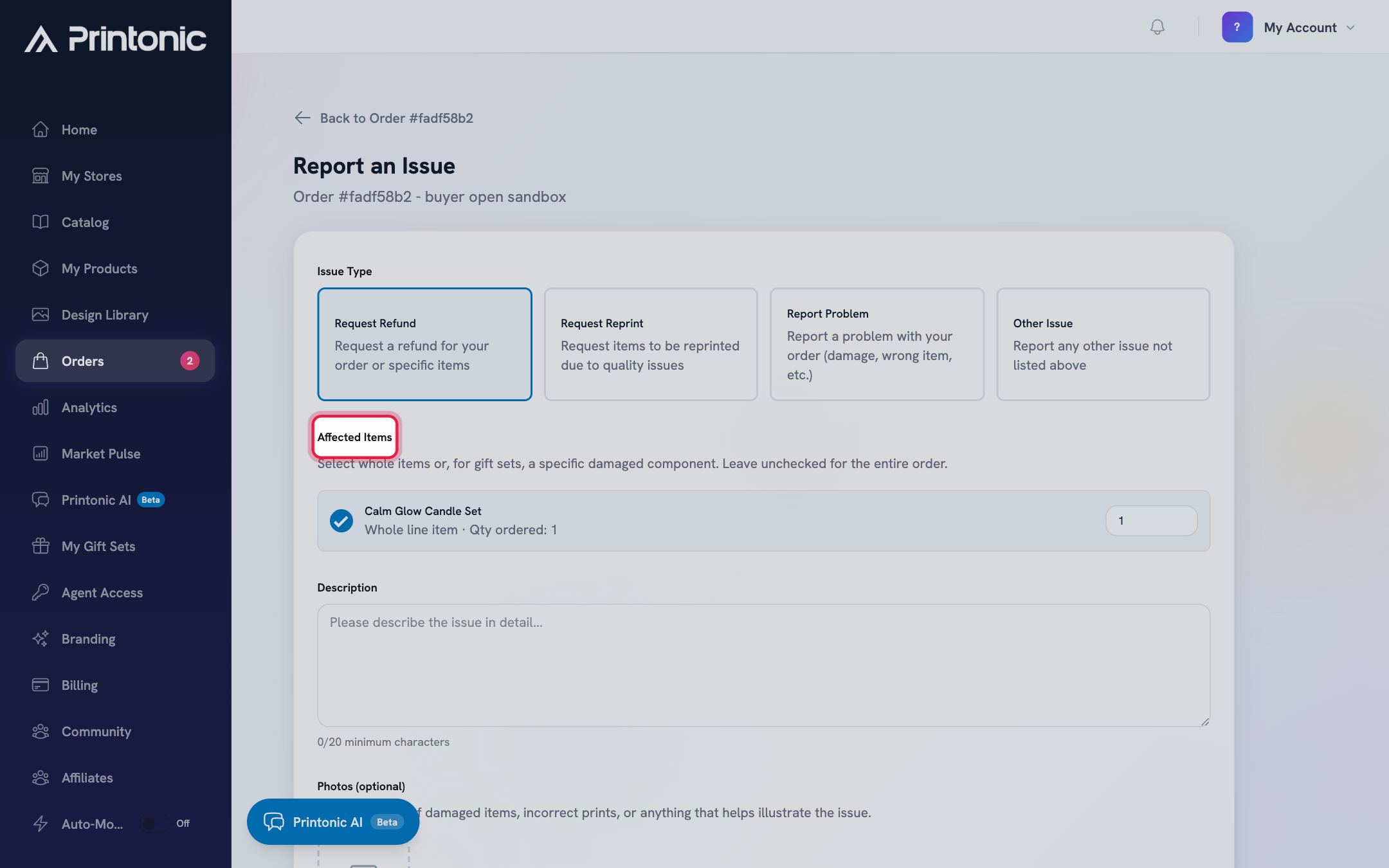
- 5
Report Issue page > Description
Describe the issue
Write what happened in the Description box. Be specific: what is wrong, which design or variation, and what outcome you are looking for. A counter below the box shows your progress toward the 20 character minimum and turns green once you have written enough.
The Submit Report button stays disabled until your description reaches 20 characters.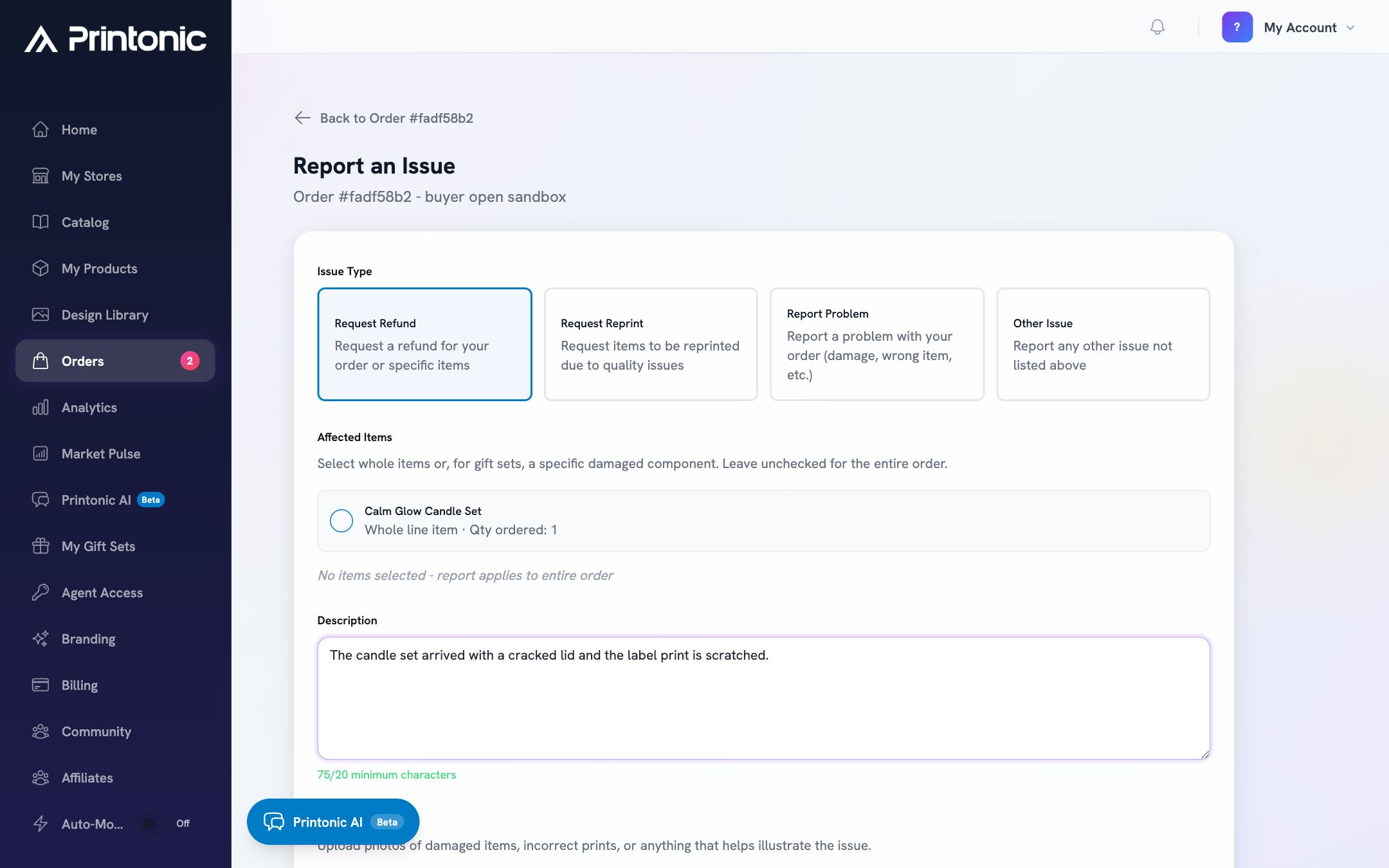
- 6
Report Issue page > Photos
Attach photos (optional but recommended)
Click the Add tile to upload photos of damaged items, incorrect prints, or anything that helps illustrate the issue. You can attach up to 5 images (JPEG, PNG, WebP, or GIF, max 10MB each). Remove a photo with the small X on its corner.
For damage and quality claims, photos are usually what gets a refund or reprint approved fastest. While a photo is still uploading, Submit Report shows a spinner and waits for the upload to finish.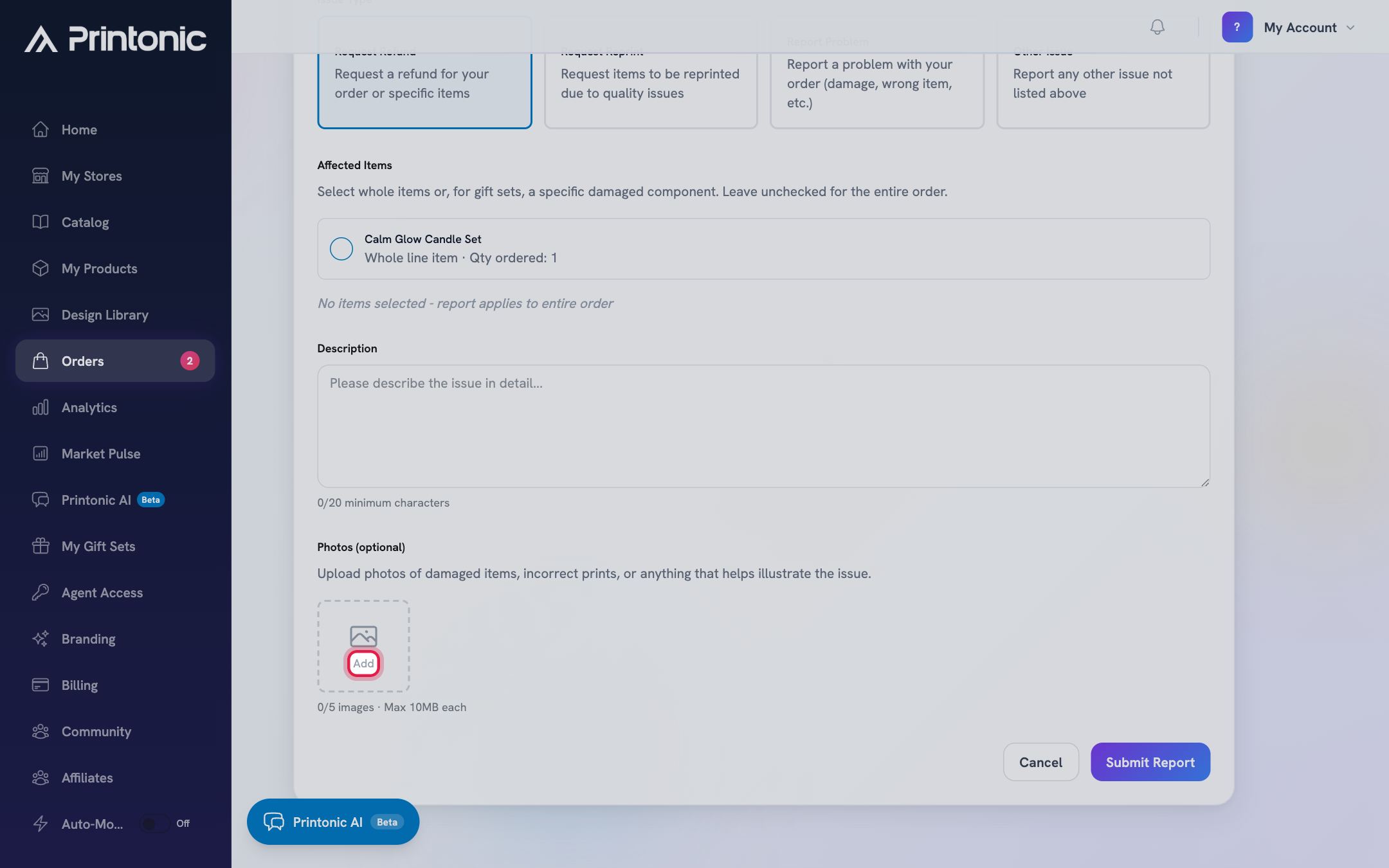
- 7
Report Issue page > Submit Report
Submit the report
Click Submit Report. You will see a Report Submitted confirmation with your request number, and our team is notified right away. Click View Conversation to open the support chat tied to your report, or Back to Order to return to the order page.
Submitting a Cancel Order or change request does not change the order by itself. It opens a request that our team reviews, and we will follow up in the conversation if we need more details.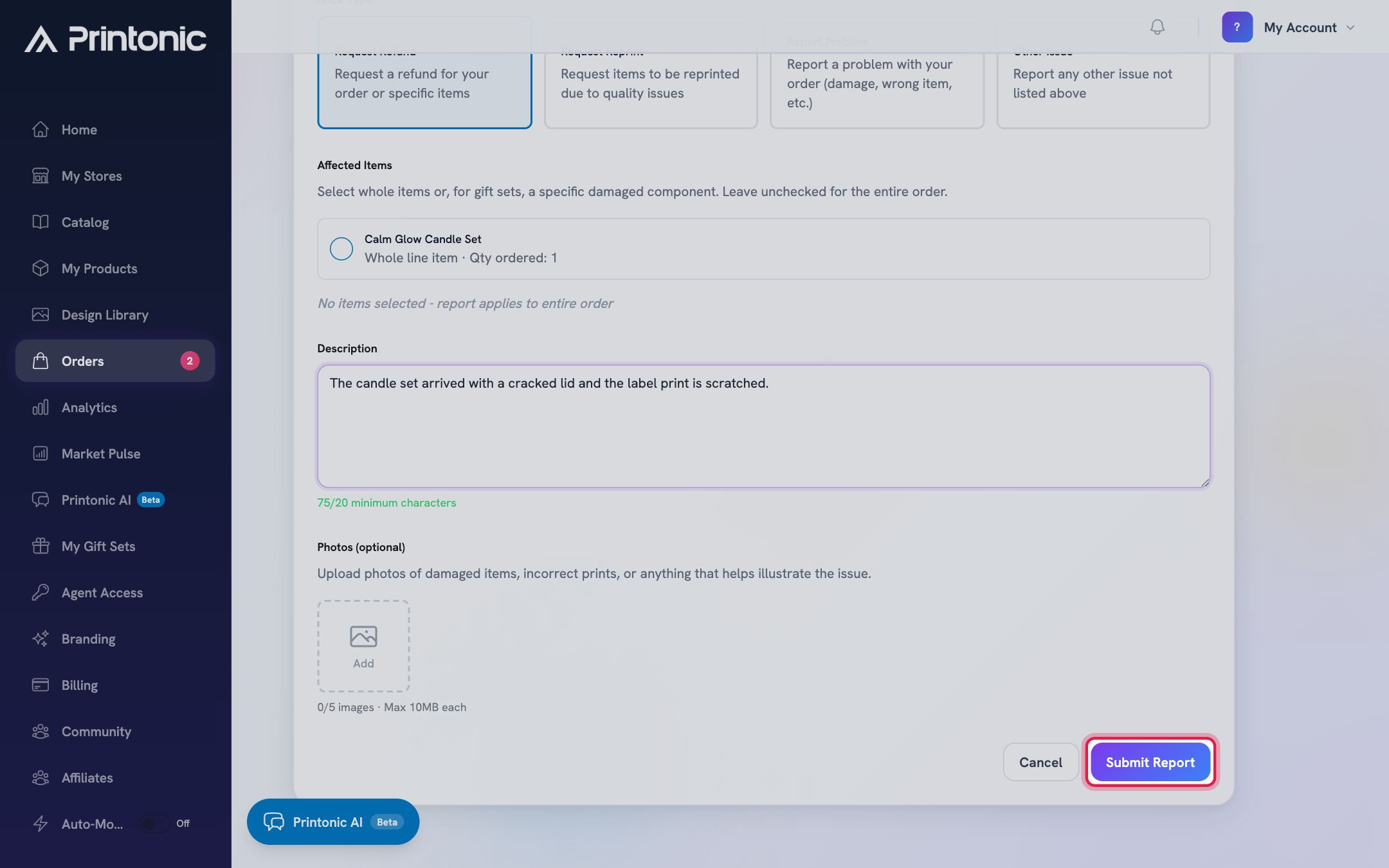
- 8
Order page > Issue Requests
Track the request status
Back on the order page, an Issue Requests panel now appears under the order header. Each request shows its ID, what you asked for, and a status badge: In review while our team looks at it, then outcomes like Refund processing, Replacement created, Needs manual refund, No action, or Rejected. Details such as the refund amount, a created replacement order, reviewer notes, or a rejection reason appear under the request.
If a replacement is created, it shows up as a new order in your Orders tab. You can also keep chatting with the team in the support conversation at any time.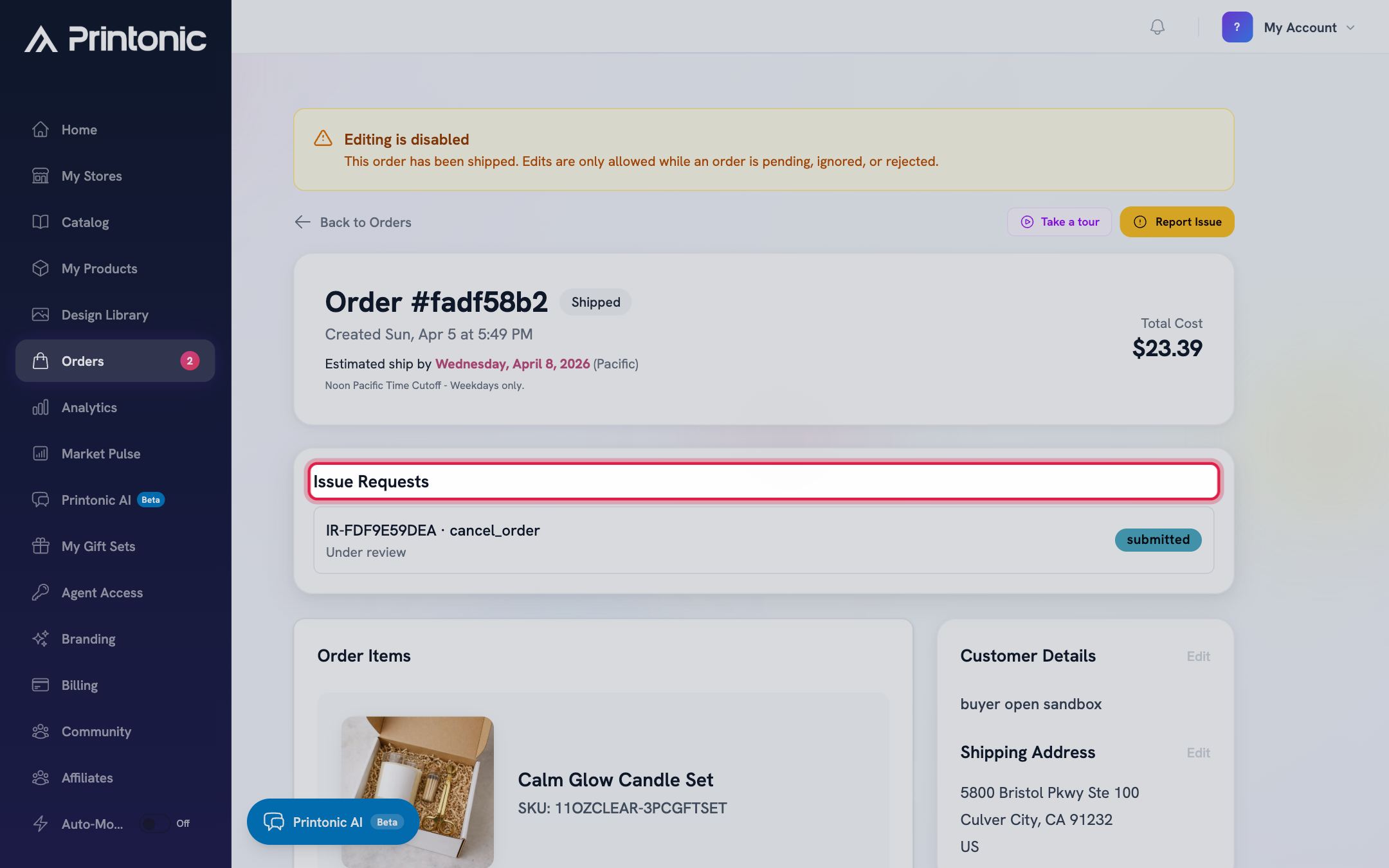
Good to know
- One report can cover several items. Check each affected item and set its quantity instead of filing separate reports for the same order.
- For gift sets, select only the damaged component. That way we replace just that piece rather than the whole set.
- Take photos of both the product and the packaging when something arrives damaged. It helps our team resolve shipping damage claims quickly.
- If the order is still Ready to Submit, fix addresses, names, and art yourself on the order page. It is faster than filing a request.
Common questions
Why do I not see Request Refund or Request Reprint?
The options depend on the order's status. Refunds, reprints, and problem reports are for orders that are Shipped, Delivered, or Rejected. Before that, the form offers pre-fulfillment requests instead, like Cancel Order, Change Art, and Change Address on Submitted orders.
Can I still report an issue after the order is delivered?
Yes. Delivered orders keep the Report Issue button so you can request a reprint or a replacement for items that arrived broken or printed wrong.
Does a Cancel Order request stop the order immediately?
No. It sends a cancellation request to our team, who try to catch the order before production. Watch the Issue Requests panel on the order page for the outcome, and file the request as early as you can.
Where does my report go after I submit it?
It opens a support conversation with our team and creates a request you can track in the Issue Requests panel on the order page. Click View Conversation on the confirmation screen (or open the chat bubble) to add more details at any time.
Related guides
Manage your orders
Every order from every connected store lands in one Orders tab. Learn what each status means, how to sync, and how to send, ignore, restore, or resubmit orders in bulk.
Track shipping and order status
Follow an order from Submitted to Shipped to Delivered, find the carrier and tracking number, and learn how tracking reaches your customer automatically.
Build and sell a custom gift set
Bundle 2 to 8 products into a gift-ready set, turn it into a listing draft, and publish it to TikTok Shop or Etsy. Printonic assembles, boxes, and ships every order for you. Selling one of our ready-made sets instead needs no builder and no Pro.