Orders & Fulfillment
Track shipping and order status
Follow an order from Submitted to Shipped to Delivered, find the carrier and tracking number, and learn how tracking reaches your customer automatically.
Once you send an order to fulfillment, Printonic keeps you posted from print to porch. The order moves through clear statuses, picks up a carrier and tracking number when it ships, and the tracking is sent to your store automatically so your customer can follow along too.
- 1
Dashboard > Orders
Open your Orders list
Go to Orders in your dashboard. Every order shows a status badge in its row: Ready to Submit, Submitted, Shipped, Delivered, Rejected, Ignored, or Canceled. A small date under the badge tells you when the order reached that status.
Submitted means the order is at the production facility being printed and packed. It stays Submitted until a shipping label is created, so a day or two without movement here is normal.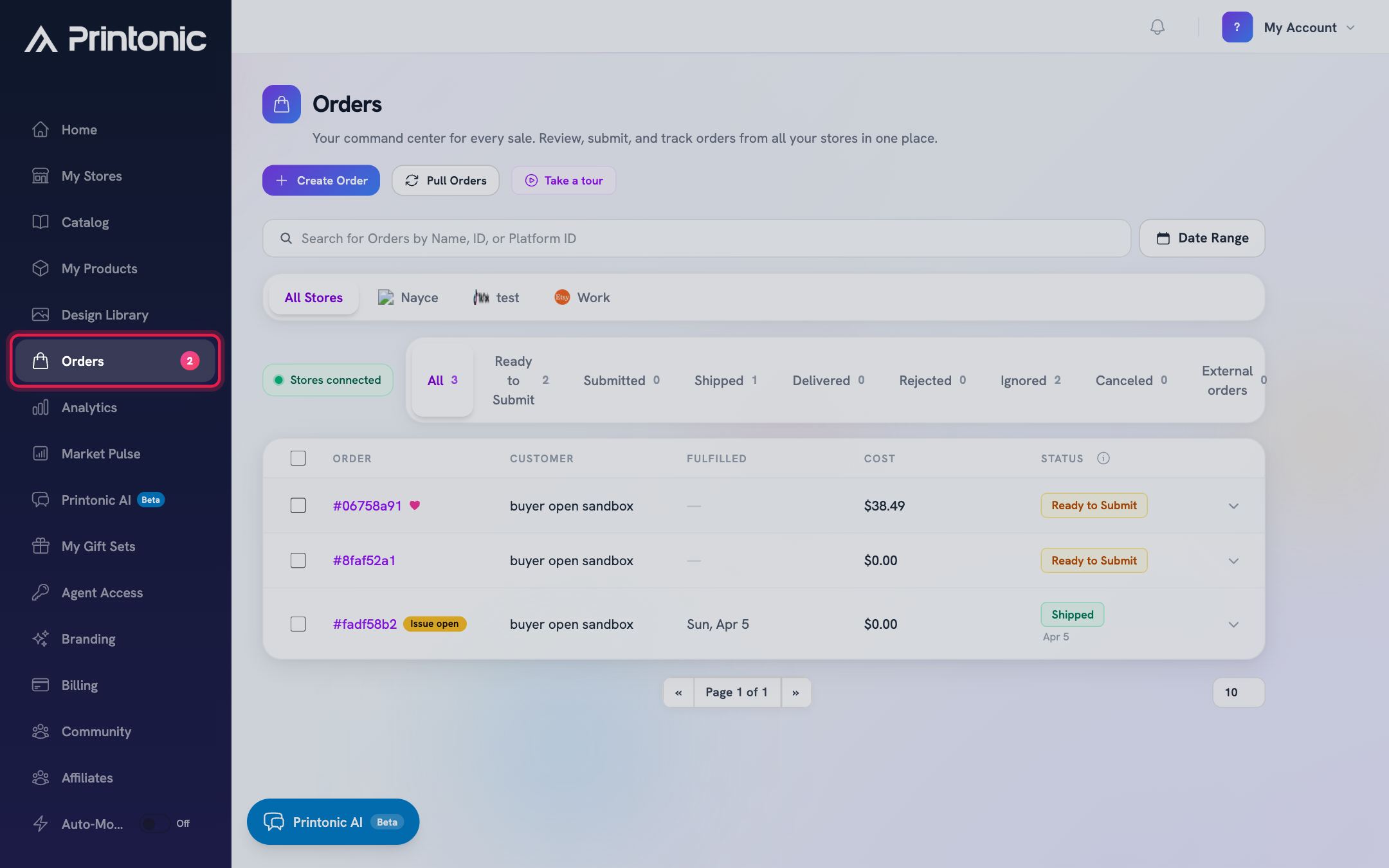
- 2
Dashboard > Orders > status tabs
Filter to the orders you care about
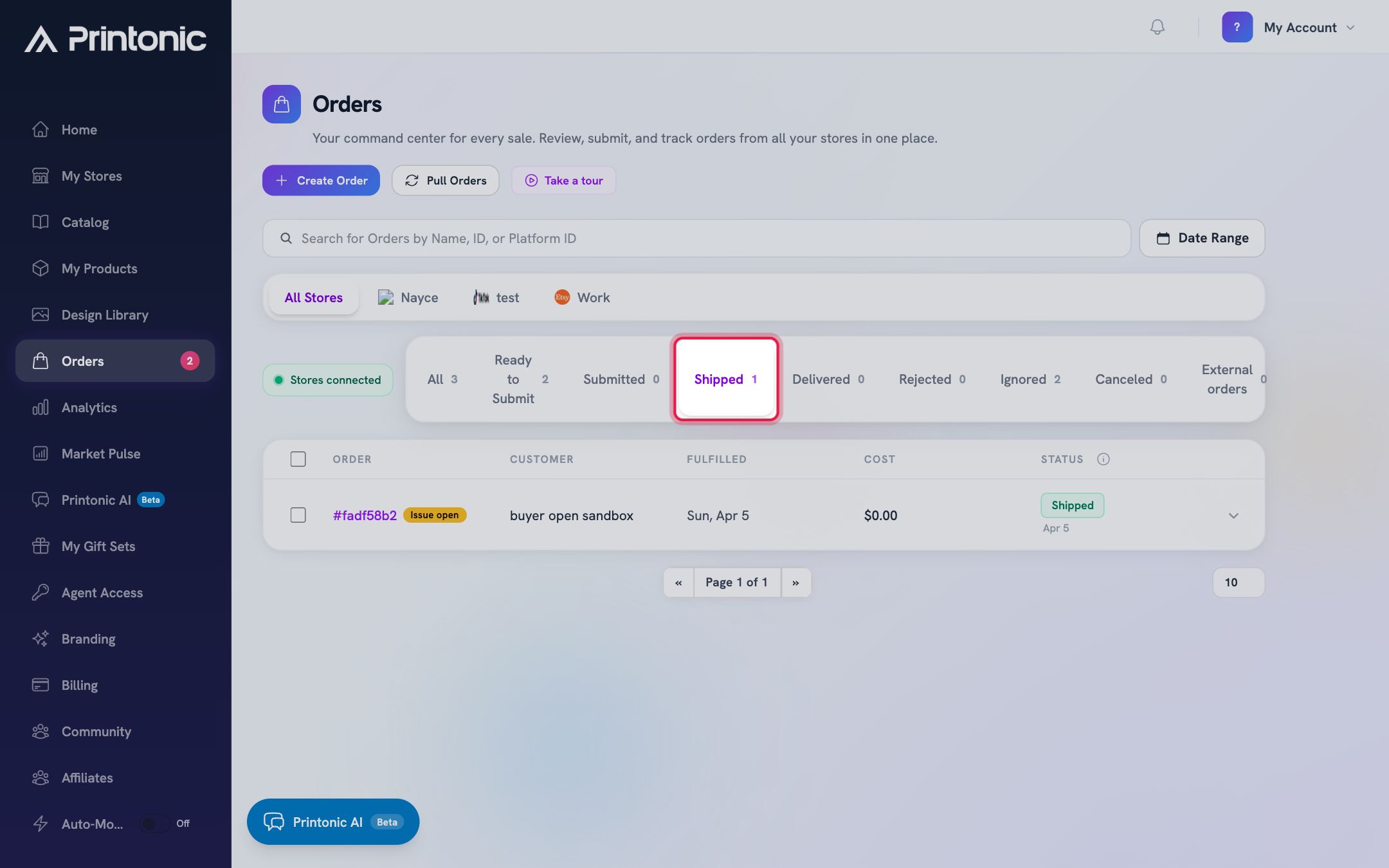
Use the status tabs above the list (All, Ready to Submit, Submitted, Shipped, Delivered, and so on) to see just one group. Each tab shows a count, so you can tell at a glance how many orders are in production versus on the way. On smaller screens the tabs become a dropdown filter.
- 3
Dashboard > Orders > arrow at the end of a row
Peek at tracking right from the list
Click the down arrow at the right end of any row to expand it. For a Shipped order, a Tracking section appears under the Shipping Address with the carrier name and the tracking number, plus a copy button so you can paste the number into a customer message.
- 4
Dashboard > Orders > order number link
Open the order's detail page
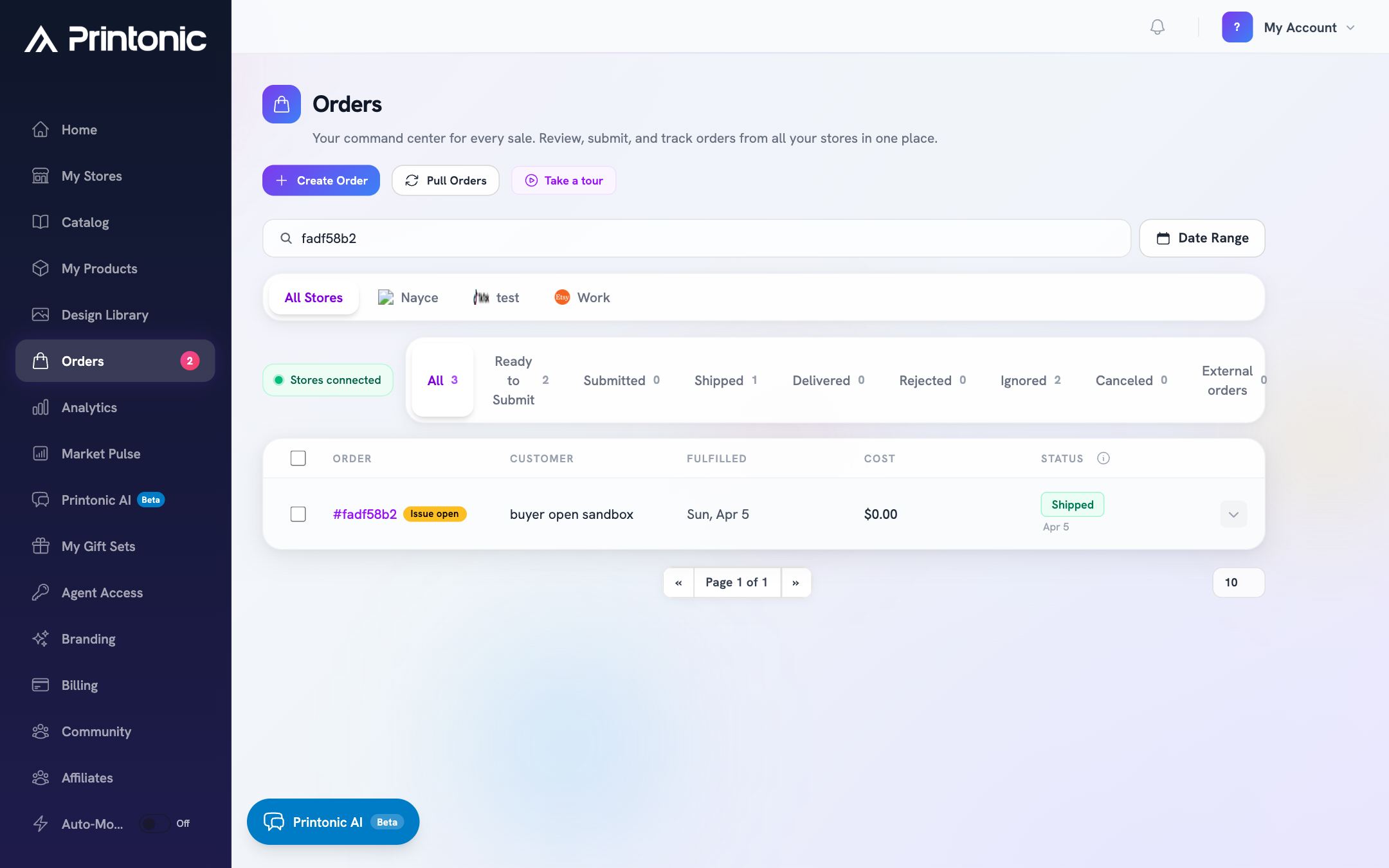
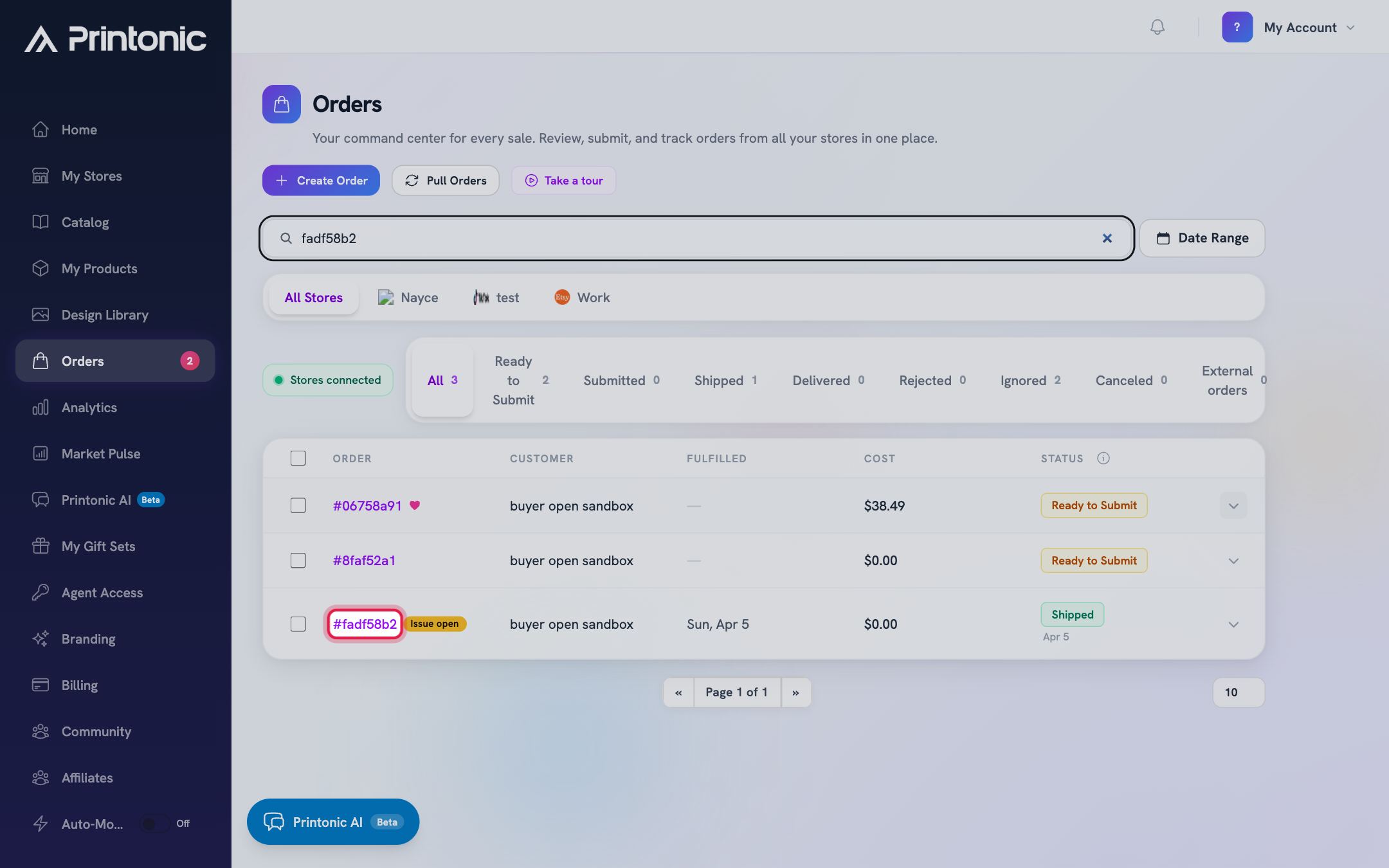
Click the purple order number (like #12345678) at the start of the row. The order page opens with the order number, its current status badge, and the total cost at the top.
- 5
Order page > Shipping & Tracking
Check the Shipping & Tracking card
Once the order ships, a Shipping & Tracking card appears on the order page. It shows the Carrier and the Tracking Number. The tracking number is a link: click it to open a live tracking page in a new tab and see where the package is. Use the copy icon next to it to copy the number to your clipboard (it briefly shows a green check and 'Copied!').
This card only appears after the order has shipped or has a tracking number. If you do not see it yet, the order is still in production.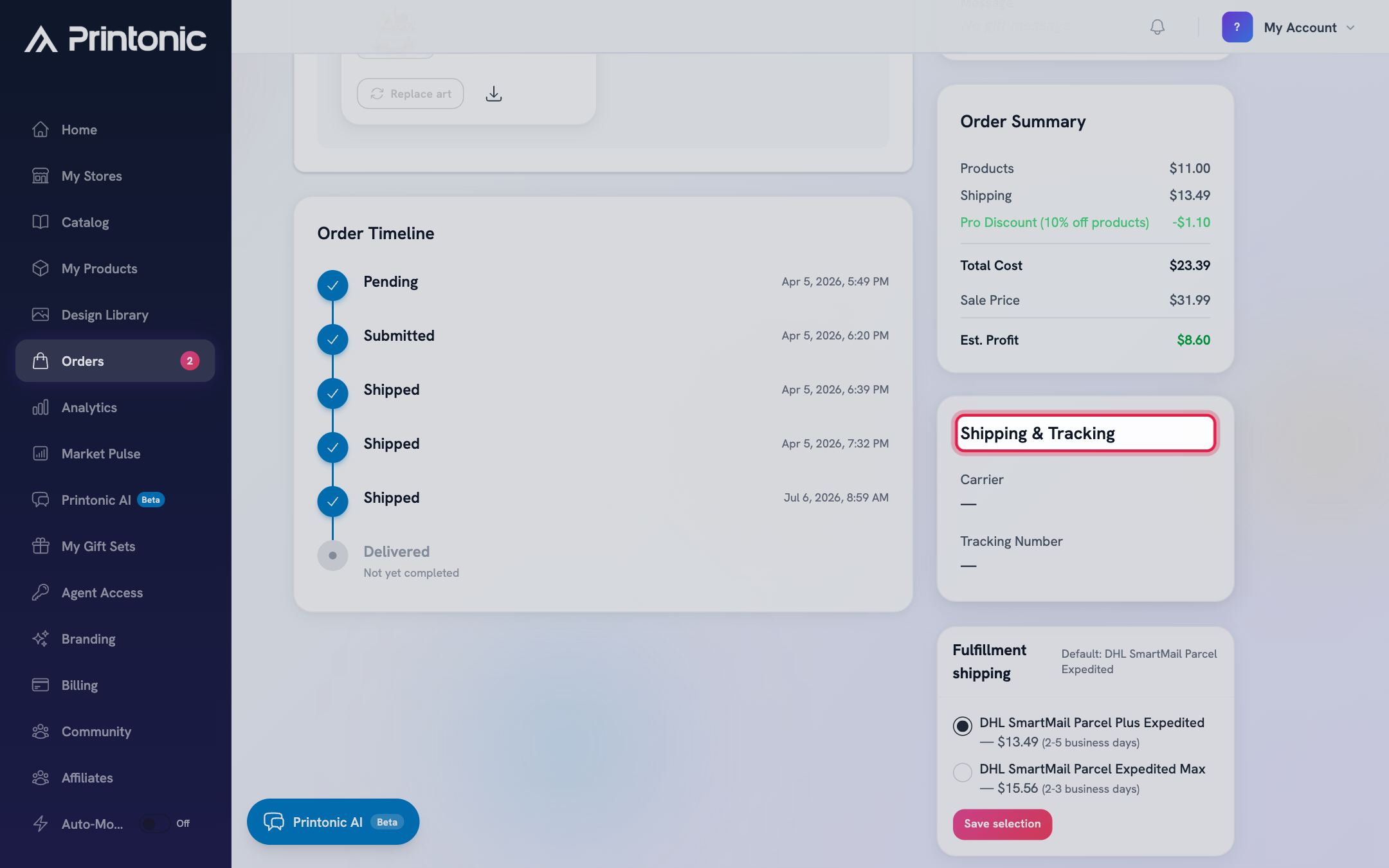
- 6
Order page > Order Timeline
Follow the Order Timeline
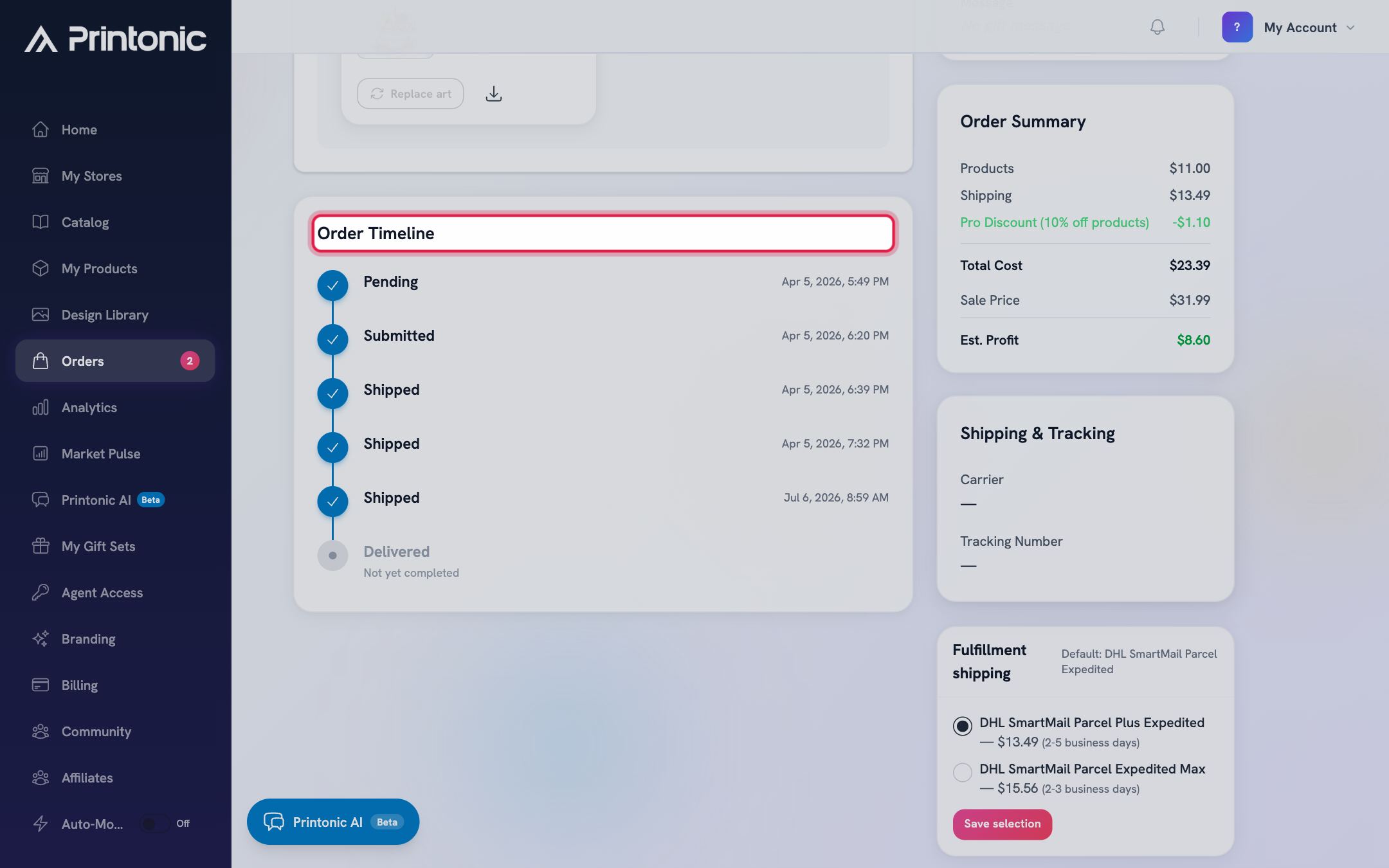
The Order Timeline lists the milestones in order: Pending, Submitted, Shipped, and Delivered. Completed milestones show a check and the exact date and time; upcoming ones are grayed out and marked 'Not yet completed'. Delivered lights up when the carrier confirms the package arrived.
- 7
Happens behind the scenes
Let your customer see it too (automatic)
There is nothing for you to do here. As soon as the order ships, Printonic pushes the carrier and tracking number to the store the order came from (Etsy, Shopify, WooCommerce, or TikTok Shop). The order is marked shipped on your marketplace, and your customer gets the platform's normal shipping notification with the tracking link.
This sync needs a healthy store connection. If your store shows Reconnect required in My Stores, reconnect it so tracking can go through to your customer.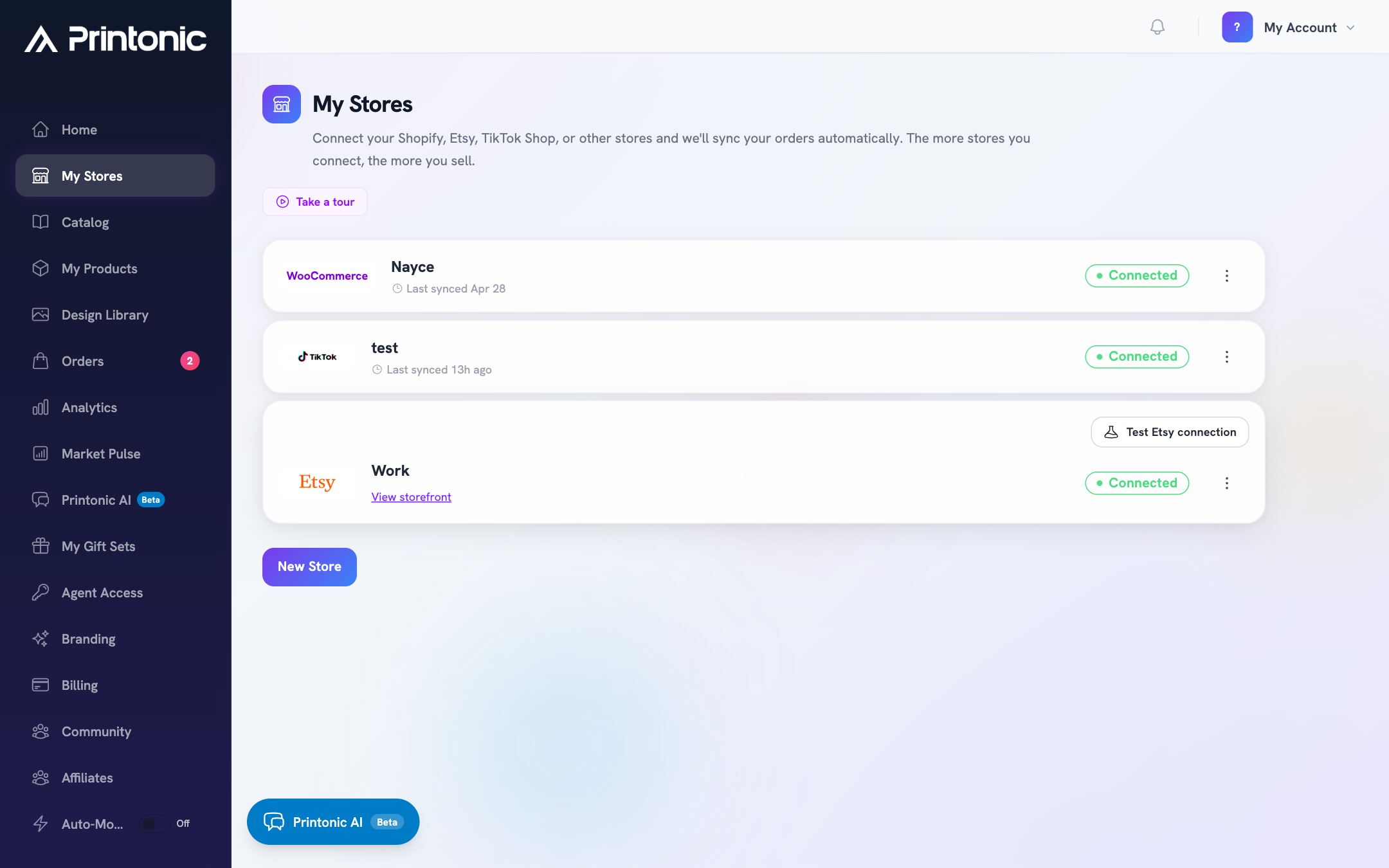
Good to know
- The tracking number link on the order page opens a universal tracking page that works for any carrier, so you never have to figure out which carrier site to visit.
- Sort your workload with the tabs: Submitted is 'in production', Shipped is 'in transit', Delivered is 'done'. The counts on each tab give you a quick health check of your open orders.
- A customer asking 'where is my order?' can usually be answered in seconds: expand the row in the Orders list, copy the tracking number, and paste it into your reply.
- Delivered depends on carrier scans, so a package can arrive slightly before the status updates. When in doubt, click the tracking link for the latest scan events.
Common questions
My order says Shipped, but my customer says they got no shipping notification. What happened?
The shipping notification comes from your marketplace after Printonic sends it the tracking. The most common cause is an expired store connection. Open My Stores, and if the store shows Reconnect required, reconnect it. You can always copy the tracking number from the order page and send it to your customer directly in the meantime.
How long does an order stay in Submitted?
Submitted covers the whole production window: printing, quality checks, and packing. The order flips to Shipped the moment a shipping label with a tracking number is created. Production time varies by product, so check the product's listed production estimate.
Do I ever need to enter a tracking number myself?
No. Printonic fills in the carrier and tracking number when the package ships and sends them to your store automatically. Your job is done once you send the order to fulfillment.
Why does my TikTok Shop order show a carrier I did not choose?
Some TikTok Shop orders ship on TikTok's own prepaid label. In that case TikTok sets the carrier and tracking, and there is no carrier choice to make on your side. The order page notes this on those orders, and tracking still flows to your customer as usual.
Related guides
Manage your orders
Every order from every connected store lands in one Orders tab. Learn what each status means, how to sync, and how to send, ignore, restore, or resubmit orders in bulk.
Send orders to fulfillment and pay
Submit one order or a whole batch for production. Covers the Send to Fulfillment button, the checkout cost breakdown, how your wallet balance applies automatically, paying the rest with a saved card, and adding funds mid-checkout.
Shipping options and upgrades
Every order ships with DHL SmartMail Parcel Expedited by default. Learn how to compare faster carriers on an order, what an upgrade costs, and why TikTok prepaid-label orders have no carrier choice.
Report an issue on an order
Something wrong with an order? Request a refund, reprint, cancellation, or order change straight from the order page, attach photos, and track the request until it is resolved.