Orders & Fulfillment
Manage your orders
Every order from every connected store lands in one Orders tab. Learn what each status means, how to sync, and how to send, ignore, restore, or resubmit orders in bulk.
The Orders tab is your command center for every sale. Orders from all of your connected stores flow into a single list where you can review them, send them to fulfillment, and track them through delivery. Nothing ships until you say so: new orders wait in Ready to Submit until you send them.
- 1
Dashboard > Orders
Open the Orders tab
Click Orders in your dashboard. At the top you will see a Create Order button (for manual orders) and a Pull Orders button, followed by a search bar, a date filter, and a row of status tabs. Below that is the order list itself, with columns for Order, Customer, Fulfilled, Cost, and Status.
If the list says 'No orders yet', orders from your connected stores will appear here automatically once buyers start purchasing. You can also pull orders manually or create one with Create Order.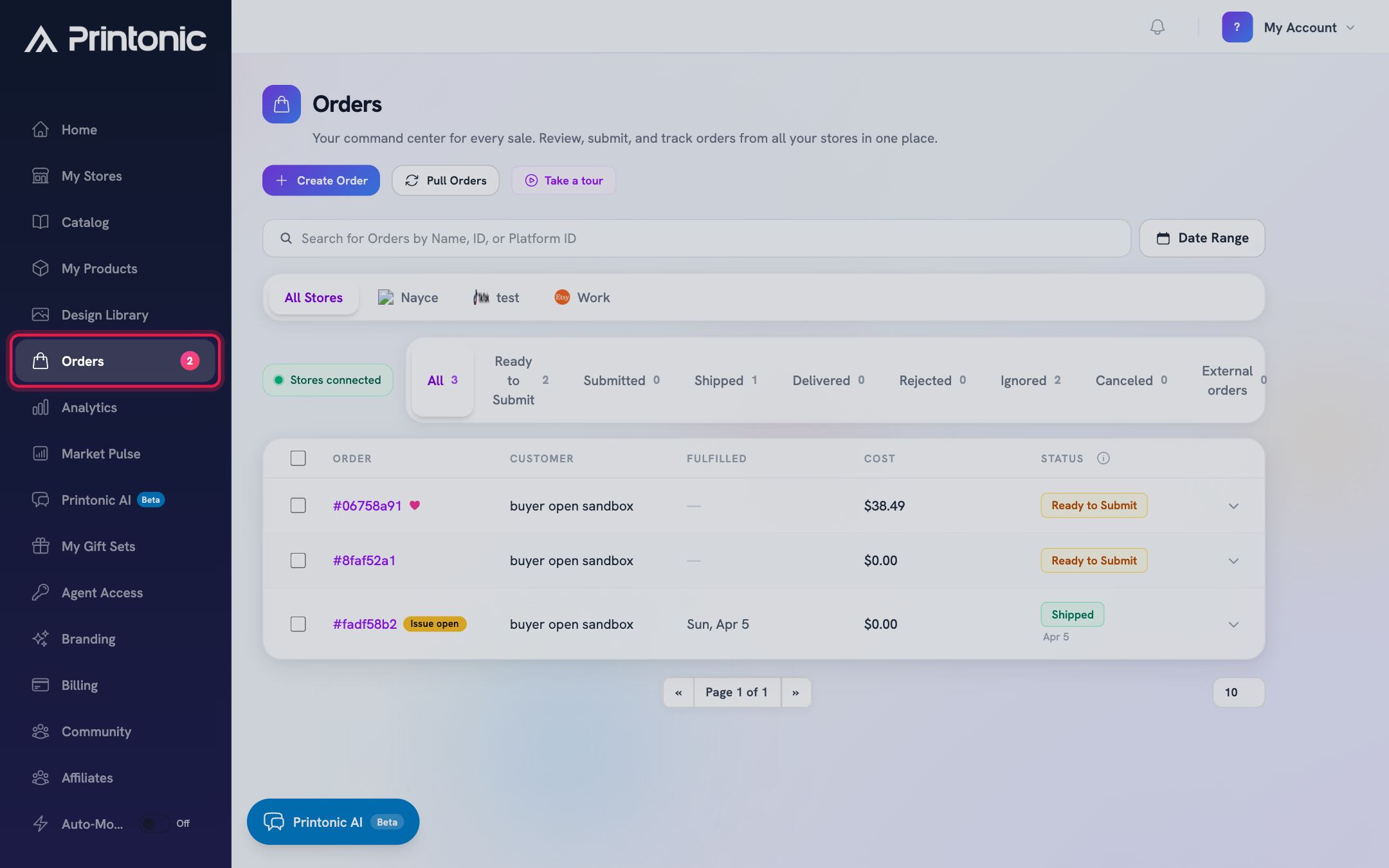
- 2
Orders > Pull Orders button
Sync the latest orders with Pull Orders
Click Pull Orders to fetch new orders from all of your connected stores right now. The button shows 'Syncing...' while it works, and the list refreshes a few seconds later.
You do not have to do this every time. Printonic also pulls orders from your stores automatically on a schedule. Use the button when you want a just-placed order to show up immediately.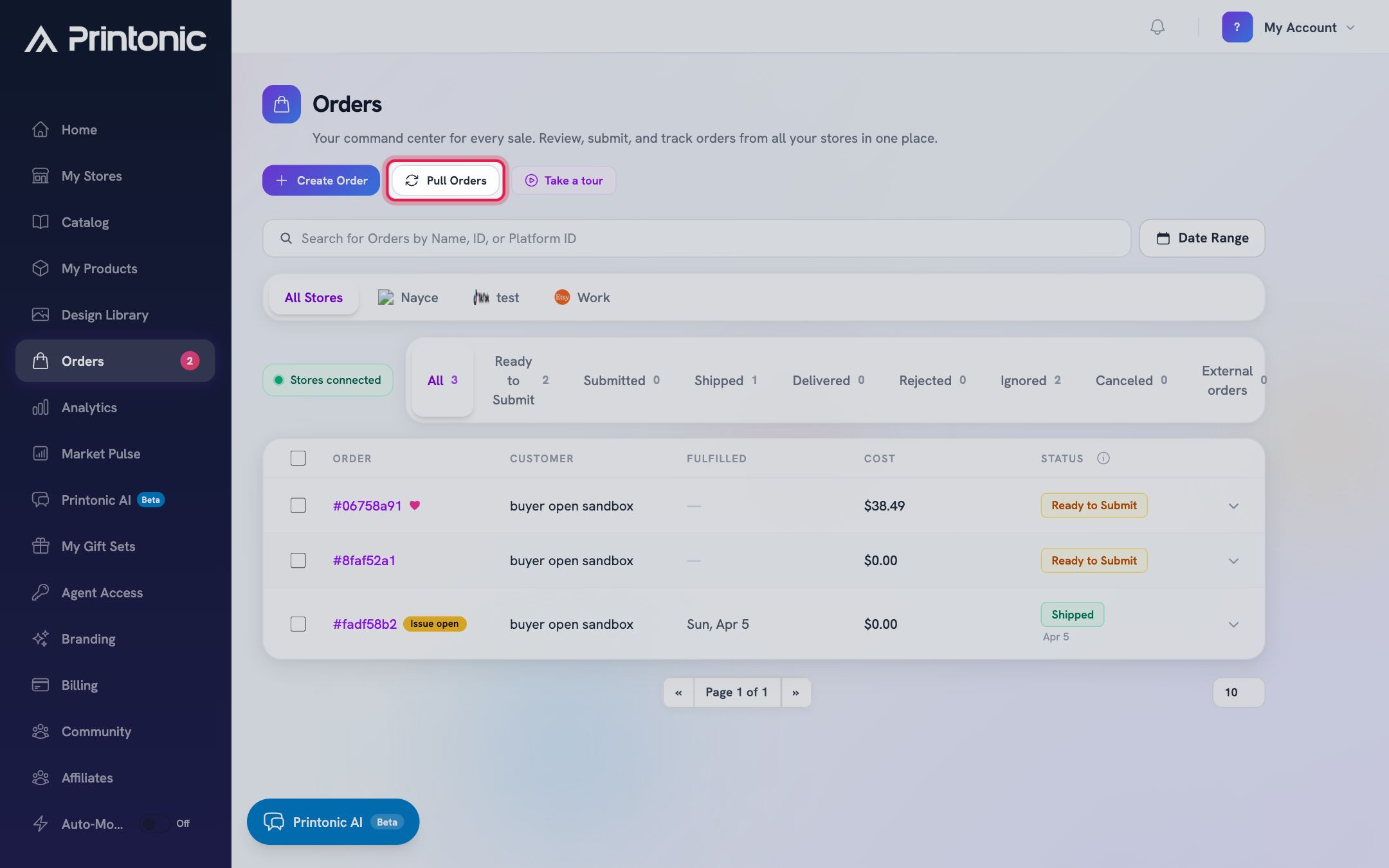
- 3
Orders > search, date filter, and store chips
Find the orders you care about
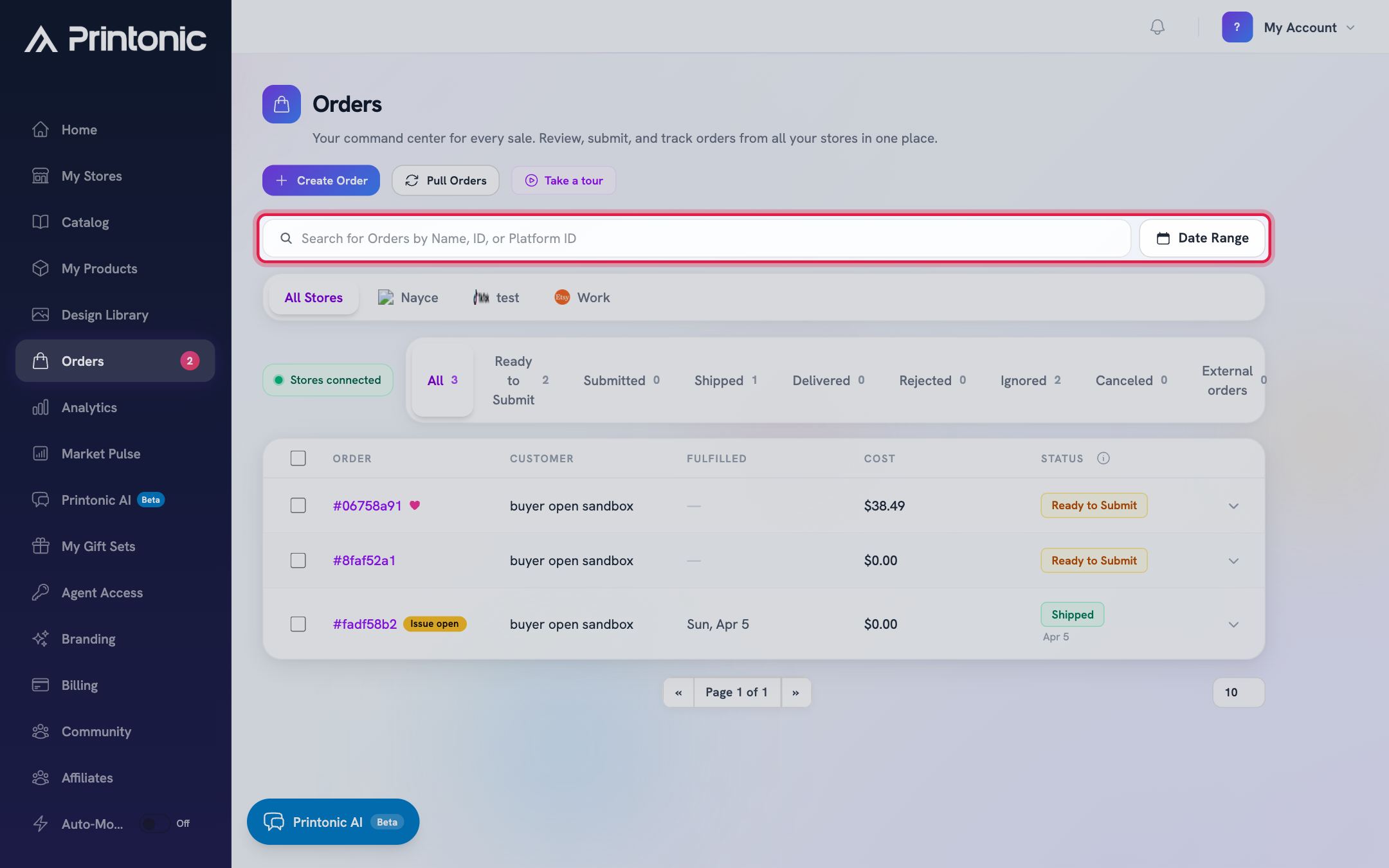
Use the search bar to look up orders by name, ID, or platform ID. Use the date filter next to it to limit the list to a time range. If you have more than one store connected, a row of store chips appears (All Stores plus one chip per store) so you can view a single store at a time. Use the page controls at the bottom to move between pages or show up to 200 orders per page.
- 4
Orders > status tabs
Understand the status tabs
Each tab filters the list and shows a count. All shows everything. Ready to Submit is new orders waiting for you to send them to fulfillment. Submitted means we received the order and it is being produced. Shipped means it is on its way (tracking appears on the order). Delivered means it arrived. Rejected means fulfillment could not process it and it needs your attention. Ignored holds orders you chose not to fulfill through Printonic. Canceled holds orders that were called off. External orders collects orders placed directly in your shop that are not yet matched to your Printonic products.
Nothing in Ready to Submit is charged or produced until you send it. If the External orders tab shows an orange count, there are store orders waiting to be matched before they can be fulfilled.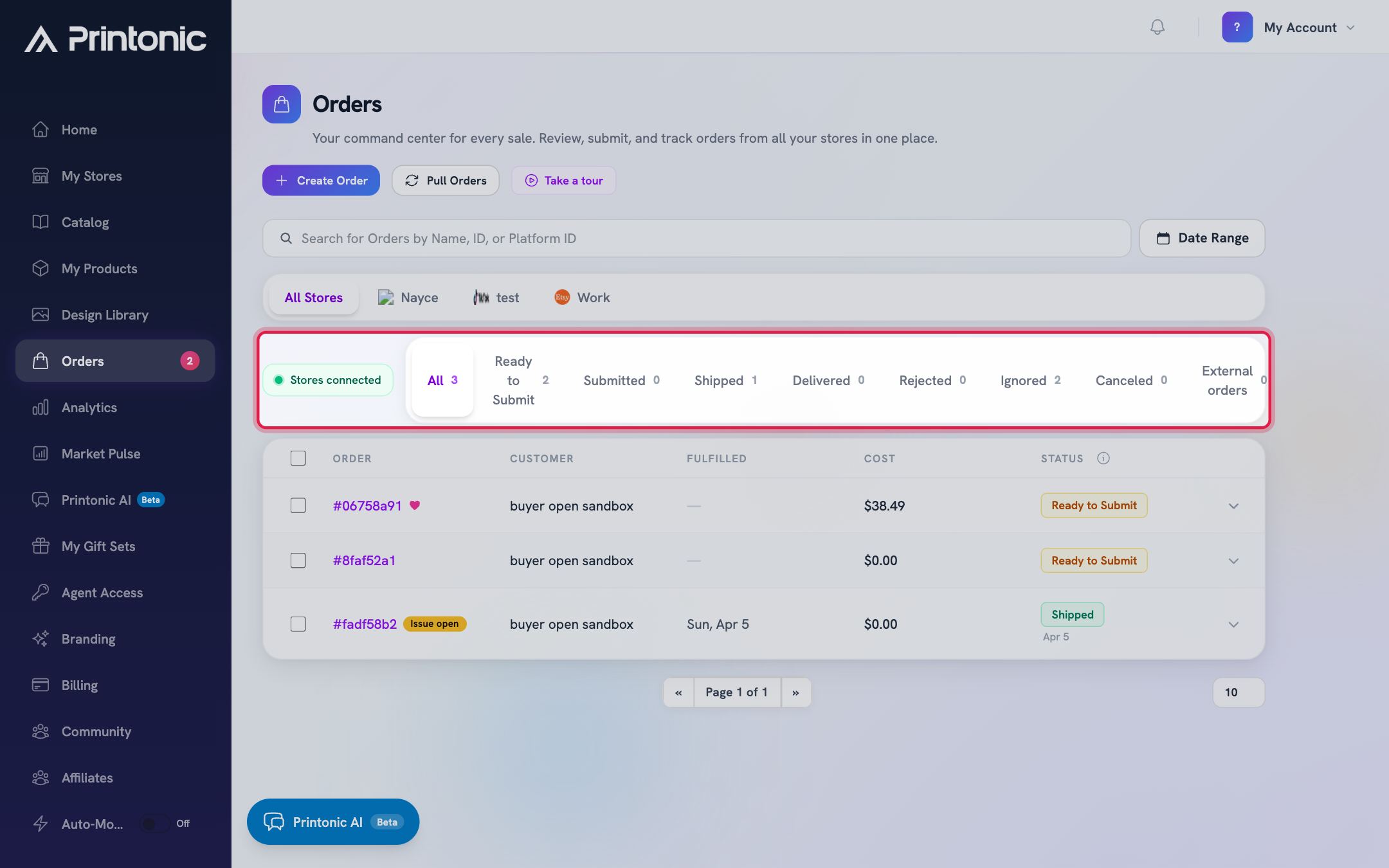
- 5
Orders > arrow at the end of a row
Check an order's details
Click the arrow at the right end of any row to expand it. You will see the Shipping Address, Line Items (with quantities and variations), and a Cost Breakdown showing Product Cost, Shipping Cost, any add-ons like Package Insert or Packaging Sticker, and the Total. On shipped orders, a Tracking section shows the carrier and tracking number with a copy button. There is also a Report Issue button if something went wrong with the order.
Clicking the order number (for example #12345678) opens the full order page, where you can act on that single order.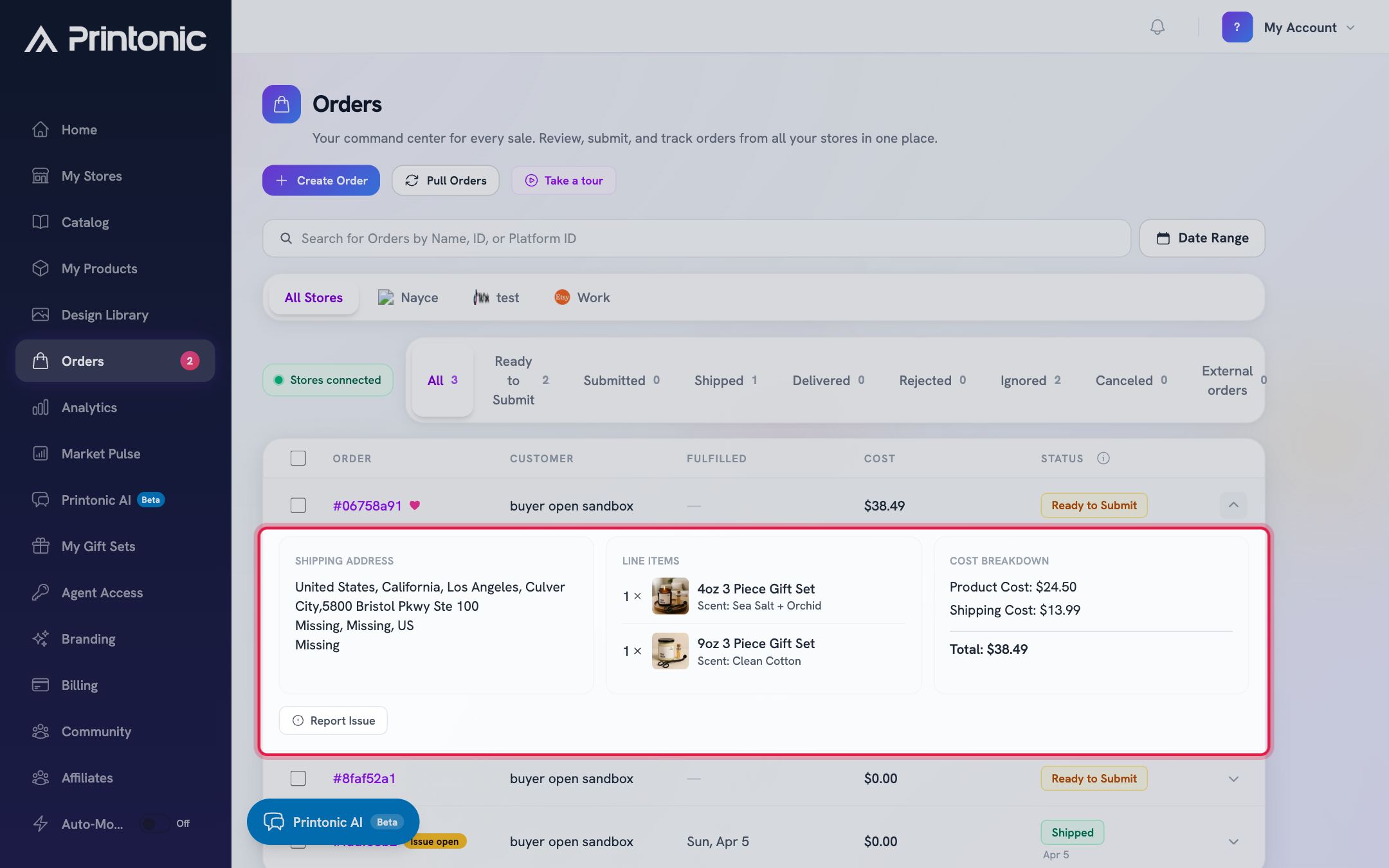
- 6
Orders > Ready to Submit tab
Select orders and send them to fulfillment
Tick the checkbox on each order you want to fulfill, or click the Ready to Submit badge on a row to select it in one click. The header turns into an action bar showing how many are selected, with a Select all Ready to Submit shortcut if there are more. Click Send to Fulfillment. You are taken to a checkout page to review the cost and pay, and the orders then move to Submitted.
Action buttons only appear when every selected order has the same status. If you mix statuses, the bar says 'Select orders with the same status' instead. Also, an order with missing art files cannot be sent: open it and you will see 'Upload art files for all items before submitting'.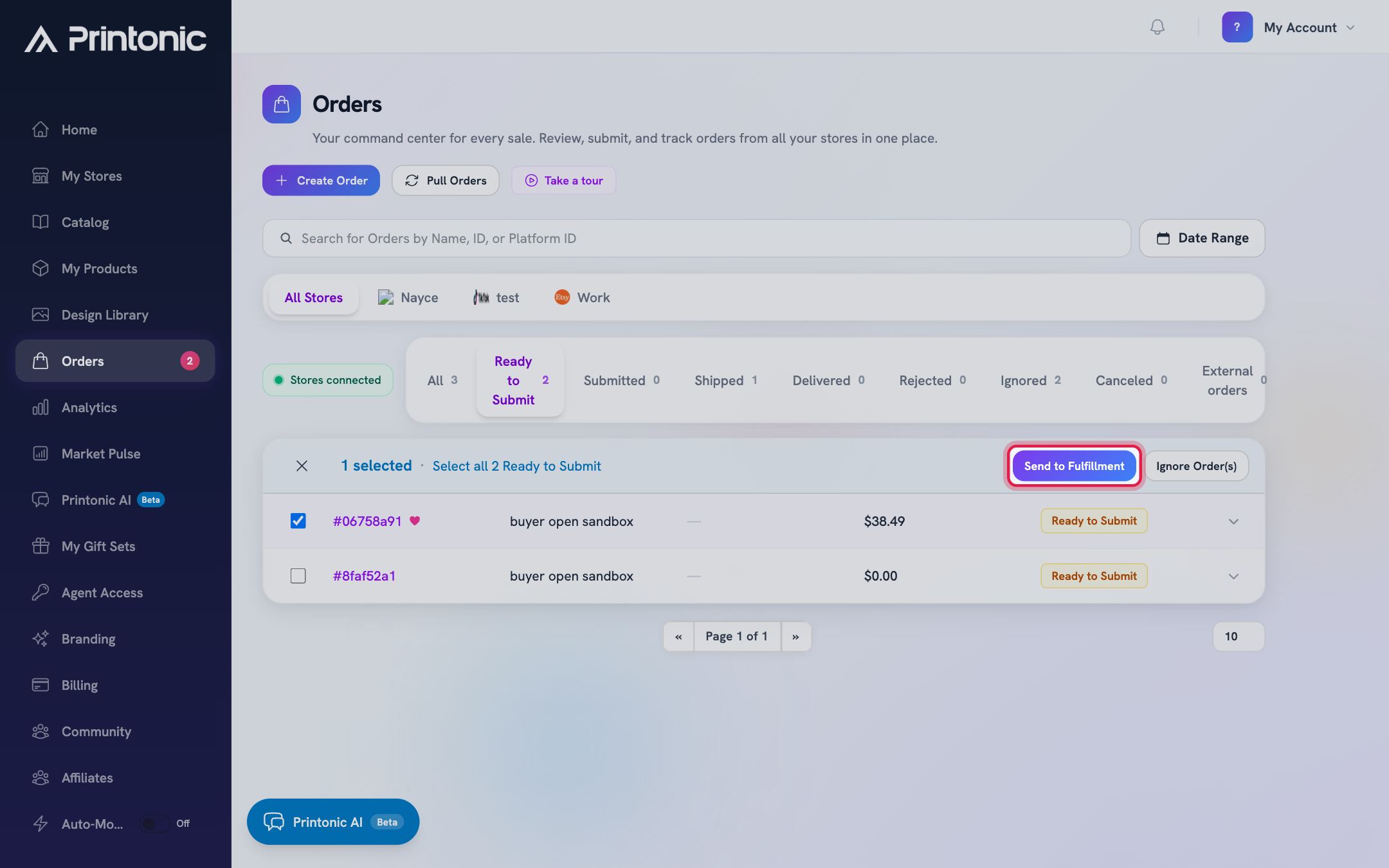
- 7
Orders > Ready to Submit tab
Ignore orders you will not fulfill, restore them later
Select the orders you do not want to fulfill through Printonic and click Ignore Order(s). They move to the Ignored tab and stay out of your way. If you change your mind, open the Ignored tab, select them, and click Restore to Pending. They return to Ready to Submit.
Ignoring only affects Printonic. It does not cancel or refund the order in your store, so handle the buyer side there if needed.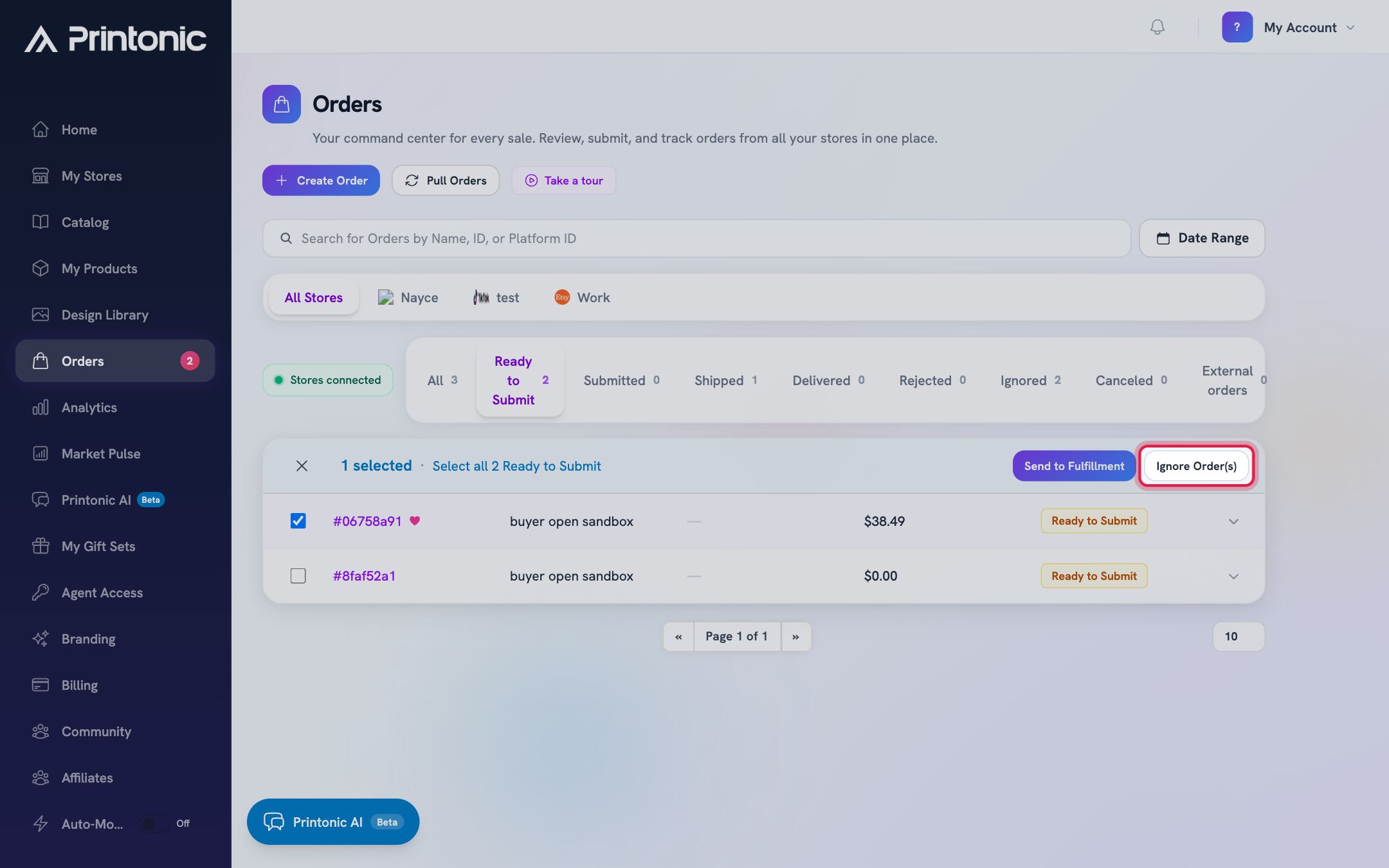
- 8
Orders > Rejected tab
Resubmit rejected orders
If an order lands in Rejected, fulfillment could not process it. Open the order to see what went wrong and fix the cause (a bad address or art problem, for example). Then select the order in the Rejected tab and click Resubmit to send it back to fulfillment.
Resubmit is only available when everything you have selected is Rejected. If the same order keeps bouncing, use Report Issue on the order so we can help.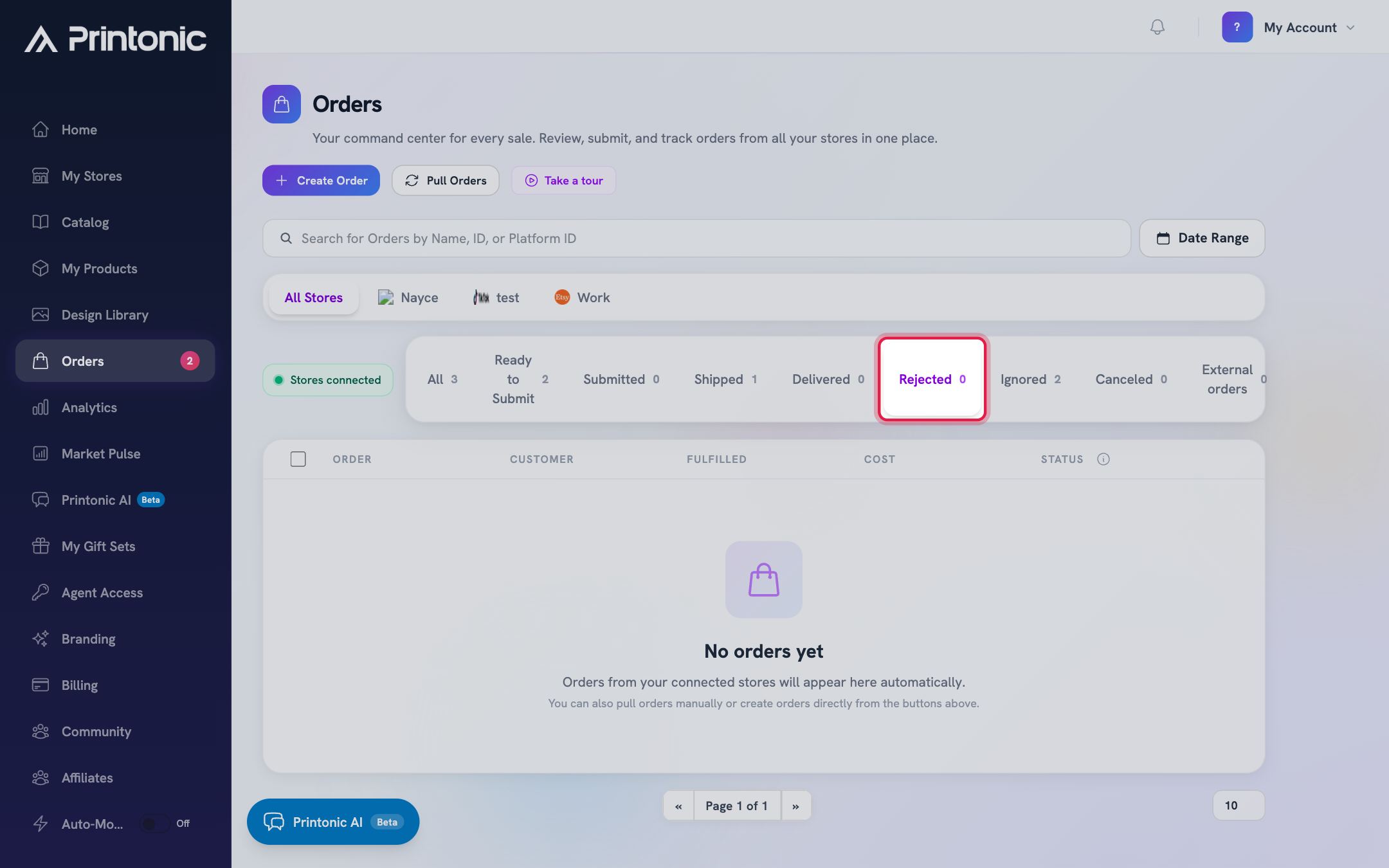
Good to know
- Click the Ready to Submit badge on a row instead of hunting for the checkbox. It selects the order instantly.
- Batch your fulfillment. Bump the per-page selector to 100 or 200, use Select all Ready to Submit, and send everything in one checkout.
- The Fulfilled column shows the date an order was sent to fulfillment, so you can spot at a glance what has and has not gone out.
- A small date under a status badge tells you when that status happened (when it shipped, when it was rejected, and so on).
Common questions
Why do no action buttons appear when I select orders?
You have selected orders with different statuses. Actions only apply to one status at a time, so the bar shows 'Select orders with the same status'. Clear the selection with the X and pick orders from a single tab, like Ready to Submit.
What is the External orders tab?
It collects orders that came into your store directly (for example an Etsy or Shopify sale on a listing Printonic does not recognize). You can map their items to your Printonic products and fulfill them here, or ignore them if you will fulfill them elsewhere. This tab is part of Printonic Pro.
Does ignoring an order cancel it in my store?
No. Ignoring only tells Printonic not to fulfill it. The order in your store is untouched, and you can restore an ignored order to Ready to Submit at any time.
When am I charged for an order?
Only when you send it to fulfillment. Clicking Send to Fulfillment takes you to a checkout page where you review the total and pay. Orders sitting in Ready to Submit cost nothing.
Related guides
Send orders to fulfillment and pay
Submit one order or a whole batch for production. Covers the Send to Fulfillment button, the checkout cost breakdown, how your wallet balance applies automatically, paying the rest with a saved card, and adding funds mid-checkout.
Fix unmatched orders and missing art
Two things can pause an order: Printonic does not recognize the item's SKU (it lands in External orders), or an item is missing a required print file (Send to Fulfillment stays disabled). Here is how to fix both.
Track shipping and order status
Follow an order from Submitted to Shipped to Delivered, find the carrier and tracking number, and learn how tracking reaches your customer automatically.
Create an order manually
Place an order yourself for an offline sale, a product sample, or a test run. Pick your published products, enter the shipping address, review costs, and send it to fulfillment like any other order.