Orders & Fulfillment
Fix unmatched orders and missing art
Two things can pause an order: Printonic does not recognize the item's SKU (it lands in External orders), or an item is missing a required print file (Send to Fulfillment stays disabled). Here is how to fix both.
Two blockers can stop an order from moving forward. The first is an unmatched order: your store sent the order over, but the SKU on the item does not match any Printonic SKU code, so Printonic does not know which of your products to print. These orders collect in the External orders tab. The second is missing art: the order matched fine, but an item does not have a required print file yet, so the Send to Fulfillment button stays disabled until you upload one.
Neither blocker costs you anything or changes the order in your store. Fulfillment simply waits until you resolve it. This guide covers both fixes, plus how to stop unmatched orders from happening again.
- 1
Dashboard > Orders > External orders
Open the External orders tab
In the Orders tab, click External orders at the end of the status tabs. When orders are waiting there, the count on the tab shows in orange. A blue banner at the top explains what you are looking at: orders from your shop, not created in Printonic. Each row shows the store, the order and customer, the items with their SKUs, and a progress column that reads something like 1/3 mapped until every item is matched.
The External orders view is part of Printonic Pro. Orders land here when the SKU on an item does not match any Printonic SKU code, which usually means the listing was never linked to a Printonic product or a code was mistyped.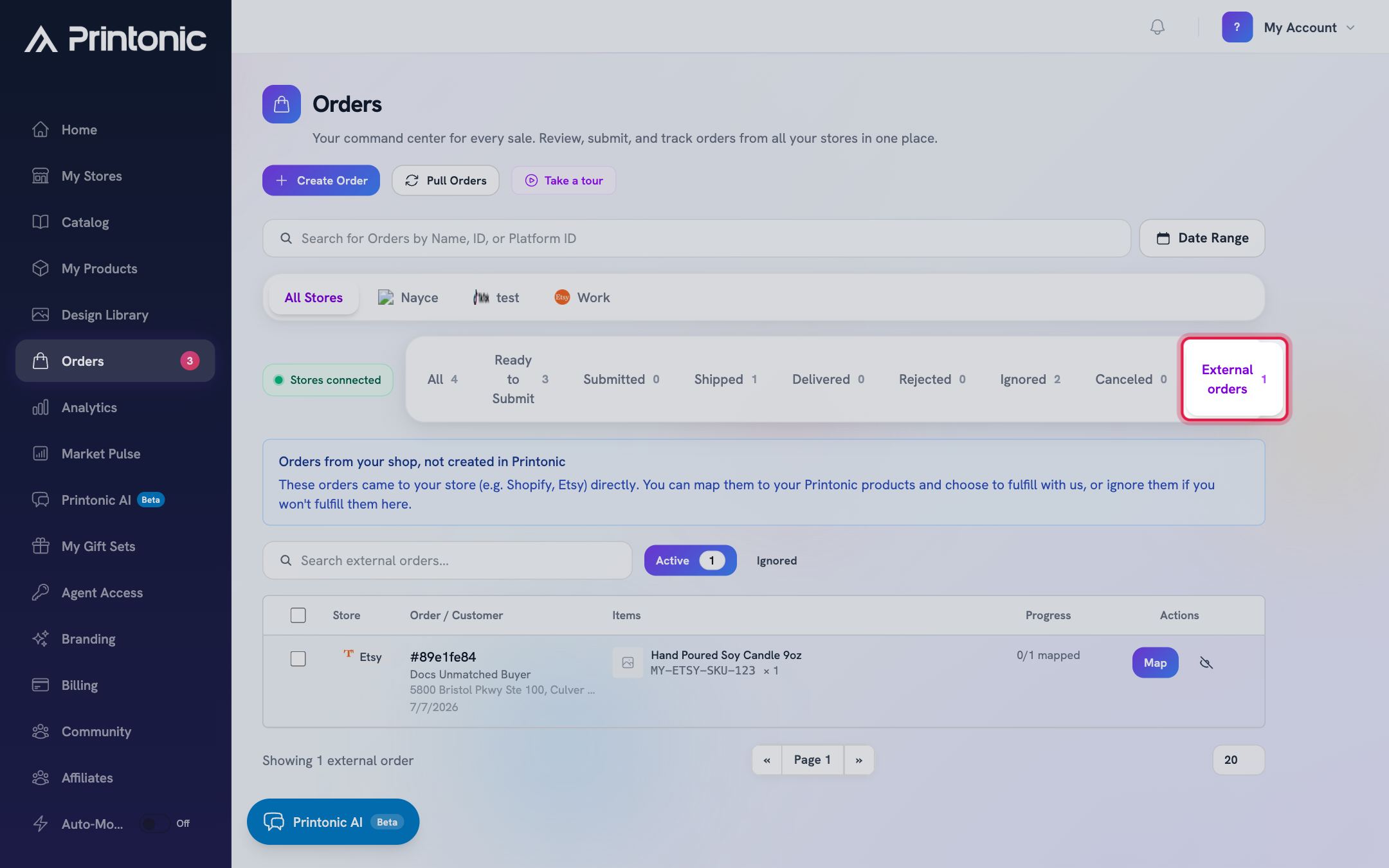
- 2
External orders > Map
Click Map and match each item to a product
Click the Map button on an order row to open the Map Order Items window. For each item, use the search box under Choose a Printonic product to find the right product, then pick the size or color options that match what the buyer ordered. When the combination is valid, a green Resolved SKU confirmation appears with the matching SKU code.
If you see 'No SKU found for this combination. Try different options.', the product does not have a SKU for those exact options. Pick a different combination, or check that the product's variations were set up to match your listing.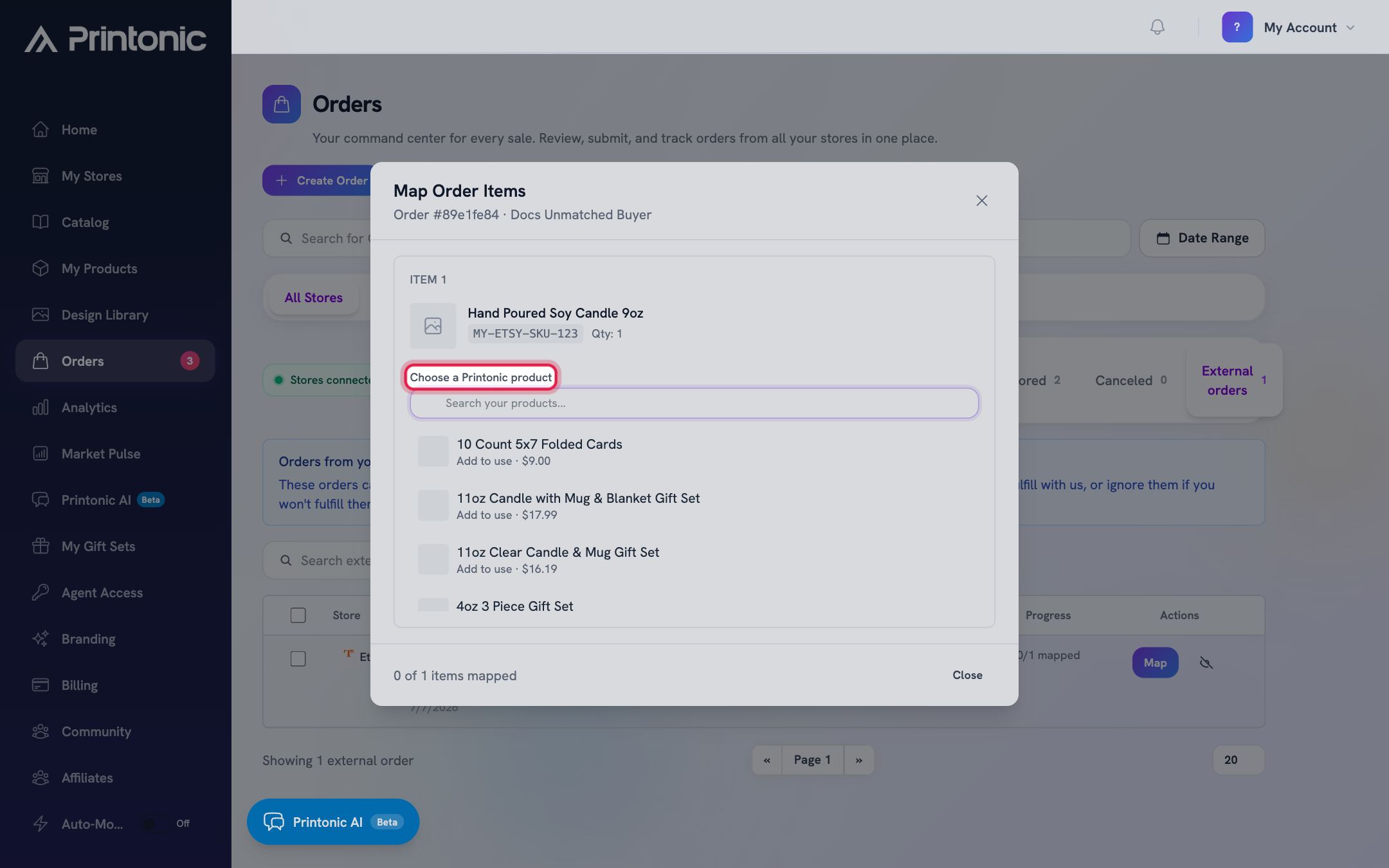
- 3
Map Order Items window
Upload art files and click Assign SKU
If the product needs print files, an Upload Art Files section appears with a slot for each requirement (required slots are marked with a red asterisk and show the expected pixel size). Add your files, then click Assign SKU. The item turns green and shows a Mapped badge.
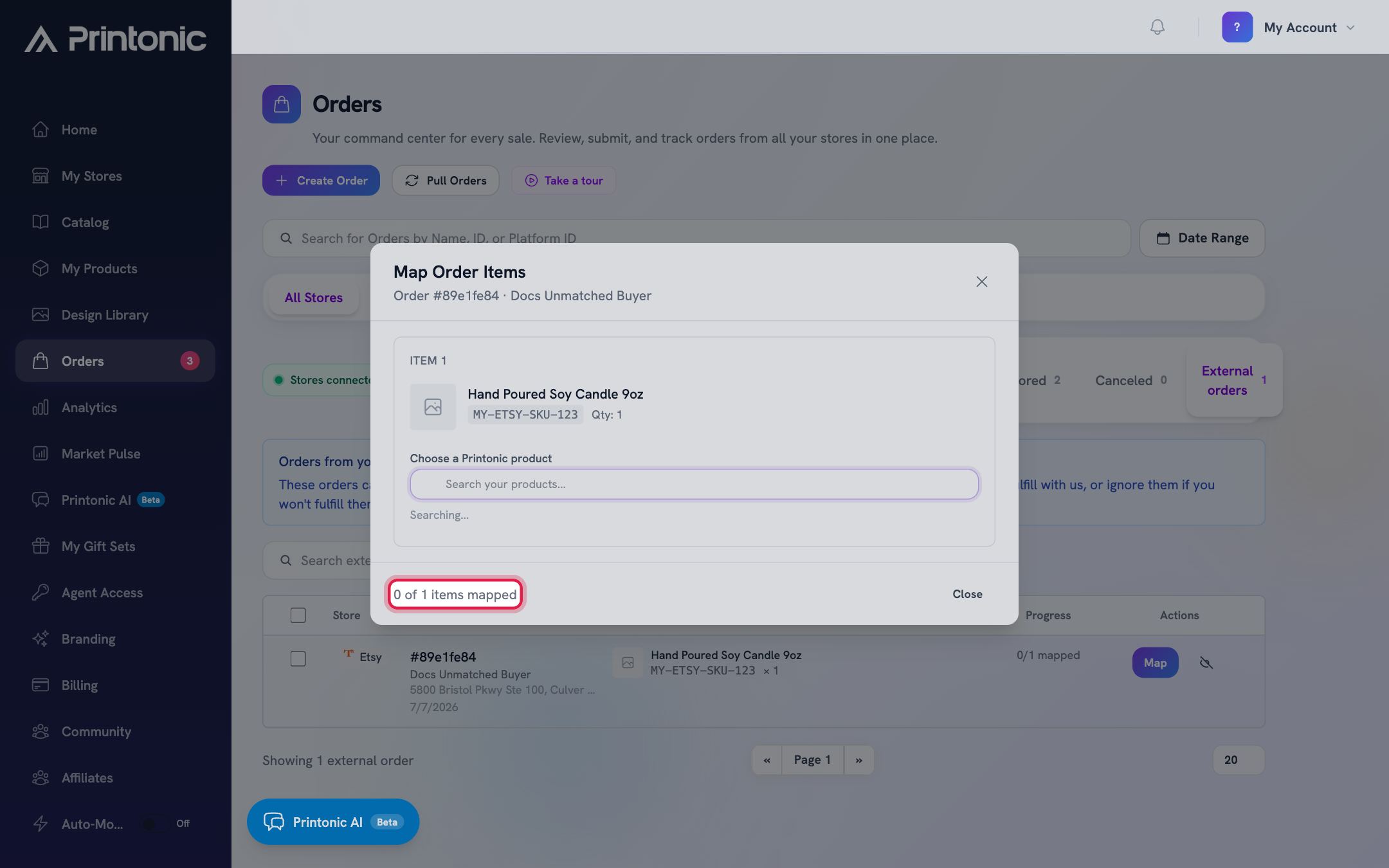
Filling the art slots here means the order will not get stuck on missing art afterward. The footer counts your progress, for example 2 of 3 items mapped.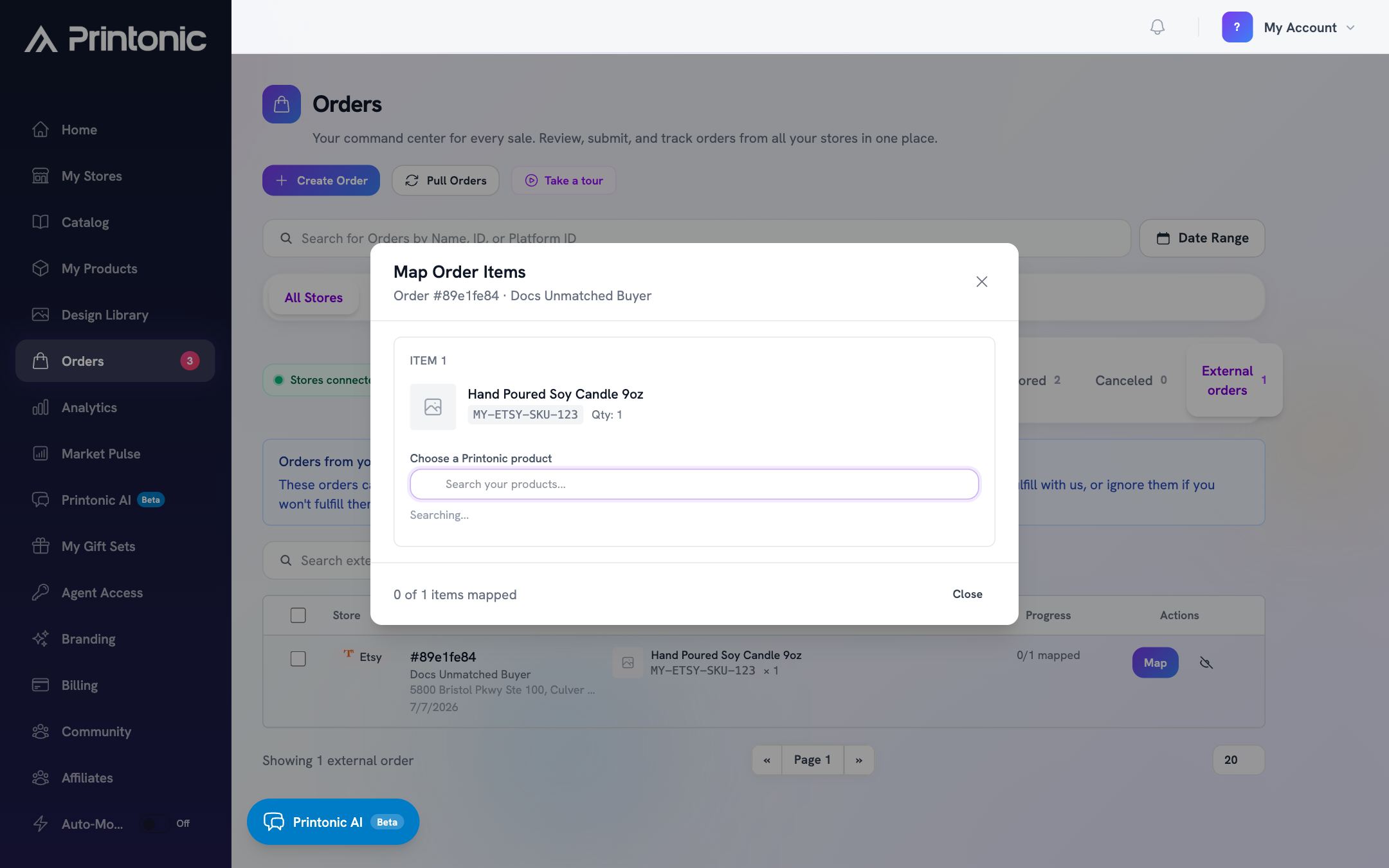
- 4
Map Order Items window
Finish mapping to move the order to Ready to Submit
Repeat for every item in the order. Once all items show Mapped, click the green Done button in the footer. The order leaves External orders and appears in the Ready to Submit tab, where you can send it to fulfillment like any other order.
- 5
External orders > Active / Ignored
Ignore external orders you will not fulfill
If you will fulfill an external order somewhere else, click the eye icon next to its Map button to ignore it, or tick the checkboxes on several orders and click Ignore Selected. Ignored orders move out of the Active view. To bring one back, switch to the Ignored view using the toggle above the table, then click Restore on the row (or select several and click Restore Selected).
Ignoring only affects Printonic. It does not cancel or refund the order in your store.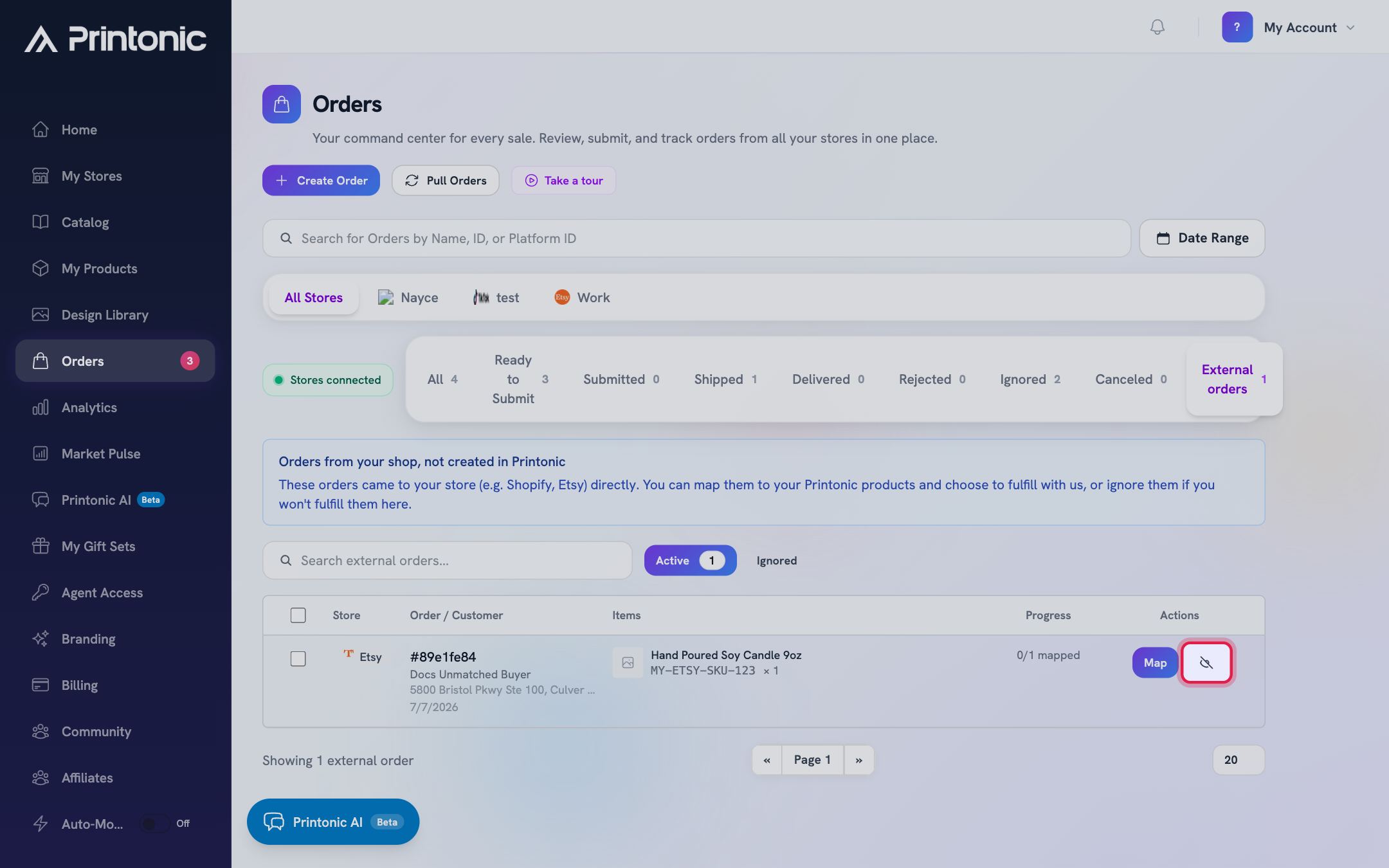
- 6
Dashboard > My Products > your product
Stop future unmatched orders at the source
The permanent fix is making sure your marketplace listing carries Printonic SKU codes. Listings that Printonic published for you already have them. If you linked your own listing, open the product from My Products, expand the SKU codes section, and compare each SKU Code with the SKU field on the matching variation in your marketplace's listing editor. Copy over anything missing or mistyped using the copy icon, or Download CSV to grab all codes at once.
Every variation needs its own code on the listing. One missing or mistyped code means orders for that variation keep arriving unmatched.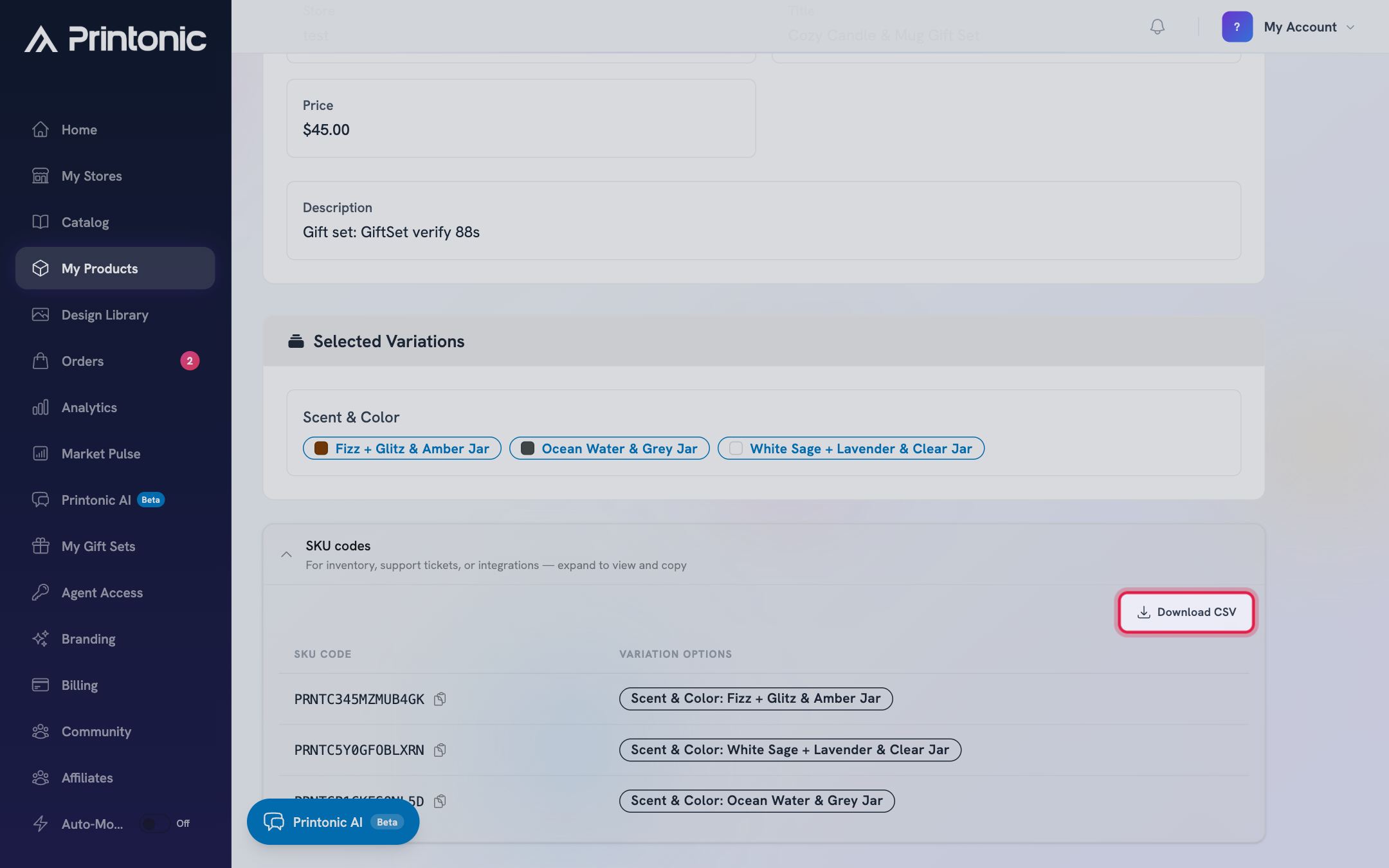
- 7
Dashboard > Orders > order number
Spot missing art on an order
Click an order number to open its full page. If any item is missing a required print file, the Send to Fulfillment button at the top is grayed out, and hovering over it shows 'Upload art files for all items before submitting'. Scroll to the affected item and you will find an amber warning titled 'Art files required', with a card for each required slot that reads 'No file uploaded'.
This usually happens on orders you mapped without adding files, or on products whose listing was linked before artwork was uploaded.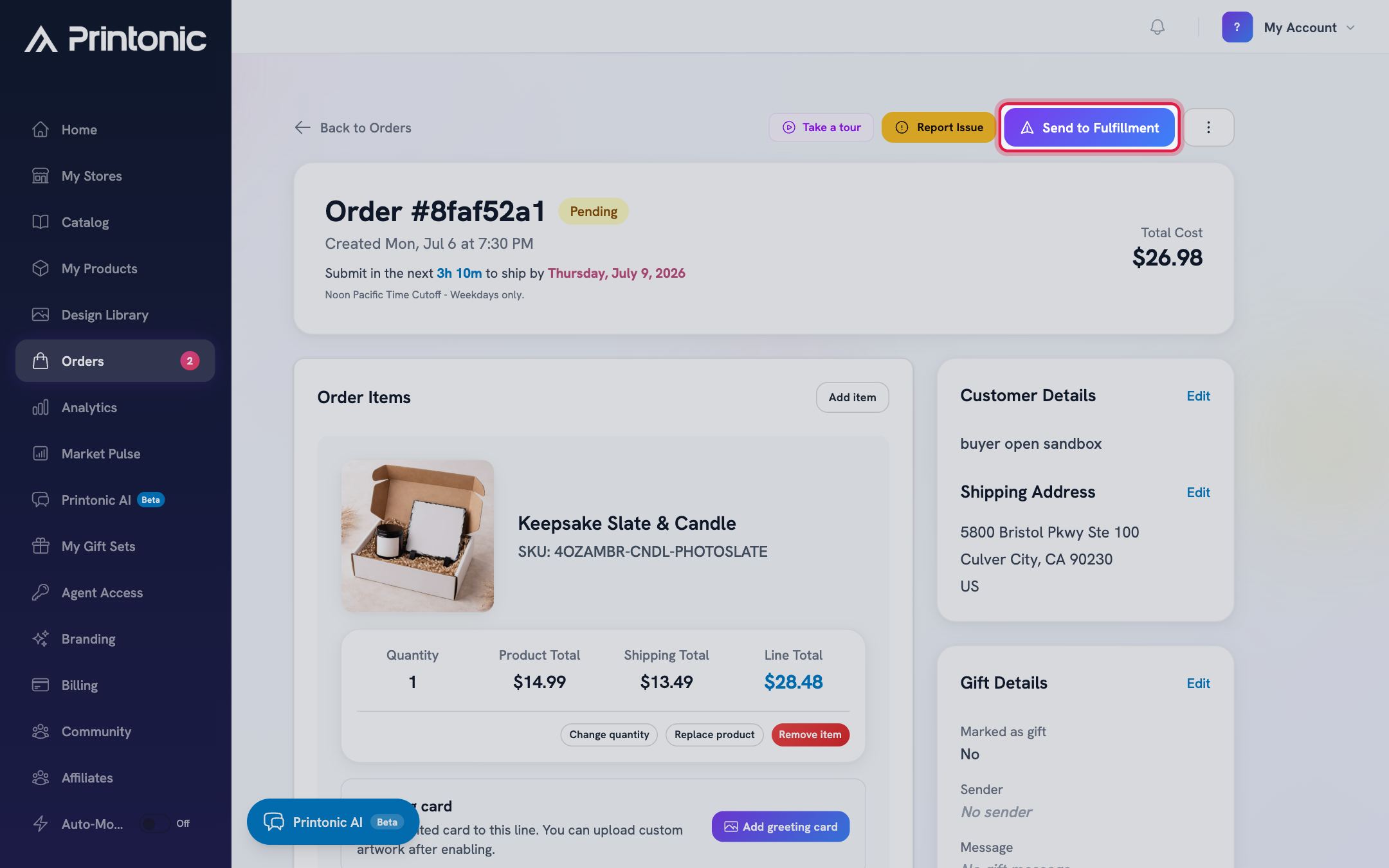
- 8
Order page > item > Upload art
Upload or replace the art for each slot
Click Upload art on each empty slot. The Replace artwork window opens, shows the required size for that slot (for example, Required size: 3000 x 3000px), and lets you position your design on the canvas before saving. To swap a file that is already attached, click Replace art on that slot instead. Files you add here apply to this order only; the product's saved files are untouched.
You can only edit an order while it is pending, ignored, or rejected. On orders past that point you will see an 'Editing is disabled' banner instead of the art buttons.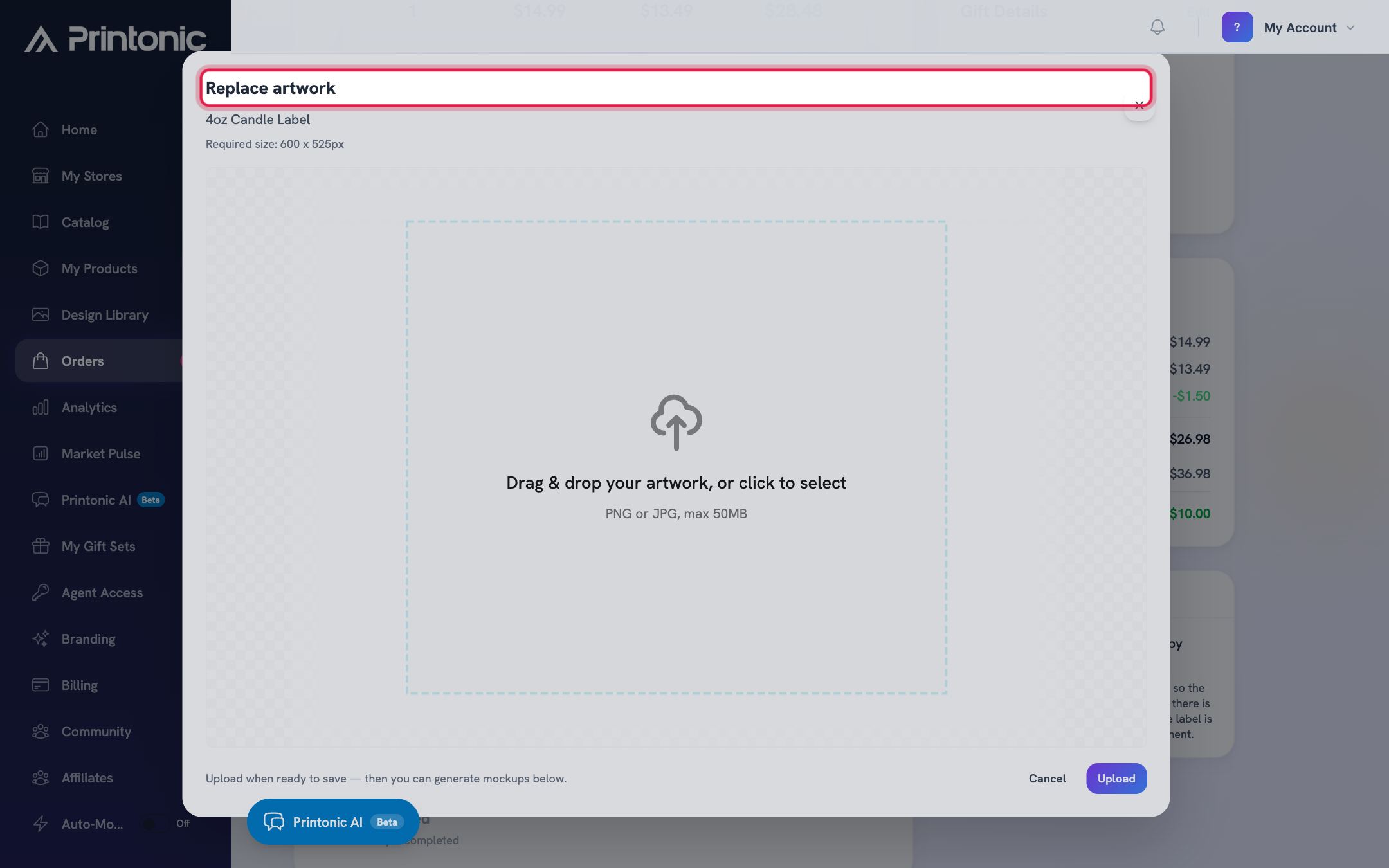
- 9
Order page
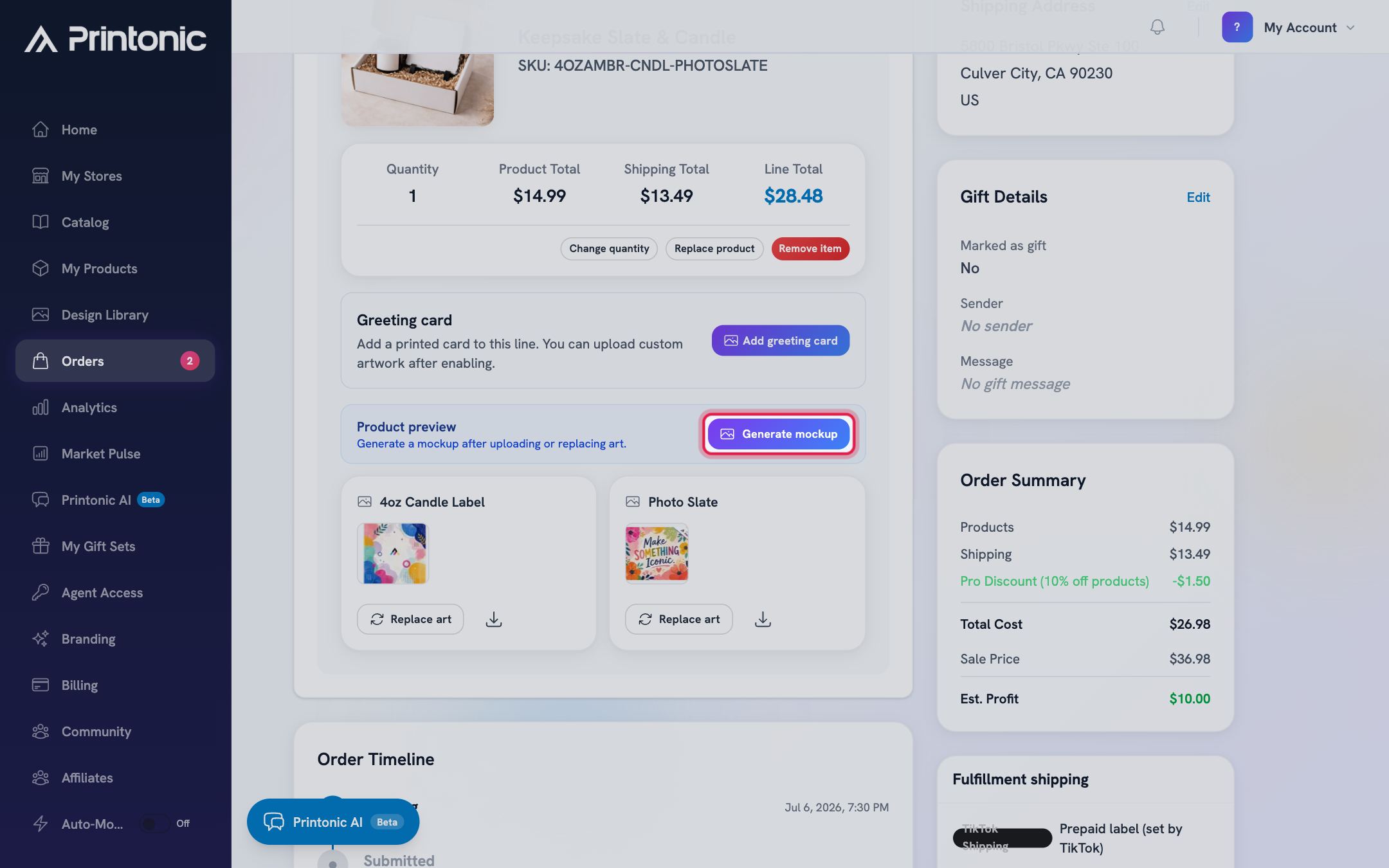
Check the print and send the order
After uploading or replacing art, click Generate mockup in the Product preview section to see the design on the product. If you replaced an item's original art just for this order, a Reset to original button appears in case you want to undo the swap. Once every required slot has a file, the Send to Fulfillment button becomes active and you can send the order as usual.
Good to know
- Keep an eye on the External orders tab. Its count turns orange whenever store orders are waiting to be matched, so blockers are easy to spot.
- Copy SKU codes with the copy icon instead of retyping them. A single wrong character is enough to make an order arrive unmatched.
- Fill the Upload Art Files slots while mapping. A fully mapped order lands in Ready to Submit already cleared to send.
- Per-order art swaps are handy for personalized orders: use Replace art on one order without touching the product, then Reset to original if you change your mind.
Common questions
Why do orders keep showing up in External orders?
The SKU on the incoming items does not match any Printonic SKU code. Check that every variation on your marketplace listing has the exact code from your product's SKU codes list. See the guide on linking an existing listing with SKU codes for the full walkthrough.
Does ignoring an external order cancel or refund it in my store?
No. Ignoring only tells Printonic to set the order aside. Your store's order is untouched, and you can restore an ignored order from the Ignored view at any time.
Why is Send to Fulfillment grayed out on my order?
At least one item is missing a required print file. Hover over the button and it says 'Upload art files for all items before submitting'. Open each item showing the 'Art files required' warning and use Upload art on every slot marked 'No file uploaded'.
Can I fix the art after an order was sent to fulfillment?
Not directly. Editing is only allowed while an order is pending, ignored, or rejected; after that you will see an 'Editing is disabled' banner. If the wrong art went out on a submitted order, use the Report Issue button on the order so we can help.
Related guides
Manage your orders
Every order from every connected store lands in one Orders tab. Learn what each status means, how to sync, and how to send, ignore, restore, or resubmit orders in bulk.
Link an existing listing with SKU codes
Already have a live listing on your store? Skip listing setup, generate Printonic SKU codes, and paste them into your listing so orders route to Printonic for fulfillment.
Send orders to fulfillment and pay
Submit one order or a whole batch for production. Covers the Send to Fulfillment button, the checkout cost breakdown, how your wallet balance applies automatically, paying the rest with a saved card, and adding funds mid-checkout.
Report an issue on an order
Something wrong with an order? Request a refund, reprint, cancellation, or order change straight from the order page, attach photos, and track the request until it is resolved.