Products & Listings
Put your best sellers on more products
Your dashboard Home shows the designs that sold in the last 90 days and how many more products each one fits. One click opens Design Drop with that design already uploaded.
A design that already sold is the safest one to offer on more products. Printonic looks at your orders from the last 90 days, finds the designs your buyers picked, and works out which other catalog products each design fits that you do not sell it on yet.
You see this in two places on your dashboard Home, and on the page of a listing that sold. Each one opens Design Drop with the design ready, so you only review the products and create the listings.
- 1
Dashboard > Home
Read the progress card on Home
Near the top of Home, a card starts with 'You have N products for sale.' Below 50, a bar shows your next goal (5, 20 or 50), for example '3 of 5. Add 2 more to reach 5.' When one of your designs sold, the card also shows it as pictures: Your design, the product it sold on (with Sold N times under it), and Products it fits next. The button reads Put it on N more products.
If your store is connected but you have nothing for sale yet, the card says 'Your shop is connected. Put your first design on up to 30 products in one go.' and the button is Start a Design Drop.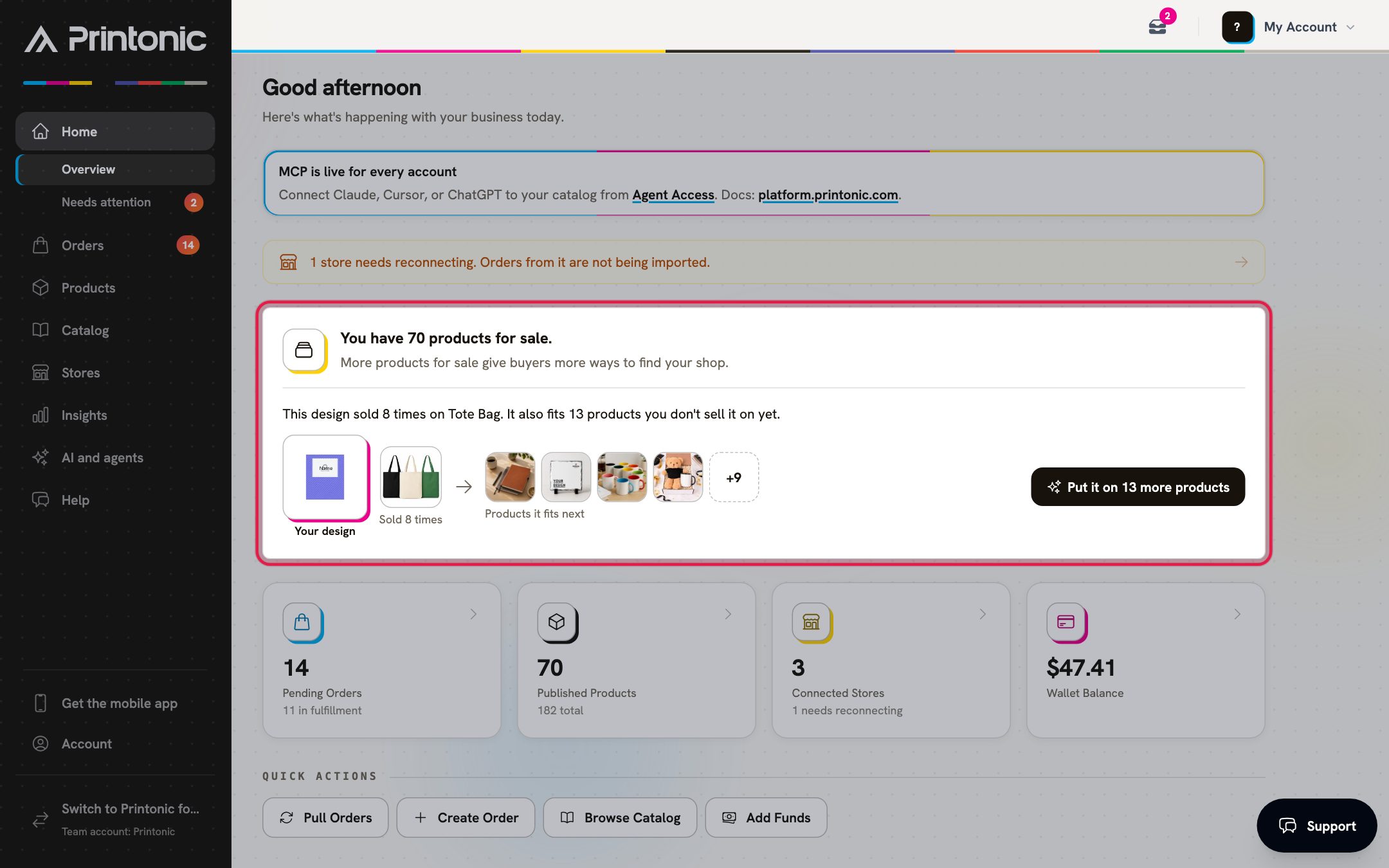
- 2
Dashboard > Home > Grow what sells
Look at Grow what sells
Further down Home, the Grow what sells section lists up to three designs that sold in the last 90 days, best seller first. Each row says how often it sold and on what, for example 'Sold 8 times on Tote Bag', and how many more products it fits, for example 'It fits 13 more products you don't sell it on yet.'
The section appears only after a design has sold. Canceled orders and replacements do not count.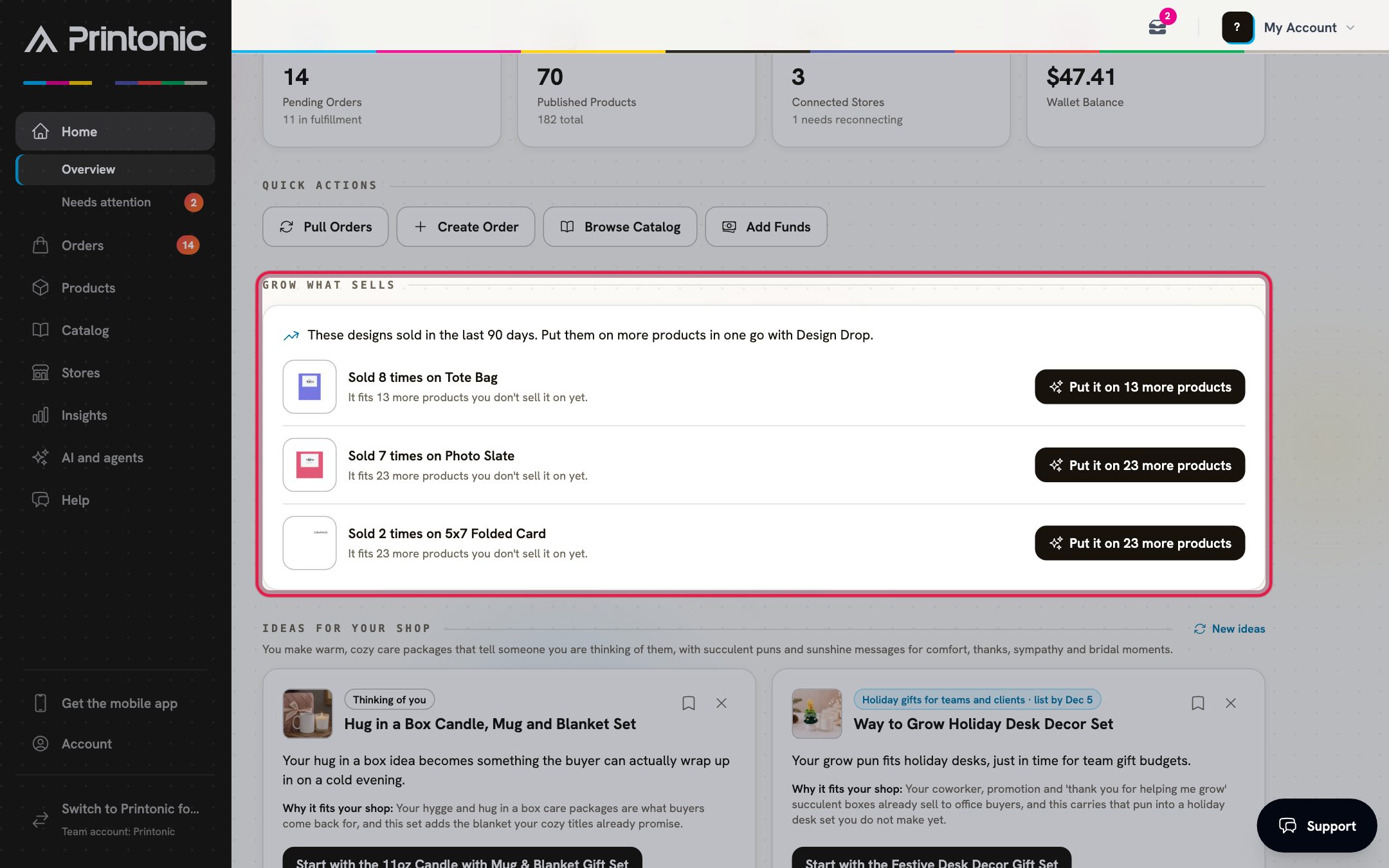
- 3
Dashboard > Home
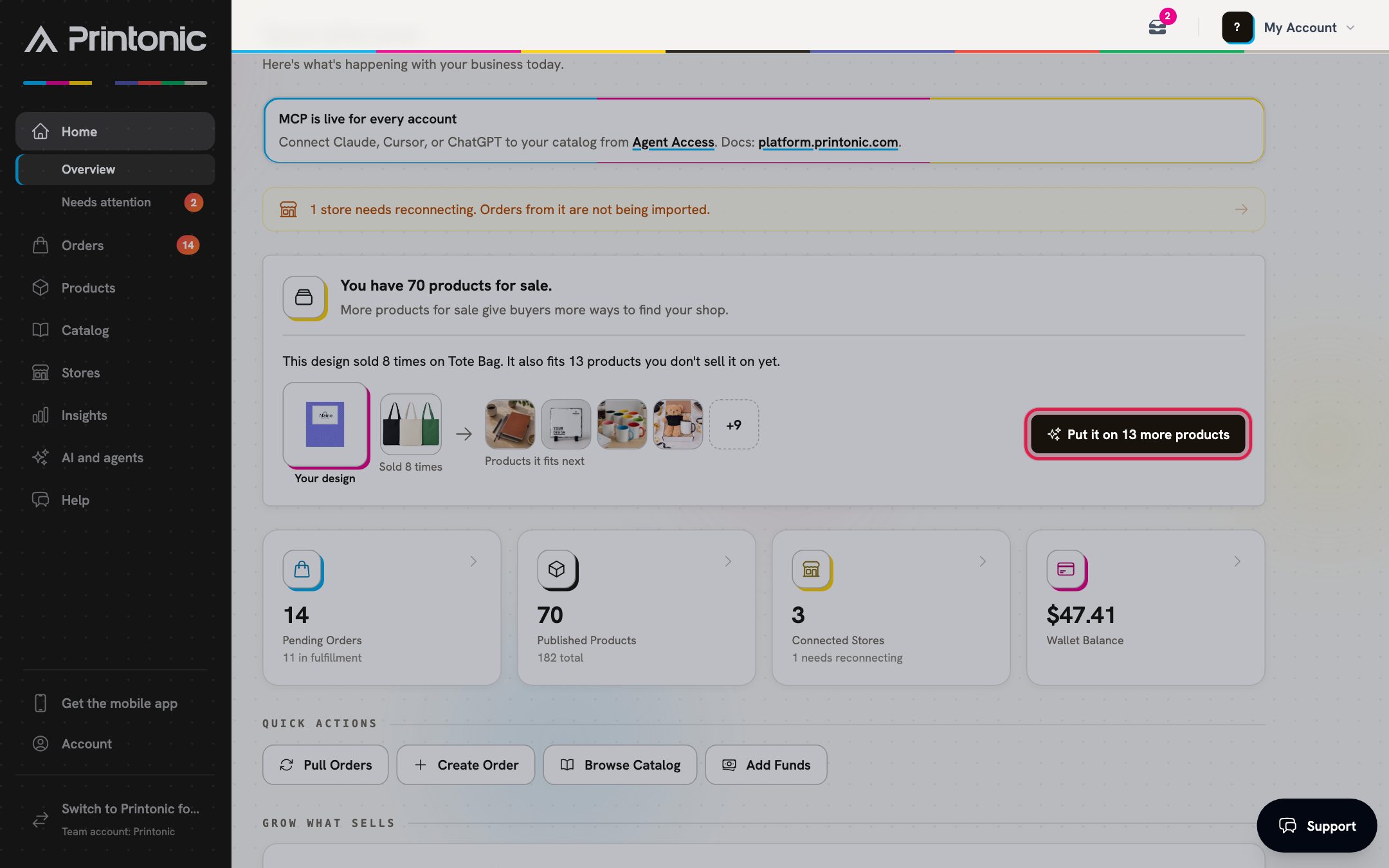
Click Put it on N more products
Click Put it on N more products on the progress card or on any row in Grow what sells. Design Drop opens in the same tab. Nothing is created or published yet.
- 4
Dashboard > Products > My products > a listing
Or start from a listing that sold
Open a published listing whose design sold. At the top of the page, a link reads Put this design on more products, with a line such as 'Sold 8 times on Tote Bag. It fits 13 more products.' Click it to open Design Drop with that design.
The link shows only on listings whose design sold in the last 90 days and still fits more products.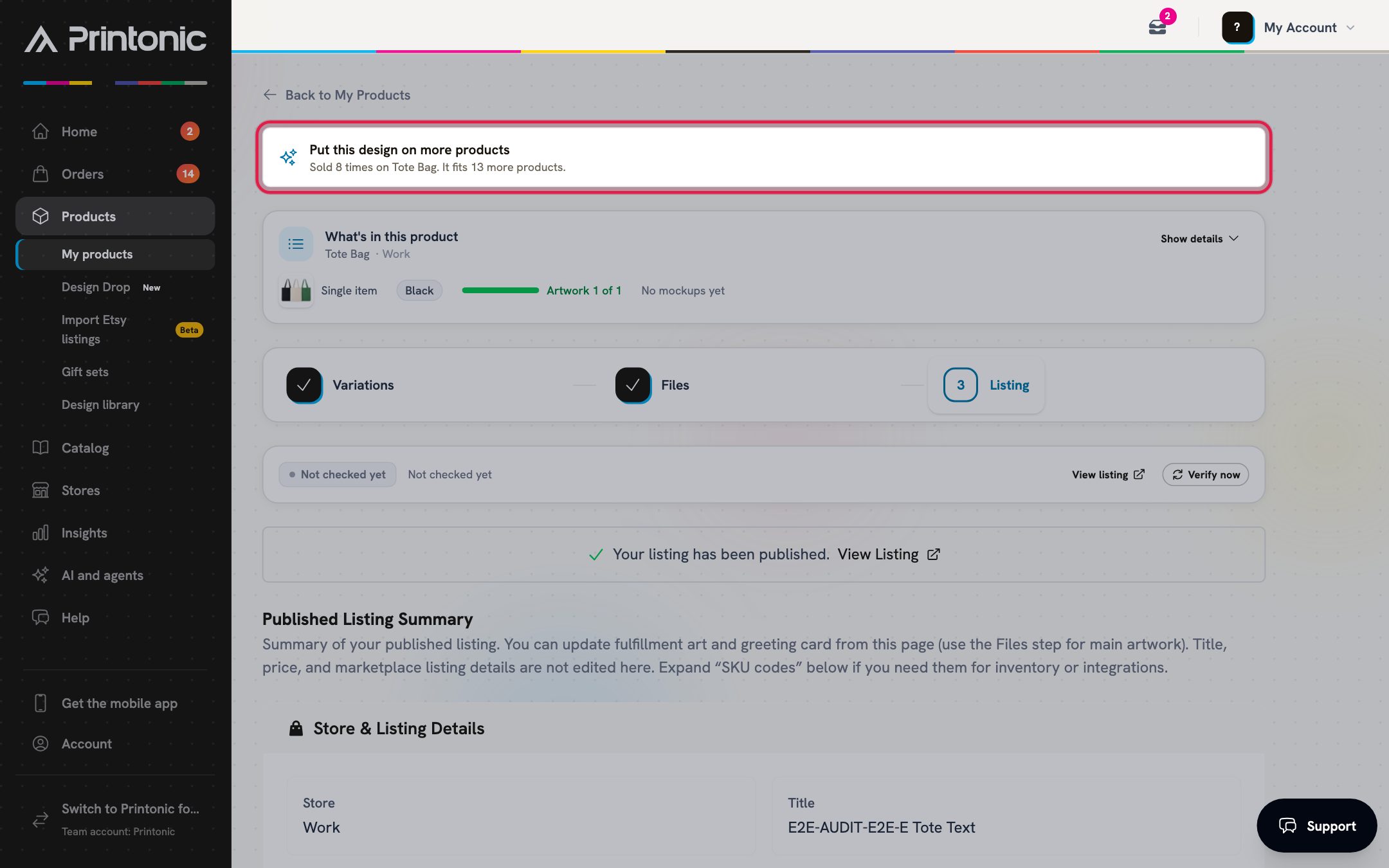
- 5
Dashboard > Products > Design Drop
Check the products Design Drop picked
Design Drop starts with your design already uploaded. A blue note says 'Starting from your design that sold', then which product it sold on. Products the design is already listed on are left out, and the ones it fits best are ticked. Untick anything you do not want, or tick more.
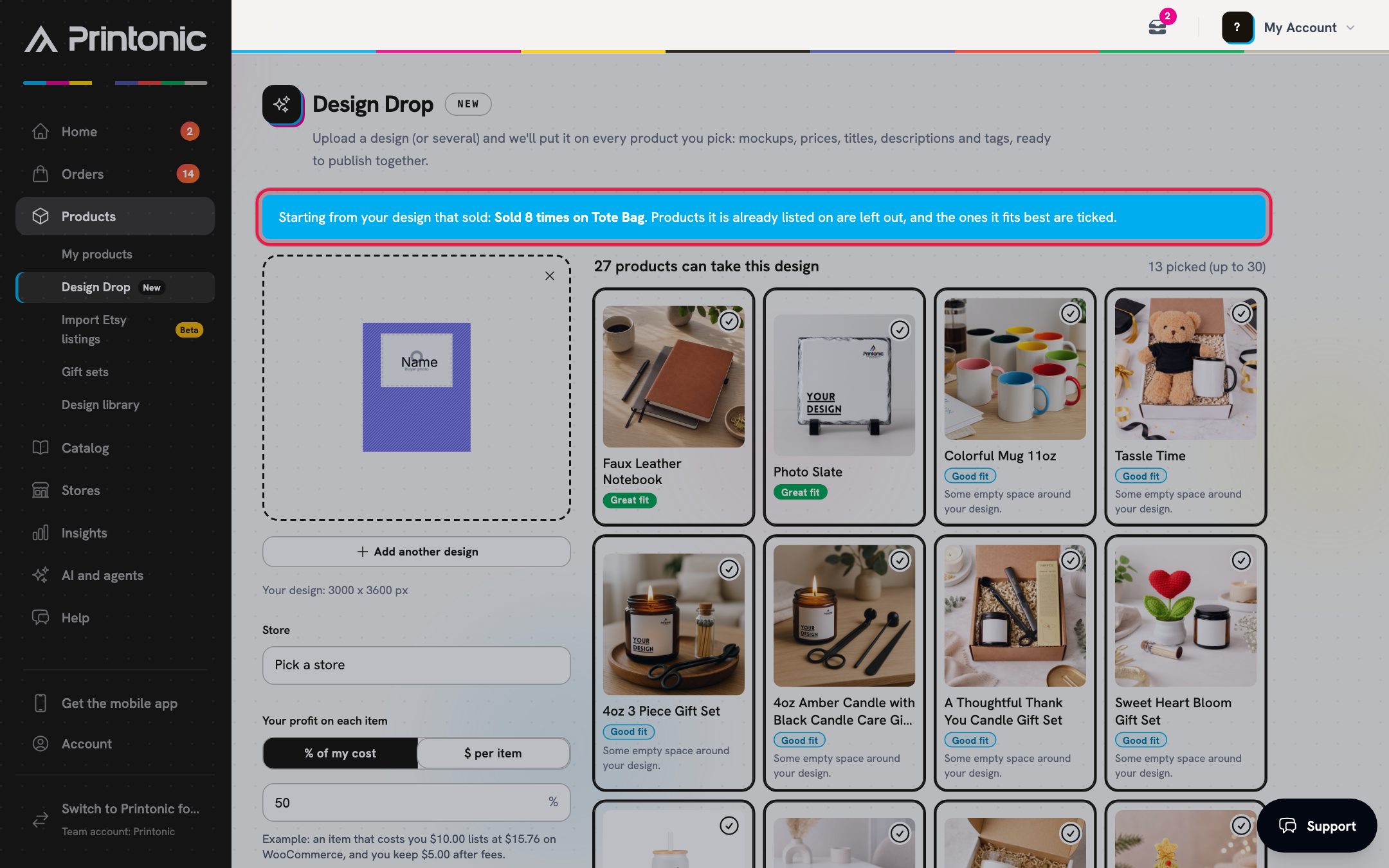
- 6
Dashboard > Products > Design Drop
Create and publish the new listings
Pick the store in the Store menu, set Your profit on each item, and click the Create button (for example Create 13 listings), the same as any Design Drop. Printonic places the design, makes the product photos, and writes each listing. When they are ready, review them and publish.
Everything after this works like a normal Design Drop, including Etsy listings going to Etsy as drafts. See the Design Drop guide for the details.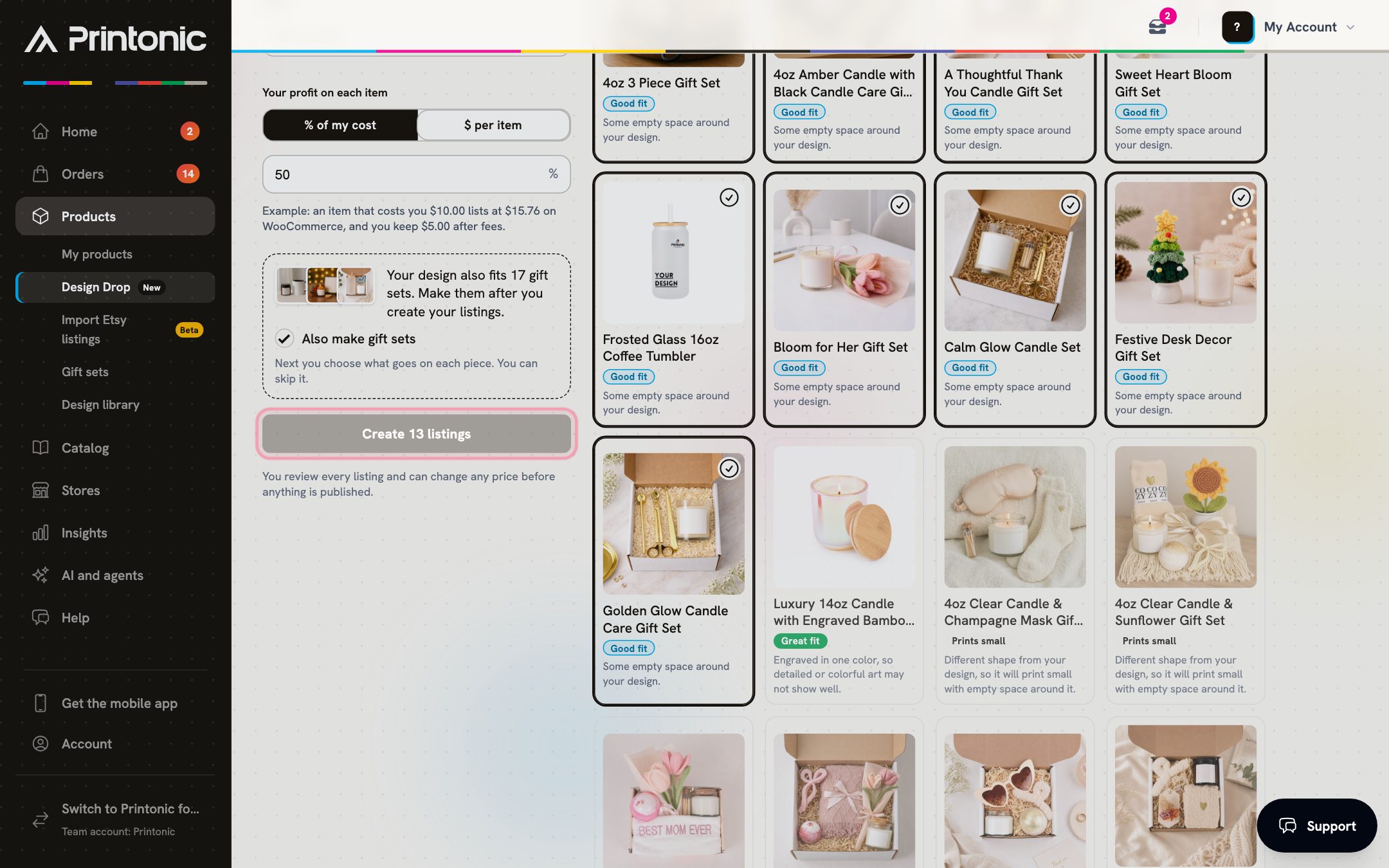
Good to know
- Start with the design at the top of the list. It sold the most, so it is the best bet on new products.
- You do not need the original file. Printonic uses the art from the listing that sold.
- The numbers update a few times a day, so a sale from this morning may take a few hours to show.
Common questions
Why don't I see Grow what sells?
It shows only when at least one of your designs sold in the last 90 days. Orders that were canceled, never matched to your products, or sent as replacements do not count.
Will it make listings on products I already sell the design on?
No. Products the design is already listed on are left out, so you only get new ones.
Does clicking the button publish anything?
No. It only opens Design Drop with your design and the suggested products. You review them and click Create N listings yourself, then publish when you are happy.
How does it know which products fit?
It uses the same check as Design Drop: the size and shape of your design against each product's print area. Products it does not fit well are not suggested.
Related guides
Put one design on many products with Design Drop
Upload one design or up to 10, tick the products you want once, and Printonic builds a listing for each design on each product with product photos, prices, a title, a description and tags. You can also make gift sets from the same designs. You review everything, then publish it together.
Your dashboard at a glance
A quick tour of the dashboard Home page: stat cards, alerts, quick actions, recent orders, store health, and the Getting Started checklist for new sellers.
Publish a listing to your store
Finish your product's Listing step (store, title, description, pricing), publish it to your connected store, and find your SKU codes afterward.