Orders & Fulfillment
Shipping options and upgrades
Every order ships with DHL SmartMail Parcel Expedited by default. Learn how to compare faster carriers on an order, what an upgrade costs, and why TikTok prepaid-label orders have no carrier choice.
You do not have to touch shipping at all: every order is set to ship with the default method automatically. But when a buyer needs a package sooner, you can upgrade that one order to a faster carrier and pay only the difference. This guide shows where the shipping options live, how the prices work, and the one case where shipping is locked (TikTok prepaid-label orders).
- 1
Dashboard > Orders
Open the order
Go to Orders and click the order you want to review. On the order page, scroll down to the card titled Fulfillment shipping. This is where the shipping method for this specific order is chosen.
Shipping is chosen per order. There is no account-wide setting; each order starts on the default method.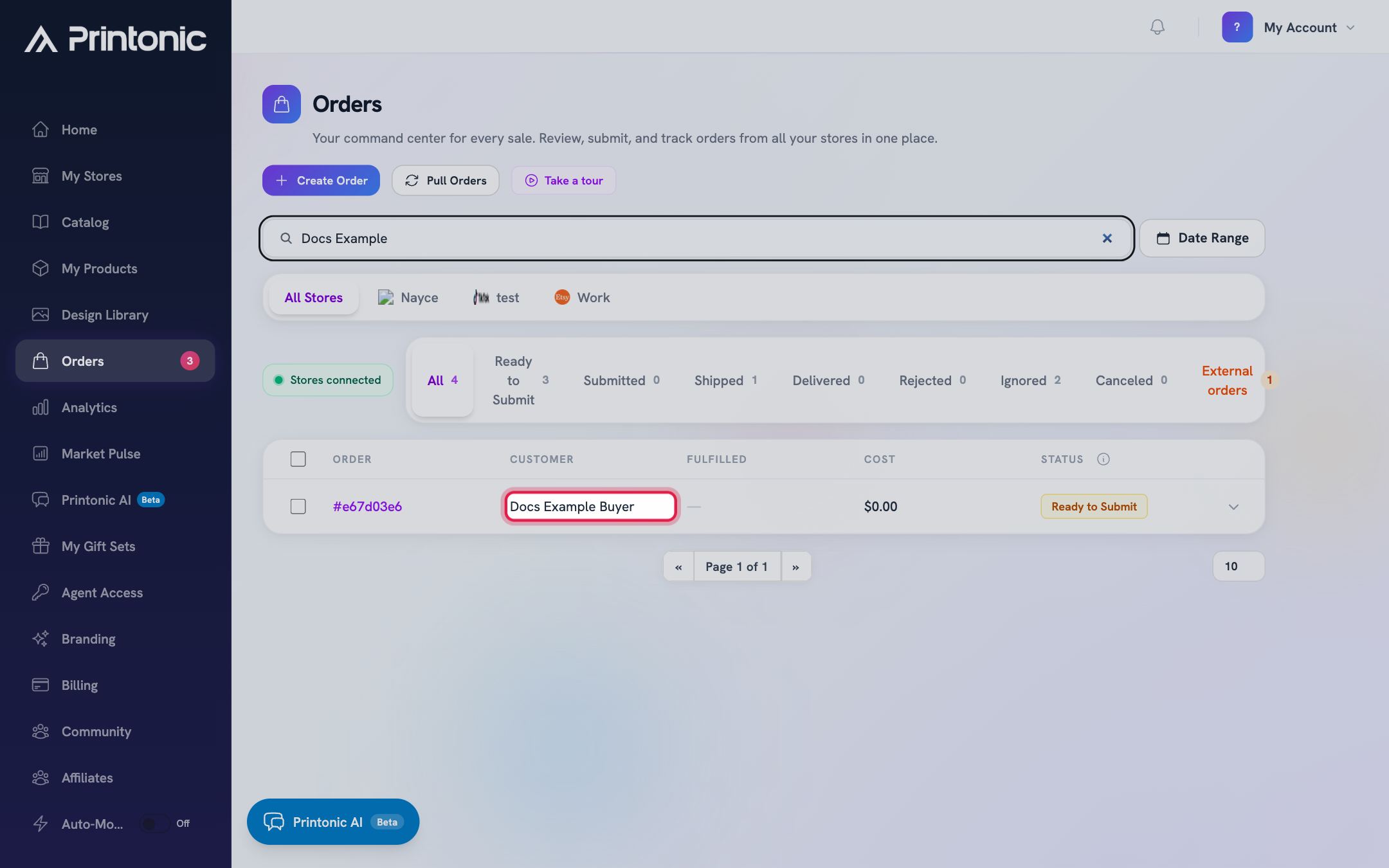
- 2
Order page > Fulfillment shipping
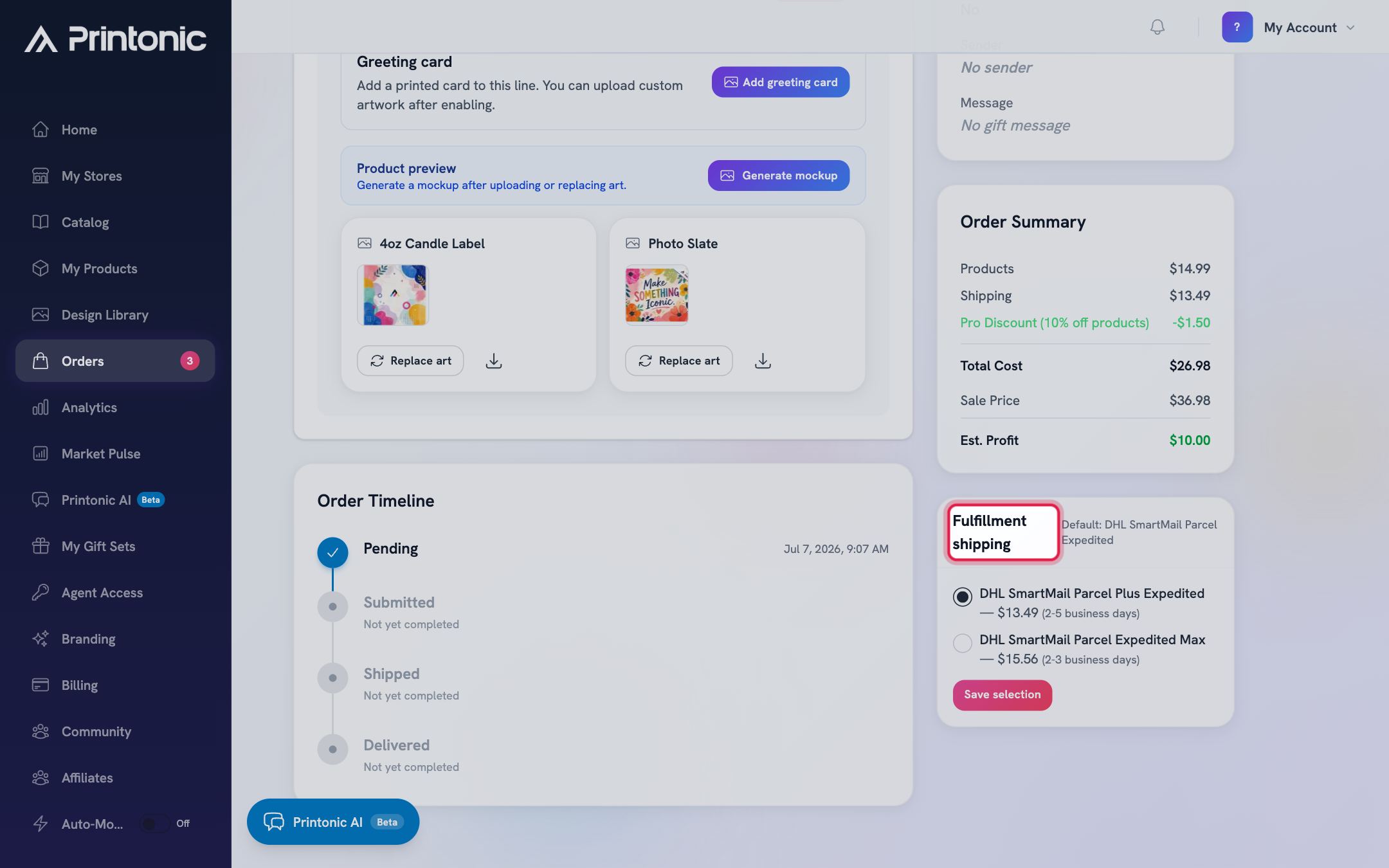
Check the default method
The card header reads 'Default: DHL SmartMail Parcel Expedited'. That is the method every order uses unless you change it, and it typically delivers in 3 to 7 business days. If that timing works for this order, you are done. No action needed.
- 3
Order page > Fulfillment shipping
Wait for carrier quotes to load
The card briefly shows 'Loading carrier quotes' while Printonic prices each carrier for the buyer's address and the package weight of the items in the order. When it finishes, the available options appear as a list you can pick from.
Quotes need a package weight and, for US orders, a valid ZIP code. If you see the warning 'Add product / gift-set weights to quote fulfillment upgrades', a product in the order is missing its weight, so upgrades cannot be priced. Contact support if this warning does not clear.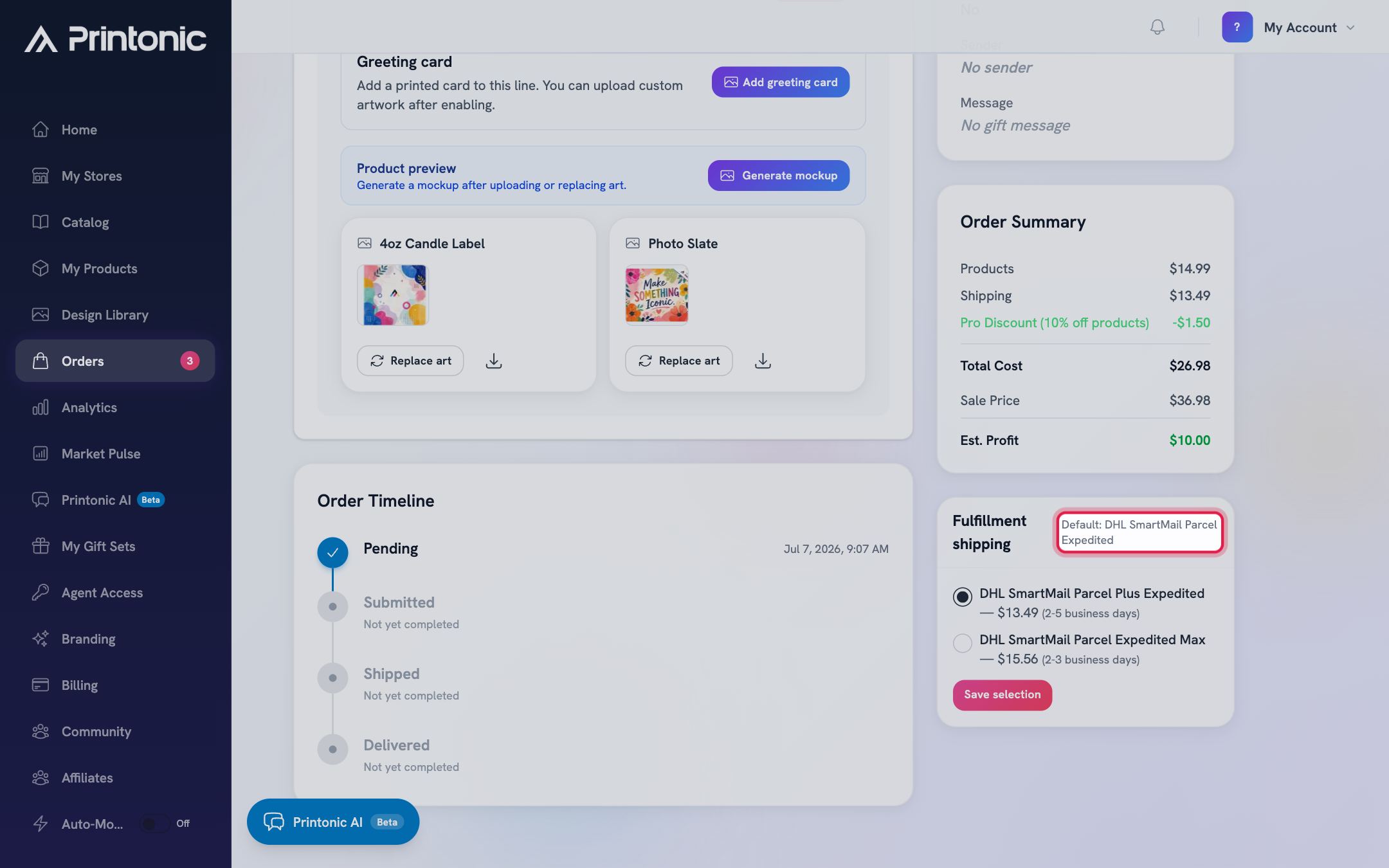
- 4
Order page > Fulfillment shipping
Compare speeds and estimated arrival dates
The options, from slowest to fastest, are: DHL SmartMail Parcel Expedited (3-7 business days), DHL SmartMail Parcel Plus Expedited (2-5 business days), DHL SmartMail Parcel Expedited Max (2-3 business days), and UPS 2nd Day Air (2 business days). Each option shows a price and a delivery time. When Printonic has enough delivery history for the buyer's area, you see 'Estimated arrival' with a date range instead of a generic window, marked 'based on recent shipments'.
An estimate marked 'limited history' means there have not been many recent deliveries to that area, so treat the dates as a rough guide.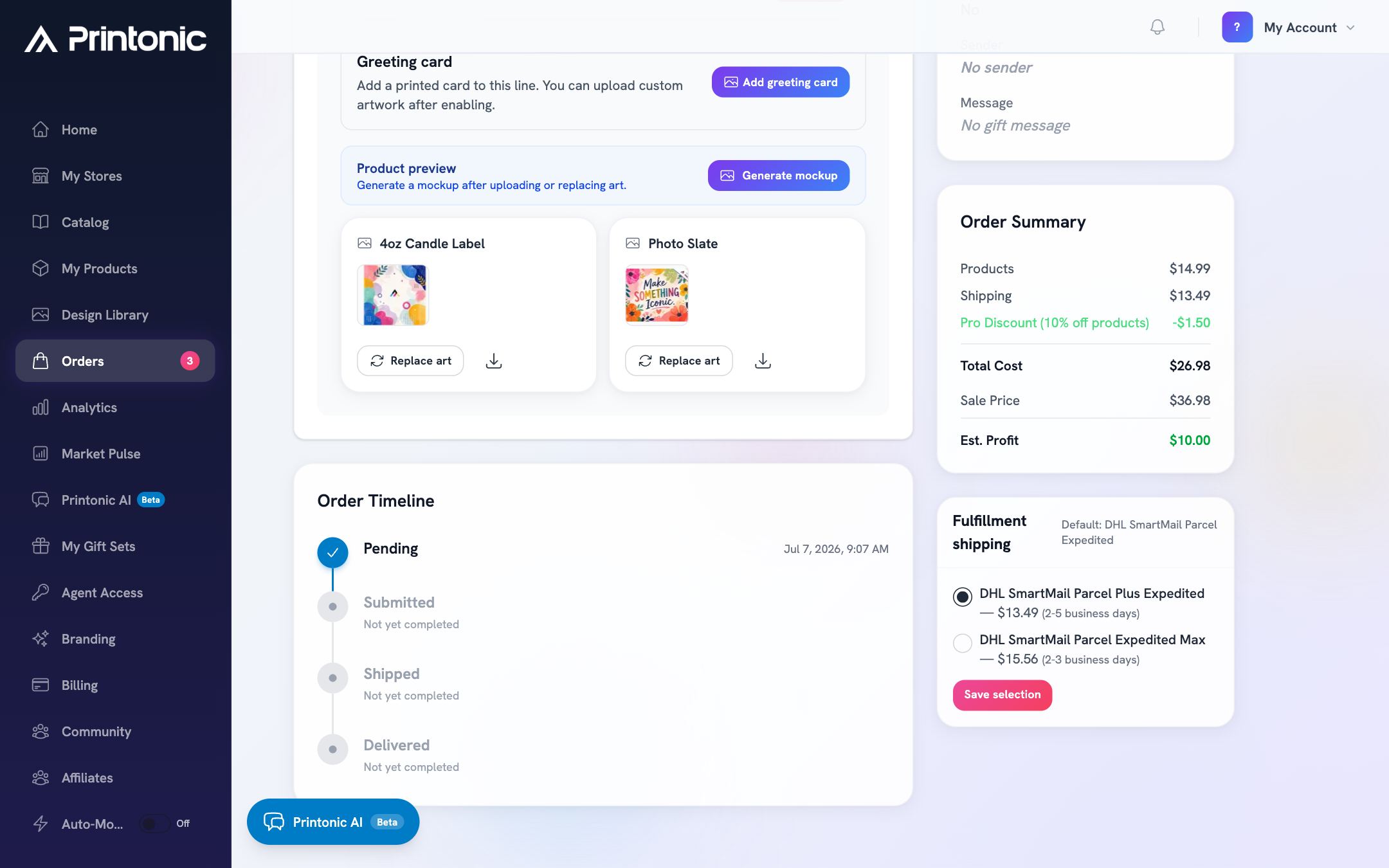
- 5
Order page > Fulfillment shipping
Understand the price next to each option
The price shown next to an option is the shipping price for this order if you choose it: your product's standard shipping price plus that option's upgrade amount. The cheapest option shows just your standard shipping price, and faster options show it plus the extra the faster carrier costs. The difference between two option prices is exactly what the upgrade adds.
Choosing a faster option never changes what your buyer already paid at checkout. The upgrade amount is billed to you.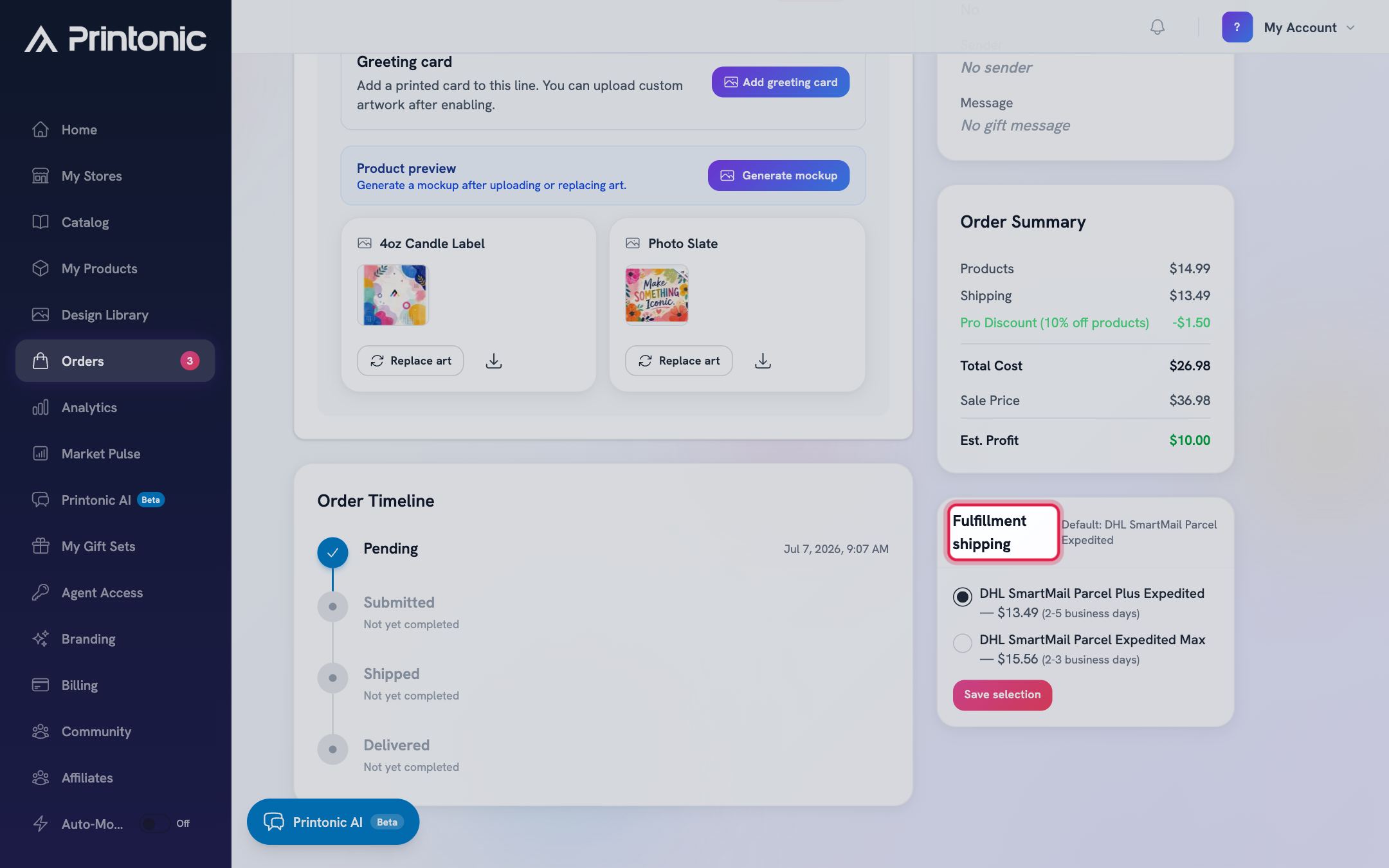
- 6
Order page > Fulfillment shipping
Select a method and save
Click the radio button next to the method you want, then click Save selection. The button shows 'Saving selection...' while it works, then a status message walks through 'Selection saved. Updating order totals...' and finishes with 'Saved. Order totals updated.'
If a method you previously picked is no longer available when quotes refresh, Printonic automatically falls back to the first available option, so double check the selected radio button before saving.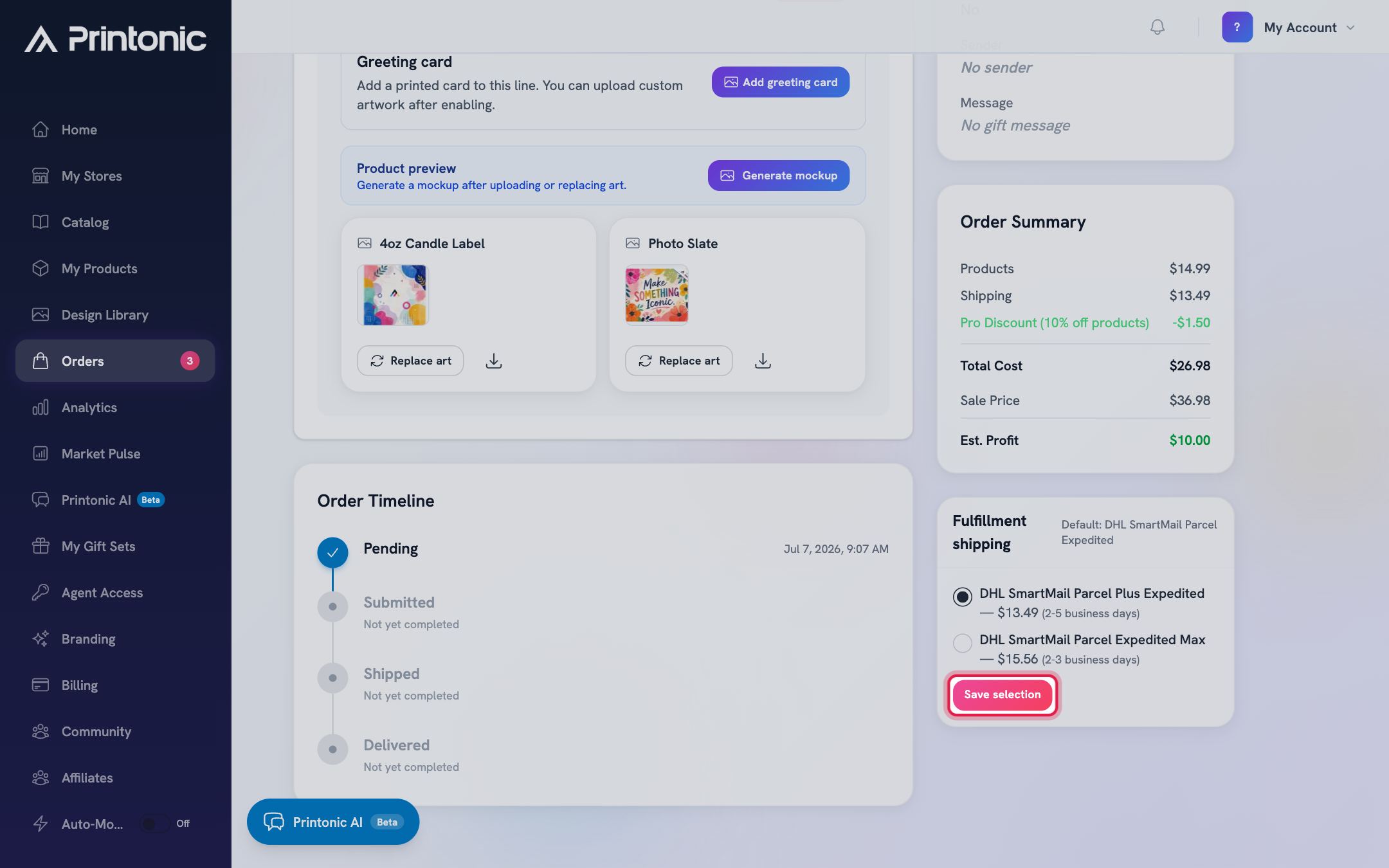
- 7
Order page
Pay the upgrade when you send the order to fulfillment
The upgrade is charged as the difference between your selected method and the default method, and it is included when you pay to send the order to fulfillment. Once the upgrade has been charged, the Fulfillment shipping card shows a green confirmation line, for example 'Upgrade charged: $4.50'.
If you keep the default method, there is no surcharge at all. You only ever pay extra for a faster option.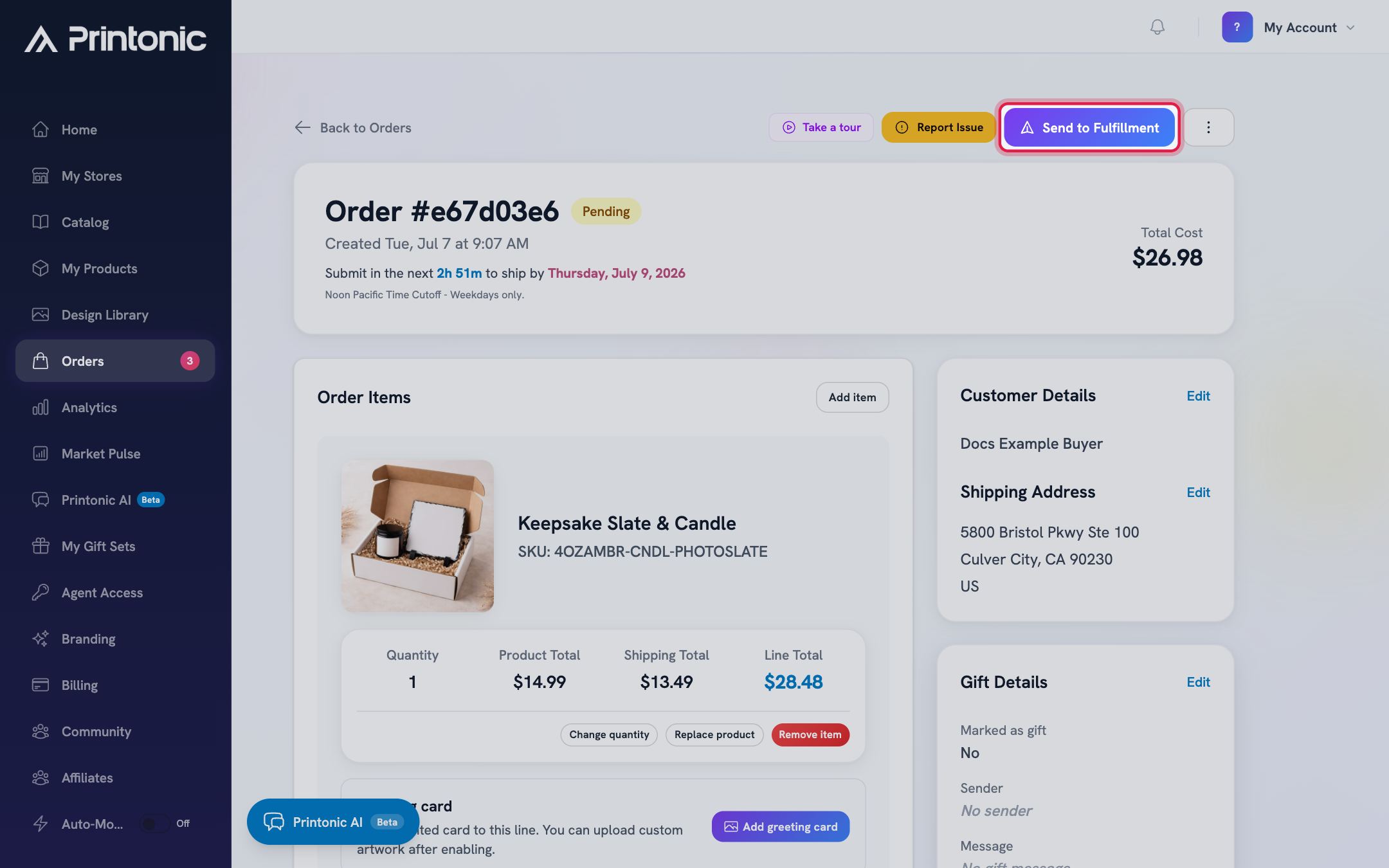
- 8
Order page > Fulfillment shipping
Know when shipping is locked: TikTok prepaid labels
Some TikTok Shop orders are set at checkout to ship on TikTok's own prepaid label. On those orders the Fulfillment shipping card shows a TikTok Shipping badge with 'Prepaid label (set by TikTok)' and no options to choose. The carrier and tracking are set by TikTok, and the label is generated automatically when the order is sent to fulfillment.
There is nothing to select and nothing extra to pay on these orders. Carrier upgrades are not possible because TikTok controls the label.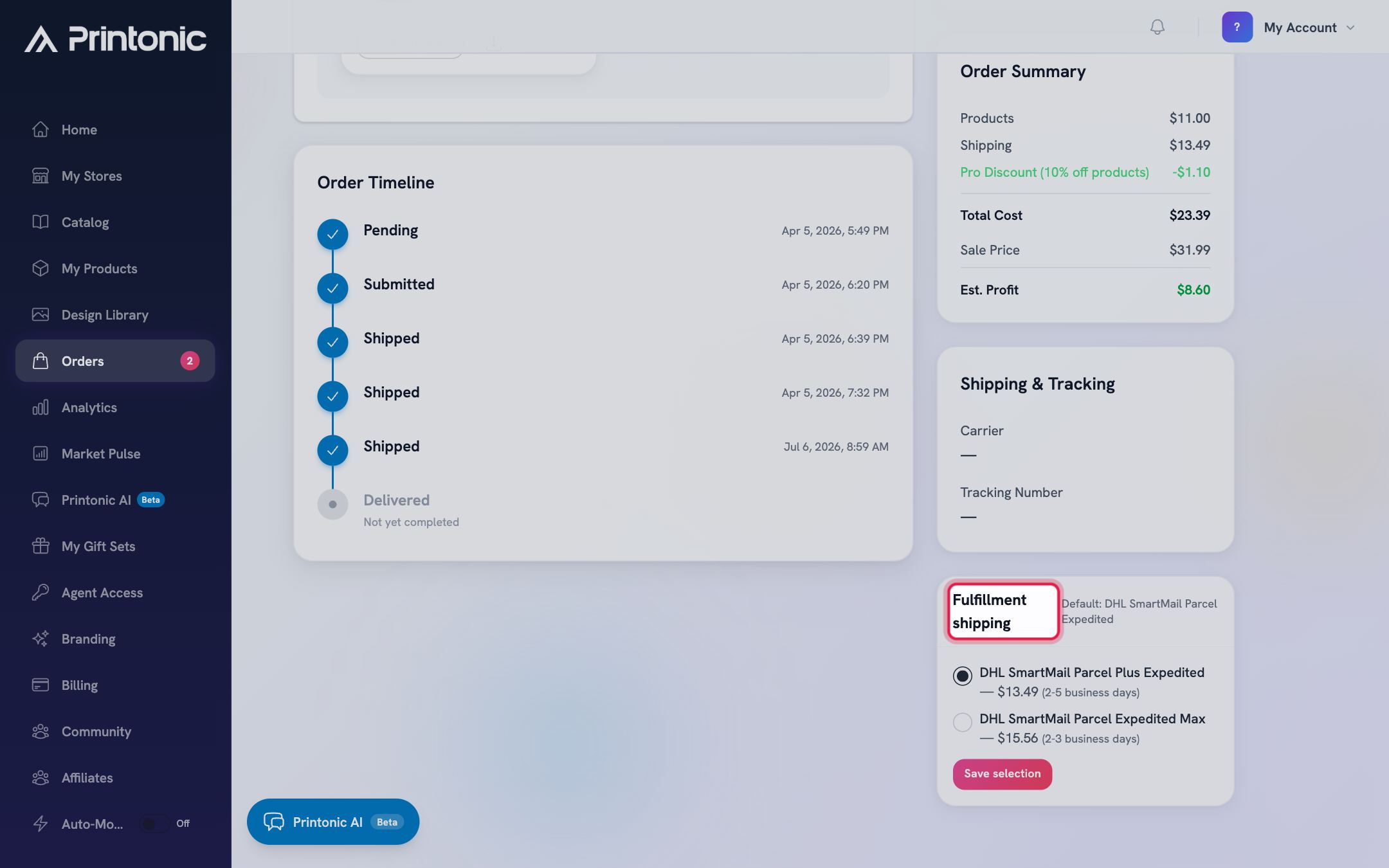
Good to know
- The default method is already an expedited service (3 to 7 business days), so most orders never need an upgrade.
- Save your selection before you send the order to fulfillment. The saved method is what the order ships with.
- Estimated arrival date ranges come from real recent deliveries to the buyer's area, so they get more accurate over time.
- Upgrading is most useful on late orders or buyer requests for speed. Since it is per order, you can upgrade one order without touching the rest.
Common questions
How much does a shipping upgrade cost?
Only the difference between the option you pick and the default method. The exact prices are quoted live for each order based on the buyer's address and the package weight, so compare the option prices in the card. Keeping the default costs nothing extra.
Does my buyer pay for the upgrade?
No. Your buyer's checkout total is unchanged. The upgrade difference is added to what you pay when the order goes to fulfillment.
Why can't I pick a carrier on my TikTok order?
The buyer's checkout on TikTok Shop determined that the order ships with TikTok's prepaid label. TikTok sets the carrier and tracking, so there is no carrier to choose in Printonic. Other TikTok orders (seller-shipped ones) show the normal carrier options.
What does 'Add product / gift-set weights to quote fulfillment upgrades' mean?
Printonic could not work out the package weight for this order because a product in it is missing weight information, and without a weight the carriers cannot be quoted. The order can still ship with the default method setup, but reach out to support so the weight can be fixed and upgrades quoted.
Related guides
Send orders to fulfillment and pay
Submit one order or a whole batch for production. Covers the Send to Fulfillment button, the checkout cost breakdown, how your wallet balance applies automatically, paying the rest with a saved card, and adding funds mid-checkout.
Manage your orders
Every order from every connected store lands in one Orders tab. Learn what each status means, how to sync, and how to send, ignore, restore, or resubmit orders in bulk.
Track shipping and order status
Follow an order from Submitted to Shipped to Delivered, find the carrier and tracking number, and learn how tracking reaches your customer automatically.