Products & Listings
Import your Etsy listings
Already selling on Etsy? Import Etsy listings (Beta) finds the listings we can make, you add your original design files, and each listing moves to Printonic as the same Etsy listing, with its reviews, favorites and sales.
Import Etsy listings is new and marked Beta. It is for sellers who already have listings on Etsy, made by themselves or by another print company. Printonic reads your shop, finds the listings we can make, and you choose which ones to move. From then on, we print and ship new orders for those listings.
Each listing stays the same Etsy listing. An active listing keeps its reviews, favorites, sales and search ranking, and a draft stays a draft. We only change the SKU (the product code) on each of the listing's options, so new orders come to Printonic. Nothing changes on Etsy until you press Move, and you can undo a move later.
There are three steps on the page: Your listings, Your original designs, and Review and move.
- 1
Dashboard > Products > Import Etsy listings
Open Import Etsy listings
In the left menu, open Products and click Import Etsy listings (it has a Beta badge). You can also click Import Etsy listings (Beta) on your Etsy shop's card in Stores > Connections. If you have more than one Etsy shop, choose one under Which Etsy shop?. The first time, the page shows Reading your Etsy listings while it looks at each listing and finds the Printonic product that matches it. A big shop can take a few minutes, and you can leave the page while it works.
You need a connected Etsy shop. Without one, the page says 'Connect your Etsy shop first, then come back to move your listings.' with a Connect a store link. Listings that Printonic already makes are left out, and the page tells you how many.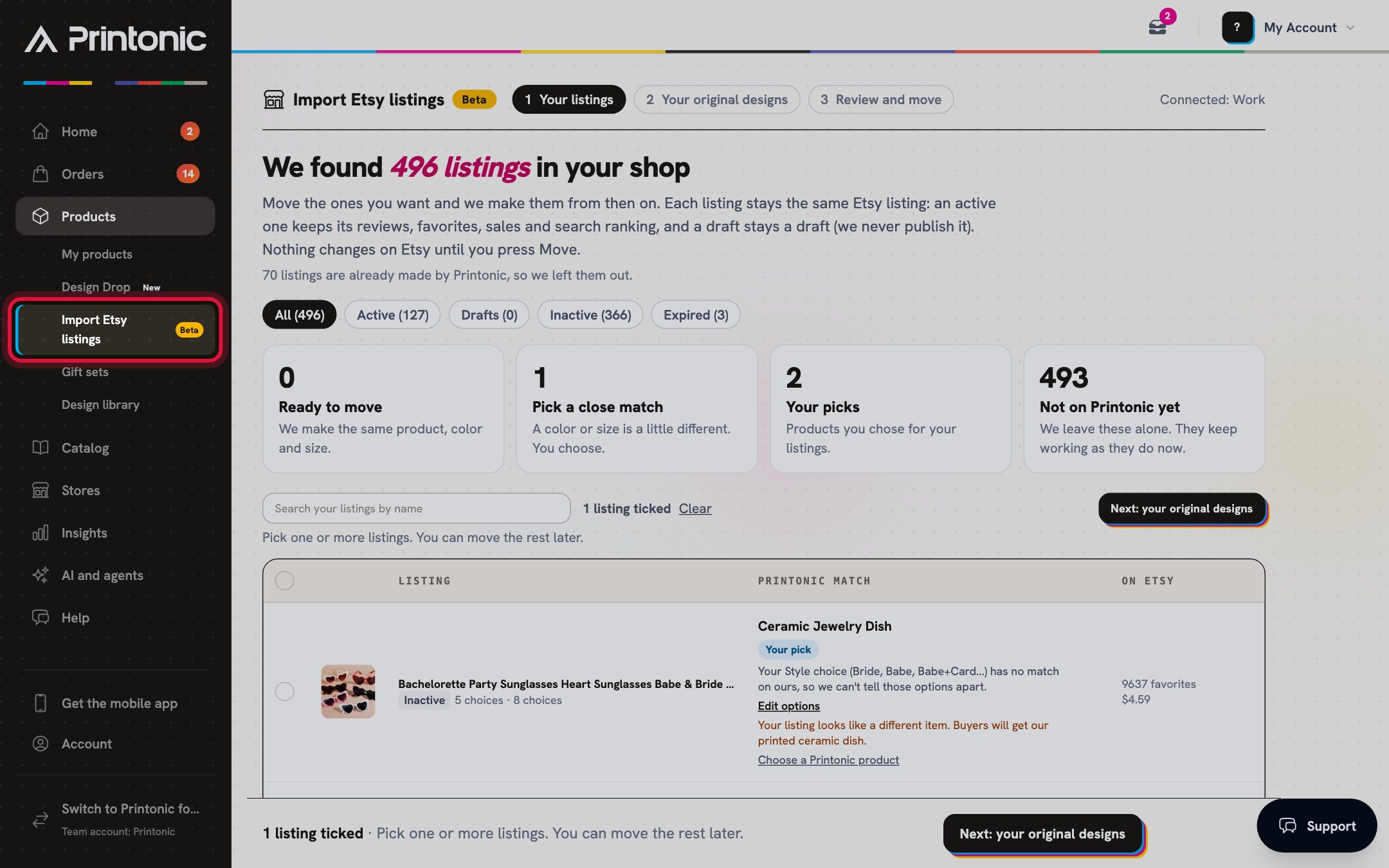
- 2
Import Etsy listings > 1 Your listings
See what we found
The page is headed We found 496 listings in your shop (with your own number). Four boxes sort your listings. Ready to move: we make the same product, color and size. Pick a close match: a color or size is a little different, and you choose. Your picks: listings you chose a product for yourself. Not on Printonic yet: we leave these alone, and they keep working as they do now. Click a box to show only those listings, and click it again to show them all. In the table, the Printonic match column names our product, with a badge (Same product, Close match: you choose, Your pick or Not on Printonic yet) and a short reason.
Matching is strict. A listing only matches when ours is the same item: the same material, style and size, and for a gift box the same pieces. For example, a crocheted bag is not our printed cotton tote. Gift sets and card packs with several print areas are coming later.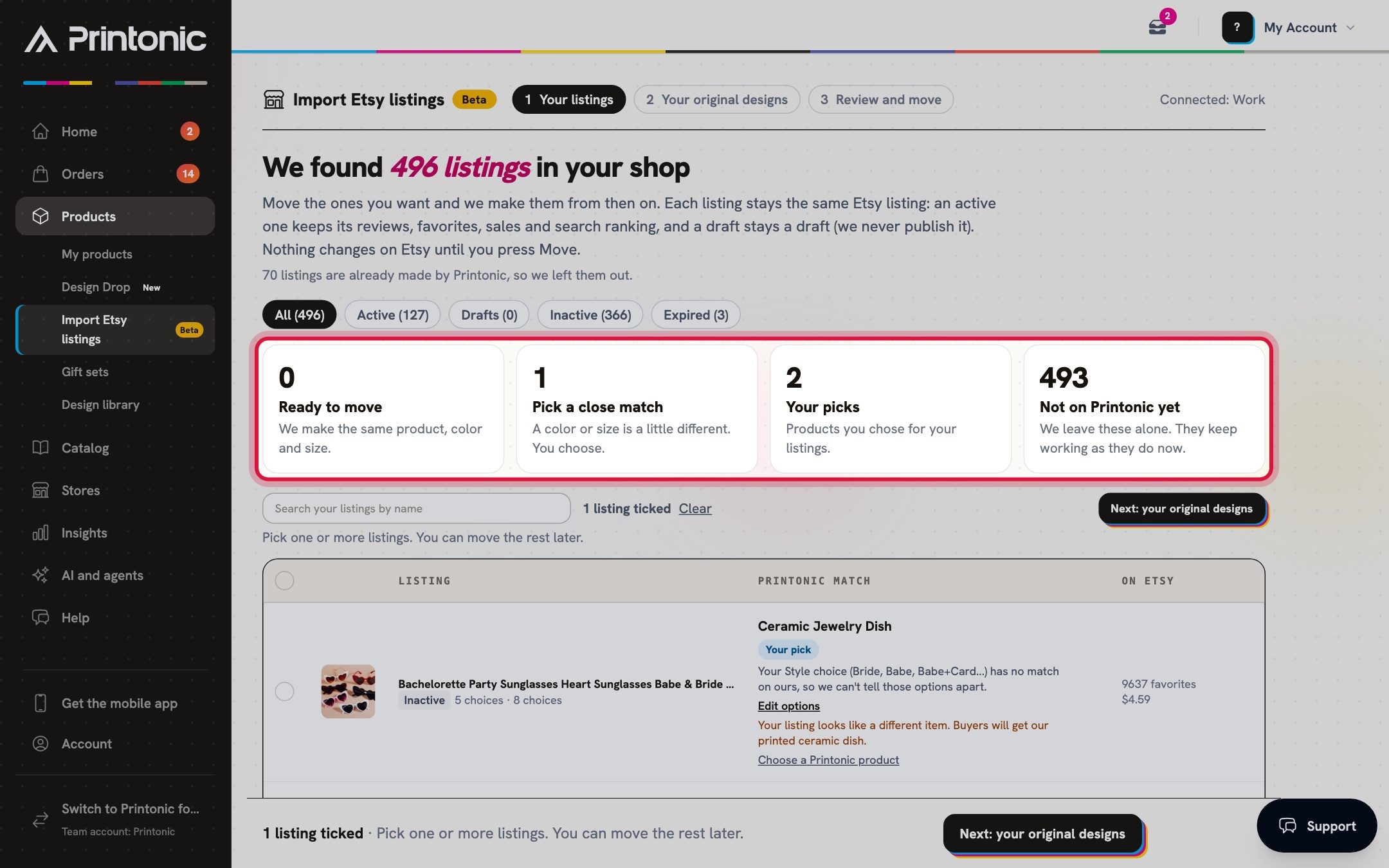
- 3
Import Etsy listings > 1 Your listings > table
Find and tick the listings to move
Use the tabs to show All, Active or Drafts, and Inactive or Expired when your shop has them. Type in Search your listings by name to find a listing. Tick the box at the start of a row to move that listing, or tick the box at the top of the table (Tick all shown) to tick every listing shown. The counter shows how many you ticked, and Clear unticks them all. When you are ready, click Next: your original designs.
You can tick any listing that has a Printonic product. You don't have to move everything at once: pick one or more listings and move the rest later. A draft you move stays a draft, and we never publish it. If you add listings on Etsy later, click Scan my shop again at the bottom of the table.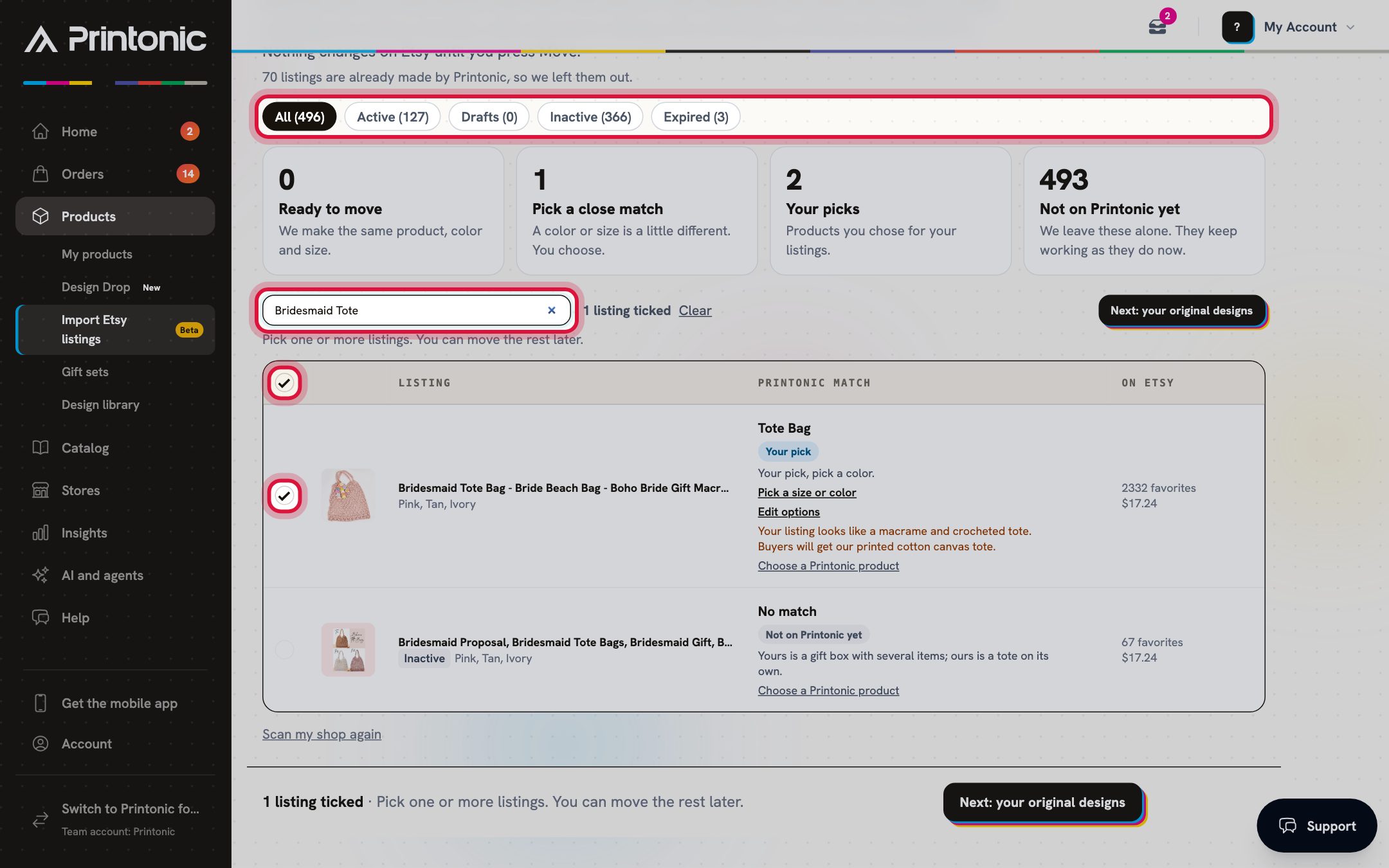
- 4
Import Etsy listings > a listing > Choose a Printonic product
Choose a Printonic product for a listing (optional)
Under any listing, click Choose a Printonic product. A window opens with our products and their categories. Type in the search box (for example mug, tote or candle). Our current match for the listing is marked Current match, and a good fit is marked Suggested. Click a product, then click Use this product. The listing moves to Your picks.
Only choose a product that is the same item as yours, because buyers get our product. If ours looks like a different item, the window says so (for example 'Your listing looks like a macrame and crocheted tote. Buyers will get our printed cotton canvas tote.') and the button reads Use it anyway. Products marked Coming later can't be chosen yet.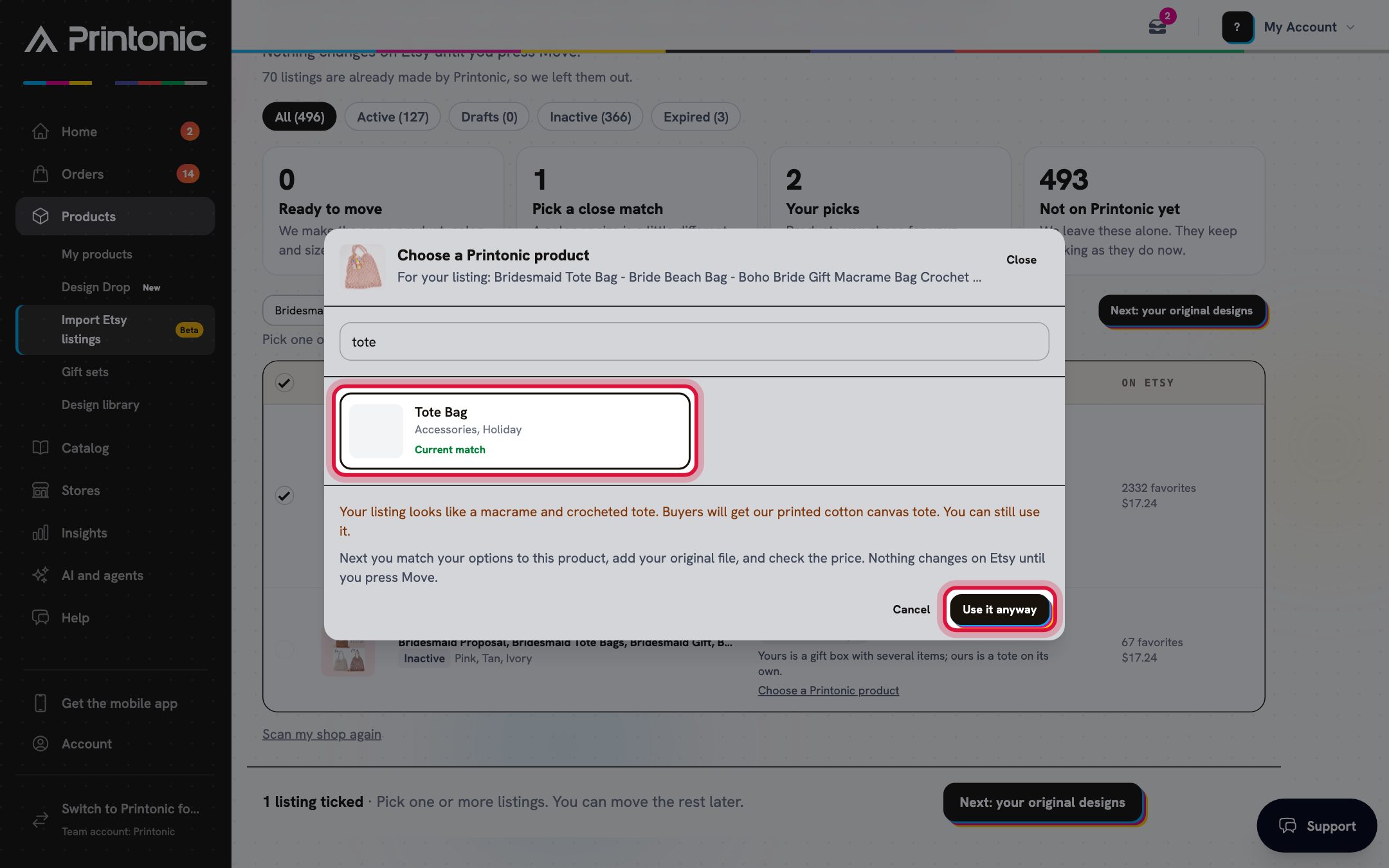
- 5
Import Etsy listings > a listing > Pick a size or color, or Edit options
Match your options with Edit options
Each option on your listing (such as a color or a size) needs one of ours. For a close match, click Pick a size or color, choose what we make for each of your options and click Save my picks. To change more, click Edit options. For each of your options, choose which of ours it is (Your Primary color is our Color, for example). Then, for each value, choose Our Pink (or another of ours) or Remove (we don't make it). You can also: tick values under Add what we carry and you don't sell yet and set a price for each; choose Not a product option, keep it as it is for an option that doesn't change the print; click Remove this option to remove a whole option (then choose under Keep the price of: which price the listing keeps); or choose Our Color for every option, or click Or let buyers choose our Color on Etsy to add it as a new option. Click Save my changes when the panel shows no warnings.
Prices and quantities of the options you keep stay exactly as they are on Etsy. Etsy allows 2 options on a listing. A monogram letter or a name changes the print, so don't keep that kind of option unchanged: remove it, or use Etsy's personalization box instead. When you remove a value or an option, tick the box that confirms buyers won't be able to choose it any more. Undo my changes puts your options back. Nothing changes on Etsy until you press Move.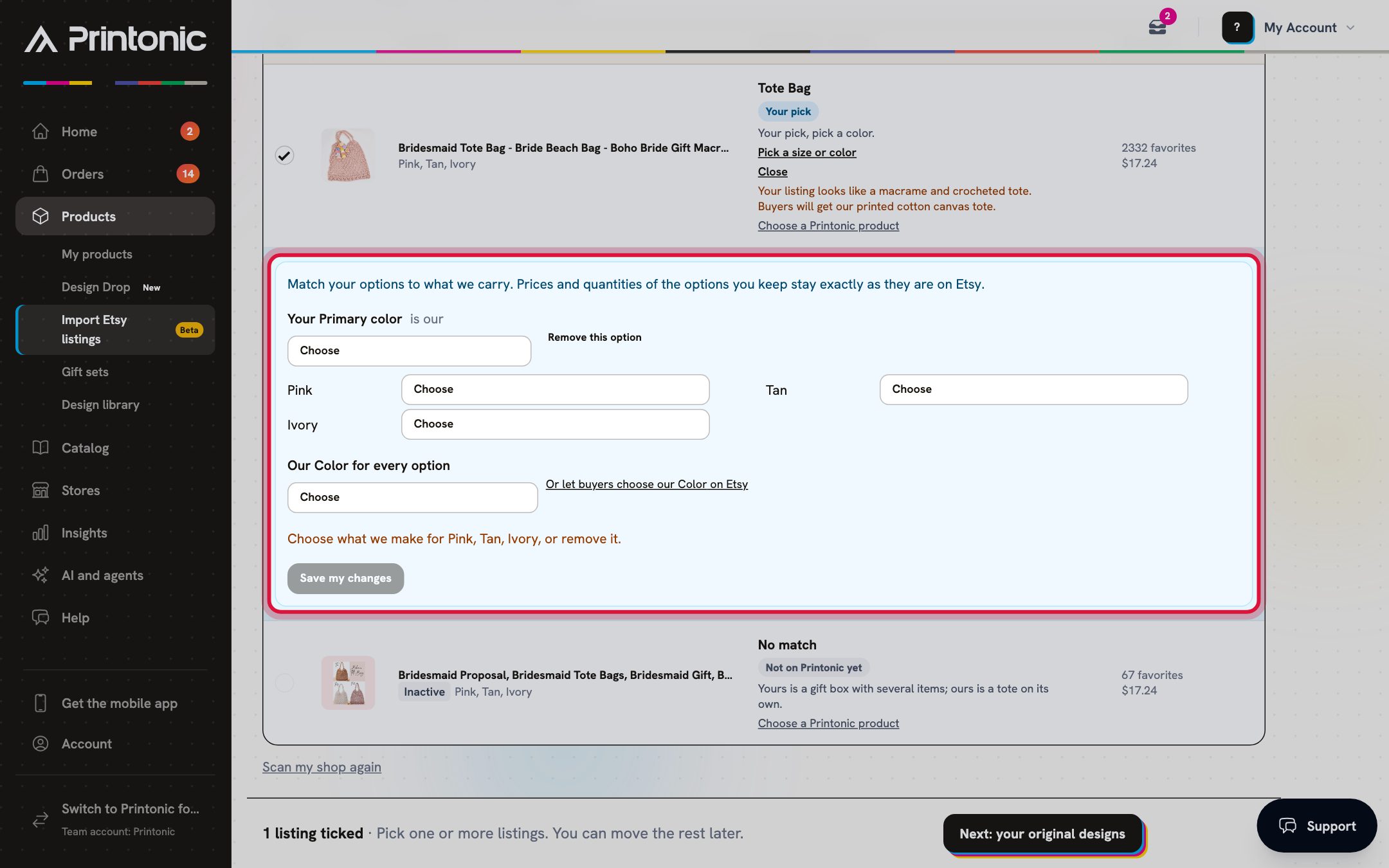
- 6
Import Etsy listings > 2 Your original designs
Add your original designs
Drop your design folder (or some files) on the box that says Drop a folder or files here, or click Choose files or Choose a folder. Use PNG or JPG files: the bigger the better. We match each file to the listings that use it, so you don't sort anything. Each file shows the listings it matched and a quality badge: Prints sharp, or May print soft. A bigger file prints sharper. If a match is wrong, change the file in the menu under that listing. A listing with no file is listed under still needs a file: choose one of your files in its Add file menu, or skip it. When you are done, click Next: review and move.
We never take art from your Etsy photos. They are too small to print well, and your original files keep every print sharp. A listing you skip stays on Etsy just as it is, and you can move it later. Each file must be under 50 MB, and you can add up to 200 files per scan.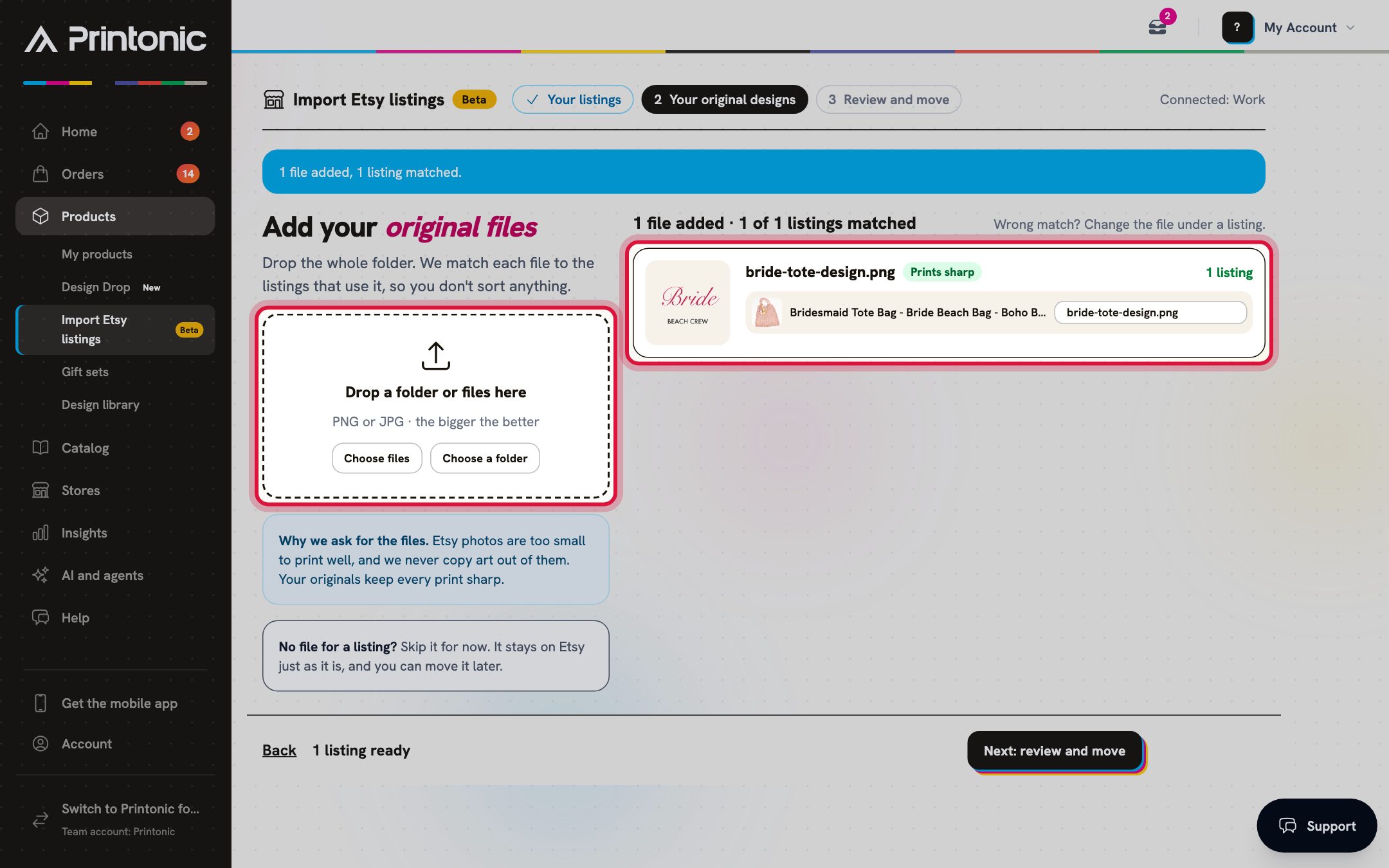
- 7
Import Etsy listings > 3 Review and move
Review the prices and photos, then press Move
The table lists every listing that is ready, with its Etsy price, Our cost, what You earn on each sale, and the photo choice. Your Etsy prices stay the same. Our cost includes US shipping, and You earn is your Etsy price minus our cost and Etsy's fees, for the cheapest option of each listing. An amount in red with the word check means a sale earns very little, so look at that price on Etsy. Under Photos, choose Keep my photos first (we add our photos after yours), Keep my photos only (nothing changes in the photos) or Use Printonic photos (ours replace yours). Then click Move 3 listings to Printonic (the button shows your number).
A ticked listing that can't move yet is listed with the reason, for example a size or color that still needs a pick. Go back to Your listings and use Edit options for it. If any listing loses options we don't make, tick the box above the Move button to confirm. A move takes a minute or two, and you can leave the page. Moved listings then show under Moved to Printonic with New orders come to Printonic. If a listing didn't move, the page says so, and nothing changed on Etsy for it.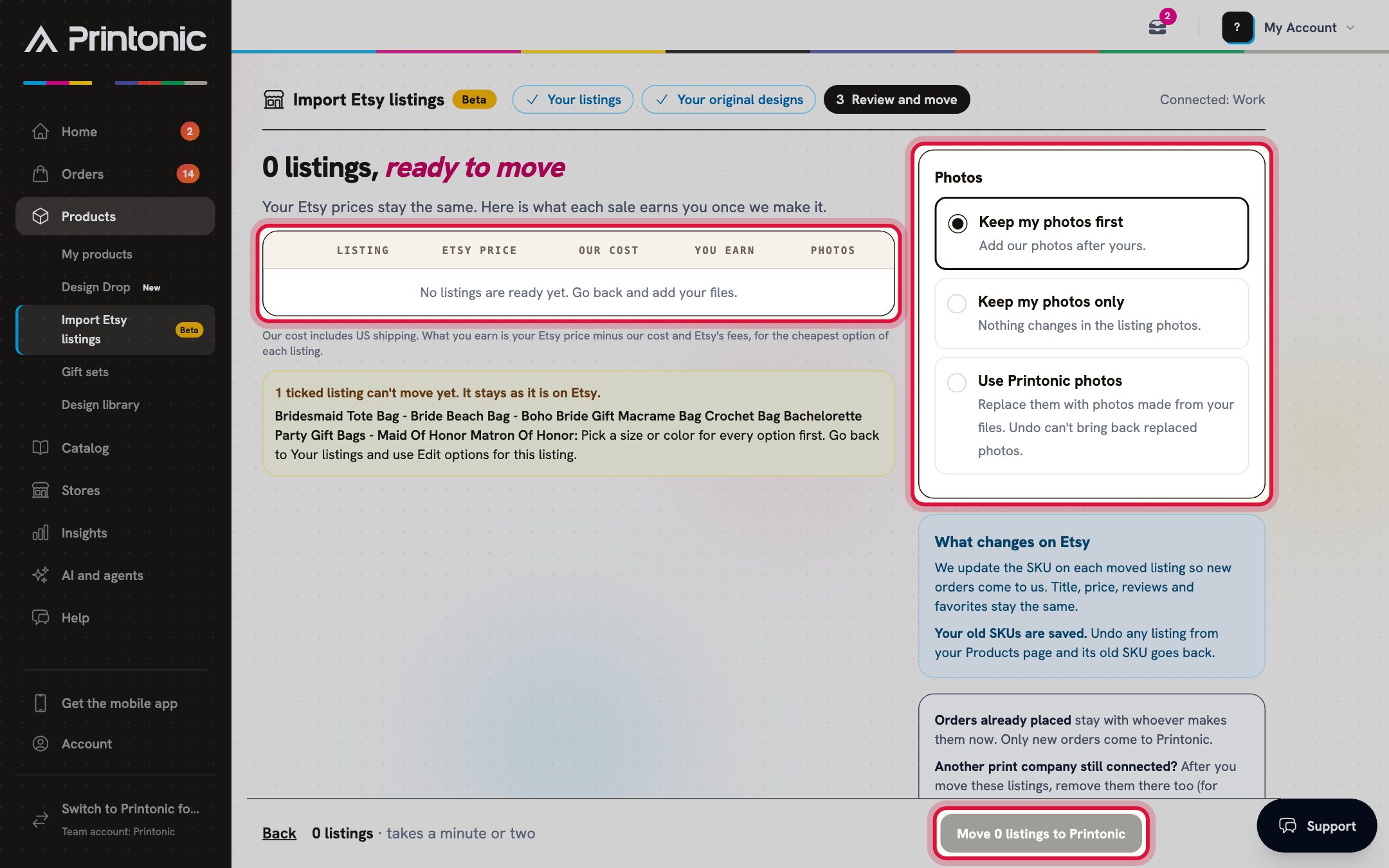
- 8
Dashboard > Products > My products > your product
After the move: old orders, other print companies and Undo
Orders already placed stay with whoever makes them now. Only new orders come to Printonic. If another print company (for example Printify or Printful) is still connected to your shop, remove the moved listings there too, so a new order isn't made twice. To undo a move, open the product in My products. The panel Moved from your Etsy shop has an Undo the move button: click it, then click Yes, undo. You can also click Undo next to the listing under Moved to Printonic on the Import Etsy listings page. Your old SKUs go back on Etsy, and new orders go back to whoever made the listing before.
Undo puts back the options you had before the move, even if you used Edit options. Undo can't bring back photos that Use Printonic photos replaced. If you changed an option on Etsy after the move, Undo leaves that option as it is and tells you.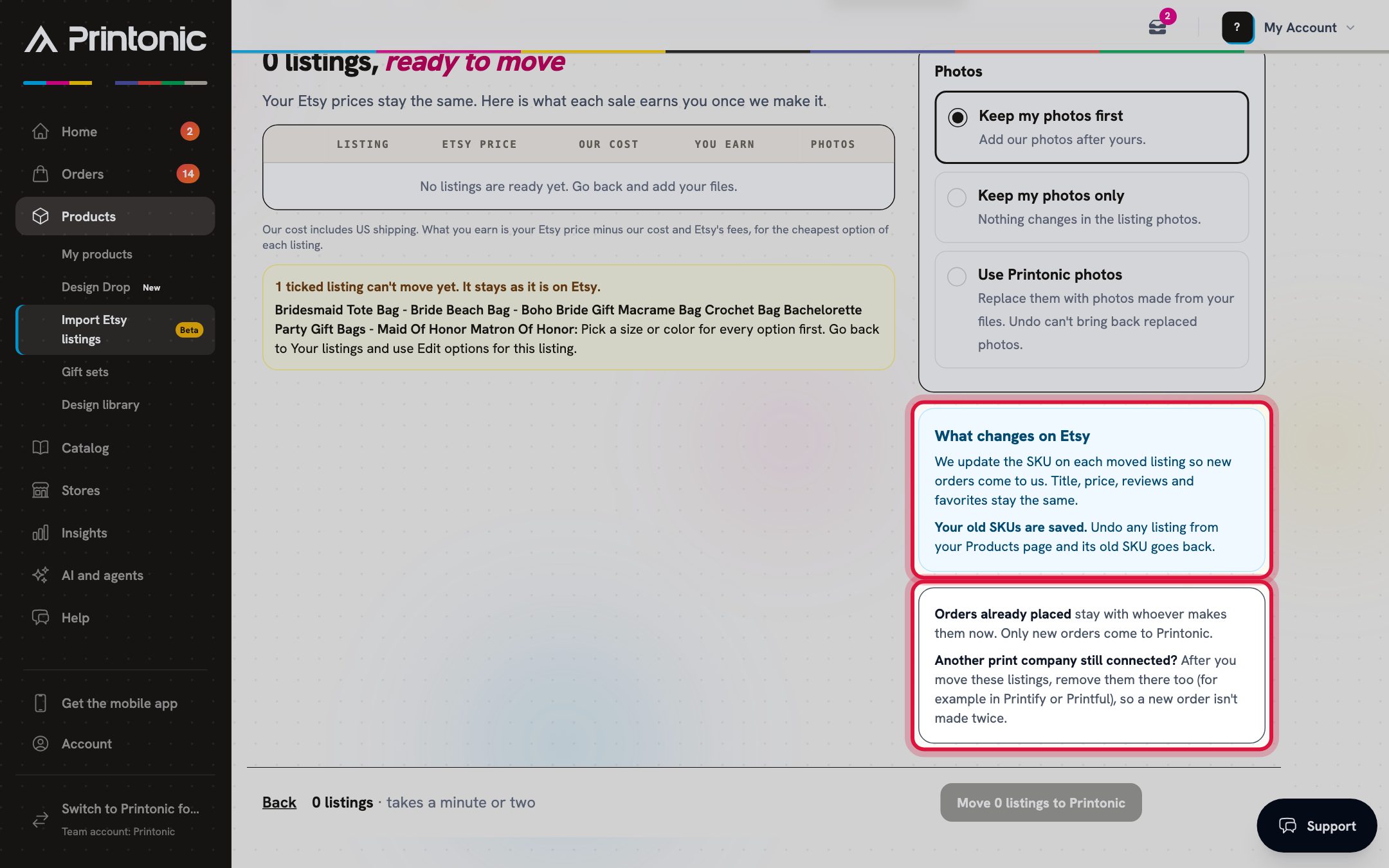
Good to know
- Start with a few listings that sell well and are Ready to move. Check that the first orders come through, then move more.
- Keep your design files in one folder named the way your listings are named. Dropping the whole folder lets us match most of them for you.
- Remove moved listings from any other print company right after the move, so no order is made twice.
- Look at the You earn column before you press Move. Your Etsy price doesn't change, so raise it on Etsy if a sale earns too little.
- Choose Keep my photos first if your listing photos sell well. Our photos are added after yours.
Common questions
Will my listing lose its reviews or sales?
No. Each listing stays the same Etsy listing, with its reviews, favorites, sales and search ranking. We only change the SKU on each of its options so new orders come to Printonic. The title, price, reviews and favorites stay the same.
Does anything change on Etsy before I press Move?
No. Reading your shop, ticking listings, choosing products, Edit options and adding files all stay on Printonic. Etsy only changes when you press Move.
What happens to my drafts?
A draft you move stays a draft. We never publish it. Use the Drafts tab to find them.
Can you take the art from my Etsy photos?
No. Etsy photos are too small to print well, so we never copy art out of them. Prints come only from the original files you add in step 2. A listing without a file is never changed.
Why is a listing marked Not on Printonic yet?
We don't make that item yet, or we are not sure ours is the same item. The reason shows under the listing. We leave those listings alone, and they keep working as they do now. If ours really is the same item, click Choose a Printonic product.
What happens to orders placed before the move?
They stay with whoever makes them now. Only orders placed after the move come to Printonic.
I also use another print company. What should I do?
After you move a listing, remove it in the other print company's app (for example Printify or Printful). If both stay connected, a new order could be made twice.
Can I undo a move?
Yes. Open the product in My products and click Undo the move, then Yes, undo. Or click Undo next to the listing on the Import Etsy listings page. Your old SKUs and options go back on Etsy, and new orders go back to whoever made the listing before. Photos replaced by Use Printonic photos don't come back.
Can I move gift sets?
Not yet. Products with several print areas, such as gift sets and card packs, are coming later here.
My shop is big. Do I have to move everything at once?
No. Pick one or more listings and move the rest later. If your shop has more listings than we read at once, the page says so: move those, then click Scan my shop again.
Why does it say Beta?
Import Etsy listings is new. If something looks wrong, contact us from Help in the dashboard before you press Move.
Related guides
Connect your store
Link your Etsy, Shopify, TikTok Shop, or WooCommerce store to Printonic so your orders sync automatically. Covers connecting, renaming, testing, disconnecting, and reconnecting.
Link an existing listing with SKU codes
Already have a live listing on your store? Skip listing setup, generate Printonic SKU codes, and paste them into your listing so orders route to Printonic for fulfillment.
Put one design on many products with Design Drop
Upload one design or up to 10, tick the products you want once, and Printonic builds a listing for each design on each product with product photos, prices, a title, a description and tags. You can also make gift sets from the same designs. You review everything, then publish it together.
Publish a listing to your store
Finish your product's Listing step (store, title, description, pricing), publish it to your connected store, and find your SKU codes afterward.