Products & Listings
Make gift sets from your designs
Turn the designs in a Design Drop into ready-to-sell gift sets. Pick sets by what's in them, choose what goes on each kind of piece once, add free matching designs if you like, then build every set as its own listing.
A gift set has more than one piece to print on, like a candle label and a mug. The Gift Set Studio in Design Drop lets you make many sets from your designs without styling every set by hand. You choose what goes on each kind of piece once, for example the mug, and that choice fills the mug in every set you picked.
Your own design goes on the piece it fits best. Every other piece stays empty until you choose something for it: your design, another design from the drop or your Design Library, or a free matching design we make in the same style and colors. We never copy your design onto every piece for you.
This guide starts after you upload your designs in Design Drop. If you haven't done that yet, see Put one design on many products with Design Drop first. Building sets here is free; you do not need Pro or the Custom Gift Set Builder.
- 1
Design Drop > the gift sets box, or your drop > Finish your sets
Open the Gift Set Studio from your drop
On the Design Drop page, after your designs upload, a box above the Create button says how many gift sets they fit, for example 'Your designs also fit 12 gift sets and 2 card packs.' Leave Also make gift sets ticked and click Create. The Gift Set Studio opens after the drop starts. Already created the drop? Open it from Your design drops and click Finish your sets on the gift sets card.
The top of the studio says 'Your other listings are already being made. This step is optional.' Click Skip for now to go back to your drop at any time. Your piece choices are kept only until you leave; matching designs you clicked Use this on are saved. - 2
Gift sets > 1 Choose sets
Choose sets by what's in them
Sets with the same pieces are grouped into cards, like Candle + Mug, Candle + Photo slate or Card packs. A set with three or more pieces that no other set shares is under Bundles. Each card shows set photos, how many sets it holds and your cost from the cheapest one. Click Add all to add a whole group, or click the arrow next to it to tick single sets. Use Best for your designs to see only the groups with the piece your designs fit best.
We pick a few groups for you to start with, and the yellow note says why, for example 'Your designs fit mugs best, so we started with the sets that have one.' The bar at the bottom counts the sets, for example 7 sets × 2 designs = 13 gift sets, and how many listings the drop will have out of 100. Click Next: style the pieces.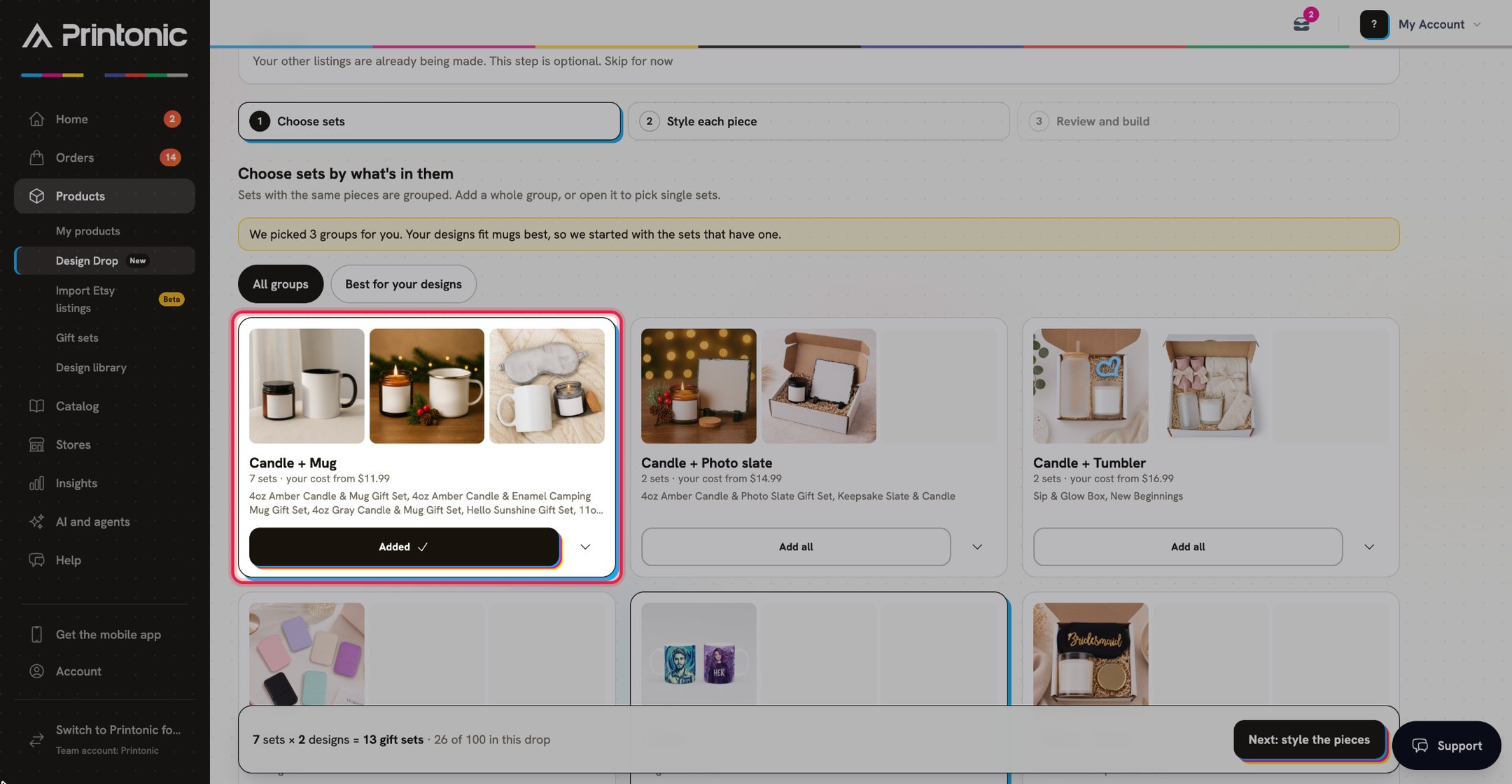
- 3
Gift sets > 2 Style each piece
Style each piece once
Each row is one kind of piece in your sets (Mug, Candle label, Second mug and so on), and each column is one of your designs. What you choose in a row fills that piece in every set for that design, so you make a few choices instead of styling every set. Your design is already on the piece it fits best, marked Best fit. A piece marked Needs a design gives you one-tap choices: Make a matching design, Use your design, Use Design 2 (your other drop designs), or From my library. Optional pieces also have Leave blank.
Click Make matching designs for every empty piece · free to fill all the empty pieces at once. The line under it says how many you can still make. Card packs are one row with a card for each position: click Fill with my designs, then matching designs to put your designs on the cards in order and fill the rest. When every piece is styled, click Next: review (it shows your number of sets, for example Next: review 13 sets).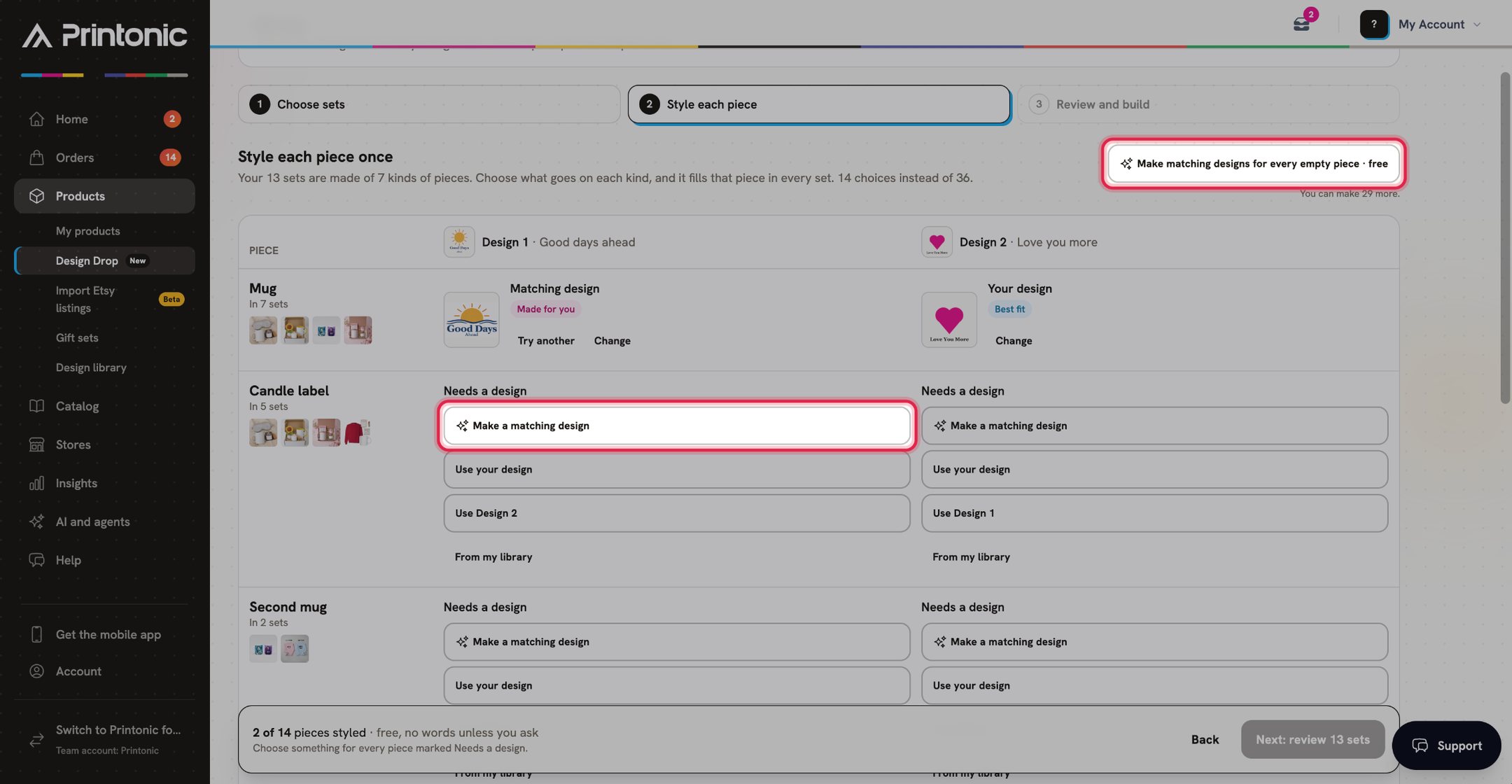
- 4
Gift sets > 2 Style each piece > Change
Check a matching design, then use it
Click Change on any piece to open its picker. The Make a matching design tab makes a new design in the same style and colors as yours, shaped for that piece. It takes about a minute, and you can keep working while it is made. Check it, then click Use this. Click Try again for a different one. The picker also has My designs (this drop's designs and your Design Library) and, for optional pieces, Leave blank.
Matching designs are free and have no words. Tick Use my words to reuse only the exact words already on your design; we never add new words. Each matching design is made once for each design and kind of piece, and then used by every set with that piece. For a few pieces, matching designs are coming soon, and the picker says so.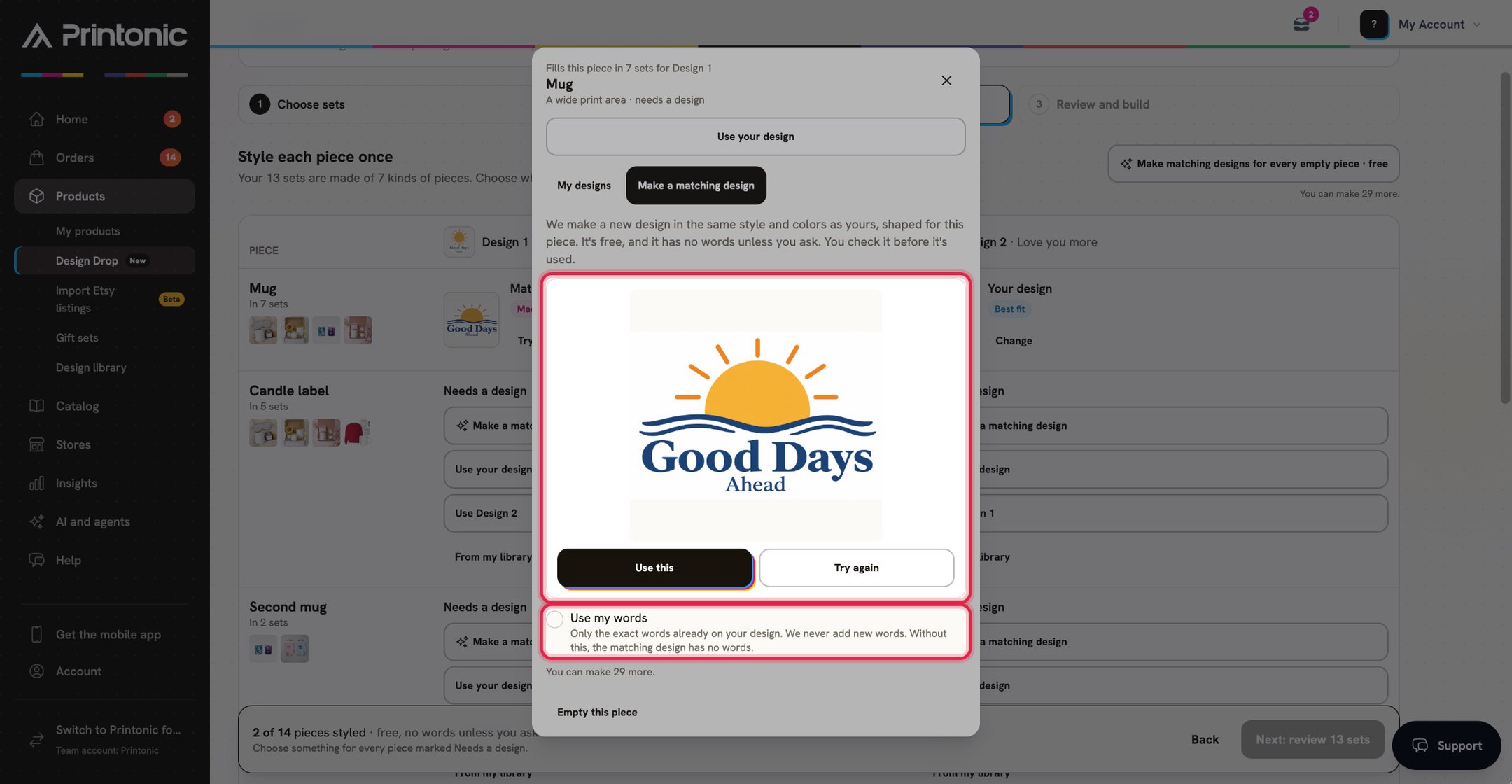
- 5
Gift sets > 3 Review and build
Review your sets
Each gift set has a card with its photo, its name and a chip for each piece showing the design it gets. With several designs, use the tabs at the top (for example Design 1 · 7) to see each design's sets. The badge on each card says Ready to build, Design finishing (a matching design is still being made or waits for Use this) or Needs a design.
Matching designs that are ready to check also show in a yellow box at the top of this step, with Use this and Try again, so you don't have to go back.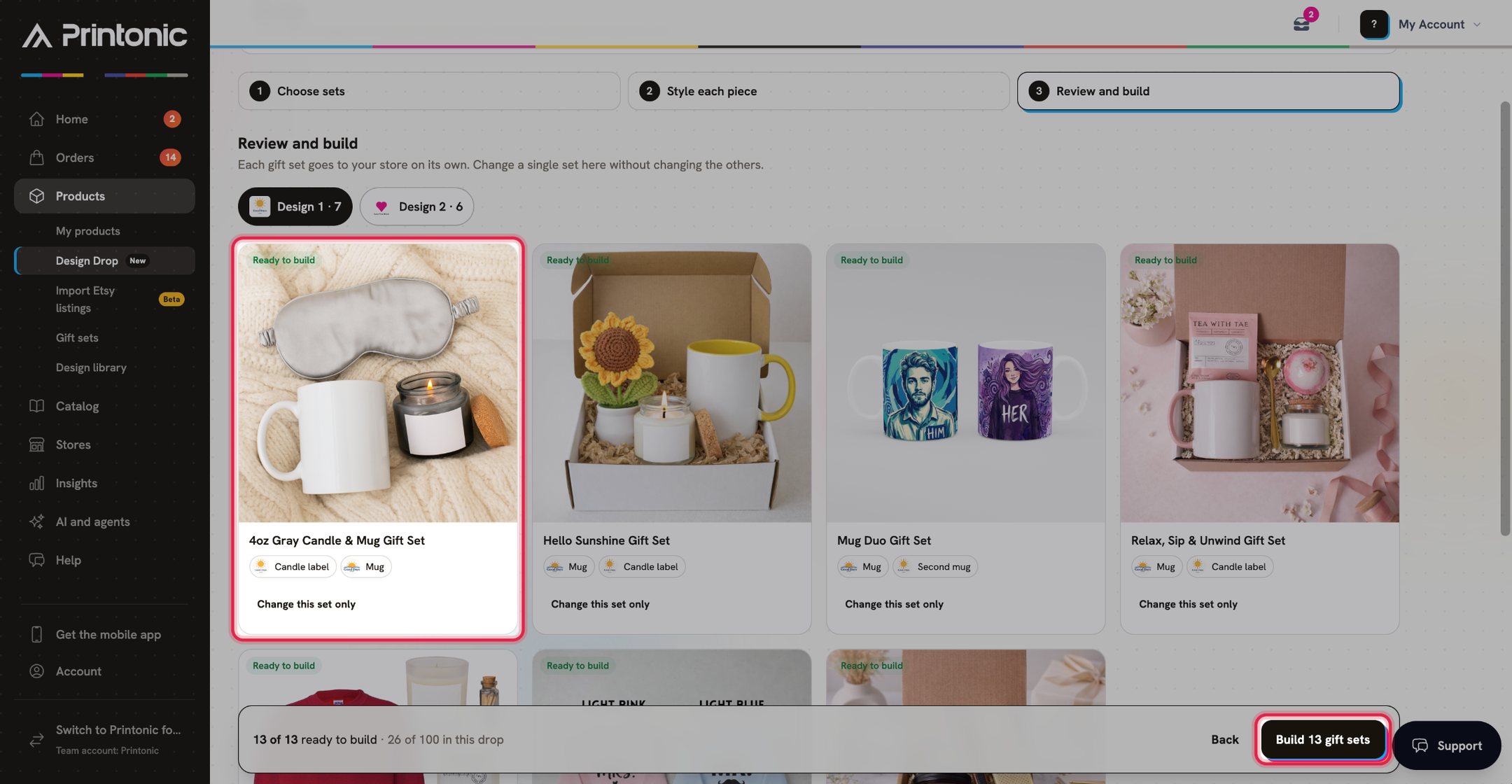
- 6
Gift sets > 3 Review and build > Change this set only
Change one set only
To make one set different from the rest, click Change this set only on its card. The panel lists every piece of that set. Click Change next to a piece to pick something else for it, or Move your design here to put your design on a different piece. Changes here don't change your other sets. Click Undo on a piece, or Use the piece choices again, to go back. Click Leave this set out to skip it.
Mugs and tumblers: a design that is not wide is printed on both sides of the mug, so it shows from either side.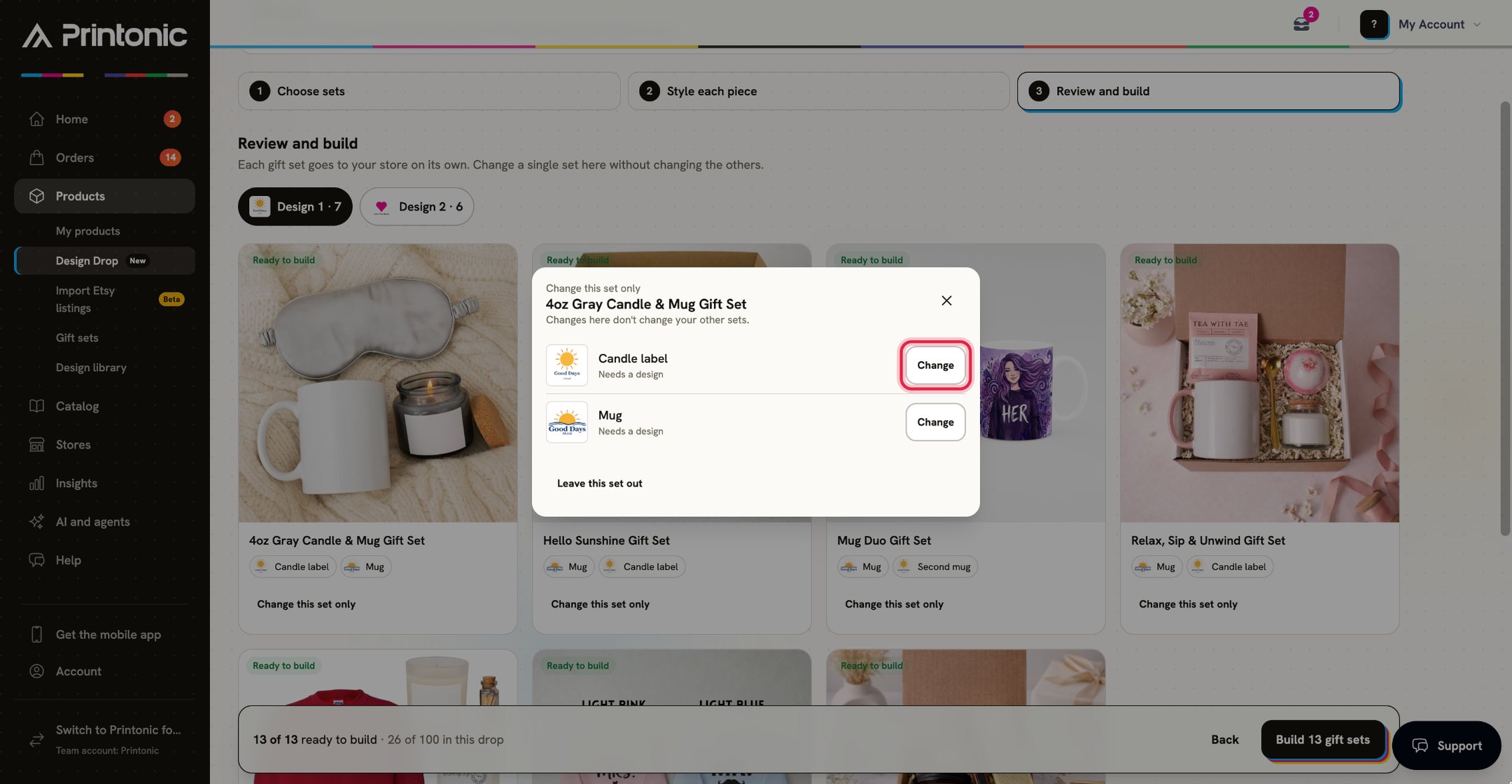
- 7
Gift sets > Build gift sets
Build the sets, then publish them
Click Build 13 gift sets (the button shows your number). If some sets still need a design, click Build the 9 ready to build only those and finish the others later. You go back to your drop, where the sets are listed under Gift sets with their own product photos, title, description and price. They build like your other listings. When they are Ready, click Publish on your drop to publish them with everything else.
Each gift set is its own listing and counts toward the drop's limit of 100. Prices come from the profit you picked for the drop; click Edit on a set's card to change one before you publish. Printonic prints, packs and ships every set when it sells.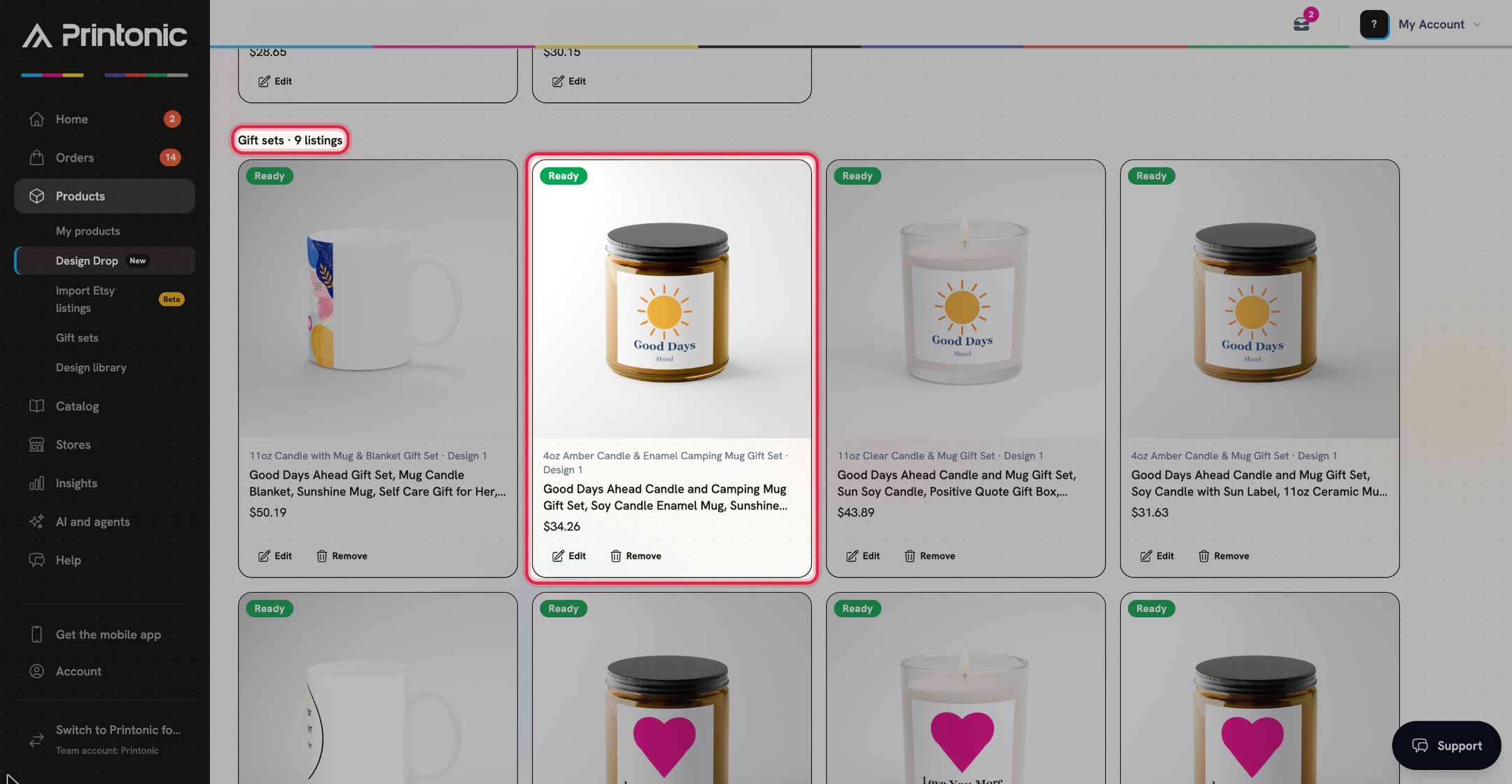
Good to know
- Start with Best for your designs. Those groups have the piece your designs fit best, so more of each set is ready from the start.
- Use matching designs on the other pieces. A set usually looks better with a matching design on the candle than the same design twice.
- With several designs, each design gets its own set. Use Change this set only for the one set that should look different.
- Square and tall designs work well on mugs and tumblers, since they print on both sides.
Common questions
Do I need Pro?
No. The Gift Set Studio is part of Design Drop for every seller, and matching designs are free. Pro is only needed for the Custom Gift Set Builder, where you make your own combination of products.
Will my design be copied onto every piece?
No. Your design starts only on the piece it fits best. You choose what goes on every other piece, and you can leave optional pieces blank.
Are matching designs really free?
Yes, for every seller. To keep things fair there is a limit on how many you can make in one drop and in one day. The studio shows how many you can still make. When you reach the limit, you can still use your own designs.
Do matching designs have words?
Not unless you tick Use my words. Then the matching design uses only the exact words already on your design. We never add new words or slogans.
How many listings does this make?
One listing for each set and each design. With 7 sets and 2 designs, that is 13 or 14 listings (a set a design already has in the drop is not made twice). Every set counts toward the drop's limit of 100 listings, and the bar at the bottom shows the total.
Can I come back later?
Yes. Click Skip for now, then open your drop any time and click Finish your sets. The sets you picked and the choices you made are not kept, so pick them again when you come back. Matching designs you clicked Use this on are saved and go back on their piece.
How do I sell a gift set with a different combination of products?
Use the Custom Gift Set Builder under Products > Gift sets (a Pro feature) to put together your own set. See Build and sell a custom gift set.
Related guides
Put one design on many products with Design Drop
Upload one design or up to 10, tick the products you want once, and Printonic builds a listing for each design on each product with product photos, prices, a title, a description and tags. You can also make gift sets from the same designs. You review everything, then publish it together.
Build and sell a custom gift set
Bundle 2 to 8 products into a gift-ready set, turn it into a listing draft, and publish it to TikTok Shop or Etsy. Printonic assembles, boxes, and ships every order for you. Selling one of our ready-made sets instead needs no builder and no Pro.
Use the Design Library
Upload your artwork once, save print-ready versions of it for different products, and reuse those versions when you build listings.
Publish a listing to your store
Finish your product's Listing step (store, title, description, pricing), publish it to your connected store, and find your SKU codes afterward.