Pro & Power Tools
Add personalization to listings you already published
Turn older Etsy listings into personalized products without republishing. Your listing history, reviews, and search ranking stay exactly as they are. Pro feature.
Listings you published before buyer personalization existed (or published without it) do not need to be republished to offer personalization. Printonic pushes buyer questions straight onto the live Etsy listing, so the listing keeps its sales history, reviews, favorites, and search ranking.
The Personalize existing listings panel shows every published Etsy listing you have, grouped by what each one needs. Adding buyer fields to a design is covered in the main personalization guide; this guide is the short path from 'already published' to 'personalized'.
- 1
Dashboard > Personalization Queue > Personalize existing listings
Open Personalize existing listings
Open Orders > Personalization in the left menu and scroll to the Personalize existing listings panel at the bottom. It lists every listing you have published to Etsy, with a thumbnail and a View on Etsy link for each.
The panel is visible on every plan. Syncing is a Pro feature, so without Pro you see an Upgrade to Pro button (with a free trial if you are eligible) in place of the action buttons.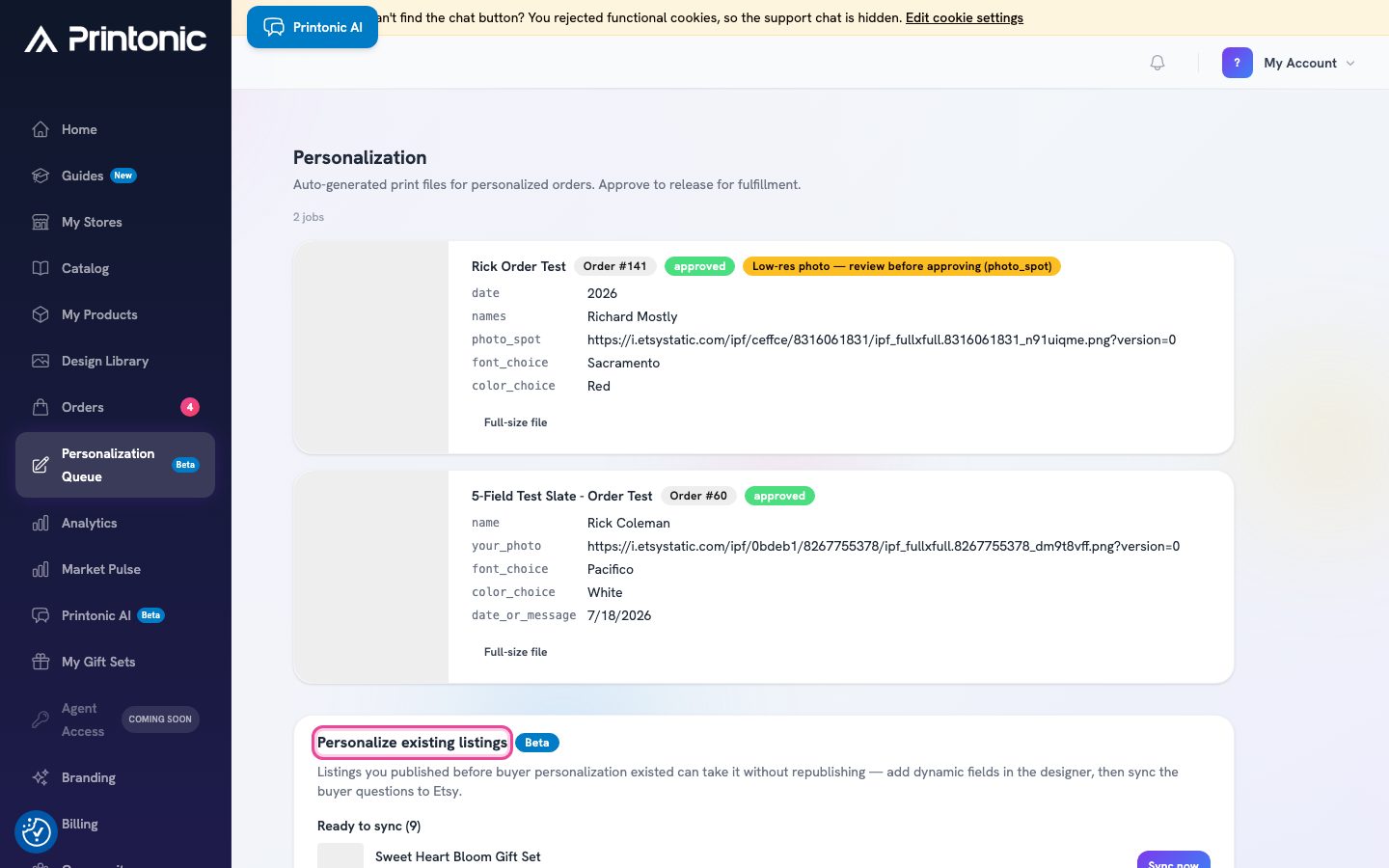
- 2
Personalize existing listings panel
Read the status groups
Listings are grouped by what they need. Ready to sync means the design already has buyer fields, so one click finishes the job. Add fields in the designer means the design has no buyer fields yet. Rows with a Re-save needed badge have artwork saved in an older format and need one re-save before they can sync. The Already personalized group stays collapsed at the bottom for listings that are done.
Only Etsy listings appear. Personalization is built on Etsy's buyer questions, which other marketplaces do not support.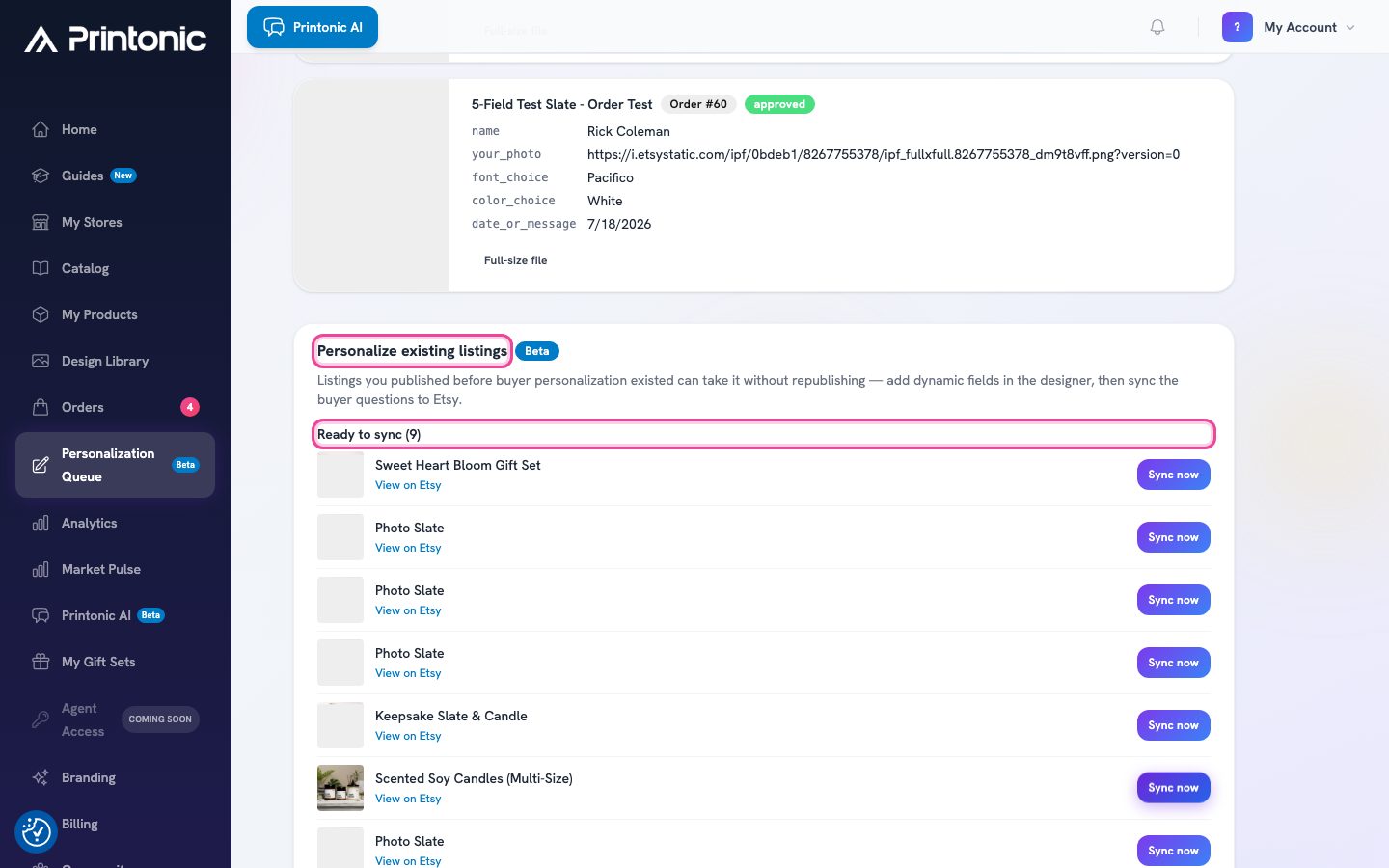
- 3
Personalize existing listings > Open designer
Add buyer fields where a listing needs them
For listings under Add fields in the designer, click Open designer to jump to the product's design canvas. Mark the text layers buyers can edit, add a photo spot or font and color choices if you want them, and save. The main personalization guide walks through field setup step by step. Once you save, the listing moves to Ready to sync.
Rows flagged Re-save needed only need you to open the designer and re-save once. This converts the artwork to the current format, and after that the listing syncs like any other. - 4
Personalize existing listings > Ready to sync > Sync now
Click Sync now
For anything in Ready to sync, click Sync now. Printonic writes your buyer questions onto the live Etsy listing in the same order as your fields. There is nothing to republish and no downtime for the listing.
Sync is a full replace: the questions from your Printonic design become the listing's personalization, so anything typed into Etsy's own personalization box is overwritten. Move any text you want to keep into a buyer question before you sync.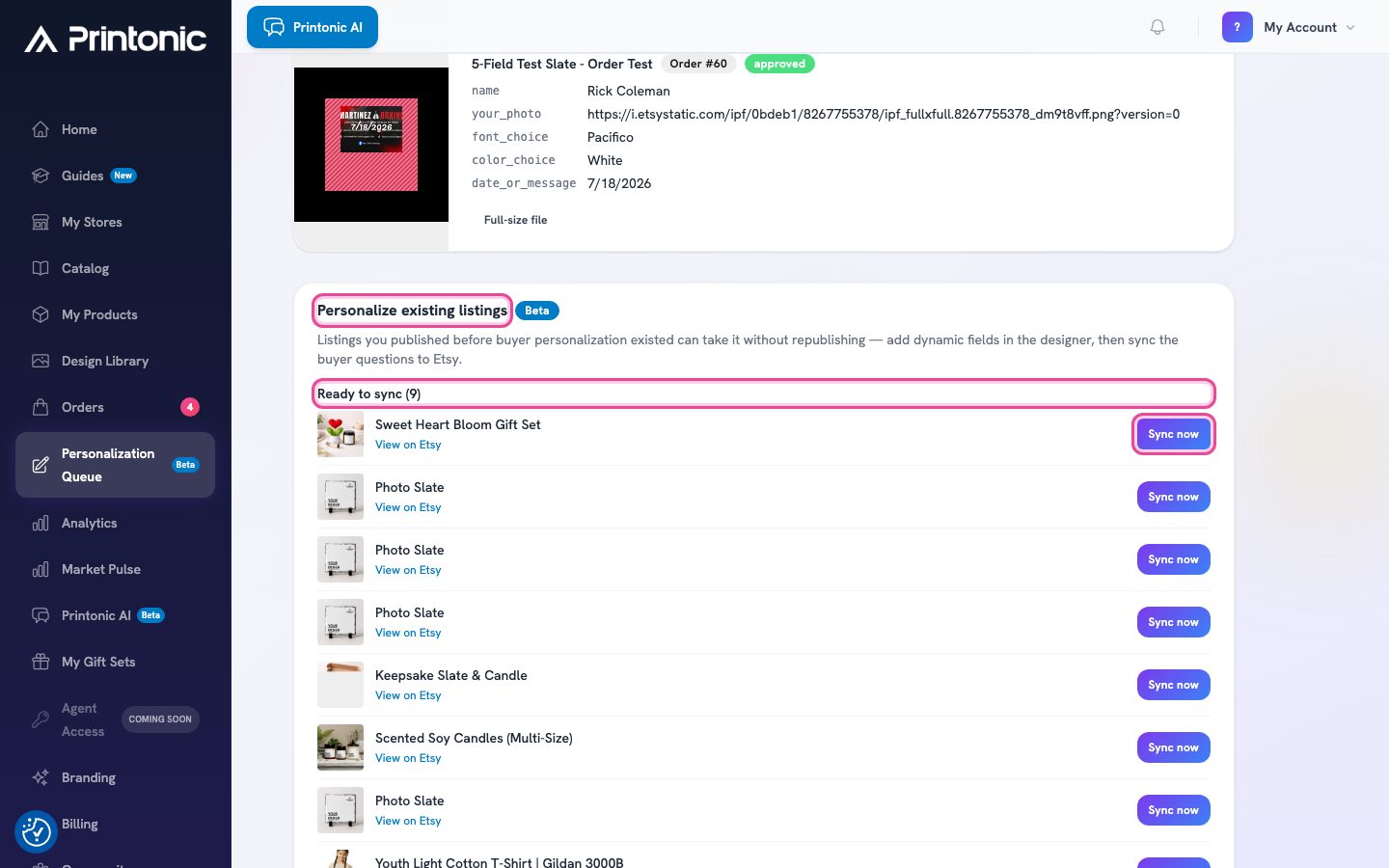
- 5
Dashboard > My Products > your product > Publish
Or sync from the product page
Prefer to work one product at a time? The Publish section of a published, not-yet-personalized product shows a short checklist around the Re-sync personalization button: add dynamic fields in the designer, sync personalization to Etsy, done. Each step checks itself off as you go.
Both paths call the same sync, so it does not matter which you use. The panel is faster when you have many listings to work through.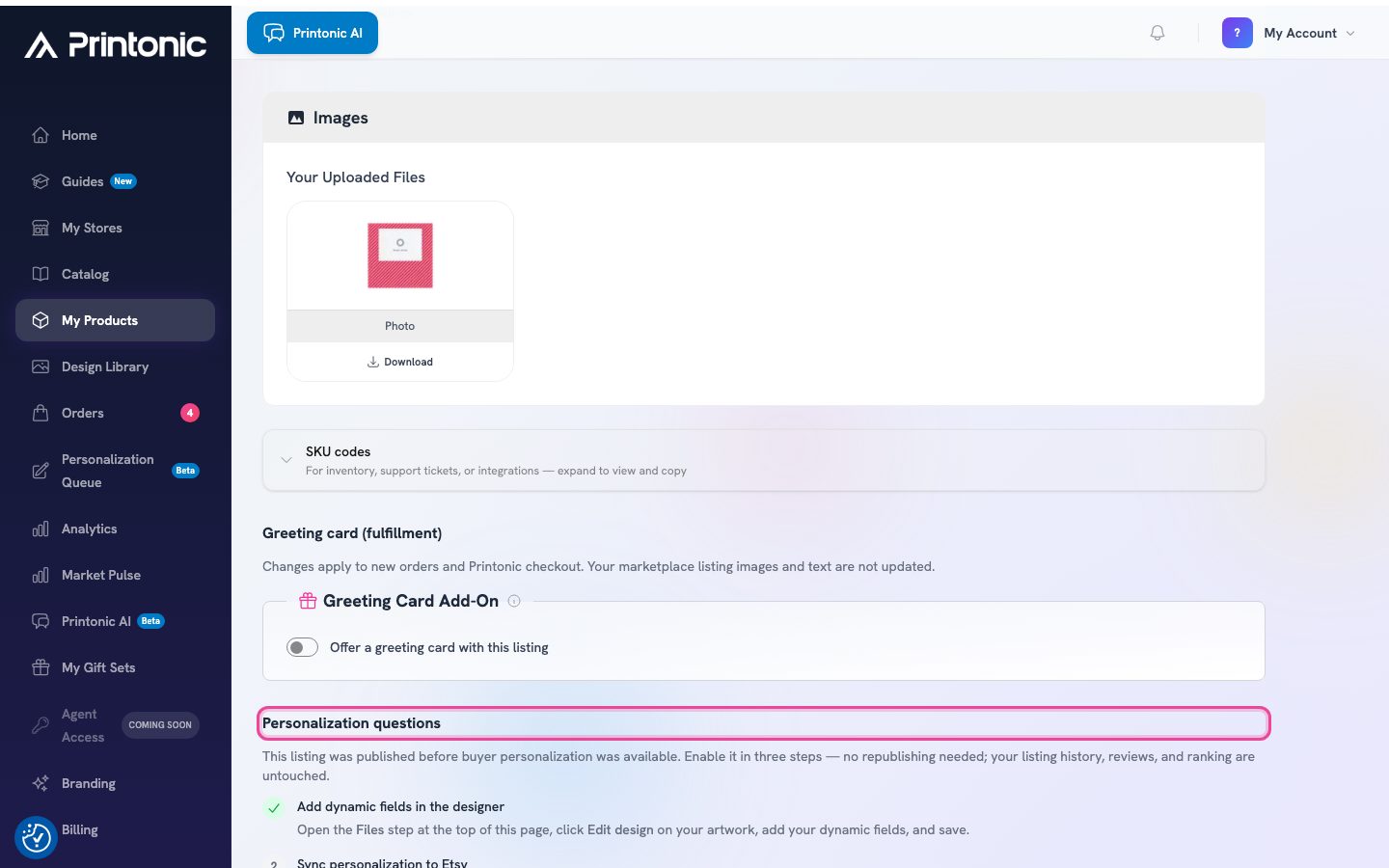
- 6
Your Etsy listing
Know what happens after the sync
Buyer questions appear on the Etsy listing within minutes, and the listing moves into Already personalized. New personalized orders render automatically and land in your Personalization Queue for review, exactly like orders on listings published with personalization. Orders placed before the sync stay exactly as they are: they carry no buyer answers, so the render pipeline simply skips them and they fulfill as before.
Etsy's limits apply to synced listings too: up to 5 buyer questions per listing and at most one photo-upload question. The designer enforces both before you ever sync.
Good to know
- Start with your best sellers. Personalization tends to lift conversion on giftable products, and those listings benefit most from keeping their review history.
- Before your first sync, move any personalization instructions you typed on Etsy into a buyer question in the designer. Syncing fully replaces the questions on the listing.
- Keep buyer questions short and concrete ('Name on the candle', 'Pet photo'). The question text is exactly what Etsy shows the buyer.
- Work through the panel in batches. Re-save old artwork first, add fields where needed, then sync everything in Ready to sync in one sitting.
Common questions
Do I need to republish my listing to add personalization?
No. Syncing writes buyer questions onto the live Etsy listing. Your sales history, reviews, favorites, and search ranking are untouched.
Does syncing change orders buyers already placed?
No. Syncing only affects the listing going forward. Orders placed before the sync carry no buyer answers, so Printonic skips them and they fulfill exactly as before.
I edited the personalization questions on Etsy directly. Are they safe?
No. Syncing from Printonic fully replaces the questions on the Etsy listing with the ones from your design, so direct Etsy edits are overwritten. Treat the designer as the source of truth and move any Etsy-side text you want to keep into a buyer question first.
My listing was linked through Use existing listing. Can it be personalized?
Yes, as long as Printonic knows the Etsy listing ID. When you generate SKUs for an existing Etsy listing, paste the listing ID or URL into the Listing ID field and it is stored with the product. After that the listing appears in the panel and syncs like any other.
Which listings show up in the panel?
Published Etsy listings only. Personalization is an Etsy feature for now, so TikTok Shop and Shopify listings are not listed.
Why does a row say Re-save needed?
The artwork was saved in an older canvas format. Open the designer on that product and save once, with no changes needed. This upgrades the file to the current format and the row moves to Ready to sync.
Related guides
Sell personalized products with buyer questions
Let buyers add their own names, dates, and photos on Etsy. Printonic asks the questions on your listing, renders the print file automatically when the order arrives, and holds it for your approval. Pro feature.
Link an existing listing with SKU codes
Already have a live listing on your store? Skip listing setup, generate Printonic SKU codes, and paste them into your listing so orders route to Printonic for fulfillment.
Publish a listing to your store
Finish your product's Listing step (store, title, description, pricing), publish it to your connected store, and find your SKU codes afterward.
Use the Design Library
Upload your artwork once, save print-ready versions of it for different products, and reuse those versions when you build listings.