Orders & Fulfillment
See your order before it ships
For $1 an order, we email you a photo of the packed box before it ships. Approve it, or tell us what to fix and we send a new photo at no extra cost.
Photo before shipping lets you check an order with your own eyes before it leaves us. When the order is packed, we take a photo of the open box and email it to you. Nothing ships until you approve it, or until 24 hours pass without an answer.
It costs $1 per order and you turn it on at checkout, one order at a time. It is a good fit for gift sets, personalized orders, and anything you want to see once before your customer does.
- 1
Dashboard > Orders > Send to Fulfillment > Checkout
Tick See my order before it ships at checkout
Send the order to fulfillment as usual. On the Checkout page, each order card has a box called See my order before it ships, with +$1.00 next to it. Tick the box on each order you want to see. The checkout total updates right away.
You can turn it on or off only while the order is unpaid. After you pay, the option for that order cannot change.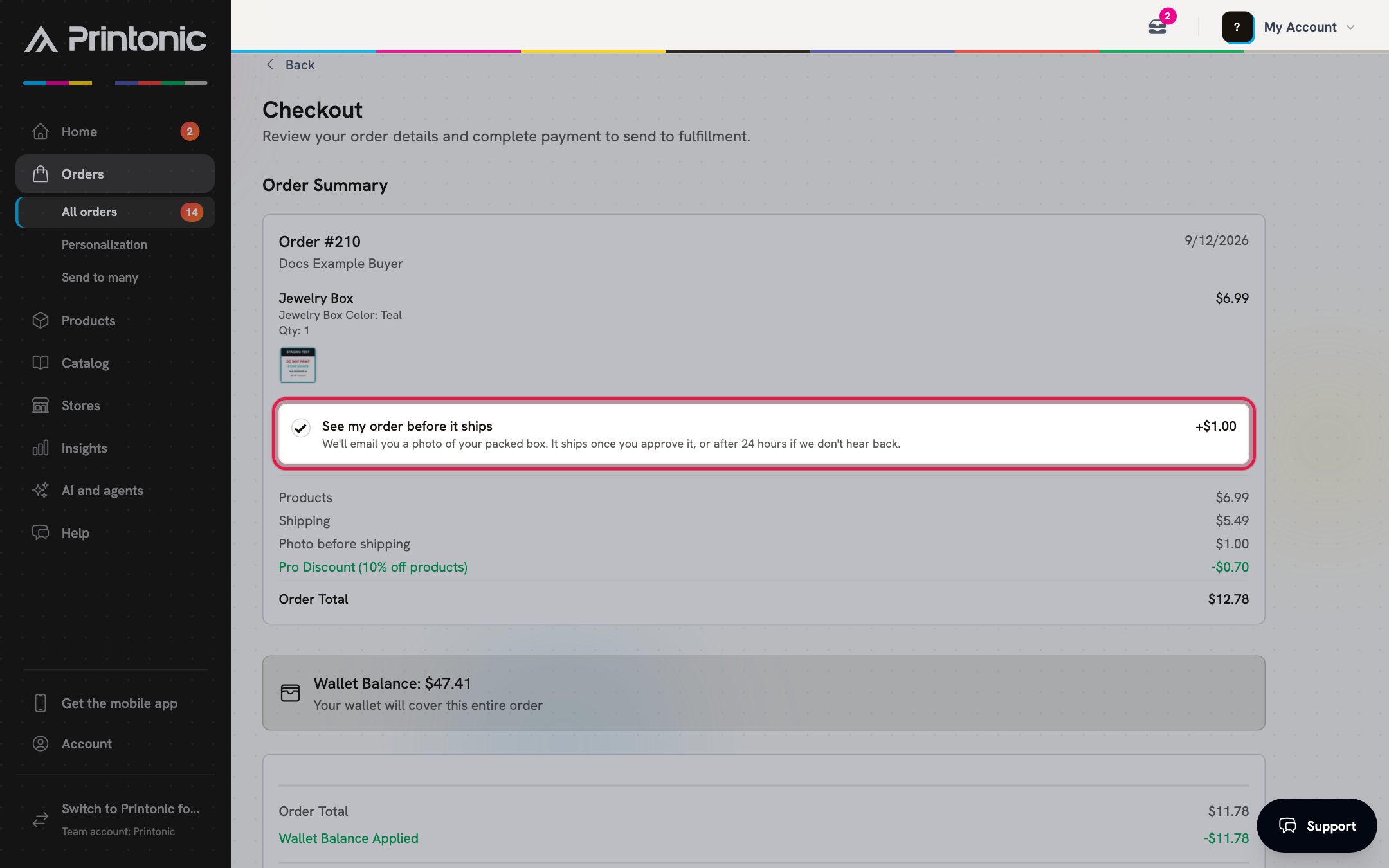
- 2
Checkout > Order Summary
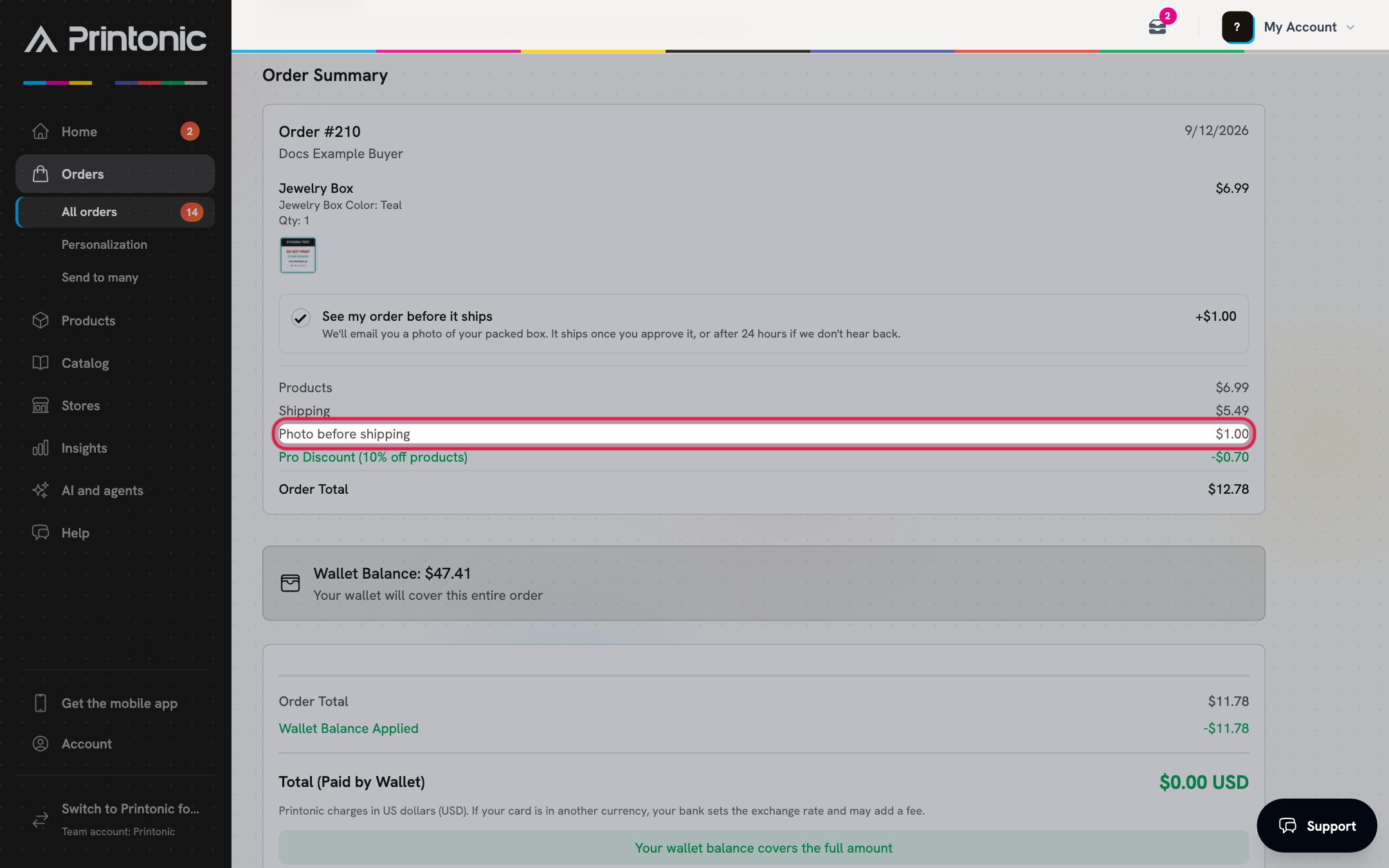
Check the $1 line and pay
A Photo before shipping line for $1.00 appears in the order's costs, under Products and Shipping. Pay the way you always do. The order goes into production like any other order, and the same line shows in the Order Summary on the order page afterwards.
- 3
Your email inbox
Open the email with the photo
When the box is packed, we email you a photo of it. The subject reads 'Your order <order number> is packed. Take a look before it ships'. Click the photo, Looks good, ship it, or Something's wrong. All three open a private page where you give your answer.
The email goes to the email address on your Printonic account. We never send it to your buyer or to the person the order ships to, so a gift stays a surprise.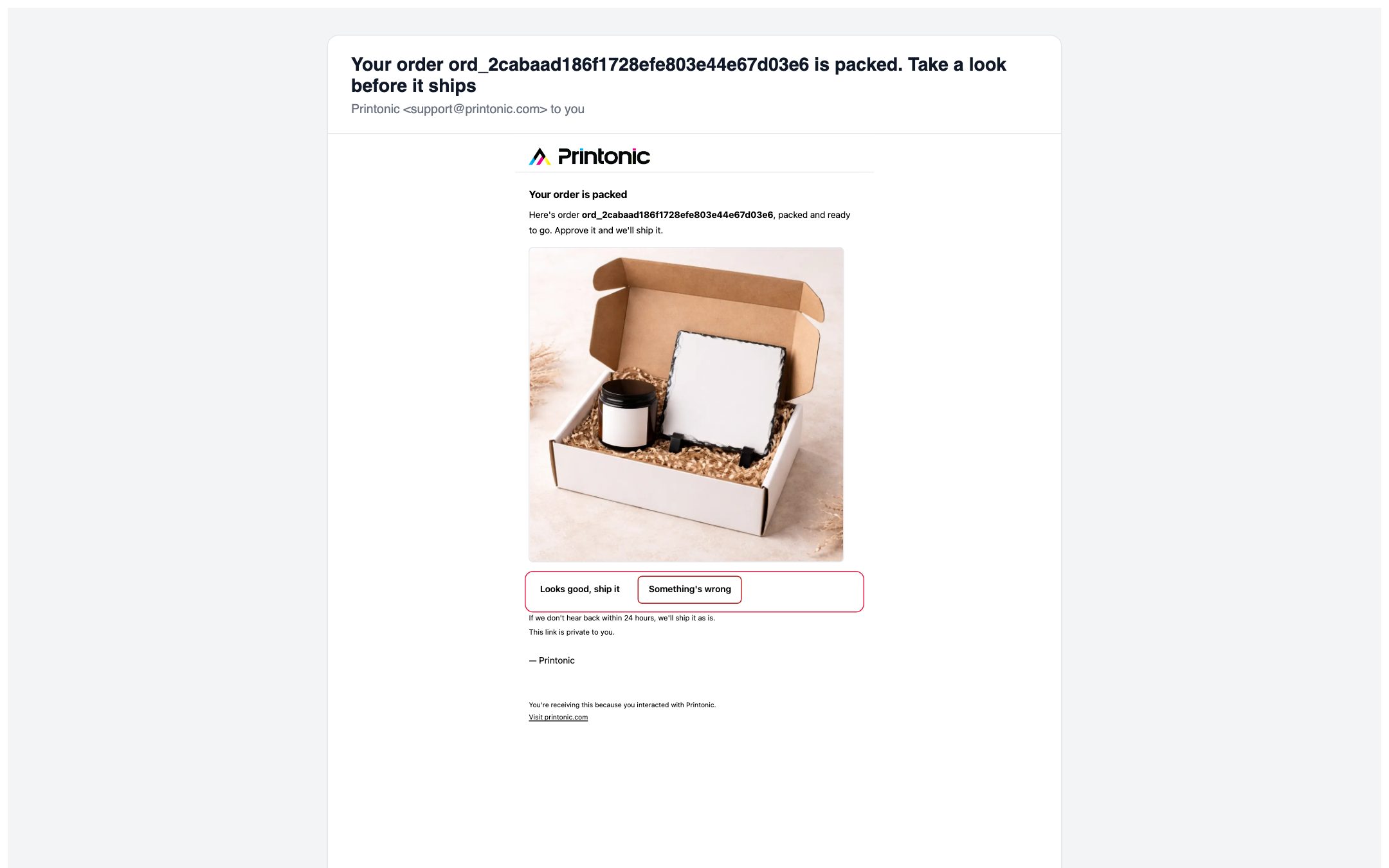
- 4
Photo page
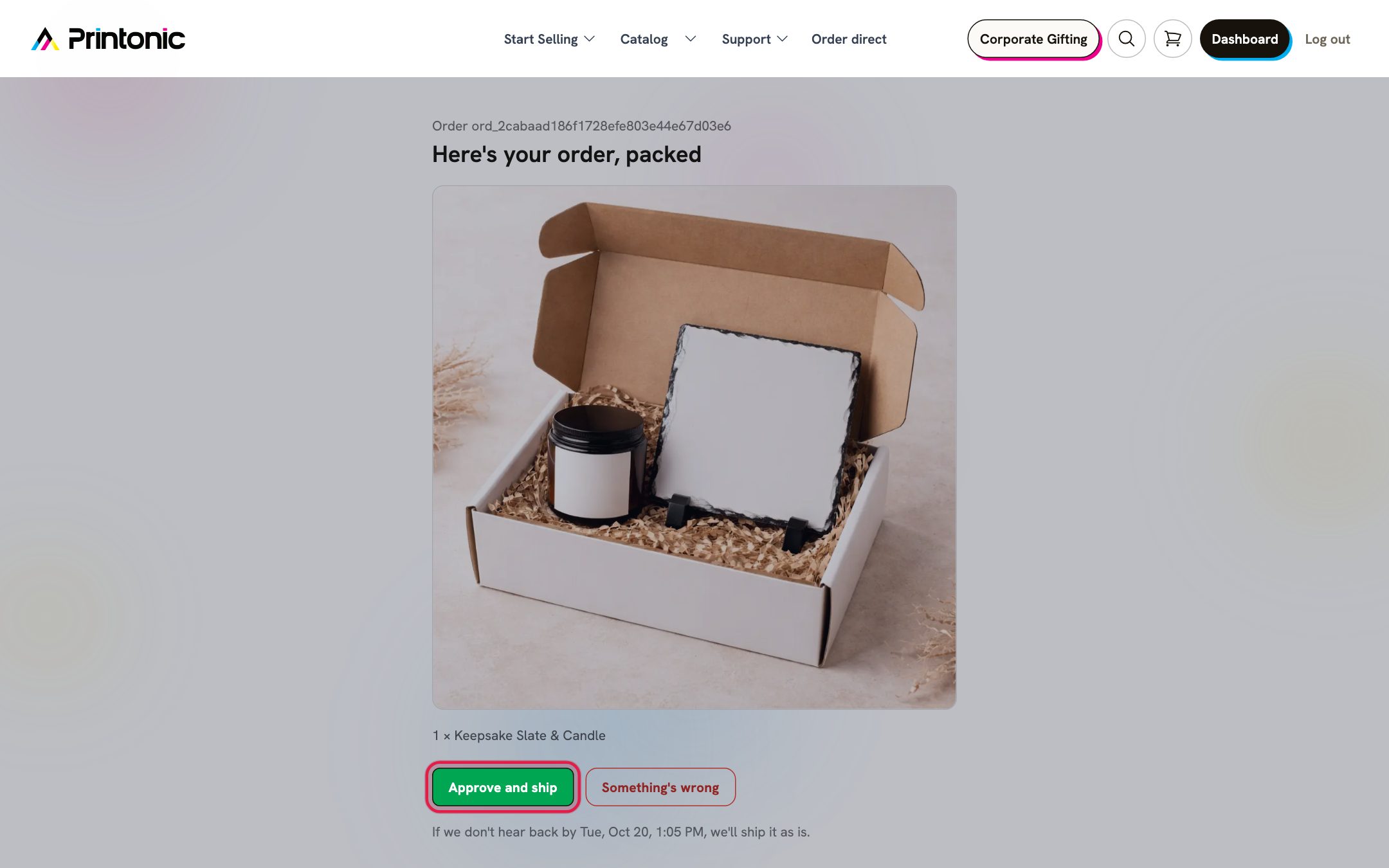
Approve and ship
The page is titled Here's your order, packed. It shows the photo and the items in the order. If everything looks right, click Approve and ship. The page then says 'Thanks! Your order is on its way to shipping.', and we print the shipping label and send it out.
- 5
Photo page > Something's wrong
Or tell us what to fix
If something is not right, click Something's wrong. A box called What should we fix? opens. Write what you see, for example that a piece is missing or the wrong color, and click Send to the team. The page says 'We're on it. We'll fix it and email you a new photo, at no extra cost.' When the fix is done, you get a new email with a new photo to approve.
Only the newest photo can be answered. If you open an older email after a new photo was sent, the page asks you to use the latest email.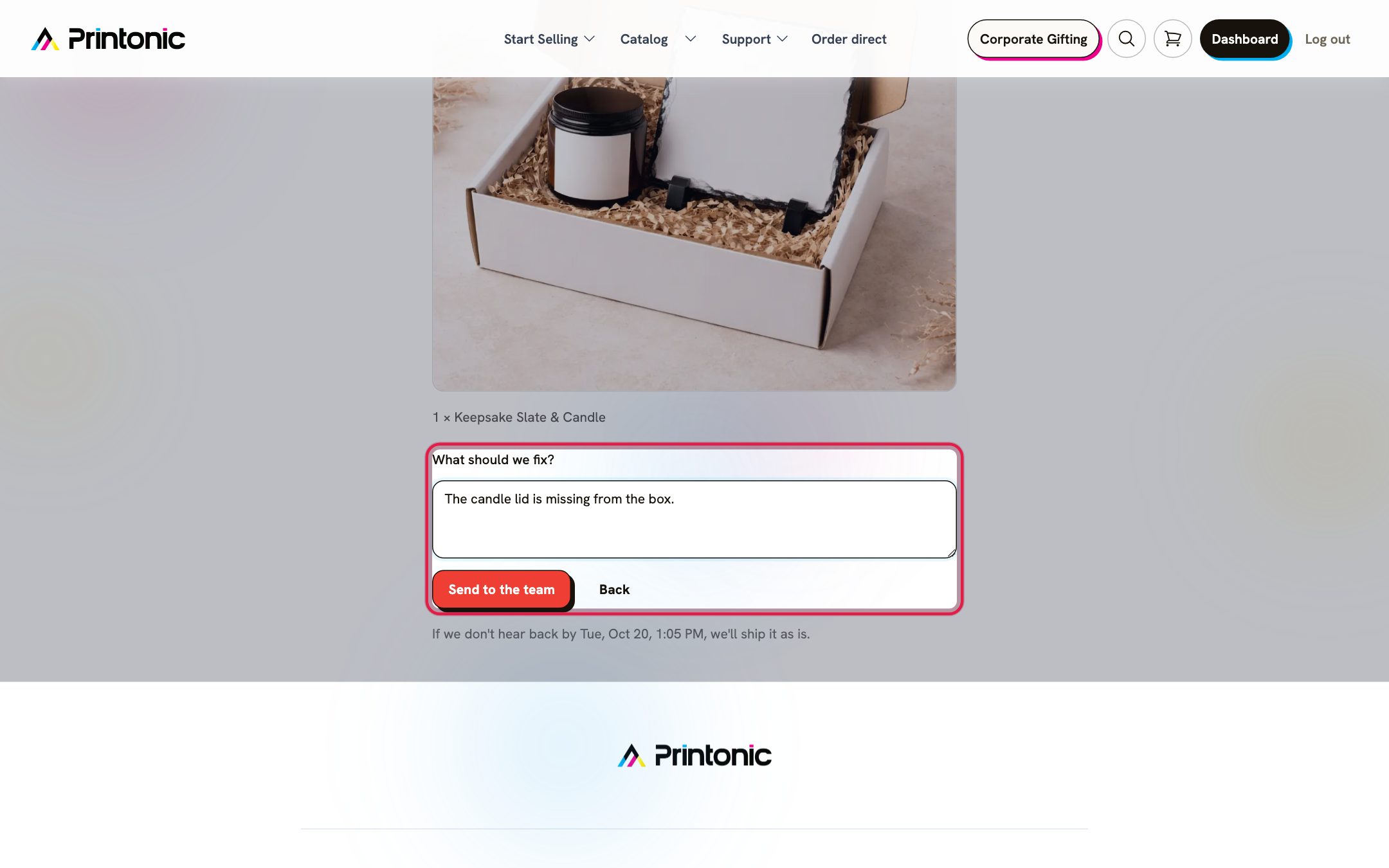
- 6
Photo page
No answer? It ships after 24 hours
You have 24 hours from when we send the photo. The page shows the exact time, for example 'If we don't hear back by Tue, Oct 20, 3:00 PM, we'll ship it as is.' If you do not answer by then, we ship the order as packed, and the page says so when you open it later.
Answer as soon as you can. The order waits for your answer, so a quick approval means it ships sooner.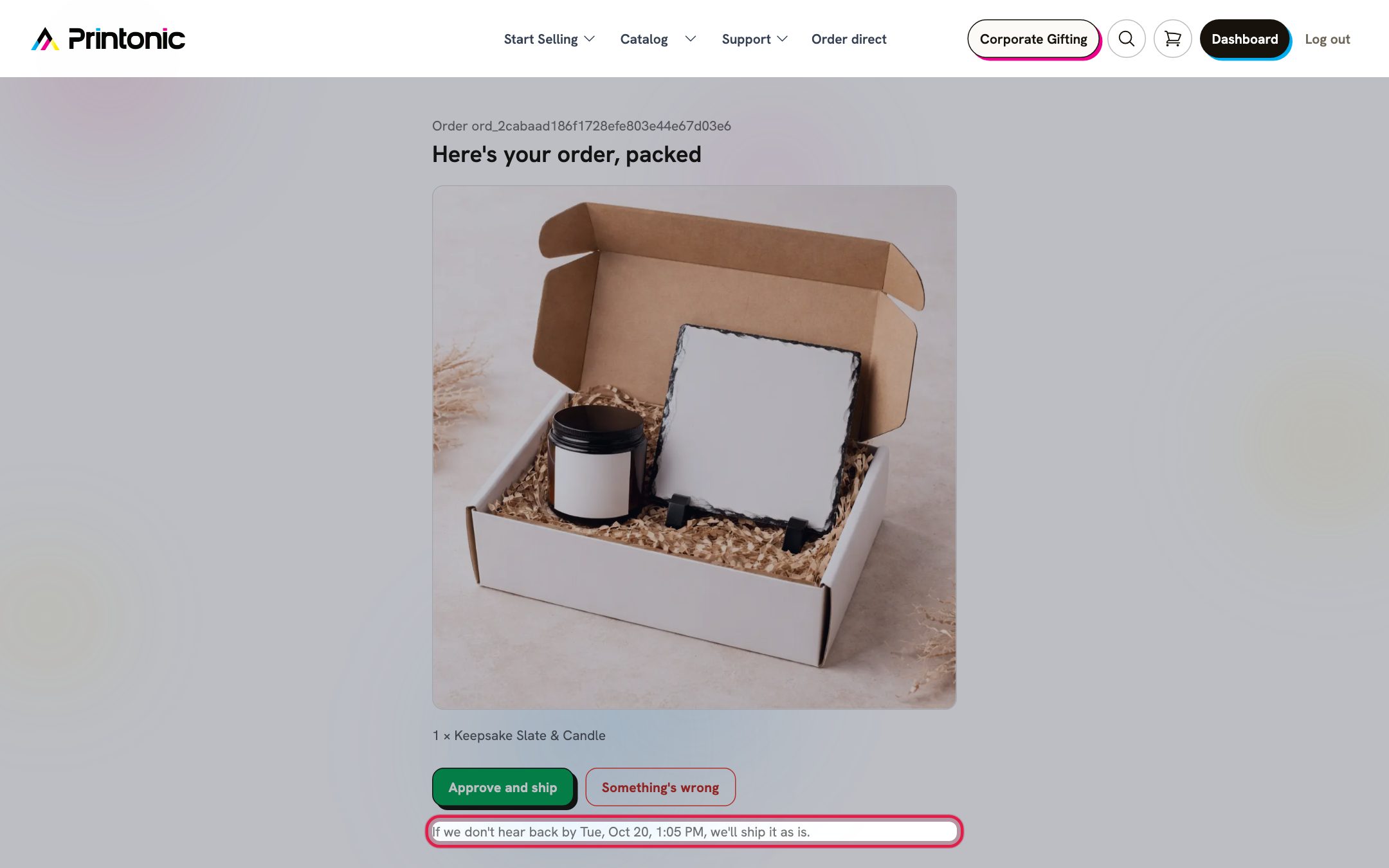
Good to know
- Use it on orders where a mistake would hurt most: gift sets, personalized items, and large orders.
- Check the photo for the right items, colors, and personalization.
- If the order is a gift, you can approve it without your buyer or the recipient ever seeing the photo.
Common questions
How much does it cost?
$1 per order. If you ask us to fix something, the fix and the new photo cost nothing extra. The $1 itself is not refunded.
Does my buyer get the email?
No. The photo goes only to the email address on your Printonic account, the person who paid for the order. Your buyer and the ship-to recipient are never contacted.
Does it slow down shipping?
Only by the time you take to answer. The order ships as soon as you approve it, and at most 24 hours after we send the photo if you do not answer.
Can I add it after I paid?
No. The option can only be turned on or off at checkout, before the order is paid.
Can I turn it on for every order?
It is chosen order by order at checkout. When you check out several orders together, tick the box on each one you want to see.
Related guides
Send orders to fulfillment and pay
Submit one order or a whole batch for production. Covers the Send to Fulfillment button, the checkout cost breakdown, how your wallet balance applies automatically, paying the rest with a saved card, and adding funds mid-checkout.
Manage your orders
Every order from every connected store lands in one Orders tab. Learn what each status means, how to sync, how to send, ignore, restore, or resubmit orders in bulk, and how to change the recipient, switch an out-of-stock option, and read buyer answers.
Track shipping and order status
Follow an order from Submitted to Shipped to Delivered, find the carrier and tracking number, and learn how tracking reaches your customer automatically.
Report an issue on an order
Something wrong with an order? Request a refund, reprint, cancellation, or order change straight from the order page, attach photos, track the request until it is resolved, and ask for a phone call if you prefer to talk.