Products & Listings
Browse the catalog
Find products to sell: search the catalog, narrow results with category, tag, and TikTok filters, then open a product page to review pricing, variations, mockups, and shipping before you add it.
The catalog is where every Printonic product lives. New items are added weekly, so it is worth checking back even after you have set up your store.
This guide walks you through finding a product, reading the product cards, and reviewing everything on a product page (costs, variations, mockups, and shipping) so you can decide what to sell.
- 1
Dashboard > Catalog
Open the Catalog
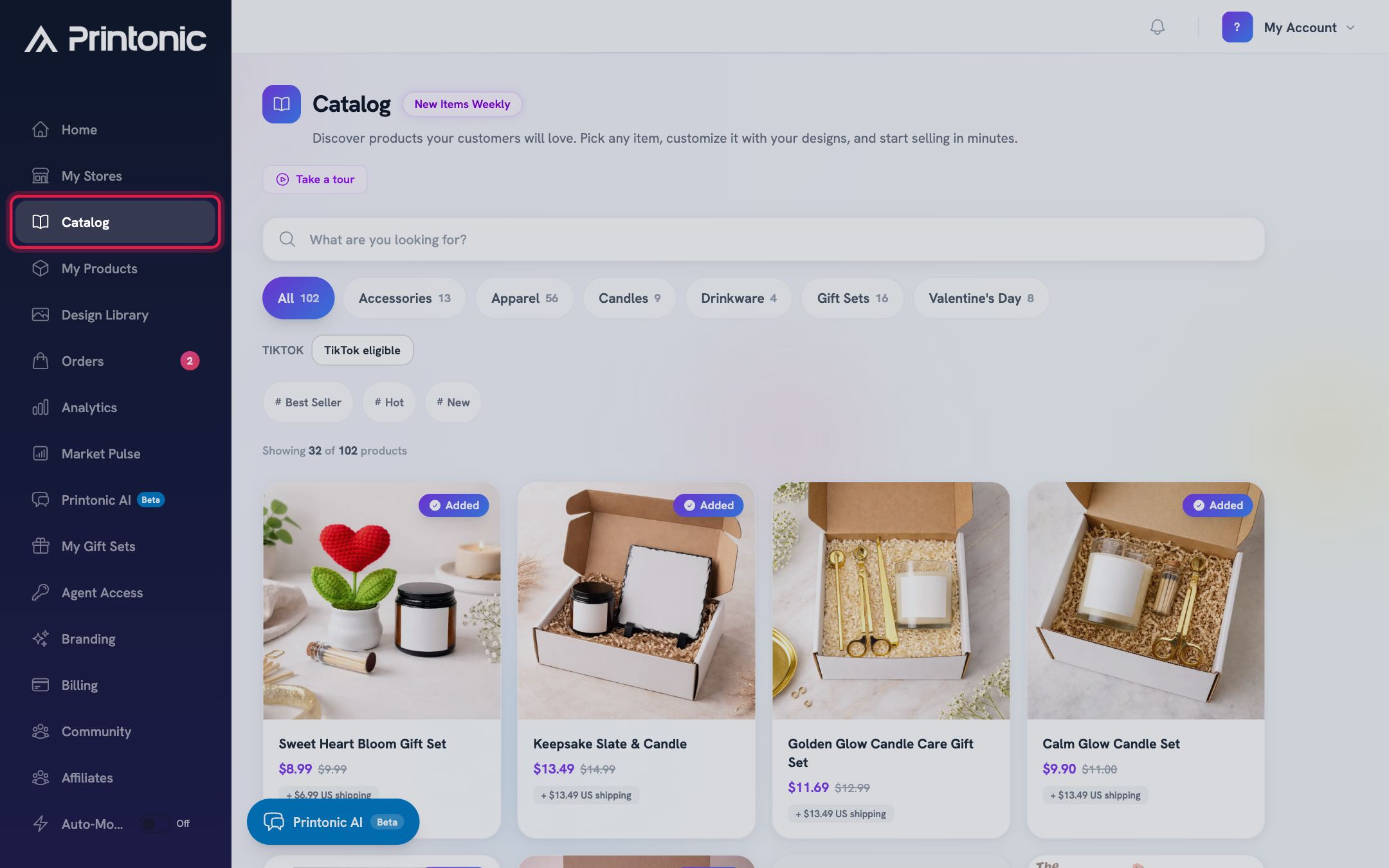
In your dashboard, open the Catalog tab. You will see a search bar at the top, filter pills below it, and a grid of product cards. If you are brand new, click the tour button next to the page title for a quick interactive walkthrough.
- 2
Dashboard > Catalog
Search for a product
Type what you are looking for in the search bar (it says "What are you looking for?"). Results update automatically about half a second after you stop typing, so there is no search button to press. Scroll down to load more results; the counter under the filters shows how many products match, for example "Showing 16 of 48 products".
If nothing matches, you will see "No matches found" with a Clear Filters button. Try broader keywords or clear your filters and start over.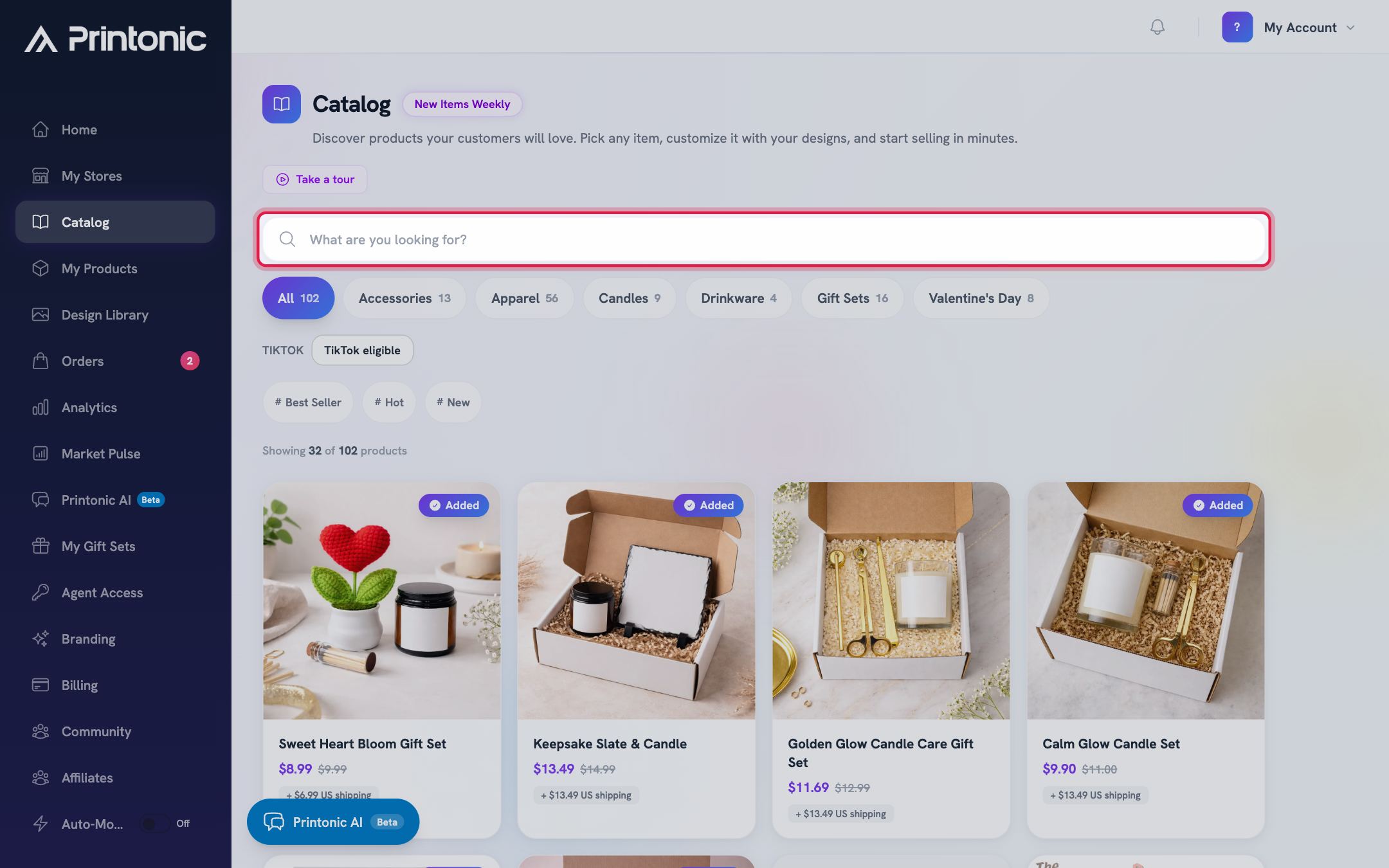
- 3
Dashboard > Catalog
Narrow results with category and tag filters
Below the search bar are category pills (starting with "All"), each showing how many products it contains. Click a category to filter to it, or click it again to turn it off. Under the categories is a row of tag chips marked with a # symbol. You can select several tags at once, and click a tag again to remove it. A "Clear" button appears at the end of the tag row whenever any filter or search is active.
Category and tag filters combine with your search, so if results look too thin, check whether an old filter is still on and use Clear to reset everything.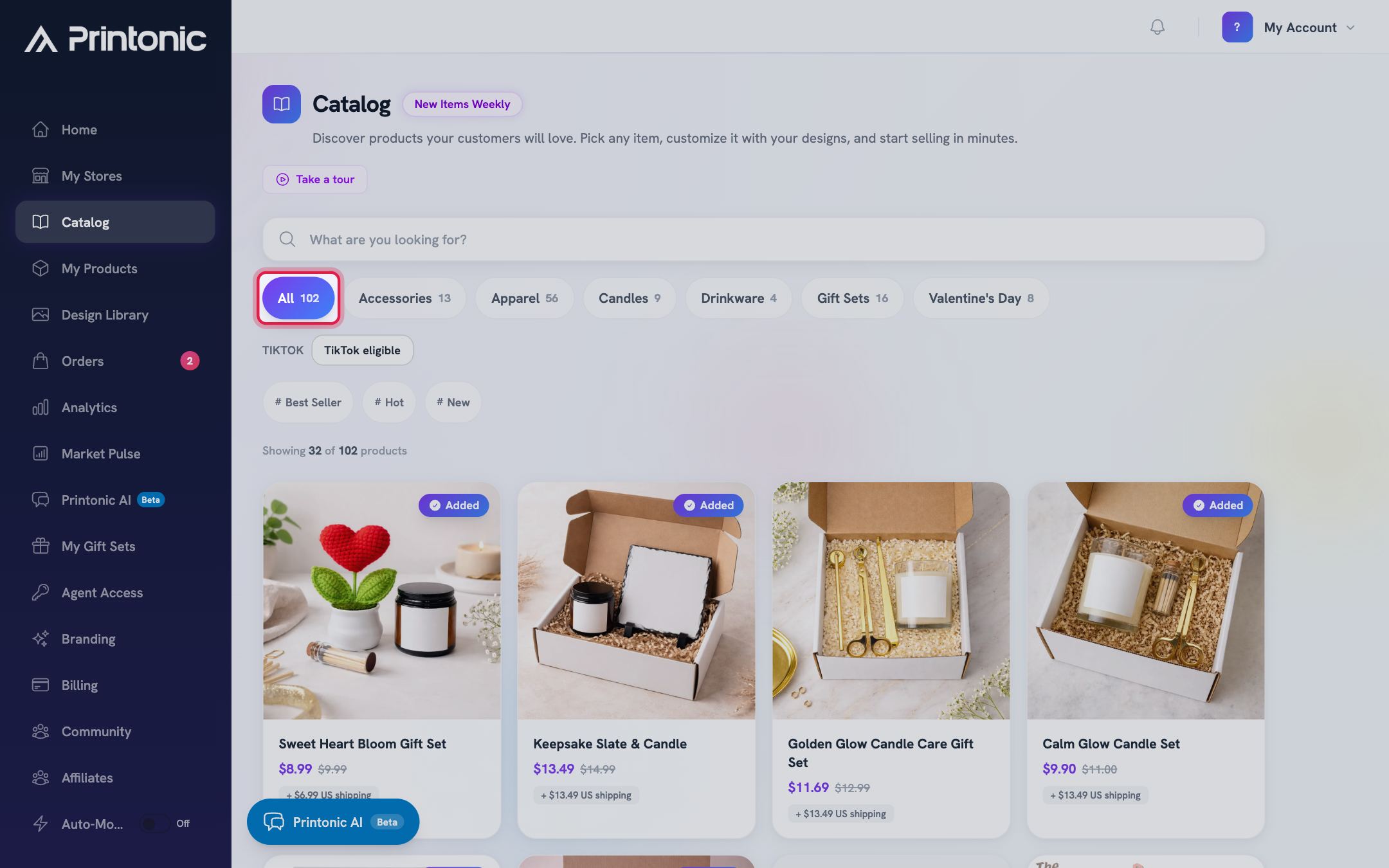
- 4
Dashboard > Catalog
Show only TikTok eligible products
If you sell on TikTok Shop, click the "TikTok eligible" button in the TikTok row to show only products that can be published to TikTok. Click it again to go back to all products. While it is on, the results counter adds "(TikTok eligible only)" so you know the filter is active.
Not every catalog product can be listed on TikTok Shop. If a product does not appear with this filter on, it cannot be published there yet.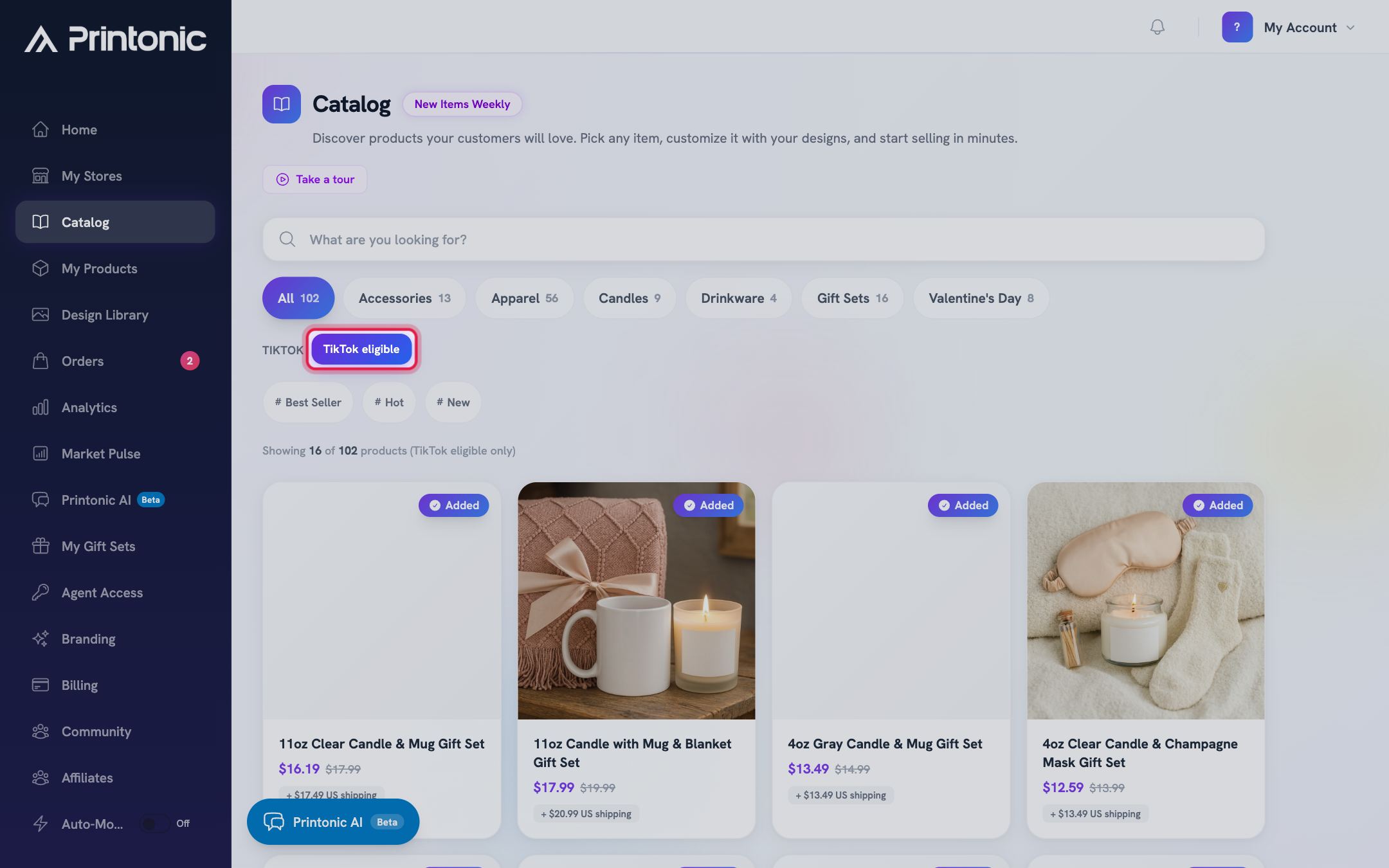
- 5
Dashboard > Catalog
Read the product cards
Each card shows the product photo, name, your base cost, tags, and a shipping badge such as "Free US shipping", "+ $4.00 US shipping", or "From $2.50 US shipping". Some products show a price range (for example $9.00 to $14.00) because certain options like larger sizes cost more. Hover over a card to see the price, a quick summary of variations, and a "View Details" button.
A card with an "Added" badge in the corner is already in your products, so you do not need to add it again. If you are not a Pro member, cards also show a "Pro:" price so you can see what the same product would cost with the Pro discount.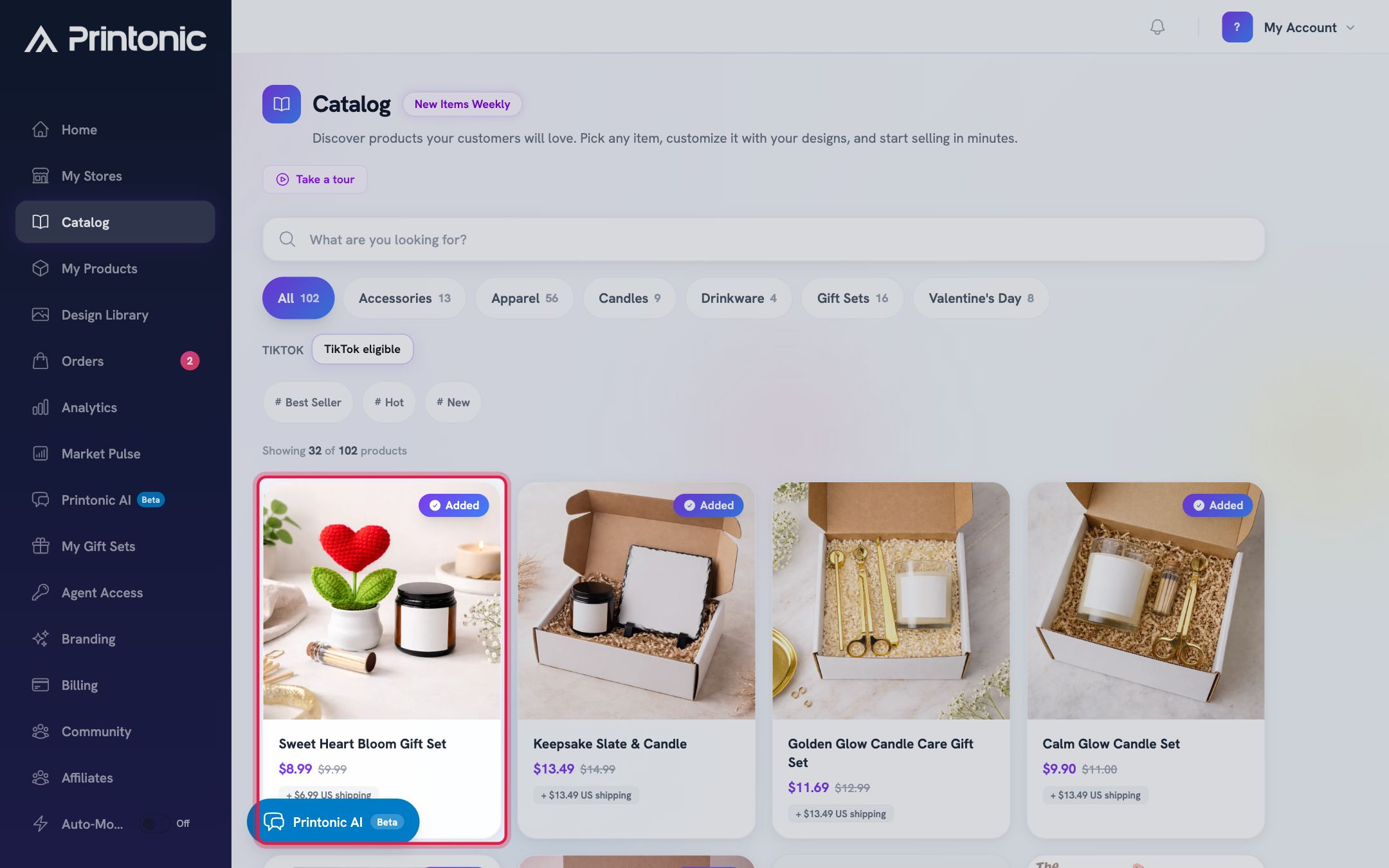
- 6
Dashboard > Catalog > product
Open a product page
Click a card (or its View Details button) to open the full product page. At the top you get an image carousel, the full price range, the shipping badge, and two quick cards: Processing Time (1-3 business days) and Estimated Delivery (US 3-7 business days, international 7-28 business days). Scroll down for more sections: "Available mockups" shows the mockup styles you can use for your listing photos, followed by the Product Description, Packaging photo, and a Product Video when one is available. Use "Back to Catalog" at the top to return to your search results.
Clicking a mockup style takes you straight into the customize flow for that product. If you just want to keep researching, use your browser back button instead.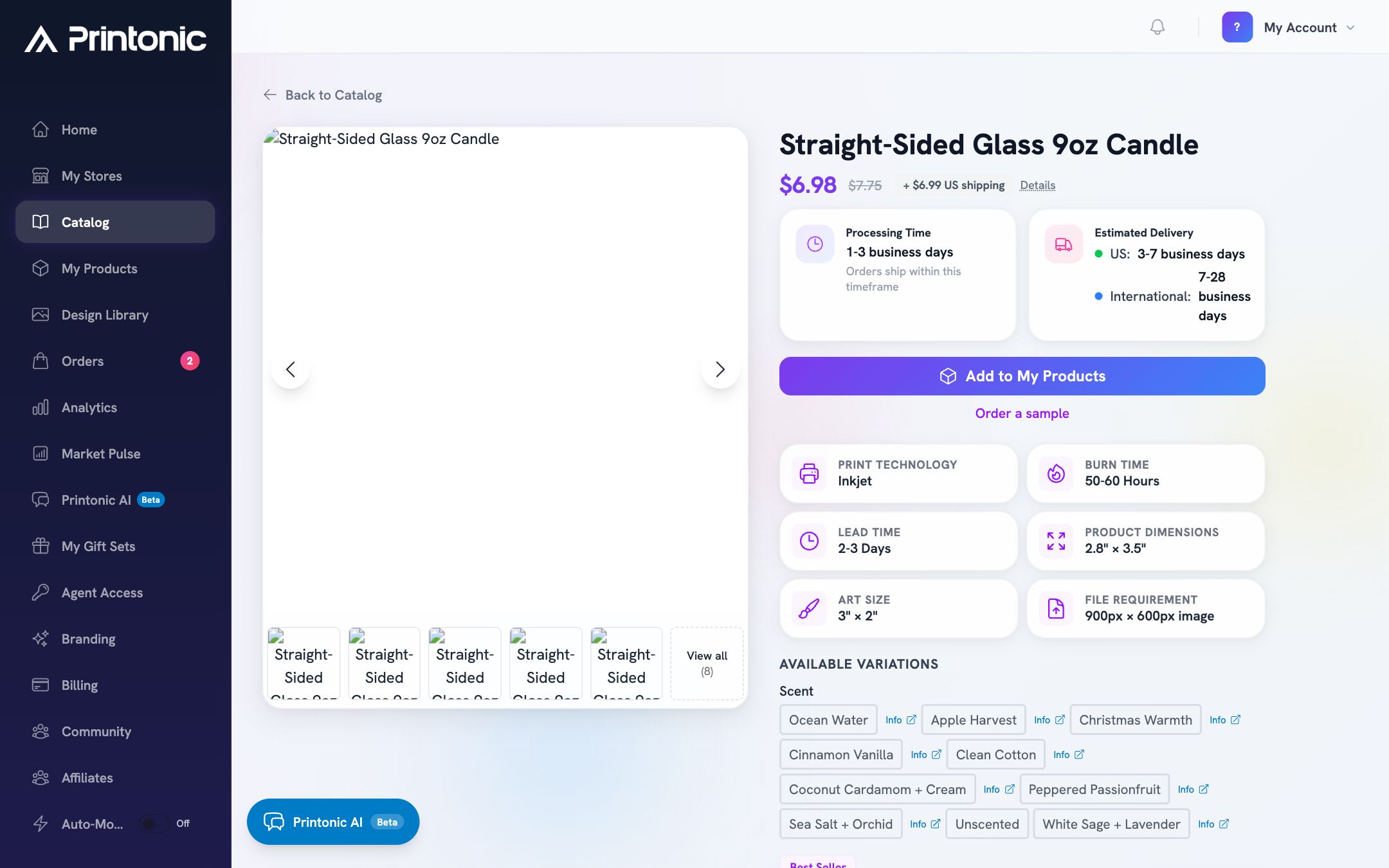
- 7
Dashboard > Catalog > product > Available Variations
Check the variations and their costs
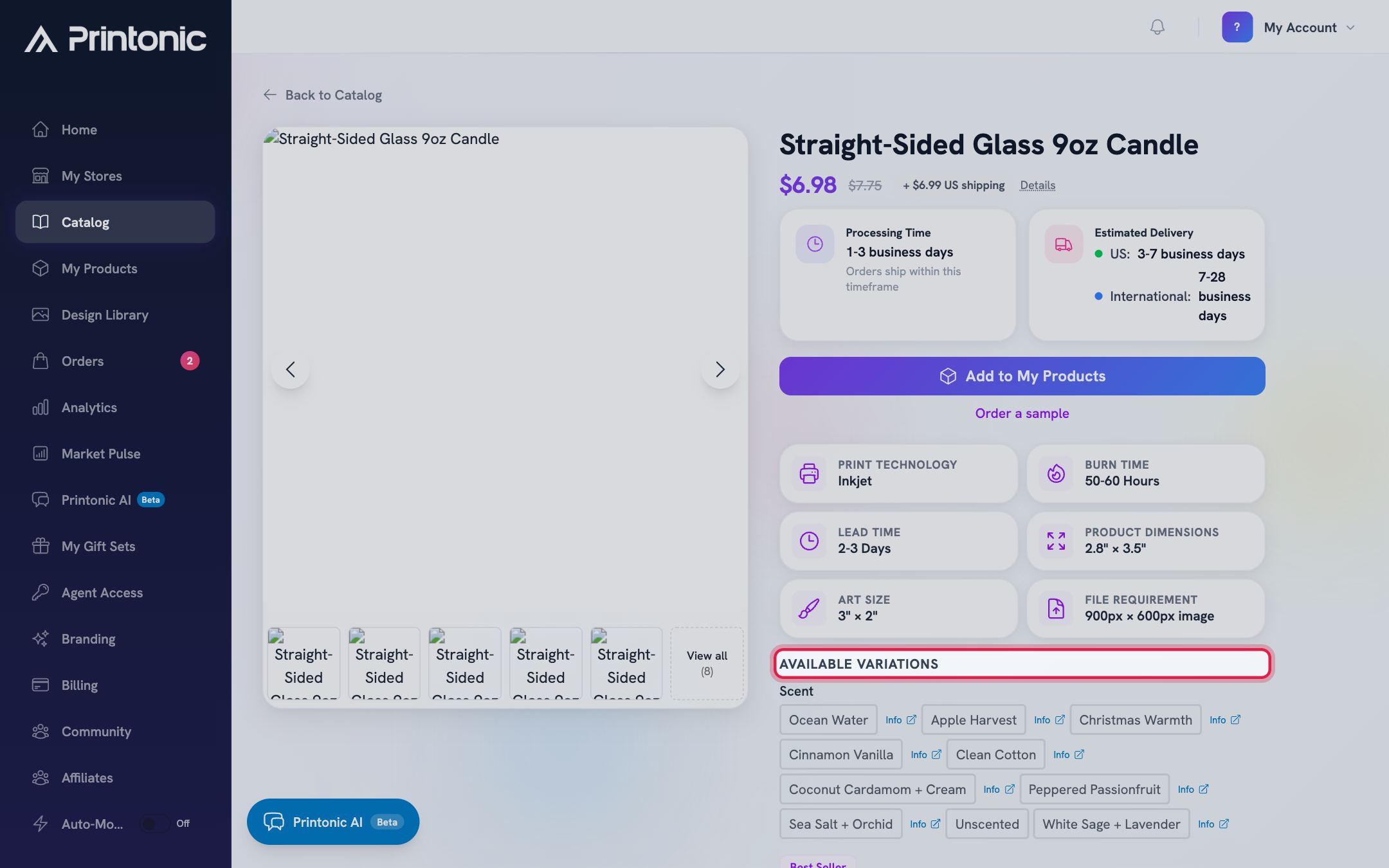
The "Available Variations" section lists every option group, such as Size or Color. Each option chip shows any extra cost in parentheses, for example "(+$2.00)" for a higher product cost or "(+$1.50 shipping)" for extra shipping. Options with no parentheses cost the same as the base price. Click an option that has its own photo to preview it in the image carousel, and use "and X more" to expand long option lists.
- 8
Dashboard > Catalog > product > Shipping & delivery
Review shipping rates by region
At the bottom of the product page, the "Shipping & delivery" card shows "Shipping Rates by Region". Each region card lists the cost for the first item and for each additional item in the same order, with "Free" shown where there is no charge. Use these numbers when working out your retail price and shipping settings.
If you see the note "Shipping costs may vary by product variation", the rates shown are base prices and some options (like oversized variants) add to them. Check the variation chips in the step above for the exact extra amounts.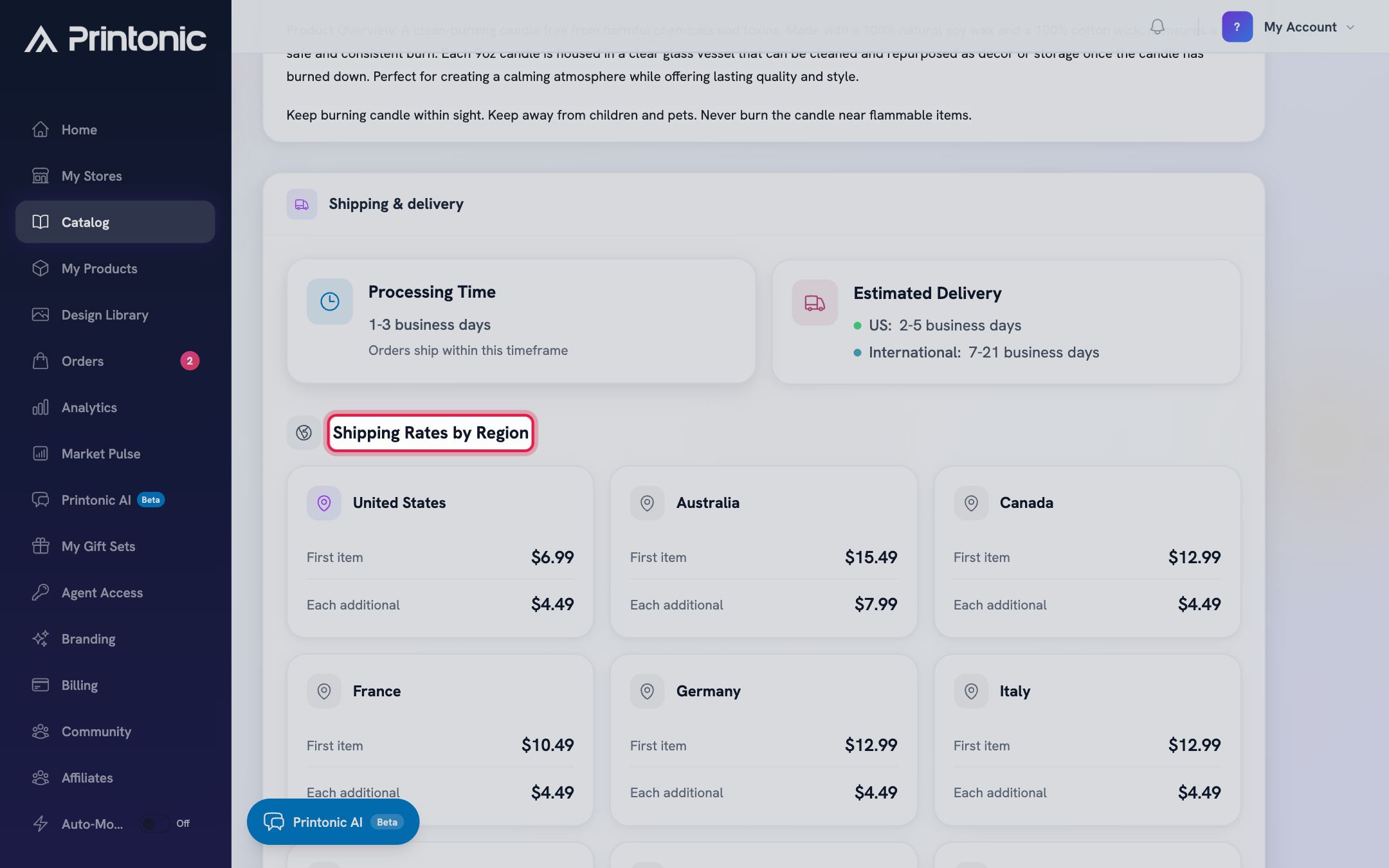
Good to know
- The catalog gets new items weekly (the badge next to the page title says so). A quick monthly browse is an easy way to find fresh products before your competitors do.
- Shipping badges on the cards show the US first-item rate. Open the product page for the full rates by region and for each additional item.
- Pro members get 10% off the base product cost. The crossed-out price on cards and product pages shows what you are saving.
- You can combine search, one category, multiple tags, and the TikTok eligible filter all at once, then hit Clear to reset everything in one click.
Common questions
Why do some products show a price range instead of one price?
The low end is the base cost and the high end is the cost with the most expensive option in every variation group (for example the largest size). Open the product page and check the Available Variations section to see exactly which options add cost.
What does "TikTok eligible" mean?
It marks products that can be published to TikTok Shop through Printonic. If a product does not show up with the TikTok eligible filter on, it cannot be listed on TikTok yet, though it may still work for your other stores.
How fast will orders for these products ship?
Products process in 1-3 business days before shipping. Estimated delivery after that is 3-7 business days in the US and 7-28 business days internationally. These estimates appear on every product page.
I opened a product and got "Product not found". What happened?
The product was removed or is no longer available, which can happen if you followed an old link or bookmark. Head back to the Catalog and search for a similar item.
Related guides
Add a product
Turn a catalog item into your own product: pick variations, upload your art, set prices, and publish it to your store with the step-by-step setup wizard.
Publish a listing to your store
Finish your product's Listing step (store, title, description, pricing), publish it to your connected store, and find your SKU codes afterward.
Publish a listing to TikTok Shop
Connect a US TikTok Shop, set up a TikTok-ready product, clear the pre-publish checks (category, pricing, weight, required attributes), and publish your listing.