Products & Listings
Publish a listing to TikTok Shop
Connect a US TikTok Shop, set up a TikTok-ready product, clear the pre-publish checks (category, pricing, weight, required attributes), and publish your listing.
TikTok Shop has stricter listing rules than other platforms: every listing needs a TikTok category, a package weight, and sometimes extra category attributes. Printonic handles most of that for you. TikTok-ready catalog products come preloaded with a category, package weight, and dimensions, and Printonic checks your listing against TikTok's rules before you publish so you never hit a confusing rejection.
This guide walks through the whole flow, from connecting your TikTok Shop to seeing your published listing and SKU codes. If you are new to publishing in general, read the Publish a listing guide first; this one focuses on what is different for TikTok.
- 1
Dashboard > My Stores
Connect your TikTok Shop
Click New Store, select the TikTok tile, enter a Store Name (only for your reference), and click Connect Store. You are sent to TikTok to sign in and approve access, then returned to Printonic with your shop connected. The Connect your store guide covers this in more detail.
US shops only for now. If your shop's region is not the US, the connection is declined with the message: TikTok Shop fulfillment is currently supported for US shops only. If the TikTok tile shows a Soon badge, TikTok is not available on your account yet.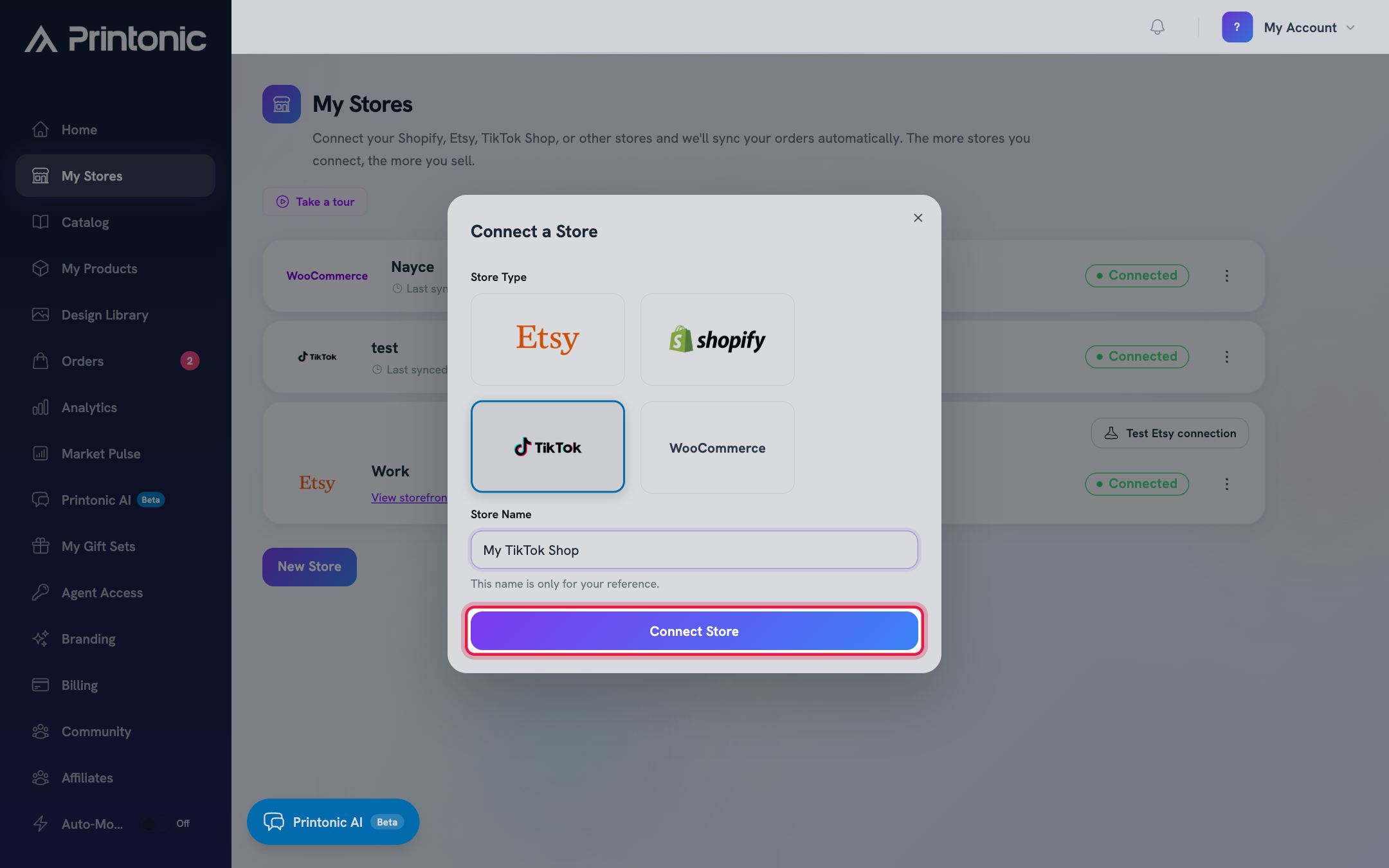
- 2
Dashboard > My Products
Start with a TikTok-ready product
Add a product from the Printonic catalog (or open one you already created) and click it to open the product setup. Products that support TikTok publishing come preloaded with their TikTok category, package weight, and package dimensions, so you rarely need to touch those.
Not every catalog product can go to TikTok yet. If you try to publish one that is not ready, you will see: This product is not enabled for TikTok publishing. Contact support and we can usually make the product TikTok-ready for you.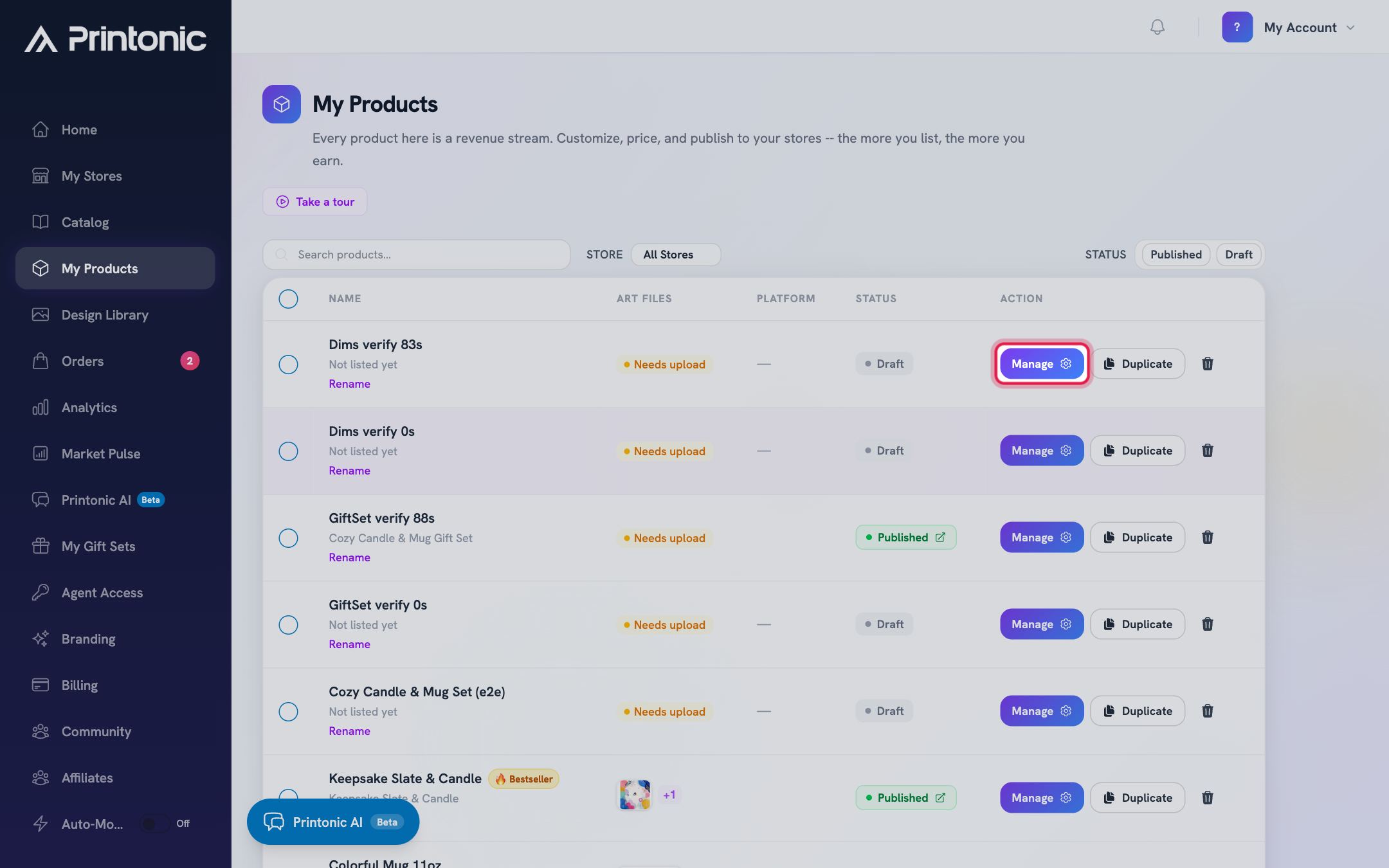
- 3
Product setup > Variations and Files
Pick variations and upload your files
Choose the options you want to sell on the Variations step, then upload your artwork on the Files step. Click Next Step to continue to the Listing step.
Your TikTok listing photos come from your mockups and product images. Make sure the mockups you want on the listing are marked for publish, otherwise publishing stops with an error asking you to add mockups.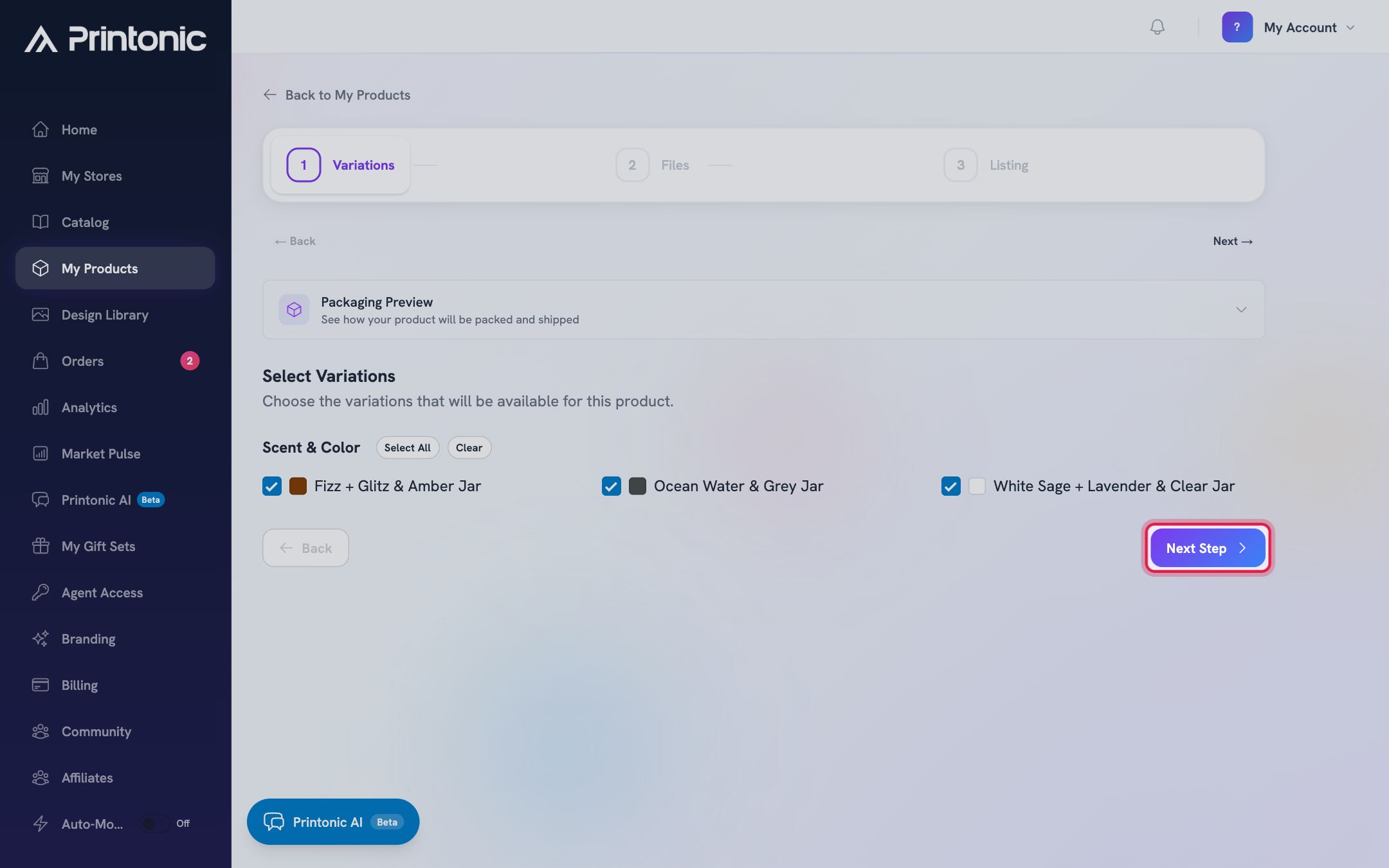
- 4
Product setup > Listing step > Store
Select your TikTok store
Open the Store section and select your connected TikTok Shop. This tells Printonic to publish to TikTok and switches on the TikTok-specific fields for the rest of the step.
Once a TikTok store is selected, the Tags & Extras section becomes Category & Tags and includes a required TikTok category field.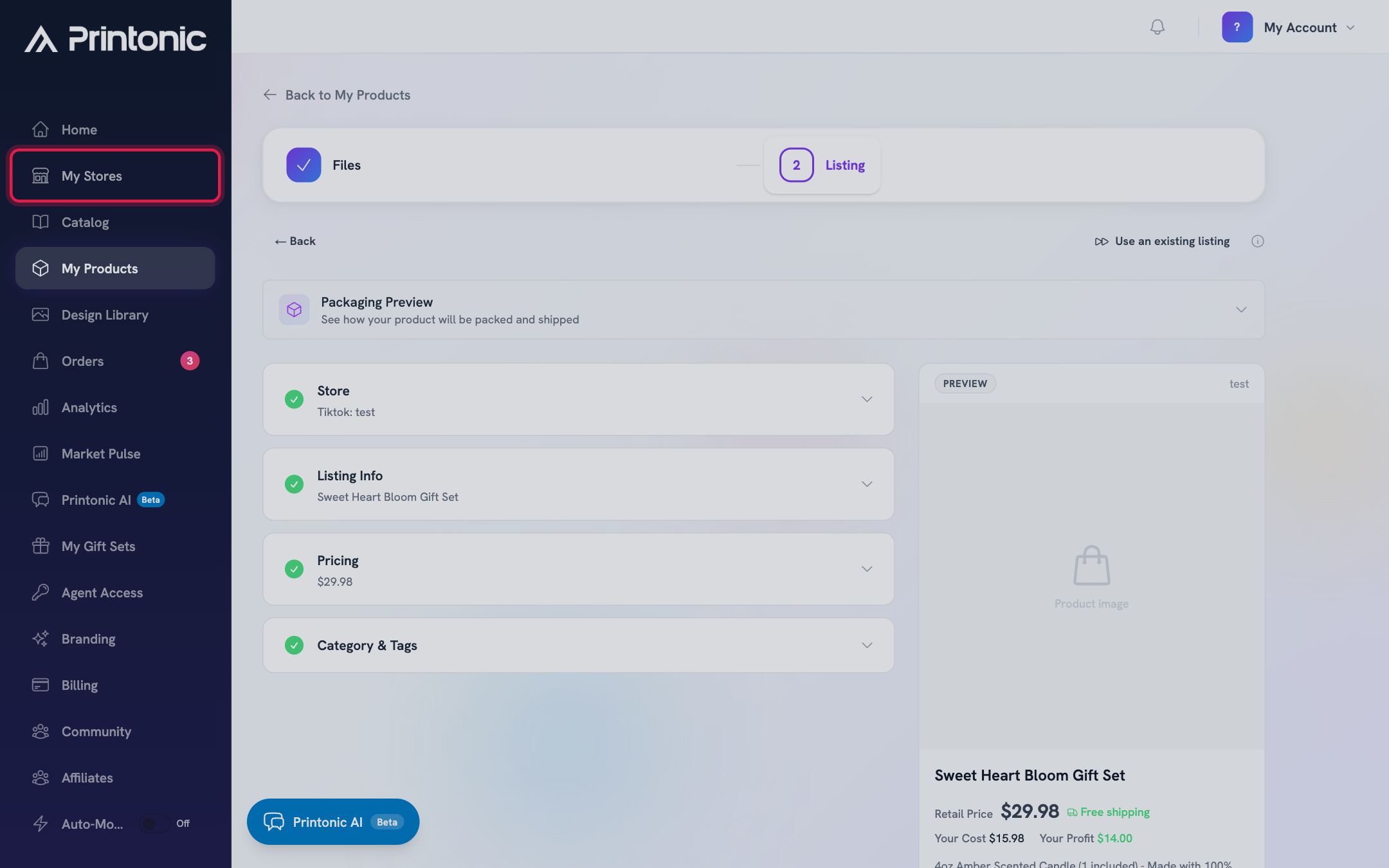
- 5
Product setup > Listing step > Listing Info and Pricing
Fill in Listing Info and Pricing
Enter your Listing Title and Listing Description (both required), then set your prices in the Pricing section. Every variation needs a positive price. Everything on the Listing step saves automatically as you type.
Missing prices are one of the most common publish blockers. If you skip a variation, the checks will tell you to set a positive price for every variation before you can publish.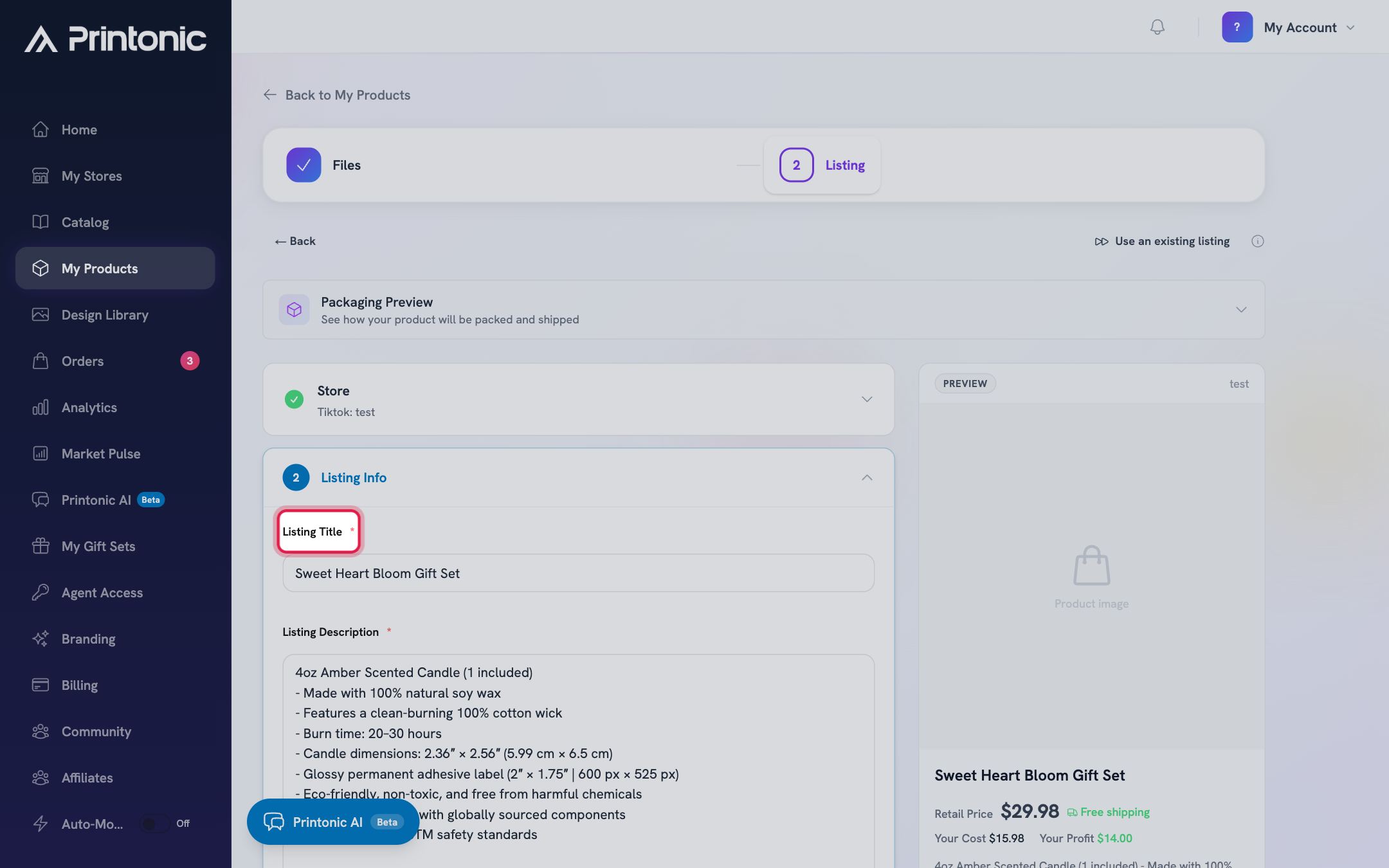
- 6
Product setup > Listing step > Category & Tags
Confirm the TikTok category
Check the TikTok category field. For TikTok-ready products it is usually preset from the Printonic catalog, but you can change it here if you want a different category. The field is marked Required before publishing to TikTok Shop. There is also an optional Brand ID field; leave it blank unless you have a registered TikTok brand.
The category matters more on TikTok than elsewhere: it decides which extra attributes and package details TikTok requires. If you change the category, the readiness checks re-run against the new category's rules.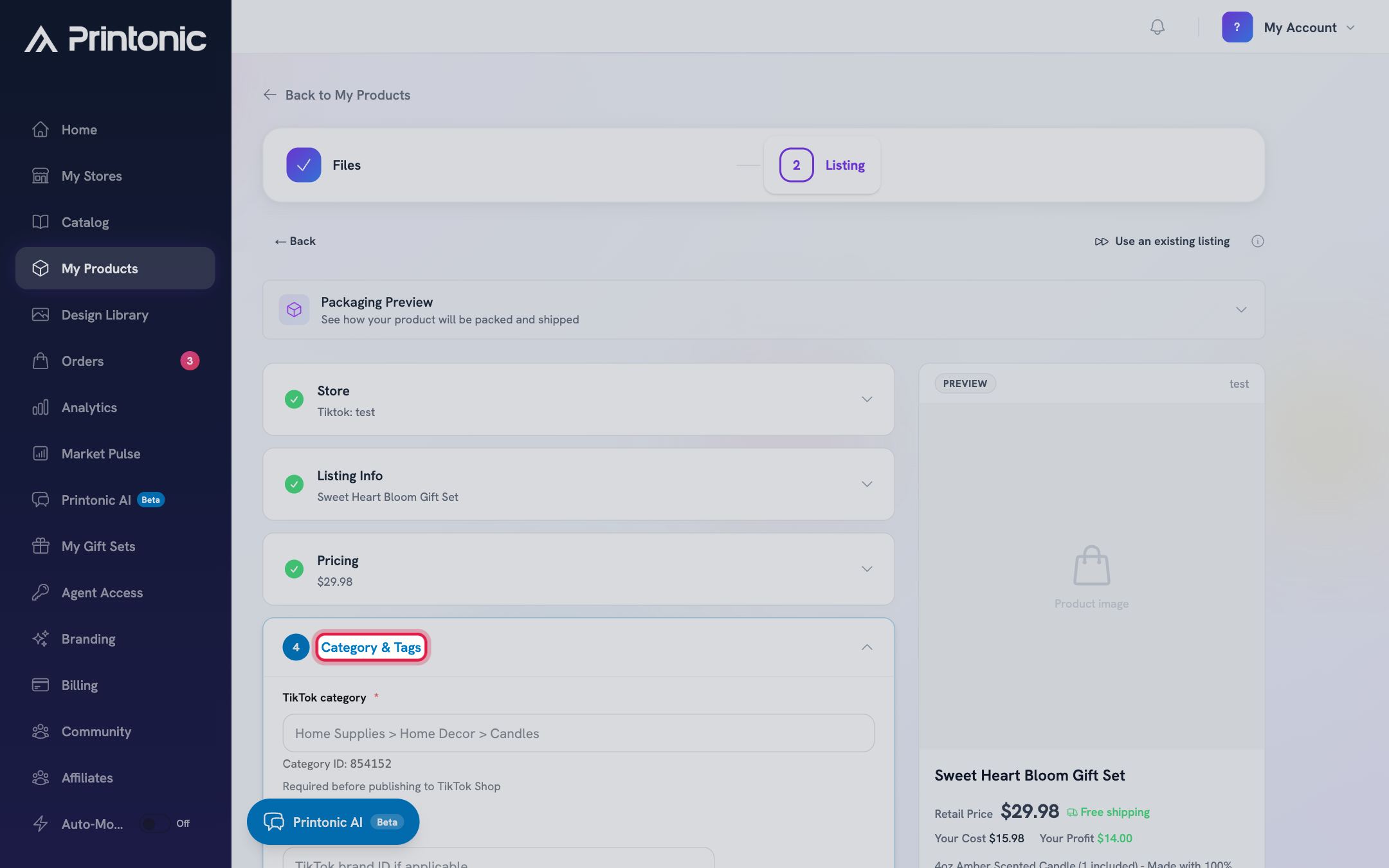
- 7
Product setup > Listing step
Clear the readiness checks
Before your listing goes to TikTok, Printonic runs the same checks TikTok will. Anything missing appears in a list titled Fix these before publishing, with one line per problem, for example: Add a listing title on the Listing tab, Select a TikTok category on the Listing tab, Set a valid package weight, or Set the required TikTok attribute (with the attribute named). Publishing stays blocked until the list is clear. Fix each item, then return to publish.
Some items are handled for you. California Prop 65 warnings default to No (no listed chemicals), and package weight and dimensions come from the Printonic catalog. If a check flags weight, dimensions, or a required TikTok attribute you cannot edit yourself, contact support and we will update the product's TikTok details.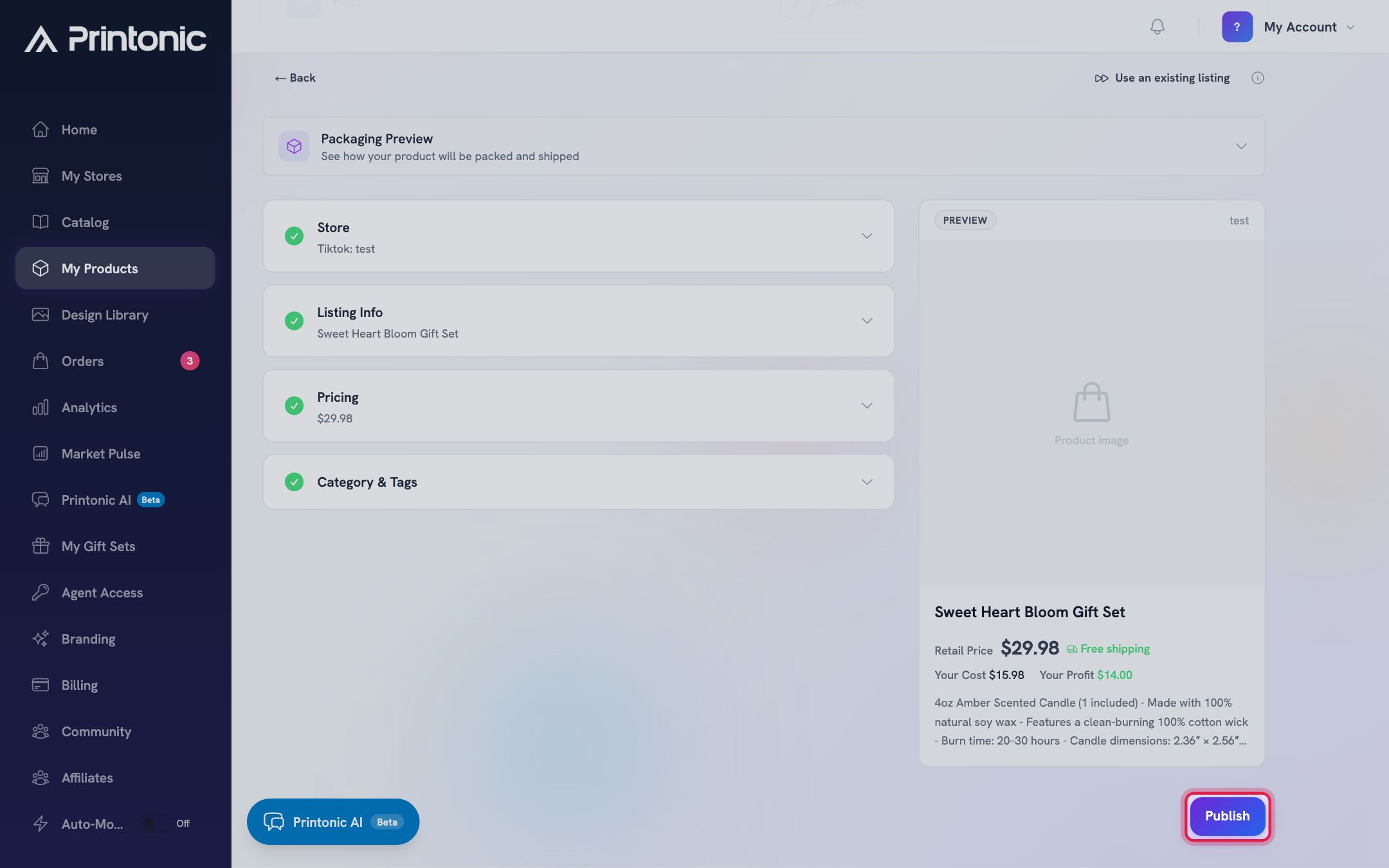
- 8
Product setup > Listing step
Click Publish and confirm
Click the Publish button at the bottom of the page. Printonic uploads your images, creates the listing in your TikTok Shop, and attaches your Printonic SKU codes so orders route to us automatically. When it finishes, the published summary appears; expand the collapsed SKU codes section if you need your codes.
If publishing fails, the error message explains exactly what to fix (for example a missing attribute or a category issue) so you can correct it and click Publish again. Keep the Reference ID from the error if you contact support.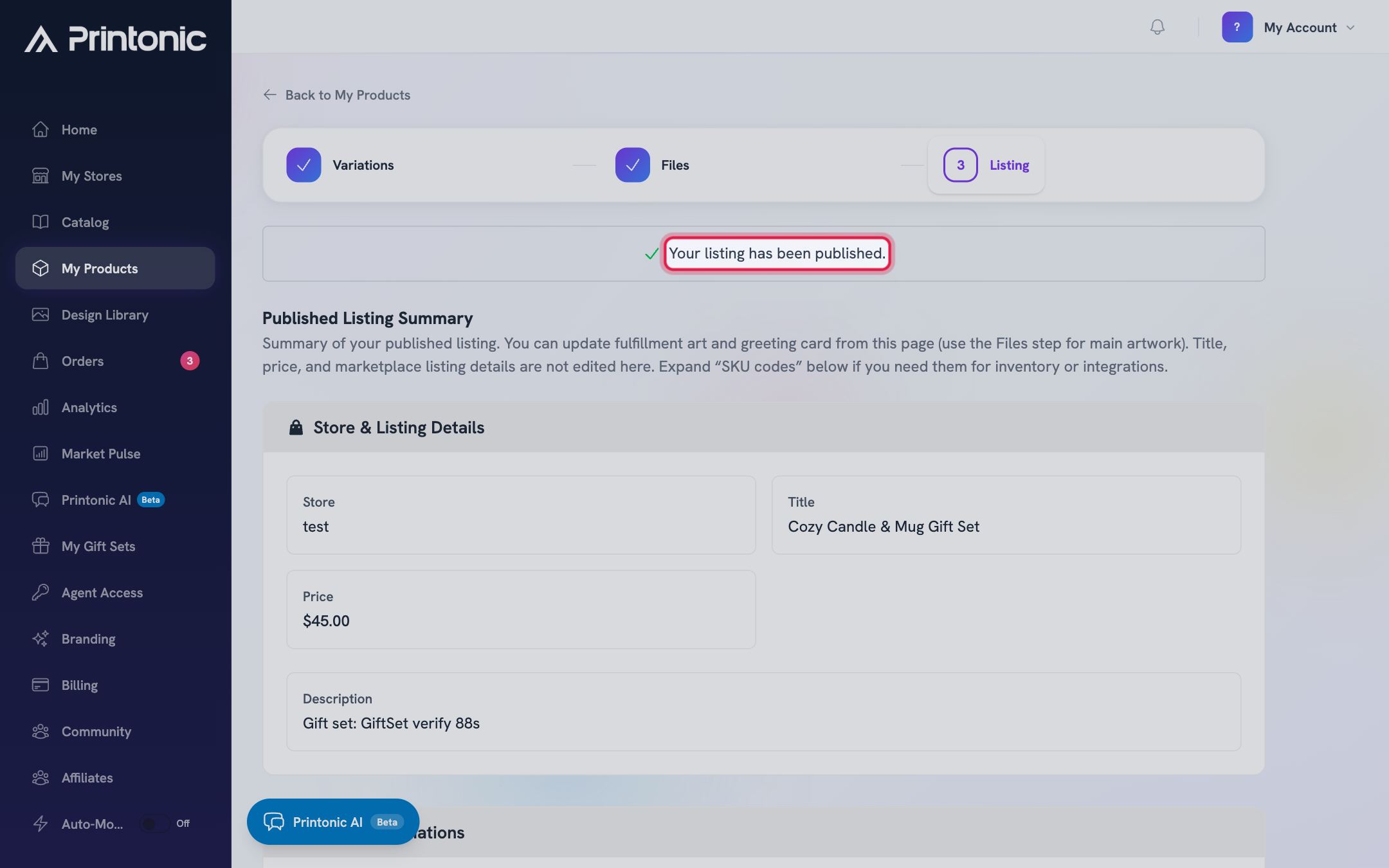
Good to know
- Products with variations (like multiple colors) need each option matched to a TikTok variation such as Color. The Printonic team sets this up once per catalog product. If you see an error mentioning sales properties that are not mapped, contact support; it is a quick one-time fix on our side.
- If you see: Could not load TikTok category requirements right now, please retry, it is a temporary hiccup talking to TikTok. Wait a moment and try again.
- If the checks say to connect a TikTok store or that the store connection could not be resolved, go to My Stores and reconnect your TikTok Shop, then return to the Listing step.
- Already have this product live on TikTok Shop? Click Use an existing listing on the Listing step to skip listing creation and just generate SKU codes. See the Use an existing listing guide.
Common questions
Can I publish to a TikTok Shop outside the US?
Not yet. TikTok Shop fulfillment is currently supported for US shops only, so non-US shops cannot be connected. When your shop's region is not the US, the connection is declined with a message explaining why.
Do I need to answer the California Prop 65 questions?
Usually no. When a TikTok category asks about Prop 65 chemicals, Printonic answers No by default, which is correct for our standard products. If you believe your specific product contains a Prop 65-listed chemical, contact support before publishing so we can set the answer correctly.
Where do the package weight and dimensions come from?
From the Printonic catalog. TikTok requires a package weight on every listing, and some categories also require dimensions. TikTok-ready products already have these filled in, so you should not need to do anything. If a readiness check still flags them, contact support.
What happens after my listing is live on TikTok Shop?
Orders placed on your TikTok Shop sync into Dashboard > Orders automatically, matched by the SKU codes on the listing. Printonic prints, packs, and ships them, and tracking is sent back to TikTok for you.
Related guides
Connect your store
Link your Etsy, Shopify, TikTok Shop, or WooCommerce store to Printonic so your orders sync automatically. Covers connecting, renaming, testing, disconnecting, and reconnecting.
Publish a listing to your store
Finish your product's Listing step (store, title, description, pricing), publish it to your connected store, and find your SKU codes afterward.
Link an existing listing with SKU codes
Already have a live listing on your store? Skip listing setup, generate Printonic SKU codes, and paste them into your listing so orders route to Printonic for fulfillment.
Add a product
Turn a catalog item into your own product: pick variations, upload your art, set prices, and publish it to your store with the step-by-step setup wizard.